Enable Stereo Mix
Want to record a webinar, capture game audio, or sample what's playing through your speakers — but your recorder hears only silence? Windows hides the 'Stereo Mix' input by default, the virtual device that taps whatever your PC is playing. Enabling it takes under a minute, and it is the standard trick for recording system audio without extra software.
TL;DR / Quick Fix
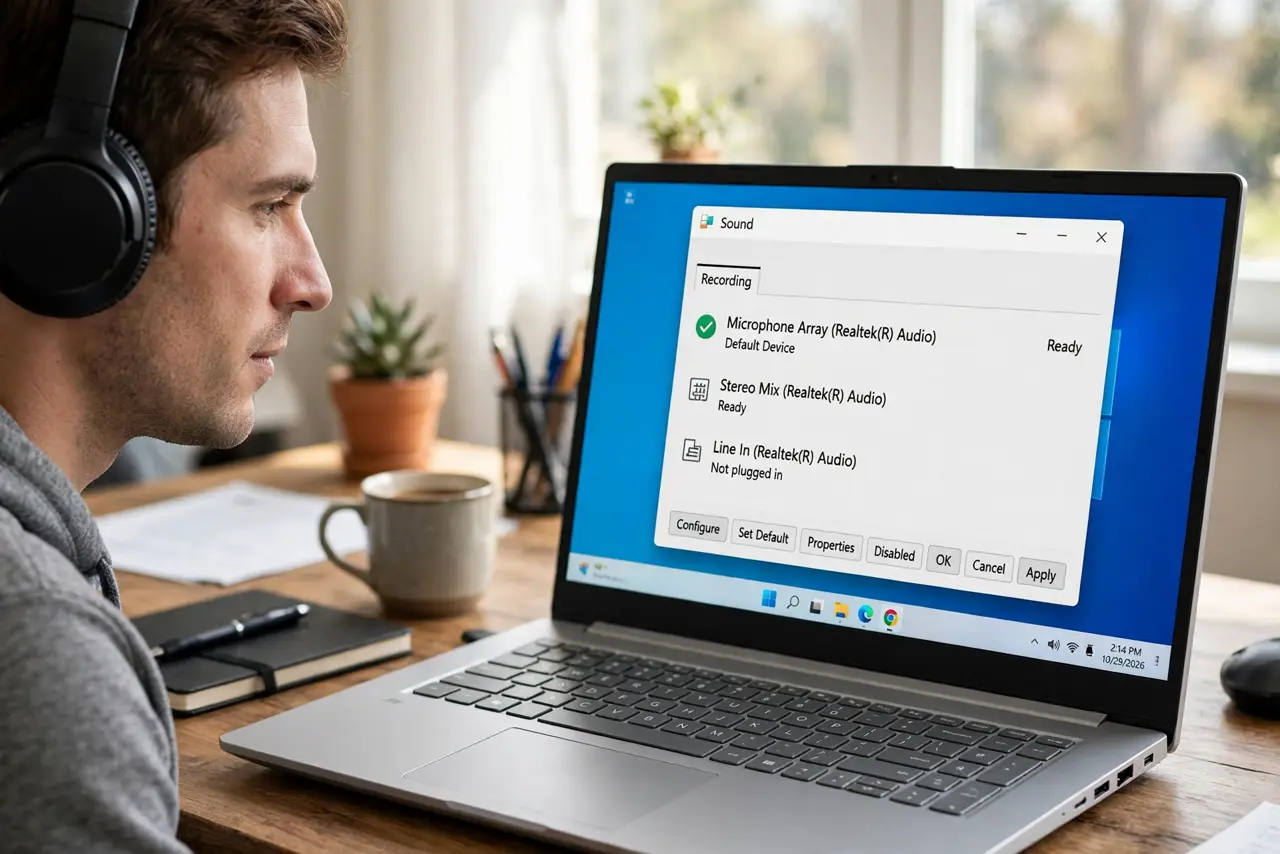
Quick fix: right-click the speaker icon, open Sound settings, then the classic Sound control panel, go to the Recording tab, right-click empty space and choose Show Disabled Devices. Right-click Stereo Mix and Enable it. Set it as default when you want to record system audio.
Follow these steps
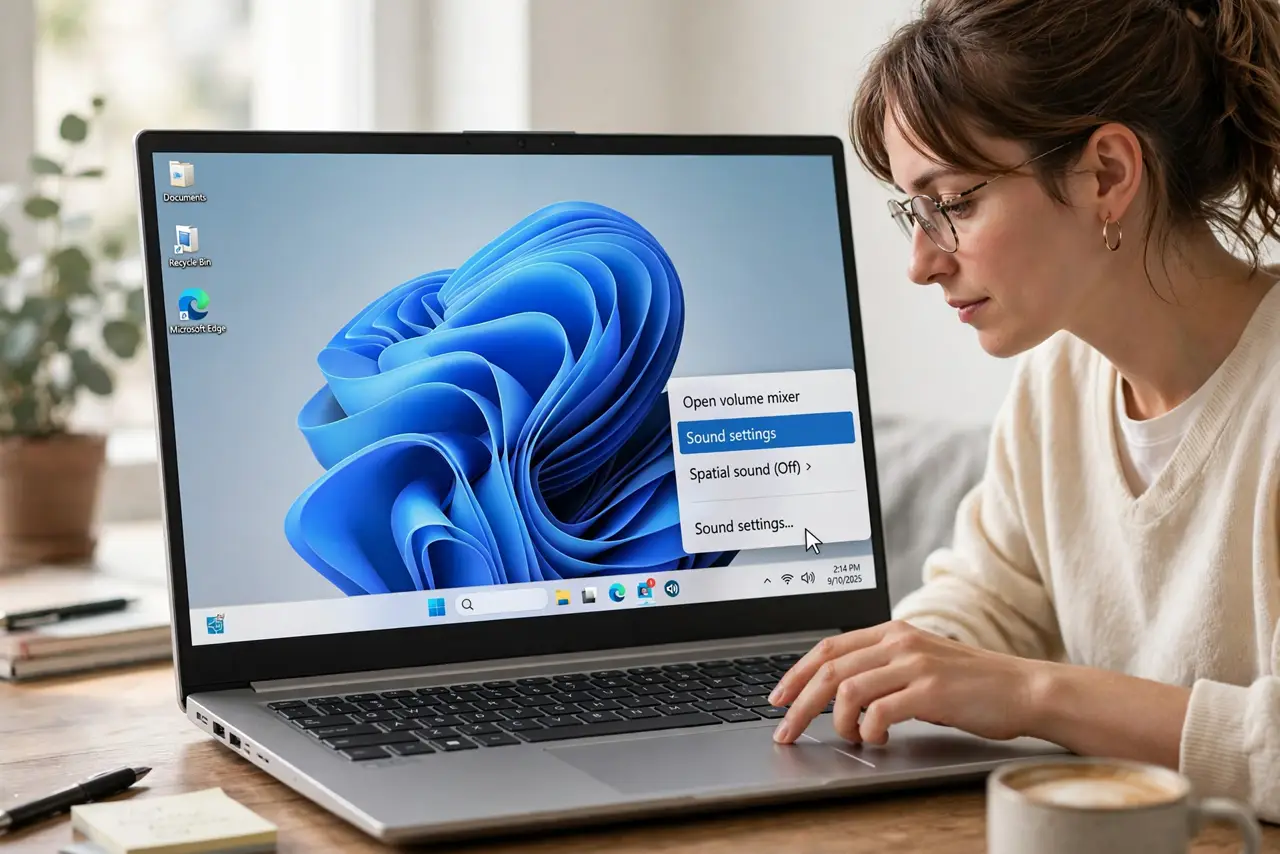
- Open the classic Sound panel. Right-click the speaker icon in the taskbar and choose Sound settings, then scroll to 'More sound settings' to open the classic control panel. The modern settings page hides what you need.
- Show disabled devices. In the Recording tab, right-click any empty space and check 'Show Disabled Devices'. Stereo Mix is installed but hidden on most PCs — this reveals it.
- Enable Stereo Mix. Right-click Stereo Mix and choose Enable. A green checkmark appears. If it never appears, your audio driver does not support it — see the missing Stereo Mix guide.
- Set it as the recording source. In your recorder or call app, choose Stereo Mix as the input device. It now captures everything playing through your speakers — system sounds included.
- Balance the levels. Right-click Stereo Mix > Properties > Levels and start around 70. Too high distorts; too low gives a faint recording. Test with a short clip first.
- Switch back when done. Remember to set your microphone back as the default input afterward. Forgetting this is why people later wonder why their mic 'stopped working' in calls.
What NOT to do
- Do not leave Stereo Mix as default permanently. Your mic stops being the input, and the next call will broadcast your system audio instead of your voice.
- Do not record audio you do not have the right to capture. Stereo Mix makes it easy — copyrighted streams and private calls are still off-limits.
- Do not max the Stereo Mix level. Digital clipping at 100 sounds harsh; a moderate level with the source volume up is cleaner.
- Do not assume every PC has it. Some audio drivers omit Stereo Mix entirely — that is a driver limitation, not a Windows bug; see when it is missing.
Frequently asked questions
Why is Stereo Mix missing from my list?
The audio driver does not expose it. Update the driver from the PC or motherboard maker — or accept the limitation; see the missing-device guide for workarounds.
Can I record mic and system audio together?
Not with Stereo Mix alone — it captures only system output. You need software that mixes two inputs, or record them separately and combine.
Does Stereo Mix affect sound quality?
It captures the digital stream directly, so quality matches what you hear. The recording is only as good as the source — a low-bitrate stream records low-bitrate.