Sync Sticky Notes
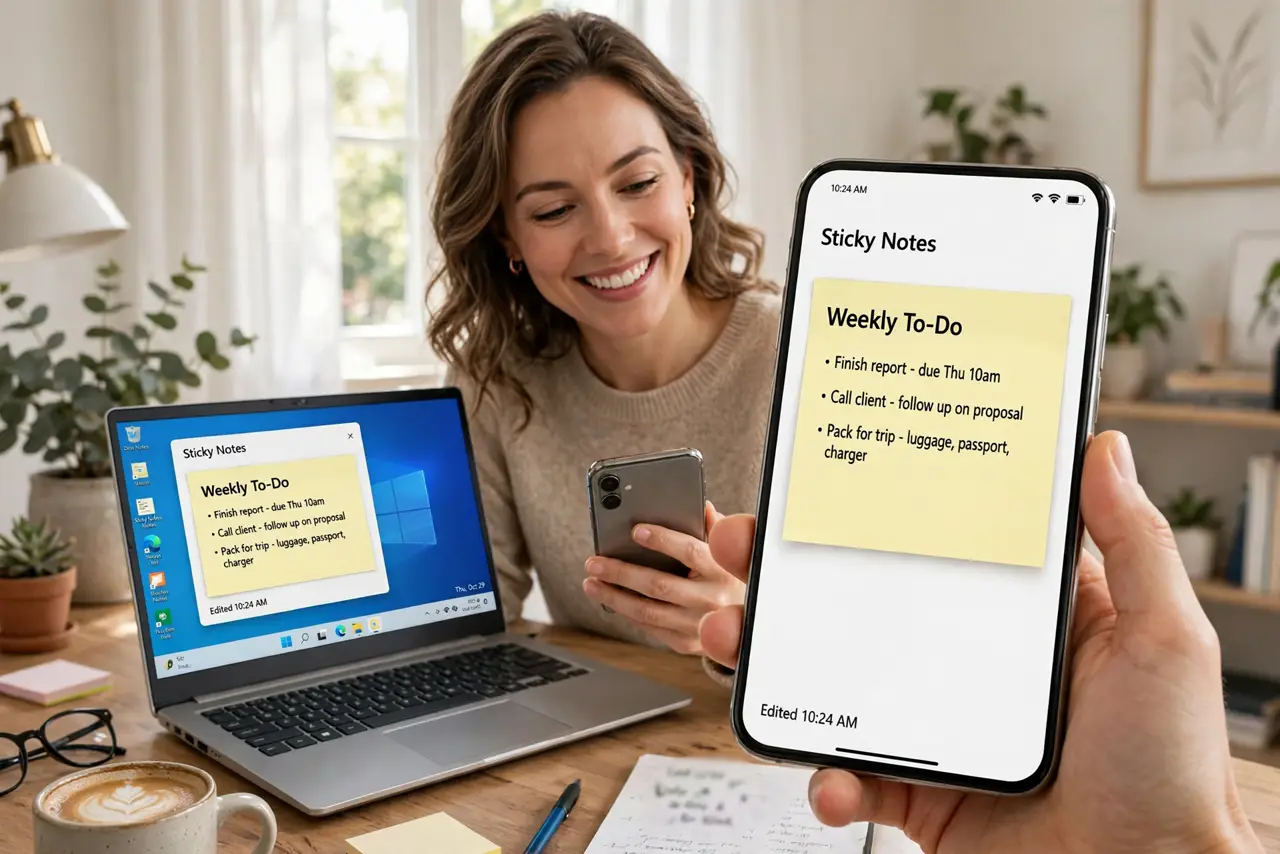
A brilliant note trapped on your work PC is useless at home. Sticky Notes syncs through your Microsoft account — same notes on every Windows PC you sign into. This guide gets sync working and rescues notes that seem to have vanished.
TL;DR / Quick Fix
Quick fix: Sticky Notes sync through your Microsoft account — sign into Sticky Notes with the same account on each PC and notes appear everywhere. If a note is missing, check you are signed in and not in a local-only session. Deleted notes linger in the trash for 30 days.
Follow these steps
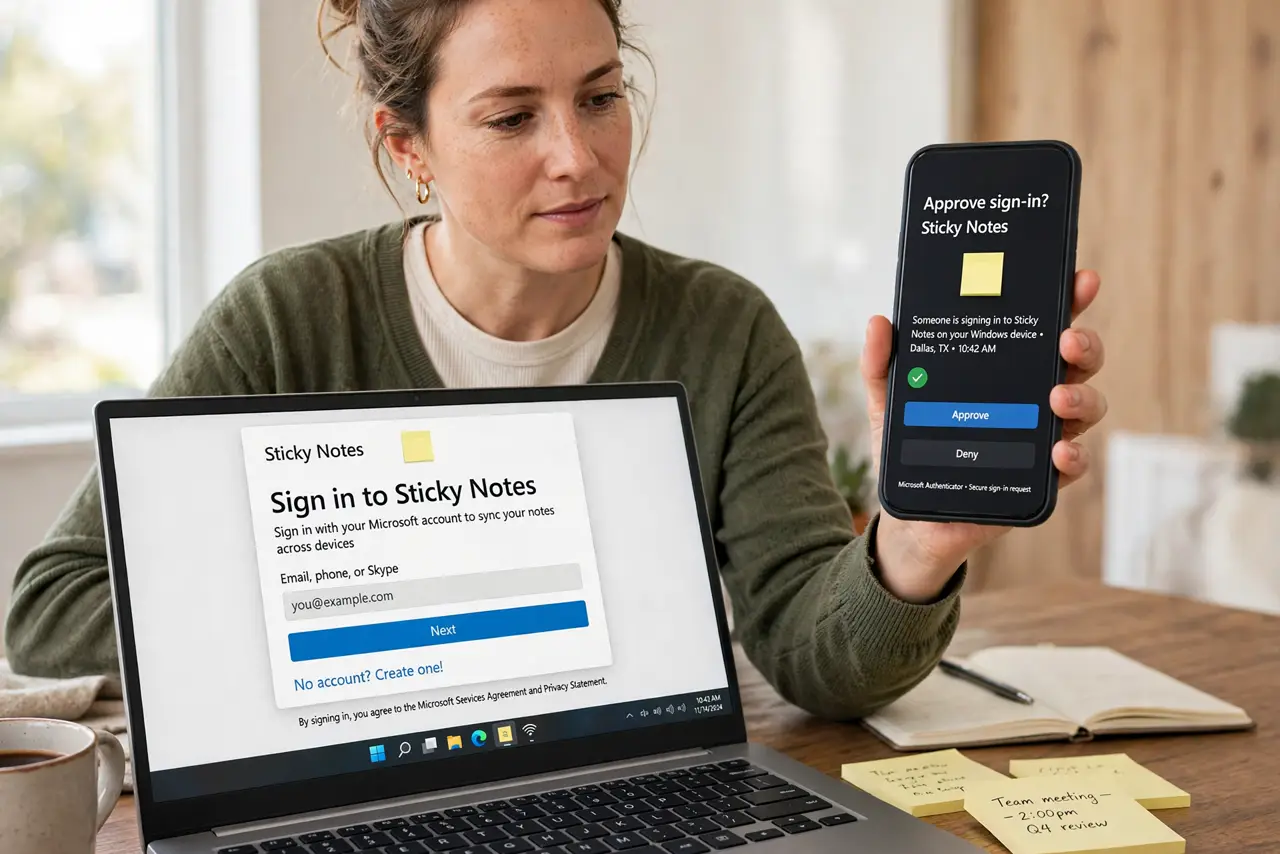
- Sign into Sticky Notes. Open Sticky Notes, go to settings, and sign in with your Microsoft account. Sync cannot work anonymously — the account is the bridge.
- Use the same account everywhere. Sign into Sticky Notes with the identical account on each PC. Different accounts mean different note universes that never meet.
- Check sync status. The settings show the account and last sync. If notes are stale, sign out and back in — the classic sync reset.
- Find 'missing' notes. Notes rarely vanish — they are usually under a different account or in the deleted pile. Check the note list's trash and confirm the signed-in account first.
- Recover deleted notes. Deleted notes sit in the trash for 30 days. Open the note list, check deleted items, and restore before the window closes.
- Use the web as backup. Your notes also appear in Outlook on the web under the account. The web view is the ground truth when devices disagree — and for notes that live outside Windows, Notepad autosave covers the quick-jot case.
What NOT to do
- Do not use Sticky Notes signed out and expect sync. Local-only notes stay local — the account is the whole mechanism.
- Do not panic at missing notes. Check the account, check the trash, check the web view — in that order.
- Do not treat Sticky Notes as archival. It is a scratchpad with sync; important notes deserve a real notes app too.
- Do not share the Microsoft account to share notes. Shared accounts merge everything — use proper sharing in a notes app instead.
Frequently asked questions
Why are my notes not syncing?
Almost always the account: signed out, or different accounts on different PCs. Verify in settings on each device.
Can I access Sticky Notes on my phone?
Via Outlook/OneNote mobile apps under the same Microsoft account — the notes sync there too.
Is there a note size limit?
Practical limits exist for very long notes. Sticky Notes suits quick jots; long documents belong elsewhere.