Storage Spaces? Plain Basics
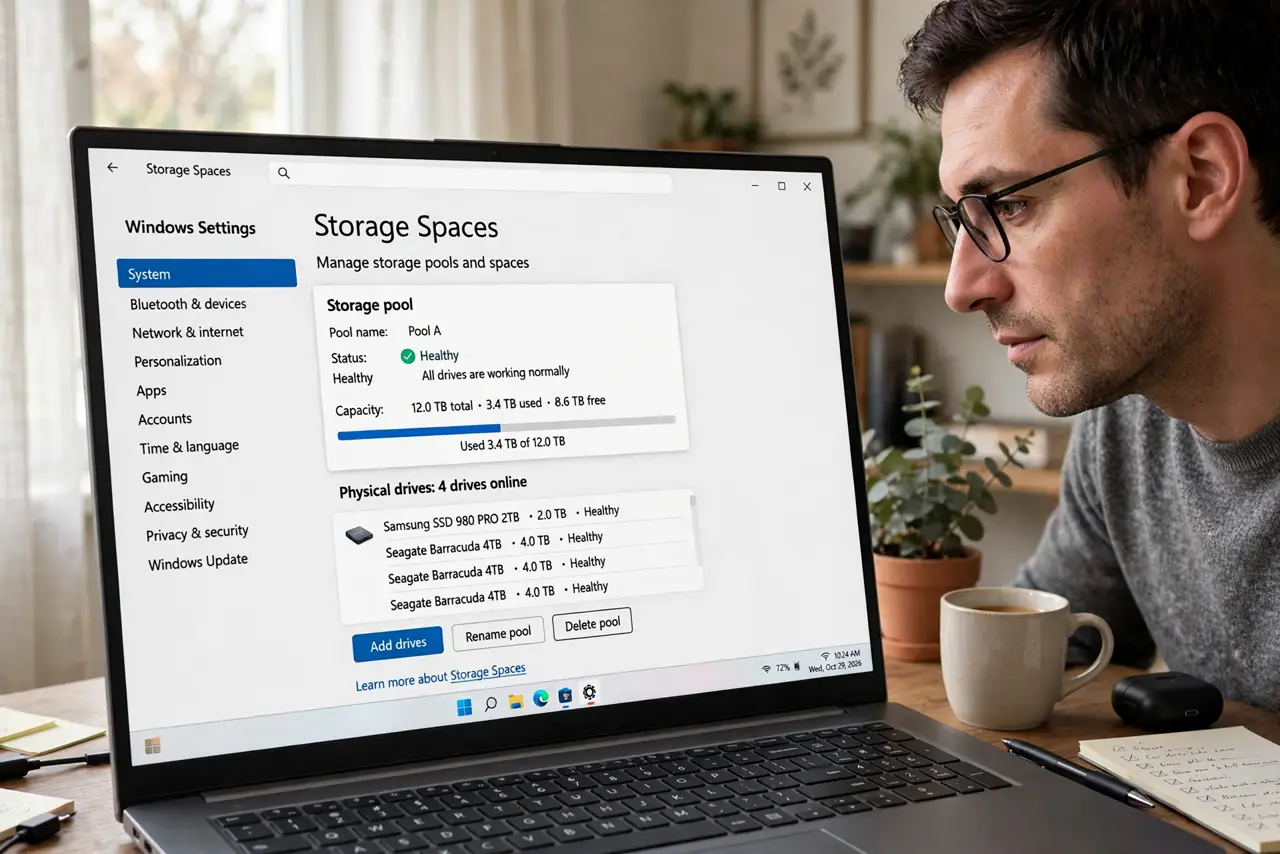
Storage Spaces is Windows' built-in way to pool drives together — two or three disks acting as one bigger, safer volume. It can mirror your files across drives so one disk dying does not kill your data. It is not a backup, but it is the easiest redundancy Windows offers without extra hardware. Here is the plain explanation and the safe setup.
TL;DR / Quick Fix
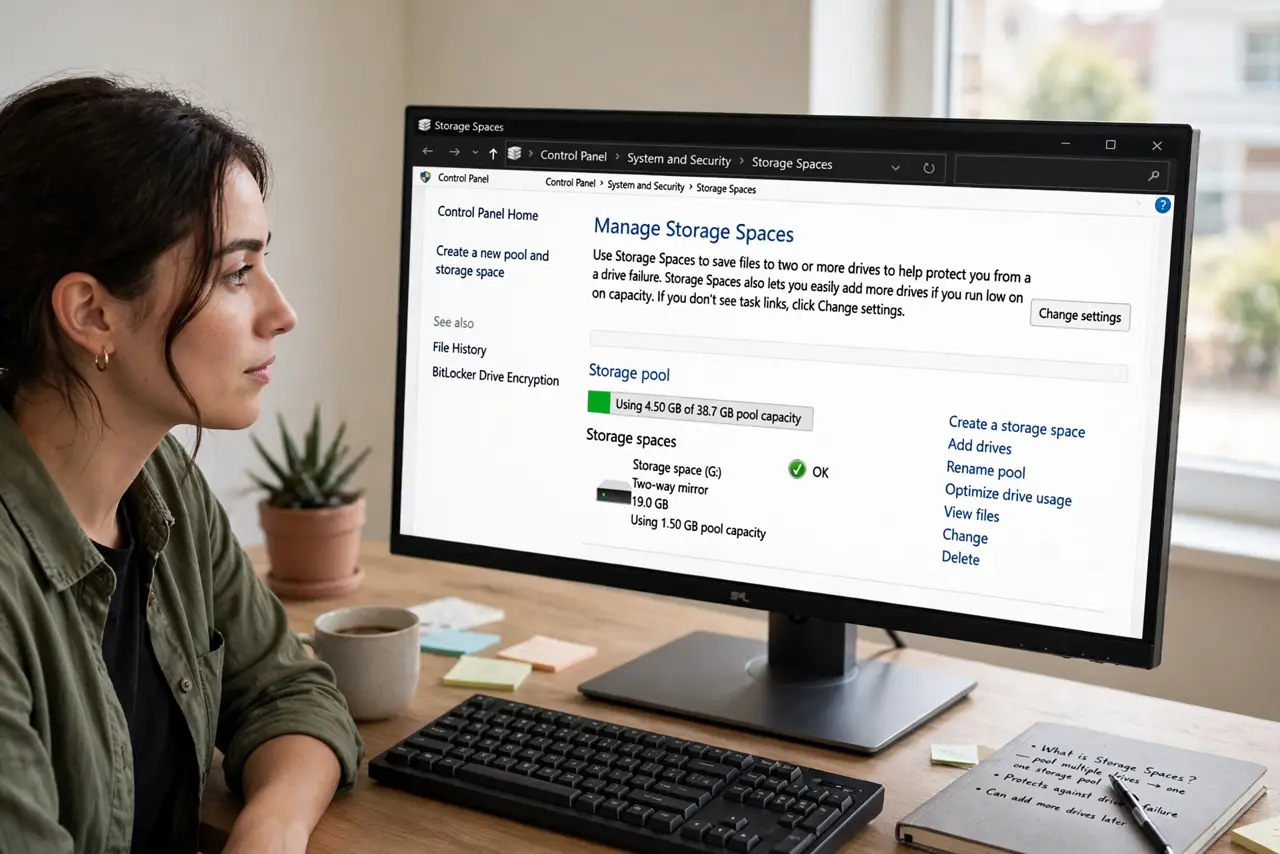
Quick fix: open Control Panel, System and Security, Storage Spaces, and create a new pool with two or more empty drives. Choose Two-way mirror for protection against one drive failing. Name the space and pick a size. This protects against drive failure — keep real backups too.
Follow these steps
- Understand what it does. Storage Spaces combines physical drives into a pool, then carves virtual drives from it. With mirroring, every file is written to two disks — one dies, your data lives. It is redundancy, not backup: deleted files are deleted everywhere.
- Gather two or more drives. You need at least two drives for mirroring, and they should be empty — creating a pool formats them. External USB drives work, though internal ones are more reliable. Check drive health with a format check mindset first.
- Create the pool. Open Control Panel, System and Security, Storage Spaces, Create a new pool and storage space. Select the drives, click Create pool. Windows warns about formatting — confirm only if the drives hold nothing you need.
- Choose Two-way mirror. For the resiliency type, pick Two-way mirror: it needs two drives and survives one failure. Three-way mirror needs more drives; Simple has no protection at all — avoid Simple for anything you care about.
- Name it and set the size. Give the space a name like 'Photos-Mirror' and choose a logical size — it can exceed physical space, but do not: keep it honest to avoid nasty surprises when the pool fills.
- Test, then trust gradually. Copy some test files, then simulate failure by disconnecting one drive — files should remain accessible. Reconnect and let it repair. Only then migrate real data, and keep an actual backup elsewhere.
What NOT to do
- Do not use Simple resiliency for important data. Simple stripes with zero protection — one dead drive kills everything.
- Do not treat it as a backup. Mirroring protects against drive failure only — deletion, corruption, and ransomware hit all copies.
- Do not pool drives with data you need. Creating a pool formats every drive in it — back up first.
- Do not mix wildly different drive speeds. The pool runs at the pace of its slowest member for many operations.
Frequently asked questions
Is Storage Spaces a backup?
No. It protects against drive failure, not against deletion, corruption, or ransomware. You still need real backups, ideally offsite.
How many drives do I need?
Two for Two-way mirror, which survives one drive failure. More drives allow stronger options, but two is the practical start.
Can I add drives later?
Yes — pools accept new drives, and you can extend the space. Plan a little headroom rather than filling to the brim.