Undo a Bad Windows Update
Your PC was fine yesterday, and today — right after an update — the Wi-Fi is gone, the screen flickers, or a program crashes on launch. That is a bad update, and Windows lets you take it back. Uninstalling the offending update usually restores things in minutes. If it does not, a restore point or a driver rollback usually will.
TL;DR / Quick Fix
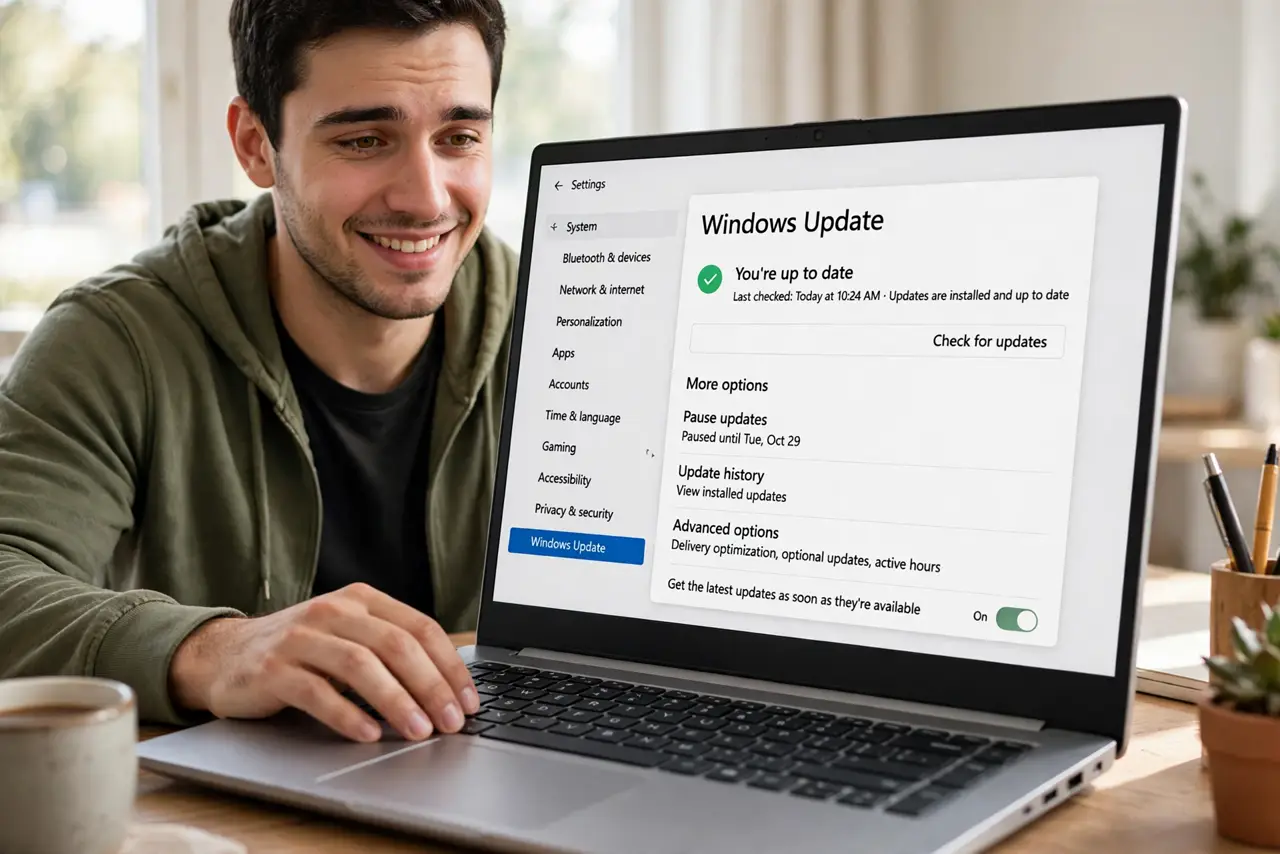
Quick fix: in Settings, open Windows Update, then Update history, and choose Uninstall updates — remove the update that broke things and restart. If problems remain, roll back to a restore point made before the update. Then pause updates briefly so the bad one does not reinstall itself.
Follow these steps
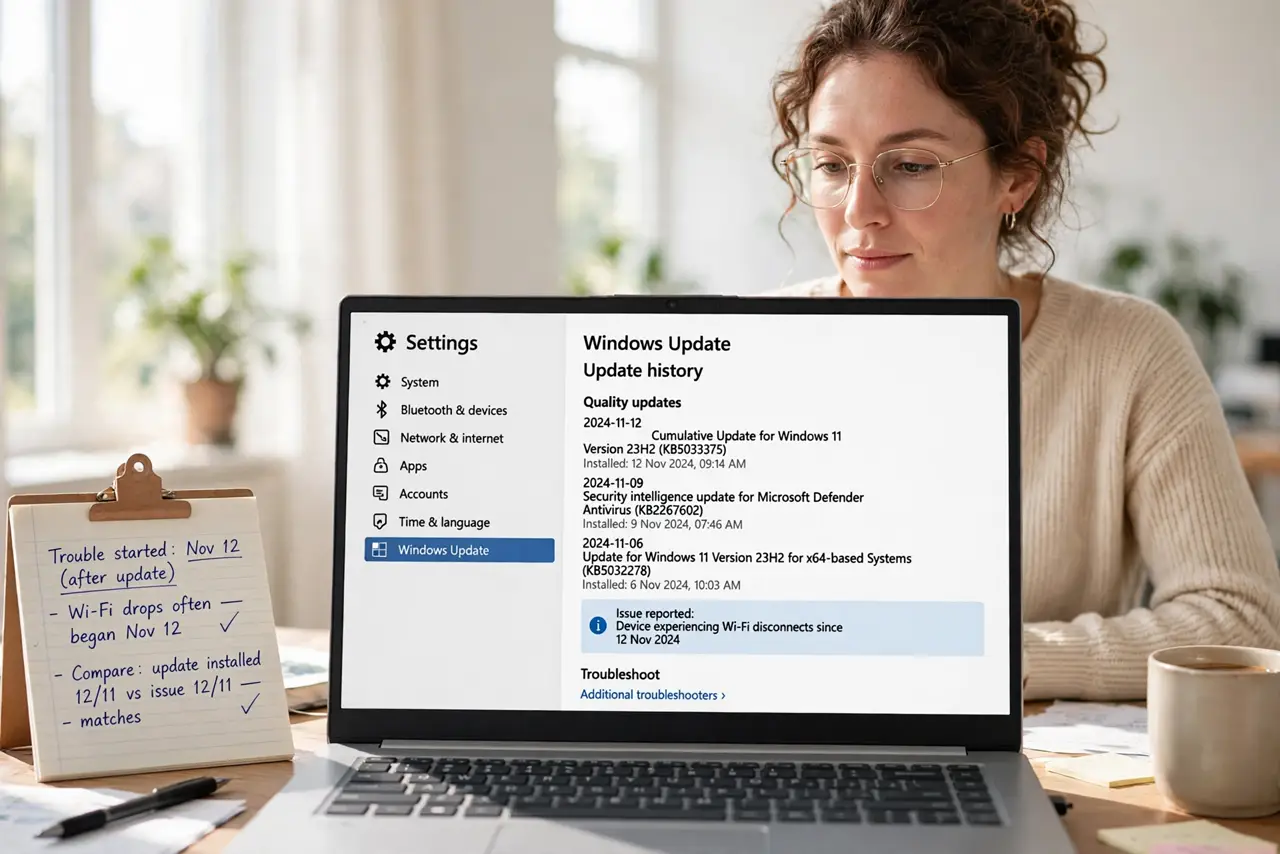
- Confirm an update caused it. Open your update history and compare dates: did the trouble start the same day an update installed? A match makes the update the prime suspect.
- Uninstall the update. In Settings > Windows Update > Update history, choose Uninstall updates. Select the suspect, uninstall it, and restart the PC.
- Roll back the driver if a driver broke it. If the bad update was a driver, open Device Manager, right-click the device, choose Properties > Driver, and hit Roll Back Driver.
- Fall back to a restore point. When uninstalling is not enough, roll the system to a restore point made before the update. Your files stay untouched.
- Pause updates so it does not return. Windows will try to reinstall the same update. Pause updates for a few weeks to give Microsoft time to ship a fixed version.
- Check for the fixed version later. Resume updates after a few weeks and install the replacement. Updated updates usually resolve the original breakage.
What NOT to do
- Do not uninstall every update on the list. Remove only the one tied to your problem — the rest are protecting you.
- Do not expect System Restore to bring back personal files. It restores system files and settings, not documents.
- Do not delete update files manually from system folders. Use the proper uninstall path — manual deletions corrupt the update system.
- Do not stay on the old version forever. Rollbacks are a bridge to the fixed version, not a permanent home.
Frequently asked questions
Will I lose files by uninstalling an update?
No. Uninstalling an update removes system changes only — your documents, photos, and personal files are not touched.
Why did Windows reinstall the update I removed?
Windows Update does not know the update was bad. Pause updates after uninstalling so it does not come straight back.
Can I block just one update permanently?
Microsoft offers an official show-or-hide tool that hides a specific update from reinstalling. Use that rather than permanent hacks.