Reset Windows but Keep Your Files
Windows is a tangle of broken settings, crashing apps, and problems no troubleshooter fixes — but the thought of reinstalling everything stops you. The built-in reset with Keep my files reinstalls Windows while preserving your personal files. It is the fresh start without the full rebuild, with a few honest caveats.
TL;DR / Quick Fix
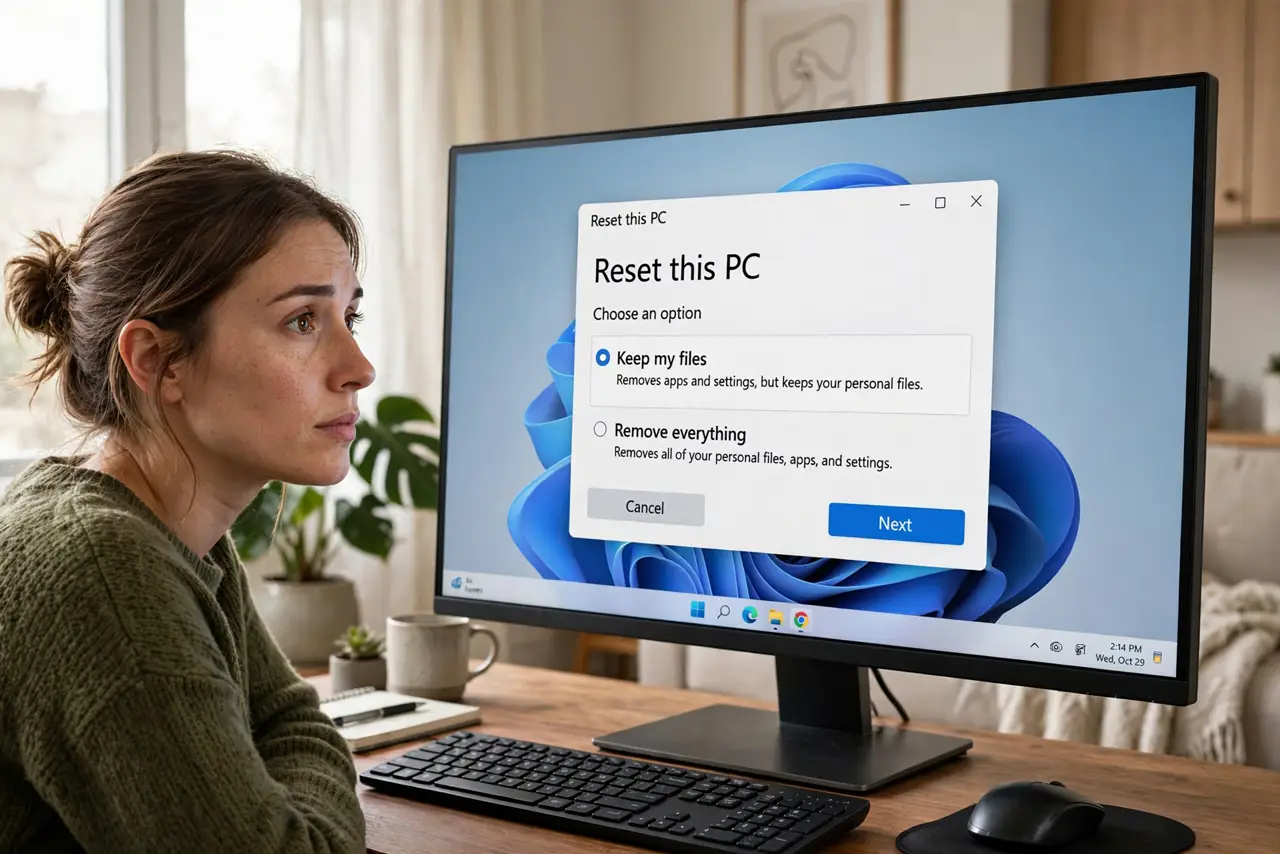
Quick fix: open Settings, go to System, then Recovery, and choose Reset this PC — pick Keep my files to reinstall Windows while preserving documents and photos. Installed apps and settings will be removed, so reinstall apps afterward. Back up first anyway: 'usually safe' is not the same as 'guaranteed.'
Follow these steps
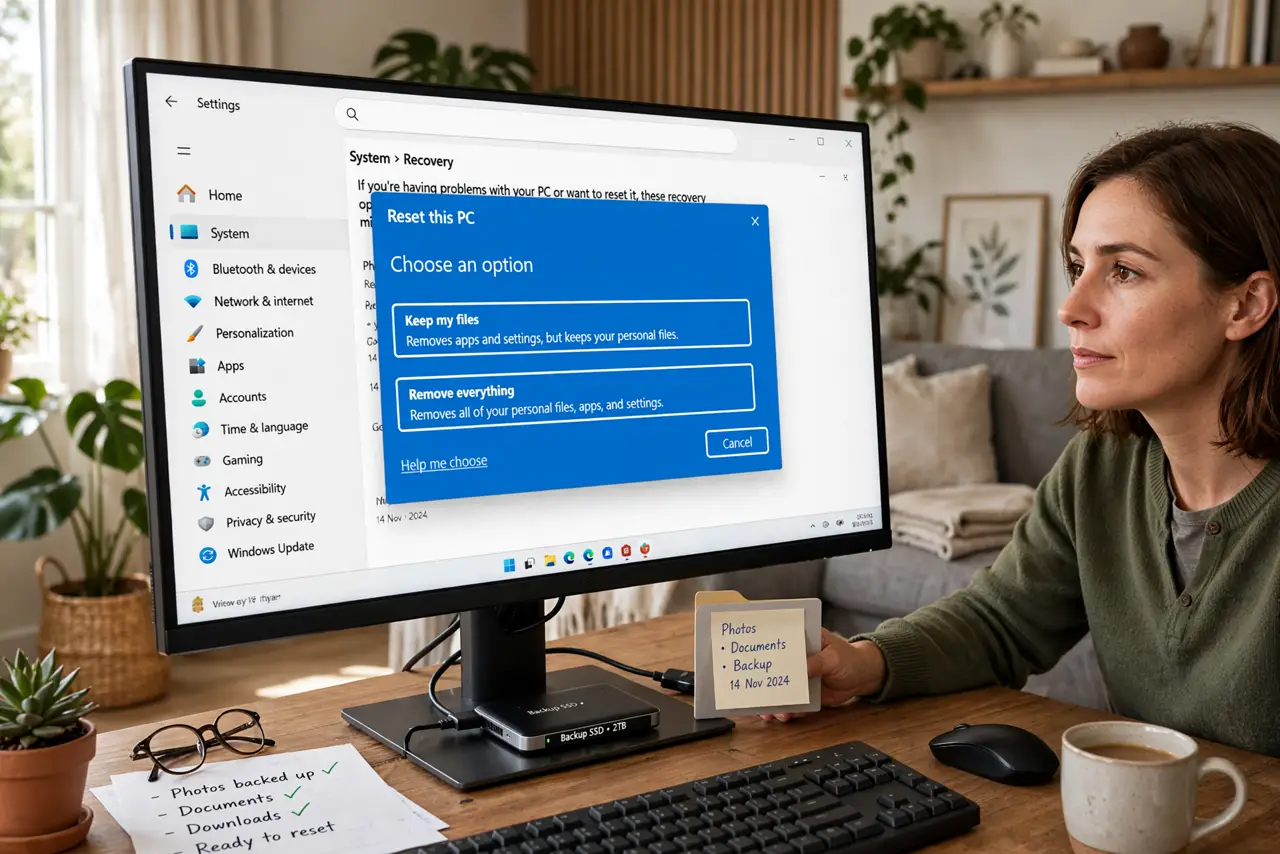
- Back up anyway. Keep my files works reliably, but 'reliably' is not 'always.' Copy what matters to an external drive or cloud first — back it up properly.
- Start the reset. Go to Settings > System > Recovery and click Reset this PC. The wizard walks you through the rest.
- Choose Keep my files. This is the crucial click. Keep my files preserves documents and photos; Remove everything wipes the drive. Read twice, click once.
- Pick cloud or local reinstall. Cloud download fetches a fresh Windows copy — needs internet but is cleaner. Local reinstall uses files already on the PC and is faster offline.
- Let it finish uninterrupted. The PC will restart several times over thirty minutes to a few hours. Keep it plugged in and do not force it off mid-reset.
- Reinstall apps and check drivers afterward. Apps are removed and most settings revert to defaults. Reinstall your programs, then let driver updates settle the hardware.
What NOT to do
- Do not skip the backup because the option says 'keep my files.' Resets occasionally fail midway, and a backup is the only net.
- Do not click Remove everything by misreading. The two options sit side by side — slow down on this screen.
- Do not interrupt the reset. Forcing the power off mid-reinstall can leave the PC unbootable and the files unkept.
- Do not expect a reset to guarantee malware removal. For an infected PC, a full clean install from external media is the safer cure.
Frequently asked questions
Will I lose my photos and documents?
No — Keep my files preserves personal files. Installed applications and most settings are removed, so plan to reinstall apps.
How long does a reset take?
Anywhere from thirty minutes to a few hours depending on the PC and the reinstall type. Cloud download adds the download time.
The reset failed halfway — now what?
Boot from a recovery drive and use its reinstall option. That path does not depend on the half-reset system.