Tame Notifications? Basics
Your Windows PC buzzes, dings, and slides banners at you all day, and half of them are things you never asked to hear about. Notifications are useful when they are the right ones — messages from people, calendar reminders, security alerts. The rest is noise you can safely silence. Here is how to take back control of Windows notifications in a few minutes.
TL;DR / Quick Fix
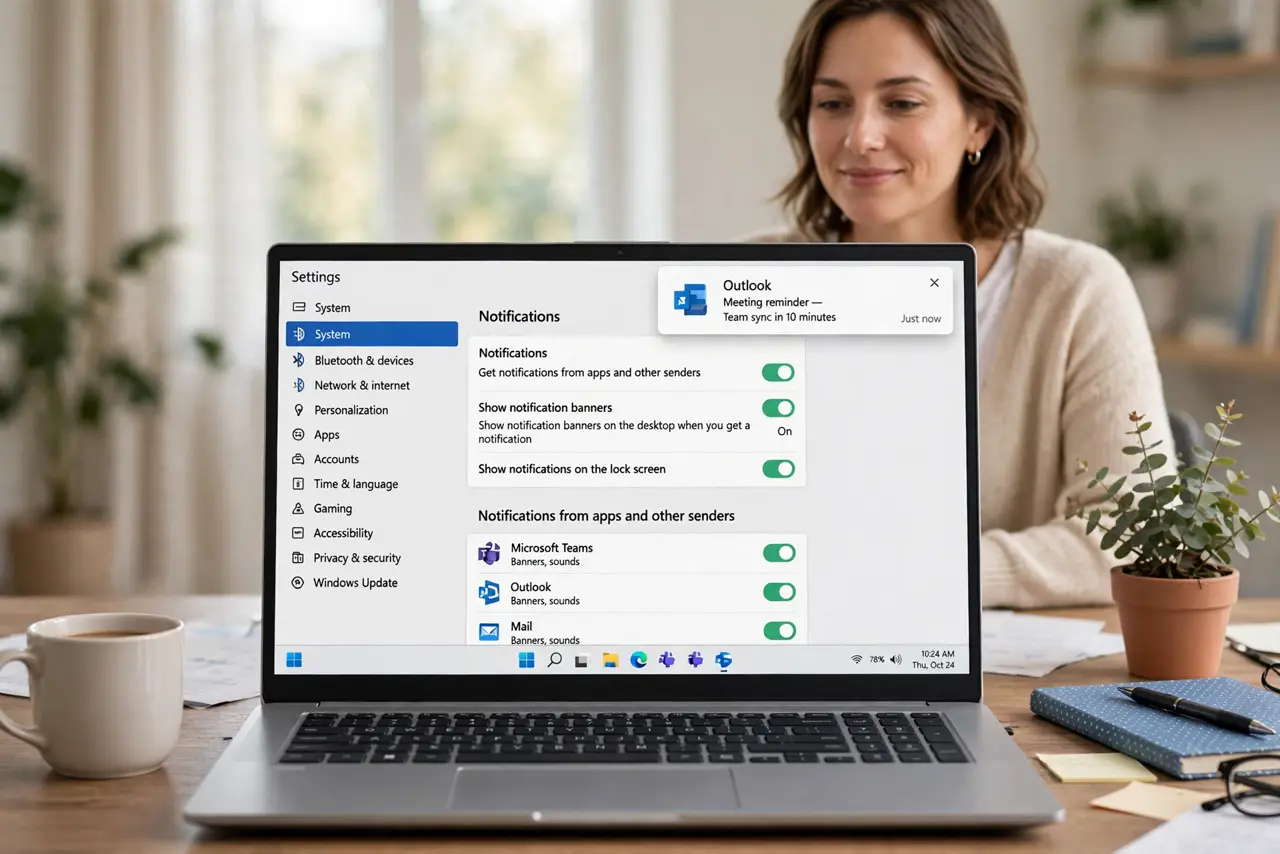
Quick fix: open Settings, then System, then Notifications, and turn off anything you do not need. Use Do Not Disturb for quiet hours, and set per-app rules so only people and important apps can interrupt you. Urgent alerts from security and calendar apps should stay on.
Follow these steps
- Open the notification settings. Press Windows key + I, go to System, then Notifications. This one page controls nearly everything — the master switch, Do Not Disturb, and every app's individual rules.
- Kill notifications for apps you do not care about. Scroll the app list and toggle off anything that only ever spams you — games, news apps, shopping apps. They keep working fine; they just stop shouting. For finer control, see per-app banner settings.
- Turn on Do Not Disturb for focus time. In the same settings page, enable Do Not Disturb or set automatic rules for work hours. Notifications queue up silently instead of interrupting — nothing is lost, just delayed.
- Keep the important ones on. Leave banners on for messaging apps, your calendar, and security or antivirus alerts. The goal is fewer interruptions, not missing the things that actually matter.
- Tame lock-screen and sound clutter. Further down the page, turn off 'Show notifications on the lock screen' if you want privacy, and disable notification sounds per app for the ones that only need a silent banner.
- Check Focus sessions for deep work. The Clock app's Focus sessions pair a timer with Do Not Disturb. It is a nice one-click way to silence everything for 25 focused minutes without fiddling with settings.
What NOT to do
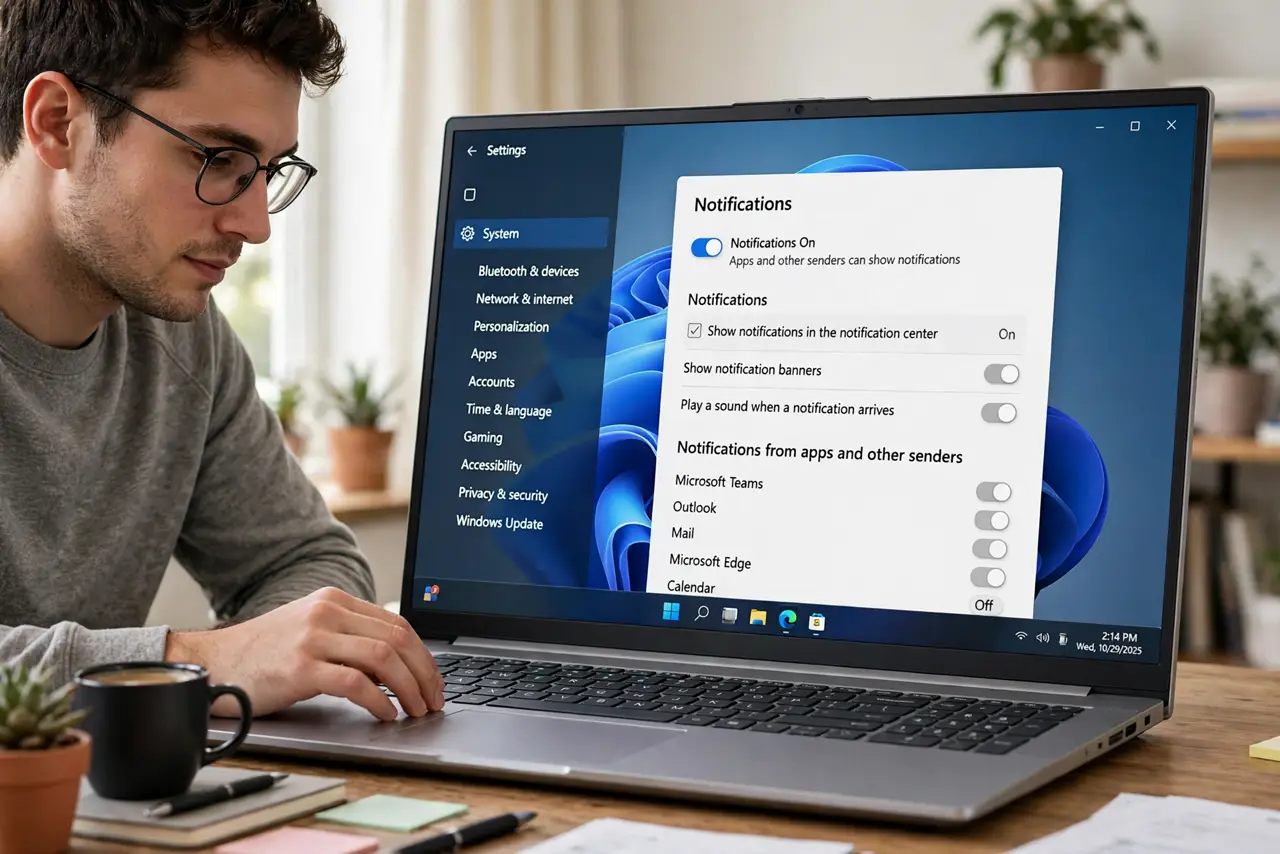
- Do not turn off ALL notifications at once. You will miss messages, calendar events, and security warnings — tune per app instead.
- Do not forget Do Not Disturb has automatic rules. Setting it manually every day gets old; schedule it once for your work or sleep hours.
- Do not confuse muting an app with uninstalling it. Toggling notifications off changes nothing about the app itself — it still runs normally.
- Do not ignore the notification center entirely. Silenced notifications pile up there, so glance at it once a day for anything you muted but might need.
Frequently asked questions
Why am I still getting popups after turning notifications off?
Check the per-app toggles — the master switch does not always override individual app settings, and some apps re-enable themselves after updates. Also confirm Do Not Disturb is actually on.
Can I get notifications from just one person?
Yes — in most messaging apps, enable notifications for the app, then mute individual chats inside the app. The app-level switch and the chat-level mute work together.
Do notifications use battery or data?
Negligibly. The apps generate them locally; silencing them saves your attention, not your battery.