Manage Startup Apps in Task Manager
The PC takes forever to reach a usable desktop, and you suspect a parade of apps launching at boot. Task Manager's Startup apps tab shows everything that auto-starts, what each one costs you, and lets you disable the freeloaders — safely, since disabling never uninstalls anything.
TL;DR / Quick Fix
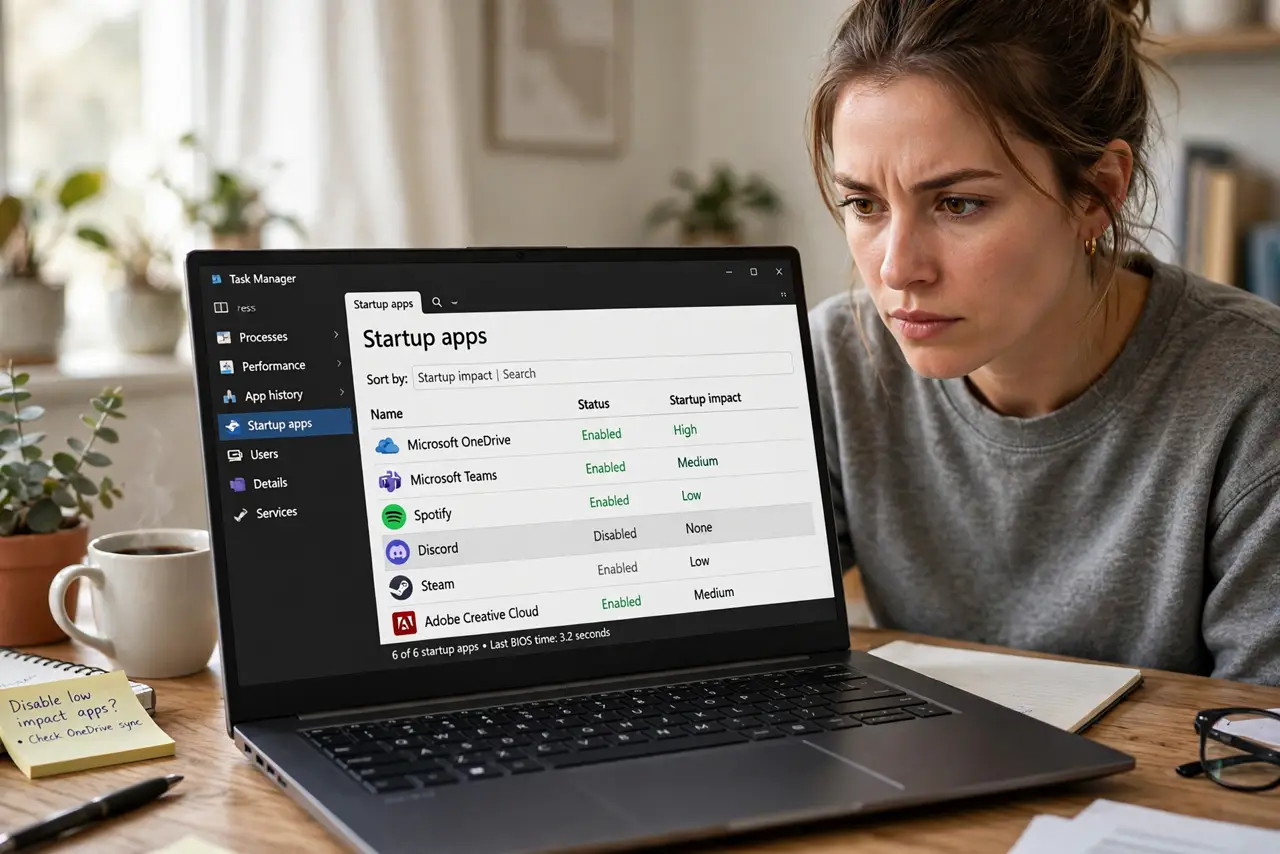
Quick fix: press Ctrl+Shift+Esc, open the Startup apps tab, and disable anything you don't need at boot. Disabling never uninstalls the app — it just stops the auto-launch. Keep security software enabled, then restart and enjoy the faster boot time.
Follow these steps
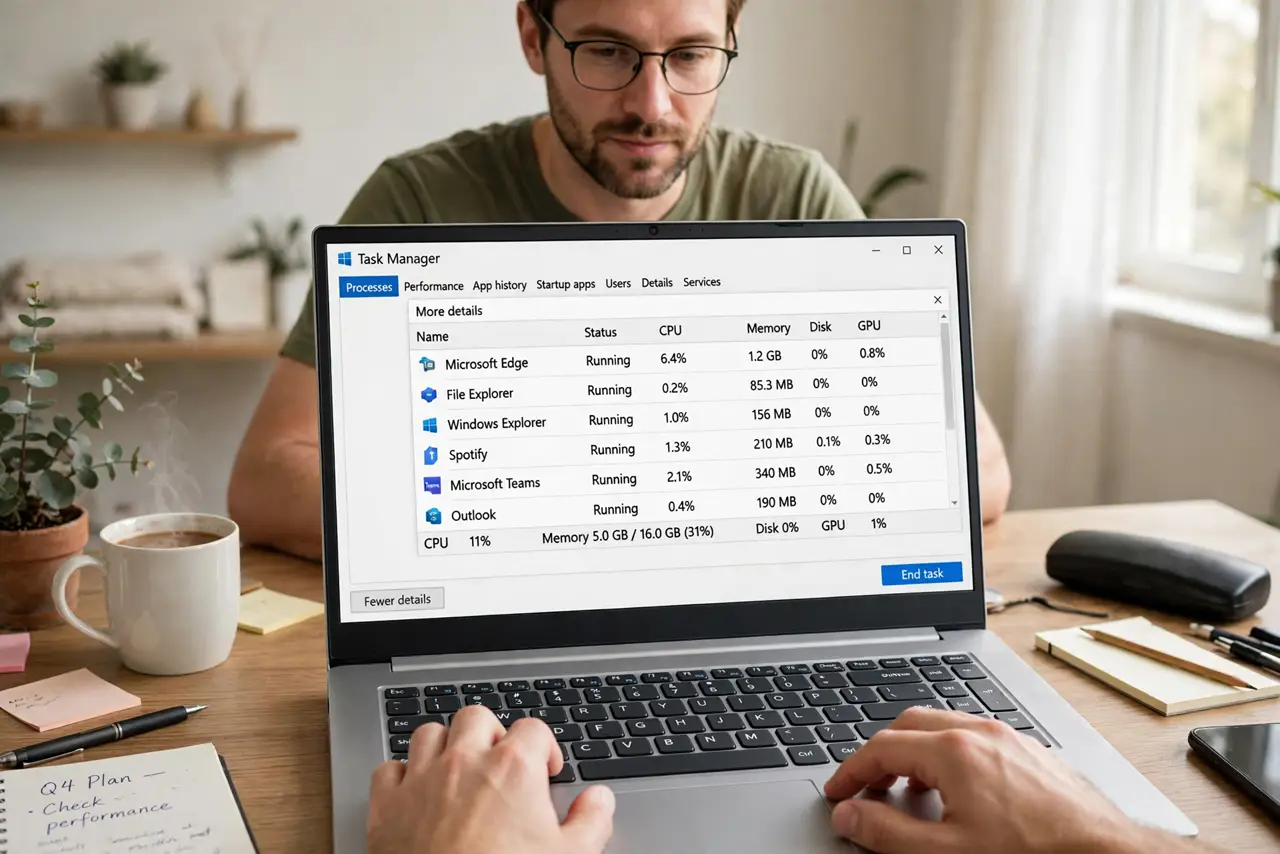
- Open Task Manager. Press Ctrl+Shift+Esc. If you see the tiny view, click 'More details' to reveal the tabs.
- Go to the Startup apps tab. Each entry shows its publisher, status, and startup impact — High, Medium, Low, or Not measured. Sort by Status to see what's enabled.
- Read the impact column. High-impact apps are your boot-time hogs. Learn what the impact ratings mean before deciding — some 'High' entries are worth keeping.
- Disable what you don't need at boot. Right-click an app > Disable. Chat clients, game launchers, and updaters are classic candidates — they all launch fine manually later.
- Leave security software alone. Antivirus and firewall entries should stay enabled. Disabling them trades boot seconds for real protection gaps.
- Restart and compare. Reboot and time the difference. If something you actually wanted at boot is missing, re-enable it — nothing here is permanent. For apps that launch too eagerly even when wanted, consider a delayed launch.
What NOT to do
- Do not disable entries you can't identify by Googling first. Mystery entries from your PC maker are often hardware utilities worth keeping.
- Do not confuse Disable with Uninstall. Disabling only stops the auto-start — the app remains installed and works when you open it.
- Do not disable everything to 'maximize speed.' Some entries handle audio, networking, or trackpads — the PC gets faster but weirder.
- Do not pay for a 'startup optimizer.' Task Manager does the whole job, free, with no bundled junk.
Frequently asked questions
Will disabling startup apps break anything?
No — disabled apps simply don't auto-launch. They open normally when you click them. Re-enabling restores the old behavior exactly.
Why is the impact 'Not measured' for some apps?
Windows hasn't observed enough launches to rate them yet. Give it a few restarts and the ratings fill in.
An app keeps re-enabling itself — why?
Some apps re-add themselves on update or via their own settings. Check the app's own preferences for a 'launch at startup' toggle and turn it off there too.