Automate Tasks with Task Scheduler
You open the same program, run the same cleanup, or need the same reminder every single day — and every day you do it by hand. Windows has a built-in robot for exactly this: Task Scheduler. It can launch programs, run scripts, and handle reminders on a schedule you set once. No extra software, no coding required. This guide shows the safe basics: creating a simple scheduled task, testing it, and deleting it if you change your mind.
TL;DR / Quick Fix
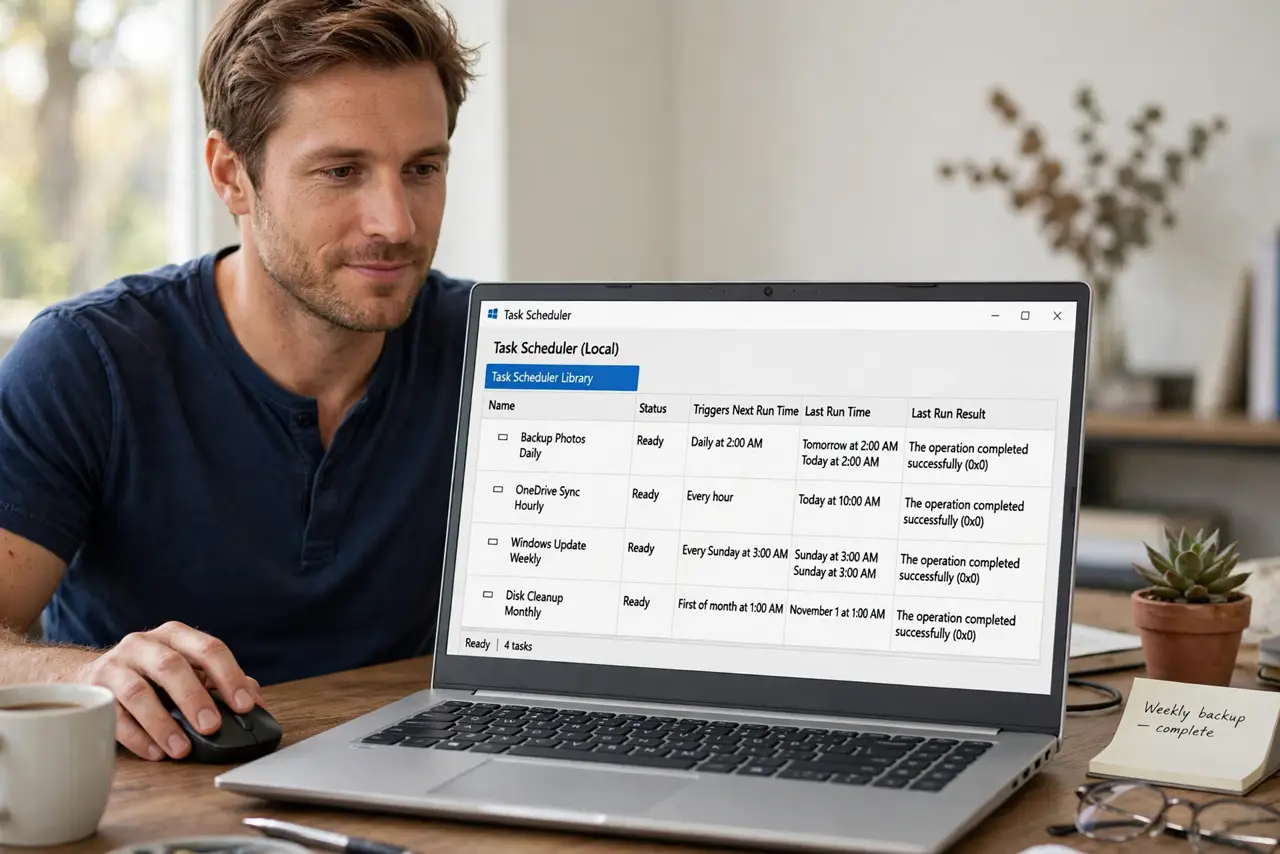
Quick fix: open Task Scheduler, create a basic task, pick a daily trigger, choose the program to run, and finish the wizard. Test it with the Run button, then check that it ran. Keep each task to one action and give it a clear name so you recognize it later.
Follow these steps
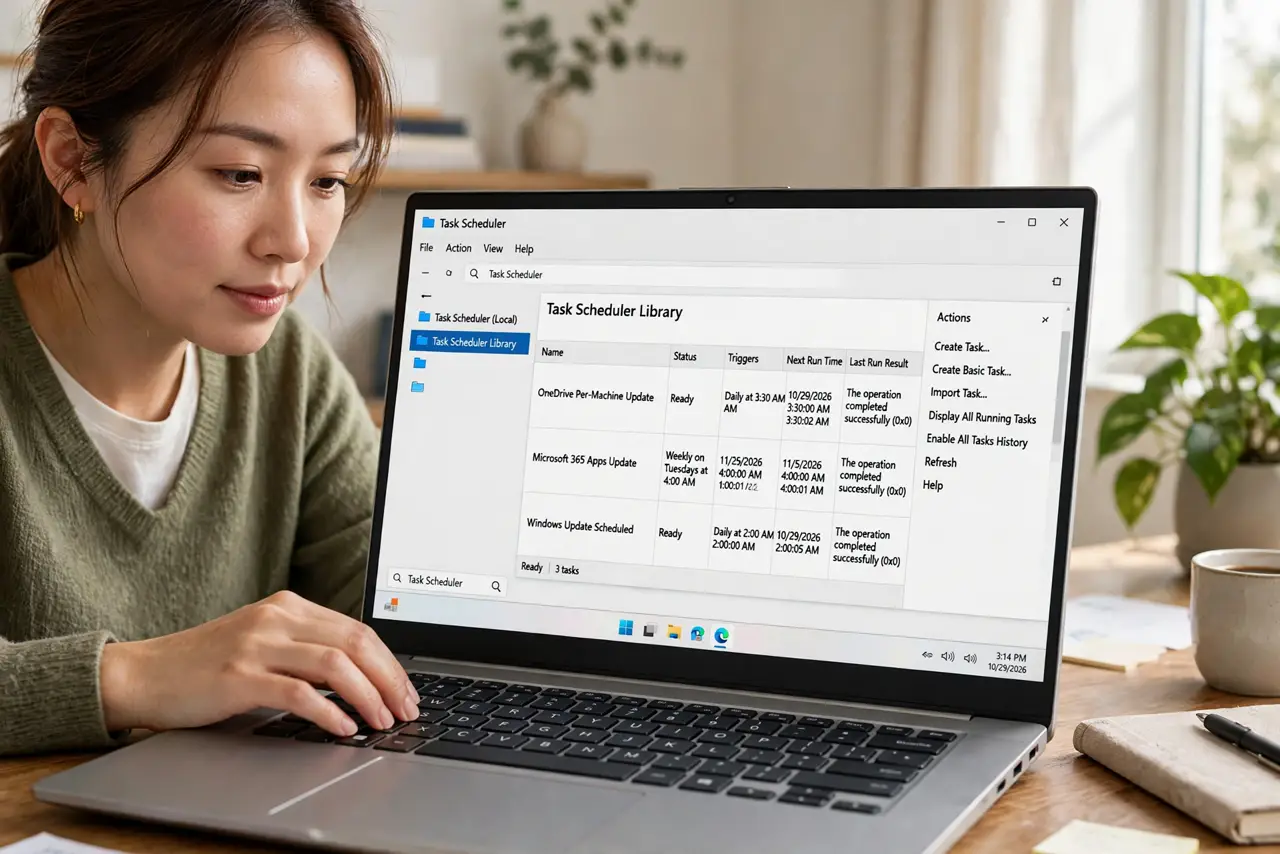
- Open Task Scheduler safely. Press the Windows key, type Task Scheduler, and open it. Look around the library on the left first so you see that scheduled tasks already exist — Windows itself uses them. You are just adding your own.
- Create a basic task. Click Create Basic Task in the right panel and follow the wizard. Give it a plain name like Open timesheet at 9 AM. A basic task is enough for most needs — the advanced tab can wait.
- Pick a trigger. Choose when it runs: daily, weekly, or at logon. Daily at a fixed time suits reminders; at logon suits programs you always open. Keep the schedule realistic — a task that fires every five minutes gets annoying fast.
- Choose the action. Select Start a program and browse to the program or script. Use full file paths, and test that the path works by double-clicking it first. If a program needs its own folder, set the Start in field too.
- Test with the Run button. Select your new task and click Run on the right. Watch whether the program actually opens. If a task fails silently, the clues live in the logs — see troubleshooting with Event Viewer.
- Delete or disable tasks you no longer need. Right-click a task and choose Disable to pause it or Delete to remove it. Review your tasks every few months — forgotten tasks launching old programs are a classic source of mystery slowdowns, like startup clutter.
What NOT to do
- Do not schedule tasks that need your password typed. A task cannot click through login prompts — pick actions that run unattended.
- Do not create tasks that delete files or change system settings until you have tested the action manually first.
- Do not ignore the Conditions tab. A task set to run on battery can drain a laptop — uncheck power options you do not want.
- Do not edit Windows' own scheduled tasks unless you know exactly what they do. Disabling a system task can break updates.
Frequently asked questions
Can Task Scheduler open a website for me?
Yes — set the action to start your browser and put the web address in the arguments field. It opens the site on schedule, handy for daily check-ins.
Why did my task not run?
The usual causes: the PC was asleep, the trigger time was missed, or the program path was wrong. Check the History tab, and see reading Event Viewer for deeper clues.
Is Task Scheduler safe to experiment with?
Yes for your own simple tasks — creating, disabling, and deleting tasks is reversible. Just leave Microsoft's built-in tasks alone.