Delete Temporary Files Safely
Windows litters temporary files everywhere: update leftovers, installer caches, thumbnails, error logs. Individually tiny, collectively gigabytes. The good news is Windows knows exactly which ones are safe to delete and offers a one-click cleanup. The bad news is what happens when people go hunting manually.
TL;DR / Quick Fix
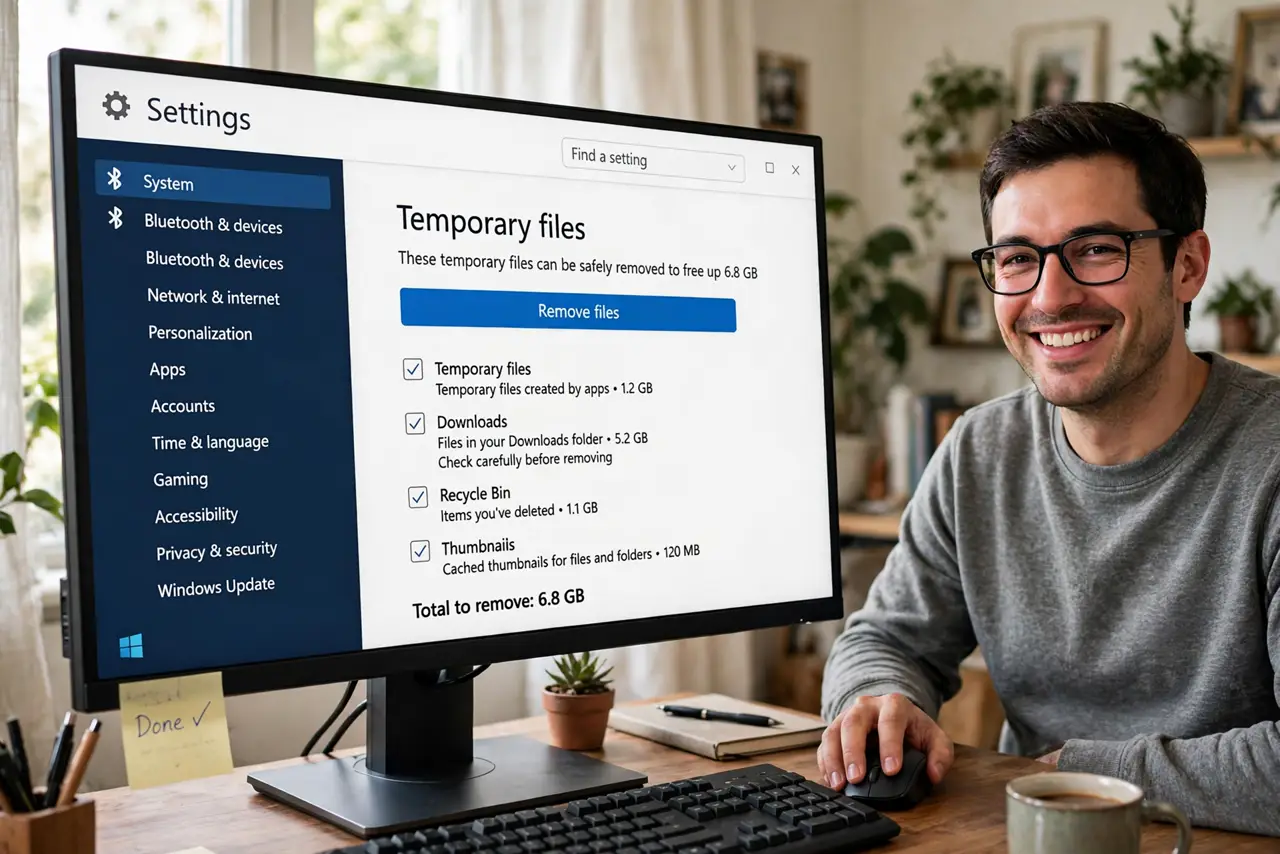
Quick fix: open Settings, go to System, then Storage, then Temporary files — tick the categories Windows offers and click Remove files. These are safe by design. Do not go deleting Temp folders by hand; the tool knows which files are truly disposable and which are still in use.
Follow these steps
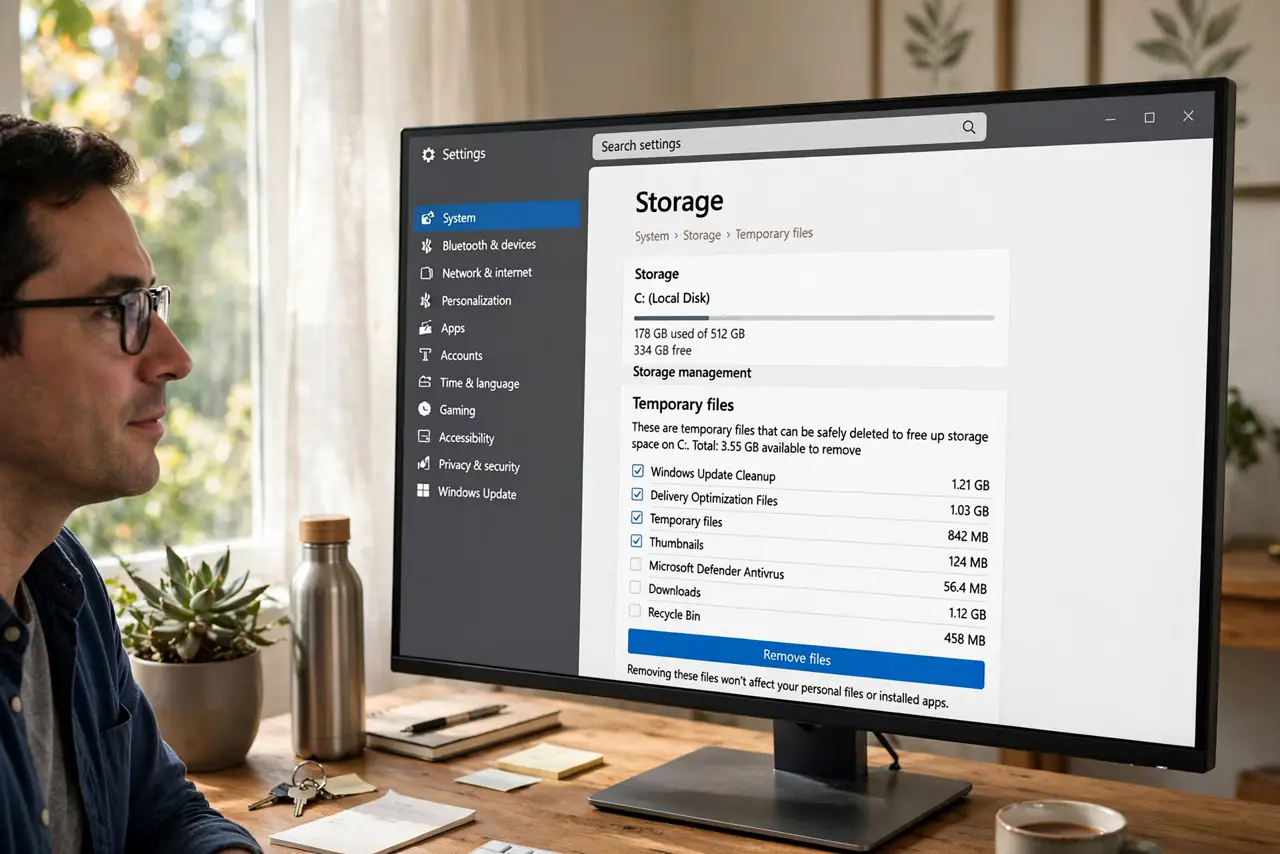
- Open Temporary files in Settings. Go to Settings > System > Storage > Temporary files. Windows scans and lists every safe-to-delete category with its size.
- Read what each category is. Update cleanup, delivery optimization files, thumbnails, temporary internet files — the descriptions tell you what you are removing. Knowledge beats blind clicking.
- Tick and remove. Check the boxes for the big categories and click Remove files. This is the entire safe procedure — short on purpose.
- Use Disk Cleanup for the deep cuts. The classic Disk Cleanup tool (search for it) with Clean up system files reaches old Windows installations and update backups the Settings page sometimes misses.
- Let Storage Sense automate it. Turn on Storage Sense in Storage settings and Windows tidies temporary files on a schedule. Set it and forget it.
- Restart after a big cleanup. Some locked temp files only release on reboot. If the numbers barely moved, restart and check again.
What NOT to do
- Do not delete Temp folders manually in File Explorer. Files in use will error out, and guessing wrong can break running programs.
- Do not use third-party 'PC cleaners' that promise miracles. The built-in tools are safer, free, and do the same job.
- Do not delete the Windows.old folder the day after an update. It is your rollback path for ten days — remove it via Disk Cleanup only when you are sure.
- Do not expect temp cleanup to fix a full drive alone. It reclaims gigabytes, not tens of gigabytes — pair it with finding the real hogs.
Frequently asked questions
Is it safe to delete all temporary files?
The ones Windows lists in the Temporary files screen, yes. Files outside that list — in random Temp folders — are not guaranteed safe, so stick to the tool.
Why do temp files come back?
Windows and apps constantly create them during normal work. That is why Storage Sense on a schedule beats one heroic cleanup.
Disk Cleanup vs Storage settings — which?
Both are official. Storage settings is the modern front end; Disk Cleanup reaches a few legacy categories. Use whichever you prefer.