Set Time Zone Automatically
You travel, or daylight saving flips, and the clock shows the wrong time while your calendar invites shift by an hour. Windows can set the time zone automatically from your location — a small toggle that prevents a whole class of scheduling confusion.
TL;DR / Quick Fix
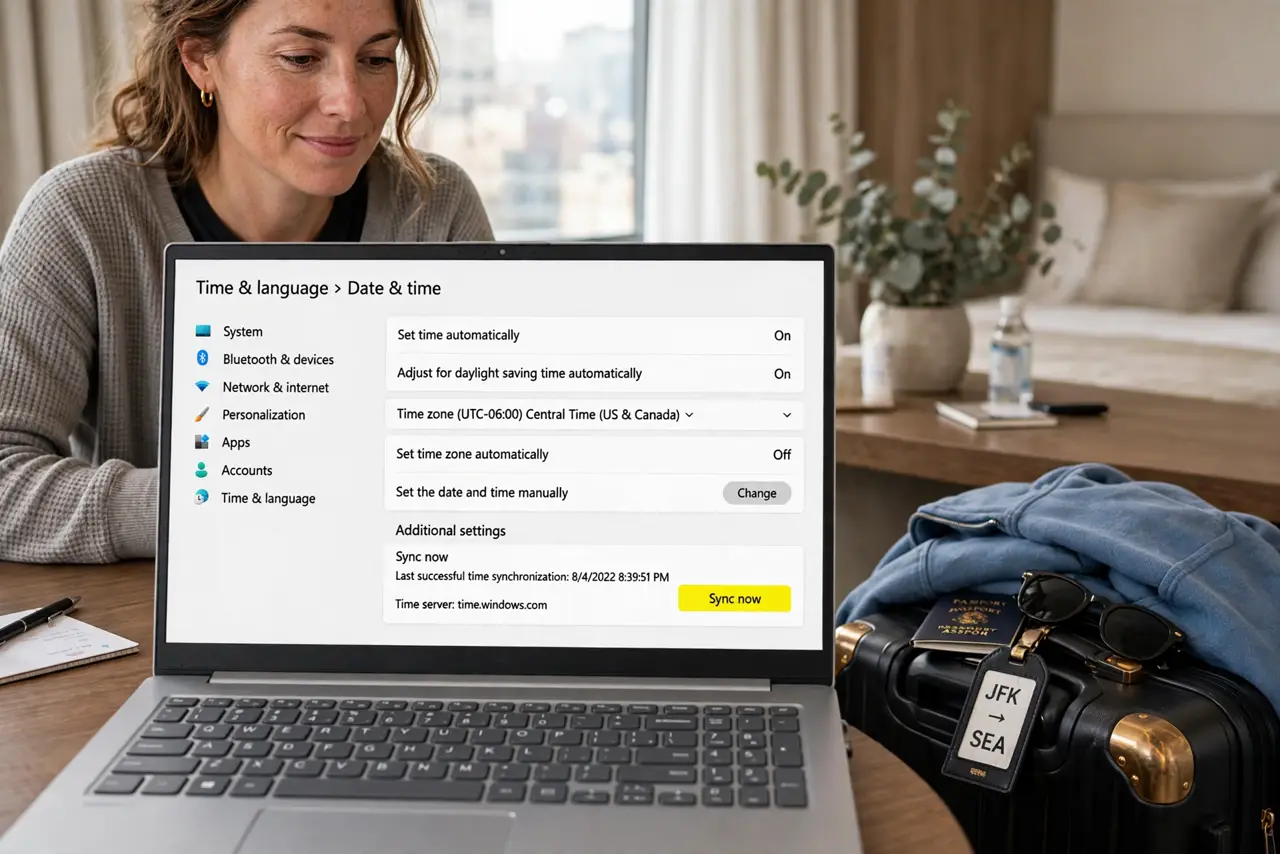
Quick fix: open Settings, go to Time & language, then Date & time, and turn on 'Set time zone automatically.' Windows will follow your location. If the clock is still wrong, toggle it off and on once, or check that location services are enabled.
Follow these steps
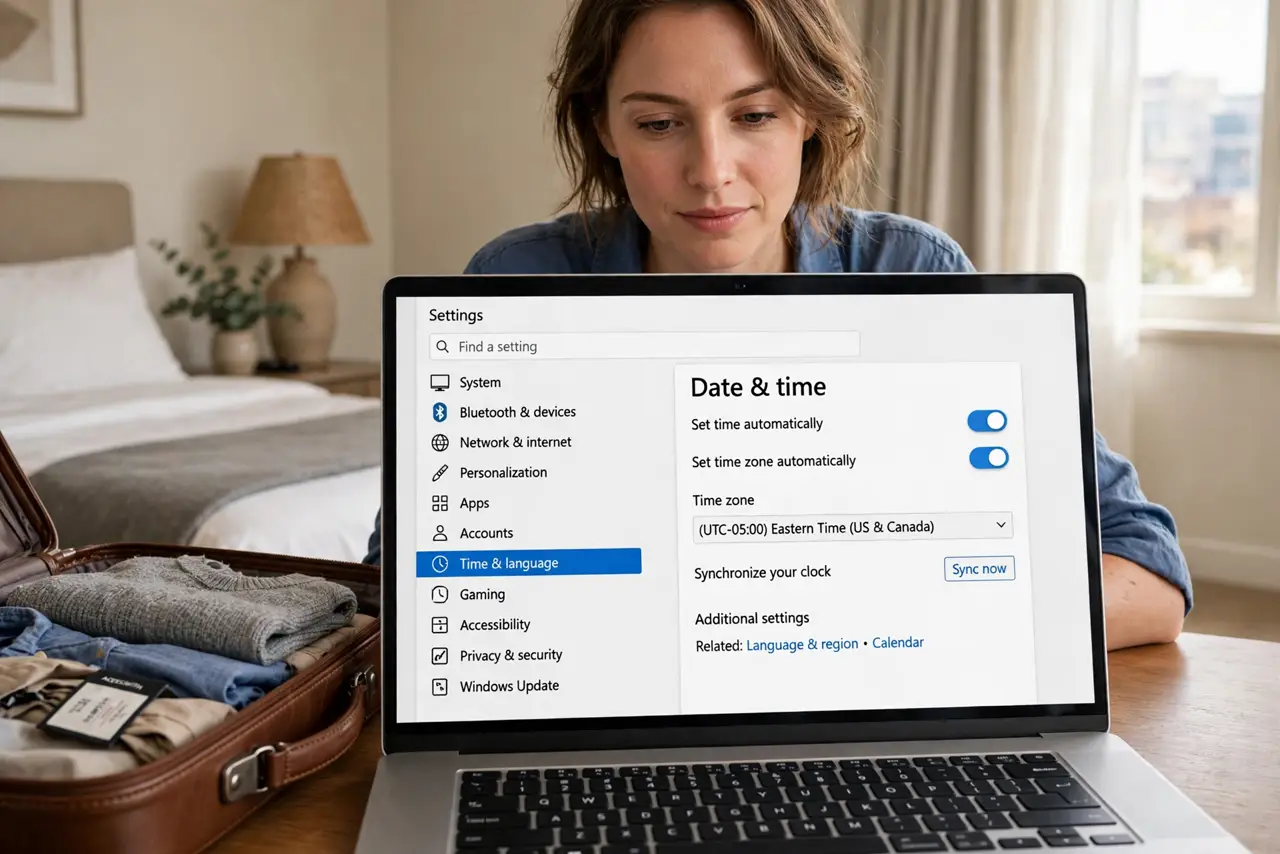
- Open Date & time settings. Settings > Time & language > Date & time. The time zone controls live here, not under Region.
- Turn on automatic time zone. Enable 'Set time zone automatically.' Windows reads your location and picks the zone — travel becomes one less thing to fix.
- Also enable automatic time. Turn on 'Set time automatically' too. Together, both toggles keep the clock and zone correct without you touching anything.
- Check location services if the zone won't update. Automatic zone needs location access: Settings > Privacy & security > Location > Location services on. Without it, Windows can't tell where you are.
- Toggle it off and on when stuck. If the zone froze after a flight, disable the toggle, wait a few seconds, re-enable. This forces a fresh location read.
- Know the dual-boot exception. Linux and Windows disagree about the hardware clock, which breaks automatic zones. If you dual-boot and the clock is wrong, that's a separate fix.
What NOT to do
- Do not set the time zone manually 'to be safe' before a trip. The automatic toggle handles travel better than memory does.
- Do not disable location services globally over this. Windows needs location for the zone — toggle it per-app instead if you're privacy-minded.
- Do not change the time itself to fake a zone. Wrong actual time breaks certificates, logins, and scheduled tasks — fix the zone, not the clock.
- Do not assume calendar invites are wrong when the zone changes. They shift display time correctly; the meeting itself didn't move.
Frequently asked questions
Why is my clock an hour off after traveling?
The time zone didn't update — location services were off, or the toggle was disabled. Turn both on and the clock corrects itself.
Does automatic time zone drain the battery?
Negligibly. It checks location occasionally, not constantly — far less than maps or weather apps.
My work VPN confuses the time zone — help?
VPNs can make your location look like the office city. If the zone jumps while on VPN, set it manually during work hours and re-enable auto after.