Touch Keyboard? Turn It On
The Windows touch keyboard is the on-screen keyboard for tablets, 2-in-1s, and any touchscreen PC — handy when the physical keyboard is detached or you just want to tap. It hides by default on many desktops, which makes people think it is missing. This guide shows how to turn it on, pin it, and fix it when it will not appear.
TL;DR / Quick Fix
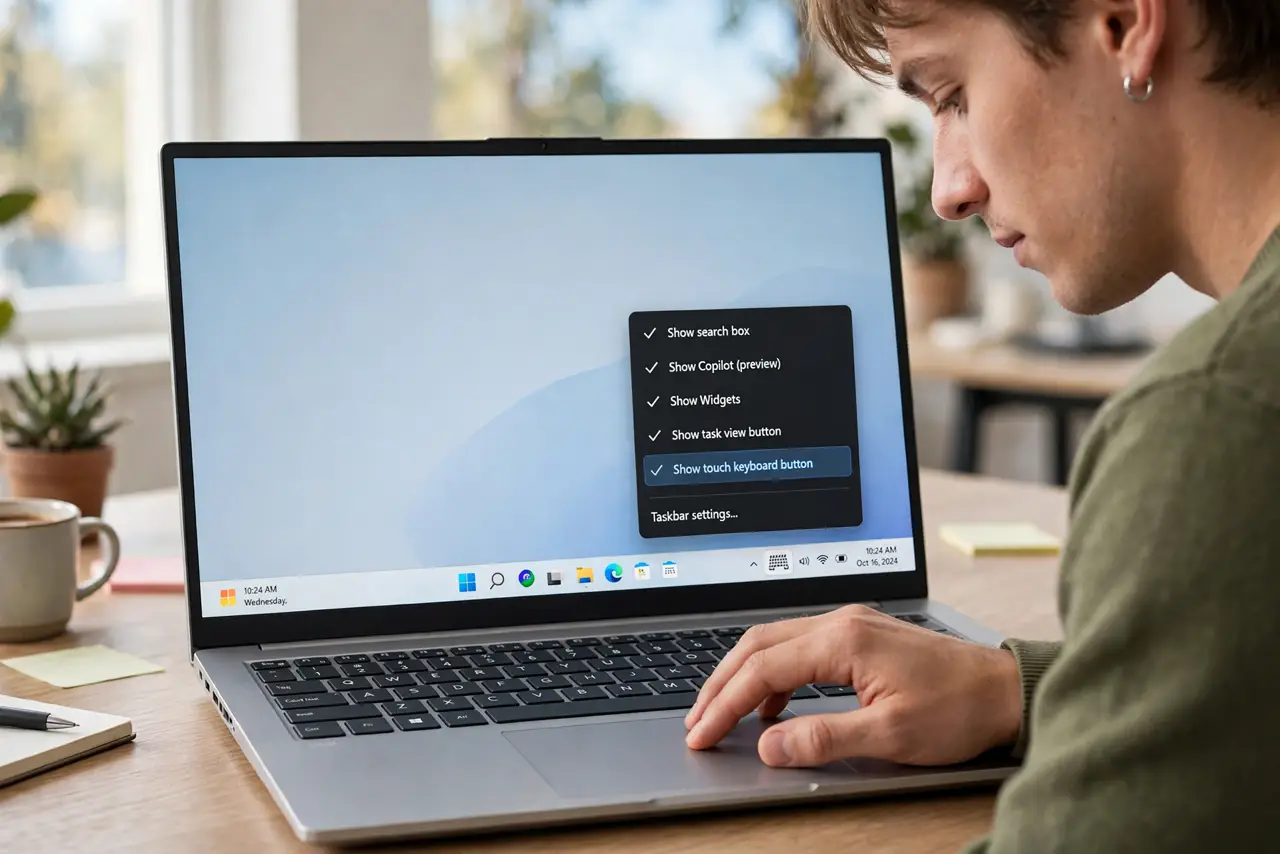
Quick fix: to show the Windows touch keyboard, right-click the taskbar and enable the touch keyboard button, then tap its icon. It also appears automatically in tablet mode. If it will not pop up, check the on-screen keyboard settings and restart the Text Input Management service.
Follow these steps
- Enable the taskbar button. Right-click an empty spot on the taskbar, choose Taskbar settings, and turn on the touch keyboard icon. The little keyboard icon now lives by the clock — tap it anytime.
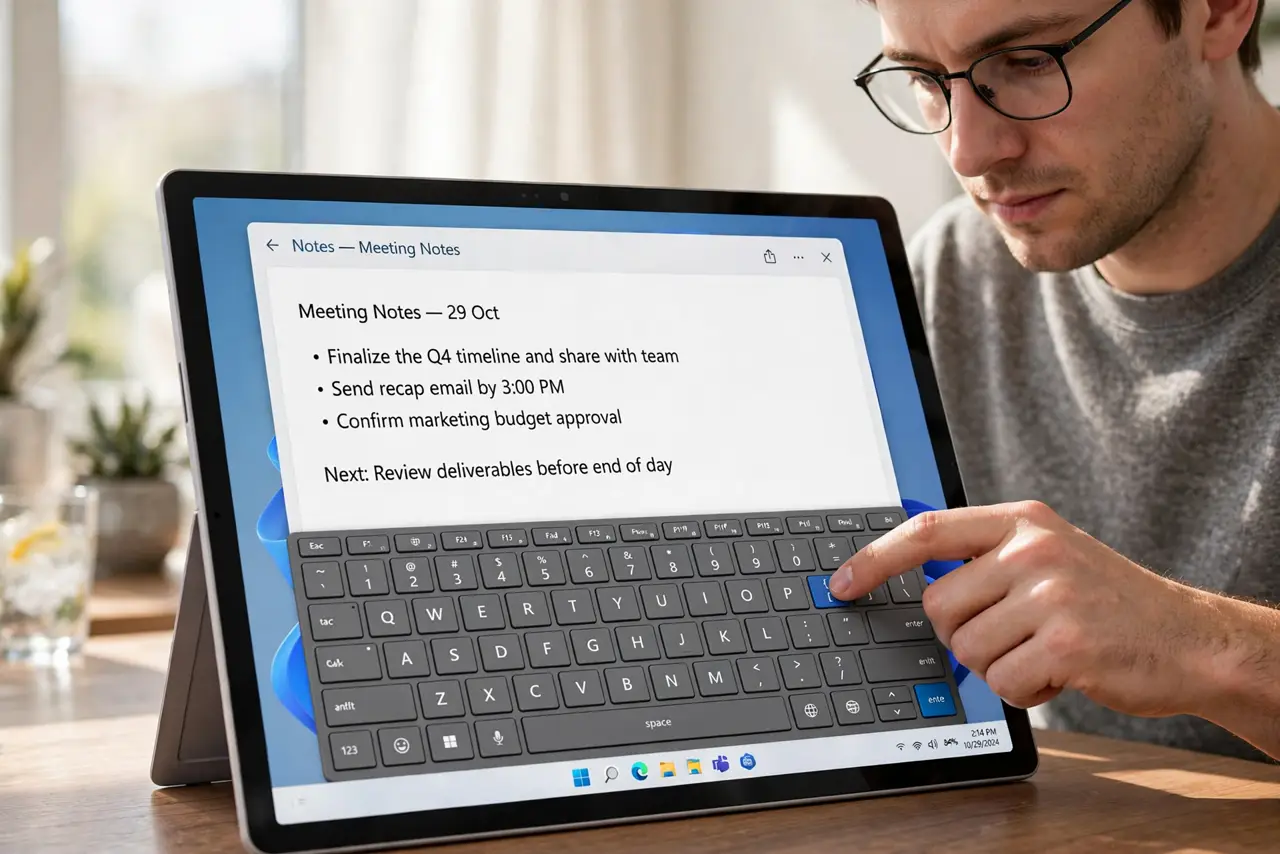
- Tap the icon to open it. Tap the keyboard icon and the touch keyboard slides up. Tap it again or the X to dismiss it. It floats over your current app without closing anything.
- Let tablet mode do it automatically. On 2-in-1s, detaching the keyboard or folding into tablet mode makes the touch keyboard appear whenever you tap a text field. If it does not, the taskbar button is your manual override.
- Resize and restyle it. Drag the keyboard's corners to resize; open its settings (the gear on the keyboard) for themes, key size, and layouts including handwriting and the small thumb-friendly split.
- Fix it when it will not appear. Go to Settings, Accessibility, Keyboard, and confirm the on-screen keyboard is on. If it still refuses, restart the 'Text Input Management Service' in the Services app — that fixes most stuck cases.
- Know the pen connection. Stylus users get handwriting input through the same keyboard. If you use a pen regularly, see the pen settings guide to tune pressure and handwriting recognition too.
What NOT to do
- Do not confuse the touch keyboard with the old On-Screen Keyboard. The touch keyboard is the modern, touch-friendly one; the legacy OSK is a separate accessibility tool with a different look.
- Do not disable tablet-mode prompts to 'fix' the keyboard. The auto-show behavior is what makes 2-in-1s pleasant — manual-only mode gets tedious fast.
- Do not install random 'keyboard fixer' apps. The touch keyboard is built into Windows; third-party tools add risk for a problem Settings already solves.
- Do not forget the taskbar button after updates. Major Windows updates occasionally reset taskbar icons — re-enable the button before assuming the keyboard broke.
Frequently asked questions
Why does the touch keyboard not pop up automatically?
Auto-show works in tablet mode and when no physical keyboard is detected. On a desktop with a keyboard attached, Windows assumes you will type physically — use the taskbar button instead.
Can I make the touch keyboard bigger?
Yes — drag its edges to resize, and use the keyboard's own settings gear for larger keys, themes, and alternative layouts like handwriting.
Does it work with a mouse?
Yes. You can click its keys with a mouse or trackpad too, which is handy for entering the odd character without touching the screen.