Turn Off Widgets?
The Widgets board — news, weather, and stocks sliding in from the left — is one of Windows 11's more divisive features. Some like the glanceable info; others find it a distracting, ad-adjacent intrusion. Whether you want it gone entirely or just quieter, here is how to take control of it.
TL;DR / Quick Fix
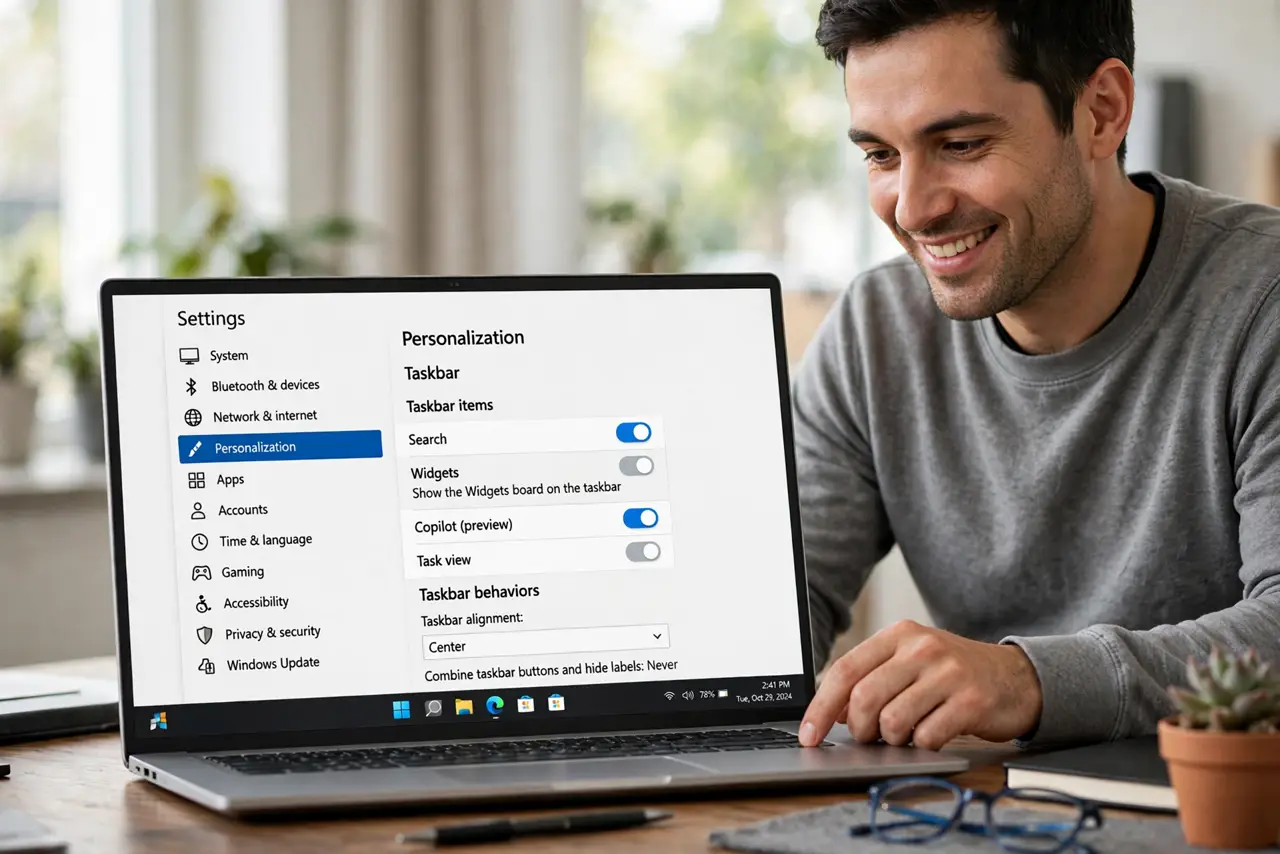
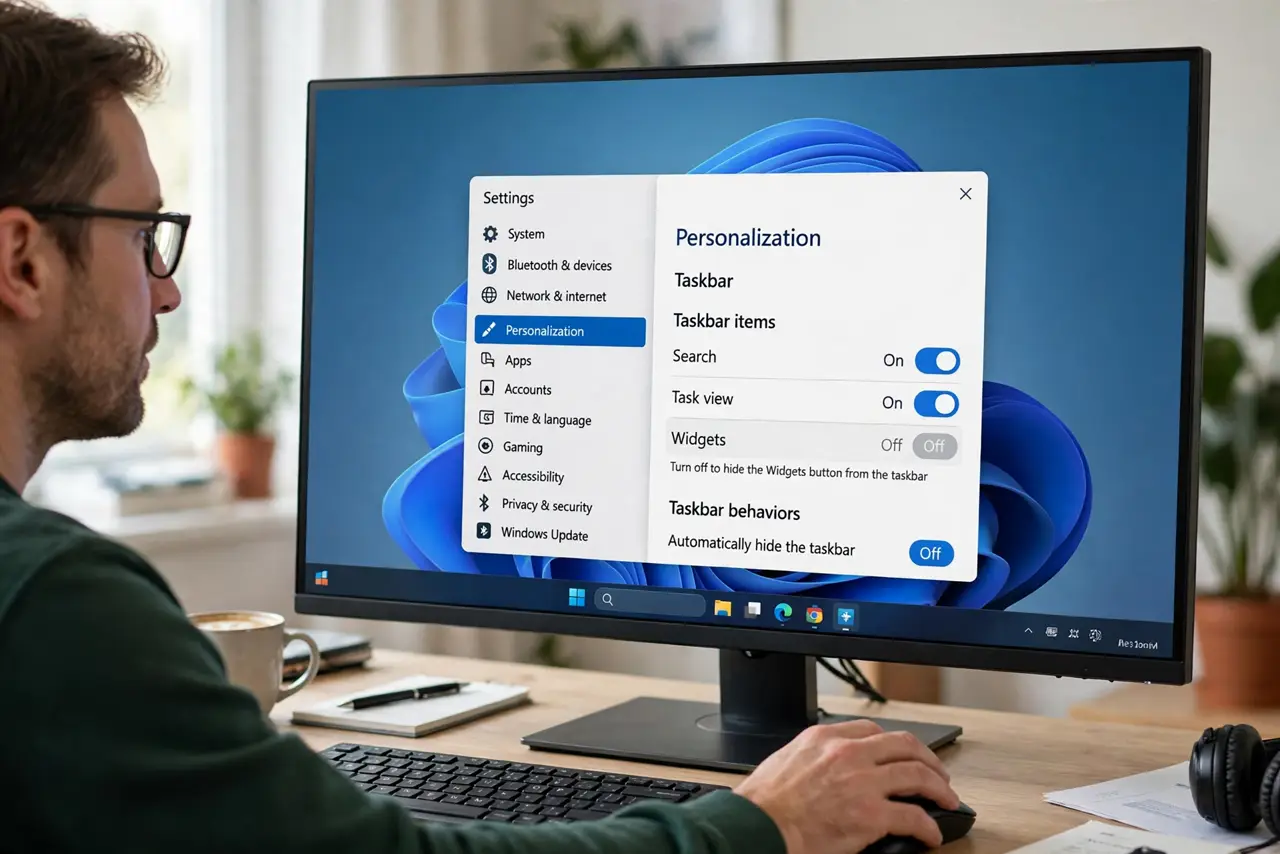
Quick fix: to remove the Widgets board from your taskbar, open Settings > Personalization > Taskbar and toggle Widgets off. The board stays available via the keyboard shortcut if you ever want it back. To quiet its news feed without removing it, customize the board's interests instead.
Follow these steps
- Remove it from the taskbar. Settings > Personalization > Taskbar > toggle Widgets off. The icon vanishes and the board stops opening on hover — the single change most people want.
- Keep the shortcut as a safety net. Even with the toggle off, Win+W still opens the board. Nothing is deleted — you are just removing the temptation from the taskbar.
- Tame the news feed instead. If you like weather but hate the headlines, open the board and manage interests — mute topics and publishers rather than nuking the whole feature.
- Stop it opening on hover. The board sliding open when your cursor drifts left infuriates many. Disabling the taskbar toggle kills the hover behavior along with the icon.
- Check the lock screen separately. Windows also puts widgets on the lock screen — a separate toggle in Settings > Personalization > Lock screen. Turn both off for a fully quiet experience.
- Re-enable anytime. Changed your mind? Flip the same toggle back on. This is a preference, not a commitment — see the blank-board fixes if it misbehaves when it returns.
What NOT to do
- Do not use registry hacks to remove widgets. The Settings toggle does the job — registry edits risk real damage for zero gain.
- Do not confuse the board with the weather icon. The taskbar weather is part of Widgets — toggling it off removes both.
- Do not expect battery miracles. Disabling widgets saves a little background activity, not hours of battery.
- Do not forget the lock screen toggle. Taskbar-off plus lock-screen-on still shows widgets every time you wake the PC.
Frequently asked questions
Will turning off widgets speed up my PC?
Marginally — it stops some background feed updates. Do not expect a dramatic change; the real win is fewer distractions.
Can I get the old news-and-interests back?
The Widgets board replaced it on Windows 11. The toggle approach here is the supported path — third-party restorations are unreliable.
Why does the board keep re-enabling after updates?
Major updates occasionally reset taskbar preferences. Re-toggle it — it takes ten seconds and usually sticks until the next big update.