Enter UEFI Settings Easily
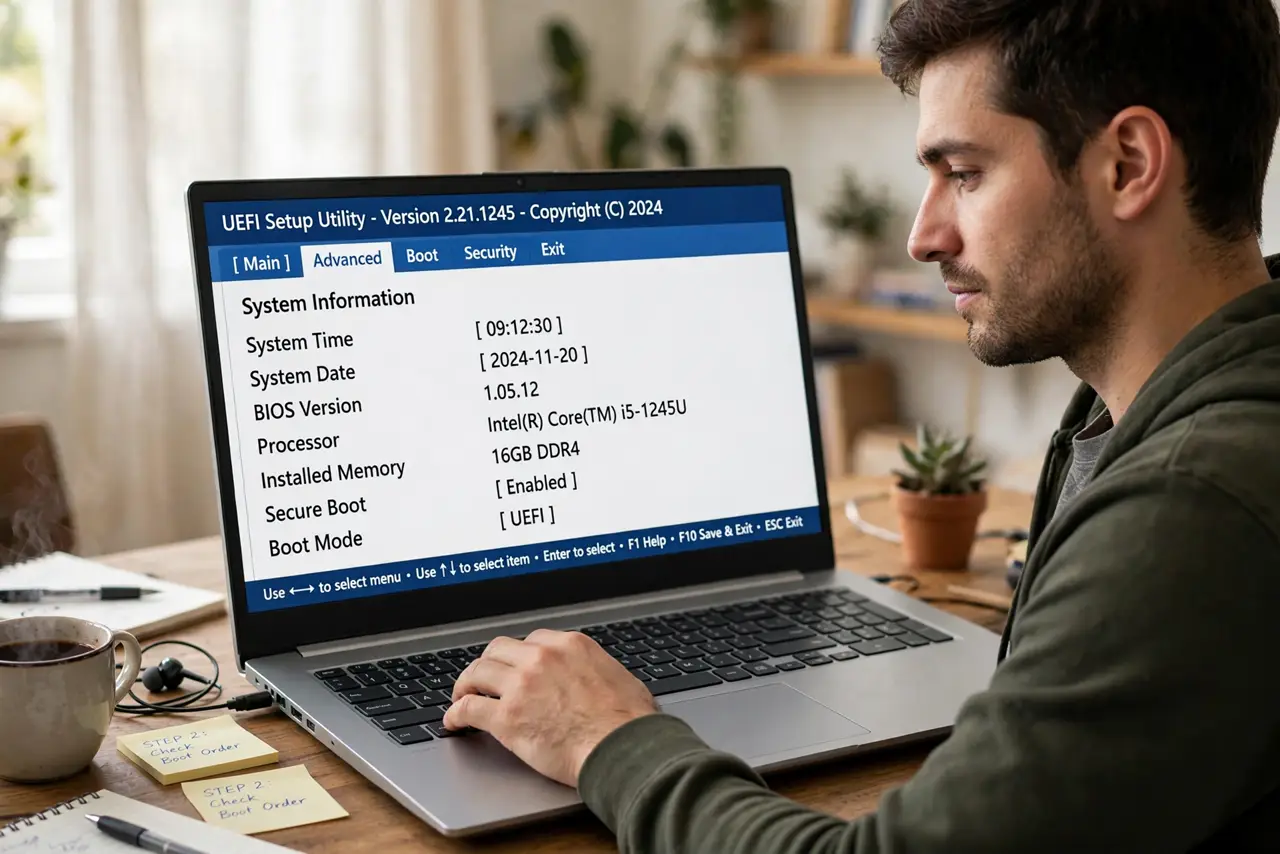
UEFI (the modern BIOS) controls how your PC starts — boot order, virtualization, secure boot, and hardware options. The old way in was hammering a key at startup, but the reliable modern route goes through Windows itself. This guide shows both, plus how UEFI relates to legacy boot mode.
TL;DR / Quick Fix
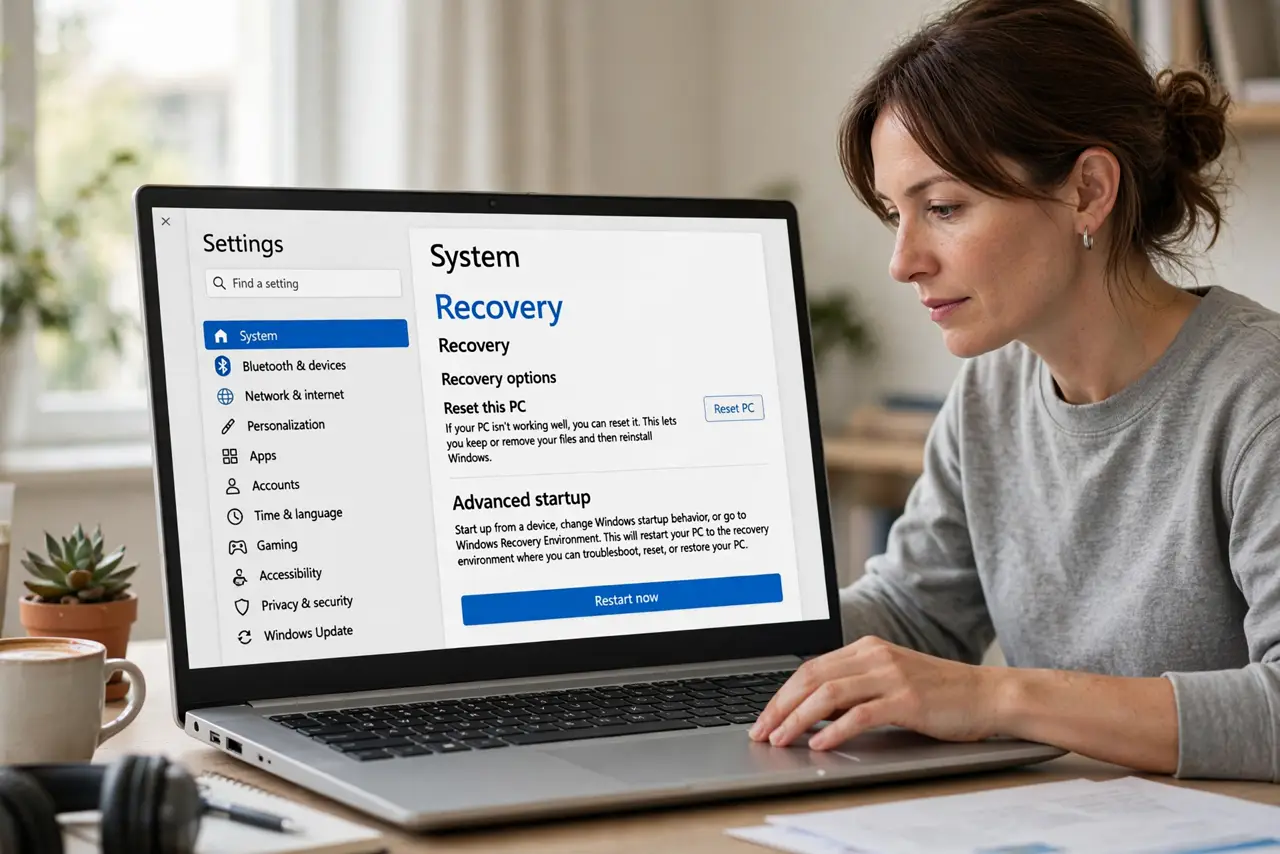
Quick fix: the reliable way in is from Windows itself — Settings, System, Recovery, Advanced startup, Restart now, then Troubleshoot, Advanced options, UEFI Firmware Settings, Restart. The PC boots straight into UEFI. The old tap-a-key trick still works if you catch the timing.
Follow these steps
- Use the Windows route — it always works. Go to Settings, System, Recovery, then click Restart now under Advanced startup. No timing, no key-mashing, no missed window.
- Navigate to UEFI Firmware Settings. After the restart, choose Troubleshoot, then Advanced options, then UEFI Firmware Settings, then Restart. The PC boots directly into the UEFI setup screen.
- Learn the key method as a backup. If Windows will not boot, the key method is your fallback: shut down fully, power on, and tap Delete or F2 repeatedly — the common keys — until the setup screen appears.
- Change only what you came to change. UEFI holds settings that can stop your PC booting. Adjust your one item — boot order, virtualization, secure boot — and leave everything else exactly as you found it.
- Save and exit properly. Use Save and Exit (often F10) so your change sticks. Exiting without saving discards everything you just did, which confuses people into changing it twice.
- Know how to undo a bad change. If the PC misbehaves after a change, re-enter UEFI and choose Load Optimized Defaults, then save. Defaults are safe on virtually every consumer PC.
What NOT to do
- Do not change settings you do not understand. One wrong toggle in UEFI can prevent booting entirely.
- Do not disable Secure Boot unless specific software requires it. It is a real protection, not decoration.
- Do not update UEFI firmware 'just because'. A failed firmware update can brick a board — update only to fix a known issue.
- Do not forget what you changed. Note the original value before you touch anything, so you can put it back.
Frequently asked questions
Is UEFI the same as BIOS?
UEFI is the modern replacement for the old BIOS, with a mouse-friendly interface and more features. People still say 'BIOS' out of habit — the differences explained matter mostly for boot modes.
Why do I need virtualization enabled?
Virtualization (VT-x/AMD-V) is required for Android emulators, Windows Subsystem for Linux 2, and virtual machines. If those tools complain, this UEFI toggle is usually the fix.
The UEFI screen looks different from guides. Is that OK?
Yes — every motherboard maker designs its own UEFI screens. The setting names are similar even when the layout is not; use the search function if your UEFI has one.