Set Update Active Hours
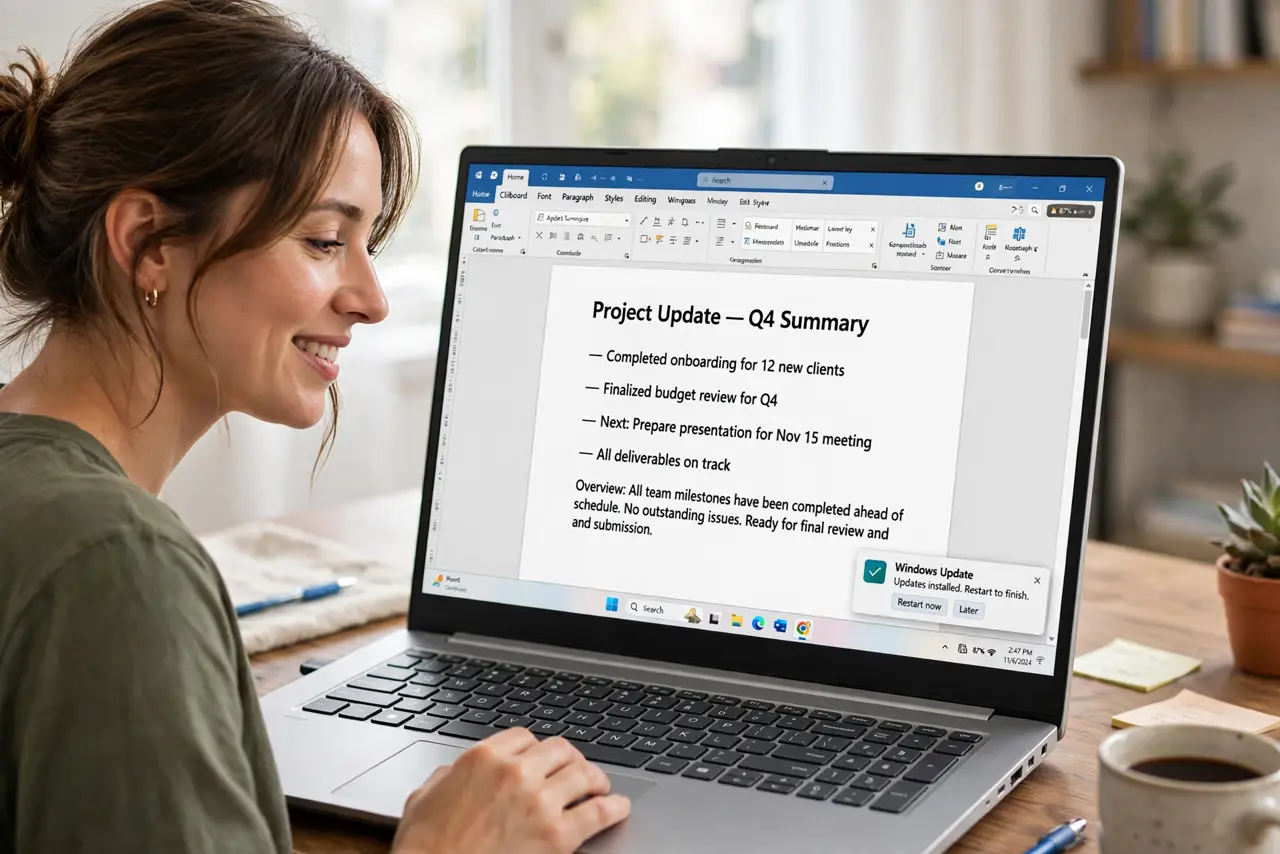
Windows loves to restart for updates at the worst possible moment — mid-document, mid-call, mid-render. Active Hours is the built-in setting that tells Windows when you actually use the PC, so it schedules restarts outside those times instead of ambushing you. It takes thirty seconds to set and ends the surprise-restart era.
TL;DR / Quick Fix
Quick fix: open Settings, go to Windows Update, then Advanced options, and set Active Hours to cover your real working day — up to 24 hours. Windows will then only restart outside that window. Pair it with update notifications so restarts never surprise you again.
Follow these steps
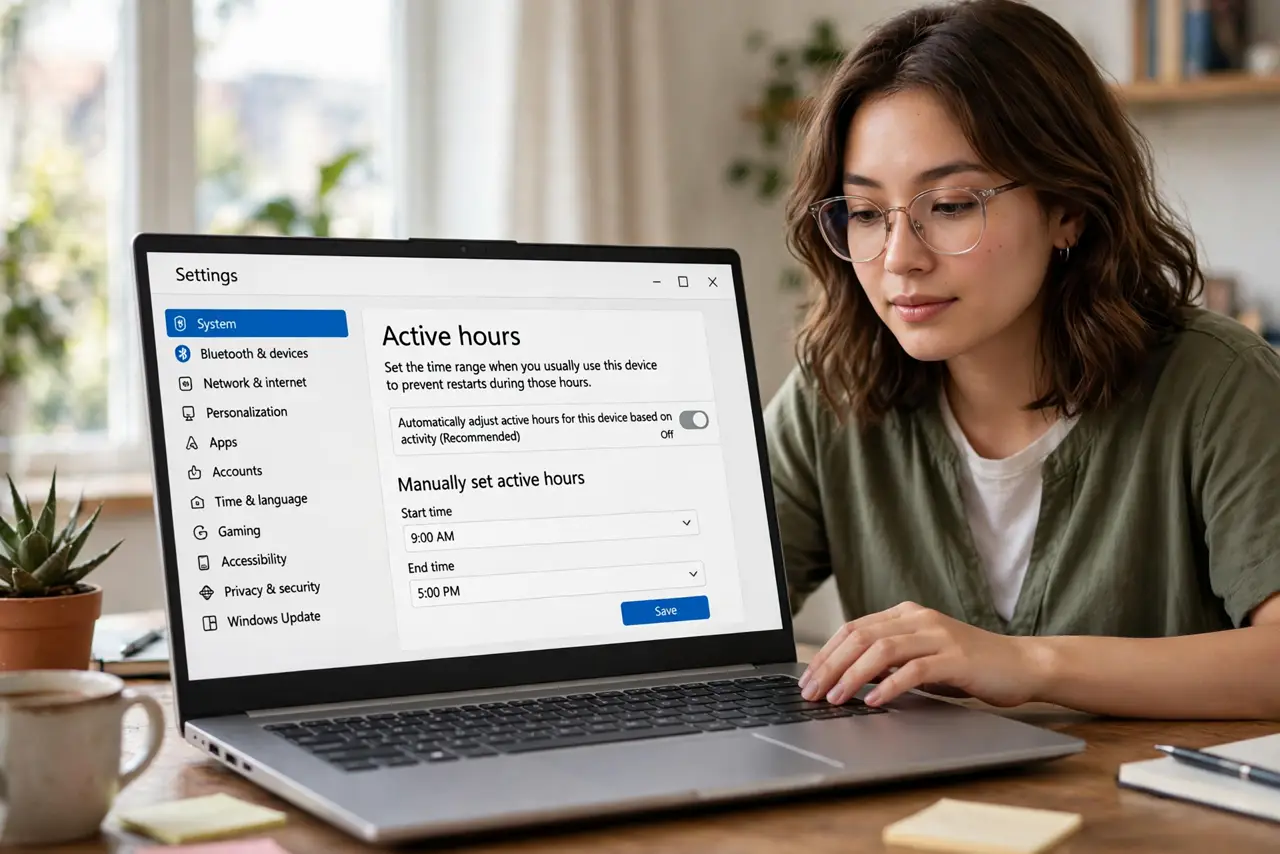
- Open the Active Hours setting. Go to Settings, Windows Update, Advanced options, Active hours. This is where Windows learns your schedule — most people have never opened it, which is why restarts feel random.
- Set hours that match your real day. Choose start and end times covering when you actually use the PC — it supports up to a 24-hour span now. Be honest: padding it with hours you are asleep just invites restarts you will miss.
- Turn on update notifications. On the same Advanced options page, enable notifications for when a restart is required. A heads-up beats a surprise every time — see pausing updates for the other half of control.
- Use Focus or quiet hours at night. If restarts still sneak in overnight, check that the PC is not waking itself for updates — sleep settings and active hours work as a team.
- Schedule the restart yourself. When an update says restart required, pick Schedule the restart and choose a time. Taking charge once beats being ambushed later.
- Recheck after major upgrades. Feature updates sometimes reset Active Hours to defaults. After a big upgrade, reopen the page and confirm your hours survived.
What NOT to do
- Do not set Active Hours to a tiny window. A 2-hour window just moves the ambush — cover your real usage.
- Do not disable the Windows Update service to avoid restarts. You trade a scheduled restart for unpatched vulnerabilities.
- Do not ignore the restart-required badge for weeks. Pending restarts pile up and eventually force themselves.
- Do not assume Active Hours stops downloads. It only governs restarts — downloads still happen in the background.
Frequently asked questions
Can Active Hours cover the whole day?
Yes — Windows now allows up to 24 hours. Set it to your full waking day and restarts will wait until you are done.
Will this stop updates entirely?
No. Updates still download and install; only the restart timing is controlled. Your PC stays protected.
Why did my PC restart anyway?
Either Active Hours got reset by an upgrade, or the restart was scheduled outside them and you missed the notification. Check both.