Check Your Update History
When did that update install — and which one broke the printer? Windows keeps a dated log of every update: installed, failed, driver, and definition updates alike. Reading it takes a minute and turns 'something changed last week' into a precise suspect. Here is where the log lives and how to read it.
TL;DR / Quick Fix
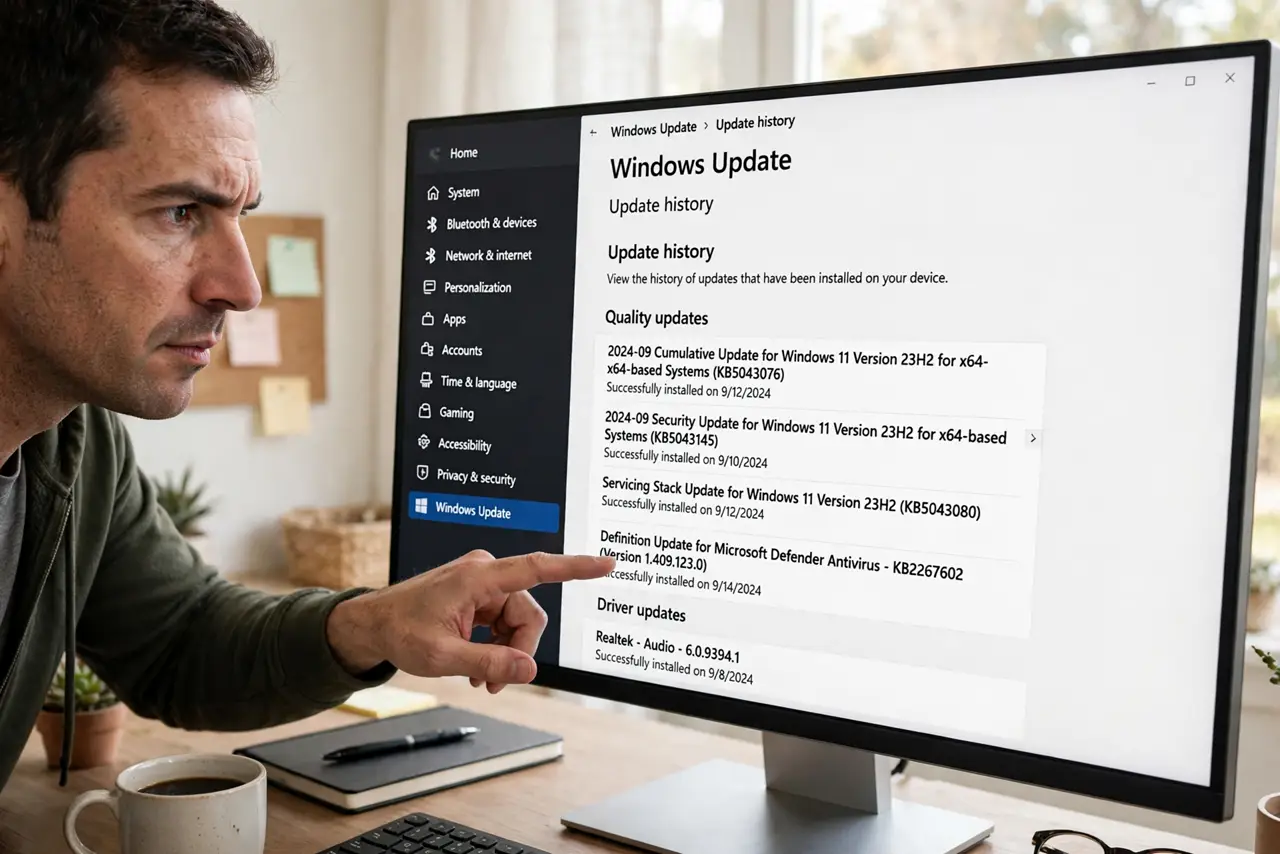
Quick fix: open Settings, go to Windows Update, and choose Update history — you will see every installed and failed update with dates and KB numbers. Match the dates to when problems started to find the culprit. From there you can uninstall a bad update or investigate a failed one.
Follow these steps
- Open Update history. In Settings > Windows Update, click Update history. One page holds the entire log — no digging through event viewers.
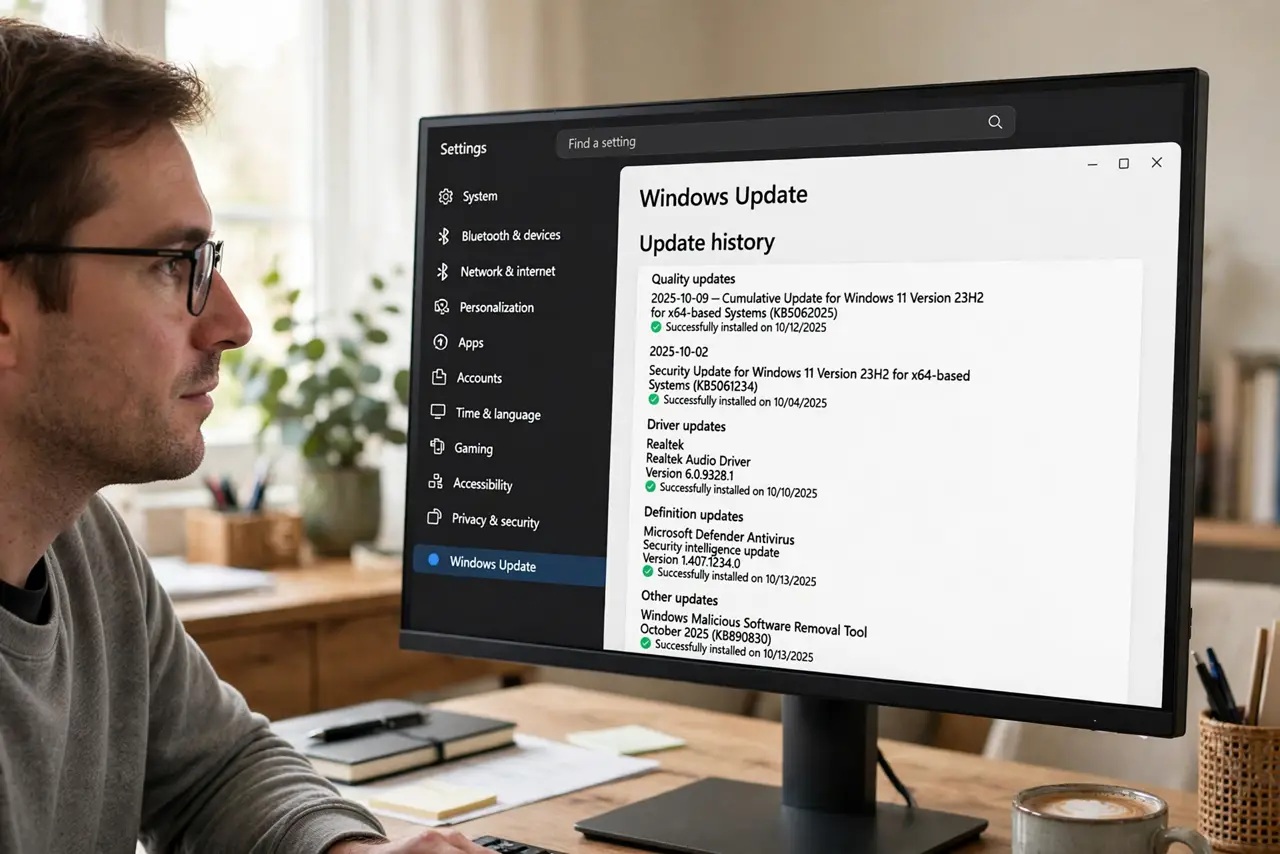
- Read the sections. Entries are grouped: quality updates, driver updates, definition updates, and other updates. The group tells you what kind of change each entry was.
- Spot the failures. Look for entries marked failed to install, often with an error code. A failed update explains a lot of mysterious 'missing update' warnings.
- Match dates to problems. Find the date your trouble started, then look at what installed just before. That correlation is how you identify the suspect precisely.
- Uninstall a suspect from here. The Uninstall updates button sits at the top of the history page. Click it to jump straight to removal — see how to undo one.
- Bring the log when asking for help. Dates and KB numbers turn vague support chats into precise ones. 'KB5034441 installed Tuesday, printer died Wednesday' gets answers fast.
What NOT to do
- Do not uninstall everything on the list. The log is a record, not a to-do list — remove only the entry tied to your problem.
- Do not confuse definition updates with feature updates. Antivirus definitions update daily and are harmless; they are not suspects.
- Do not ignore repeated failures. One failed entry is trivia; the same update failing weekly is a problem to fix — see the error checks.
- Do not try to edit or clear the log. It is maintained by the system, and tampering with it helps nothing.
Frequently asked questions
What are the KB numbers?
Knowledge Base article numbers — each identifies one specific update. Searching a KB number finds its exact release notes and known issues.
Why do some entries repeat?
Retried updates log each attempt. Seeing the same update listed twice usually means the first try failed and the second succeeded.
My history is empty after a reset — is that normal?
Yes. Resetting Windows clears the log because the updates themselves were reinstalled fresh. The slate is clean, correctly.