Update Errors? Safe Checks First
An update fails with a cryptic code, and the instinct is to start deleting folders or running random fixer tools. Stop — most update errors yield to a short ladder of safe, built-in checks. Run them in order before touching anything destructive, and you will fix most failures without risk.
TL;DR / Quick Fix
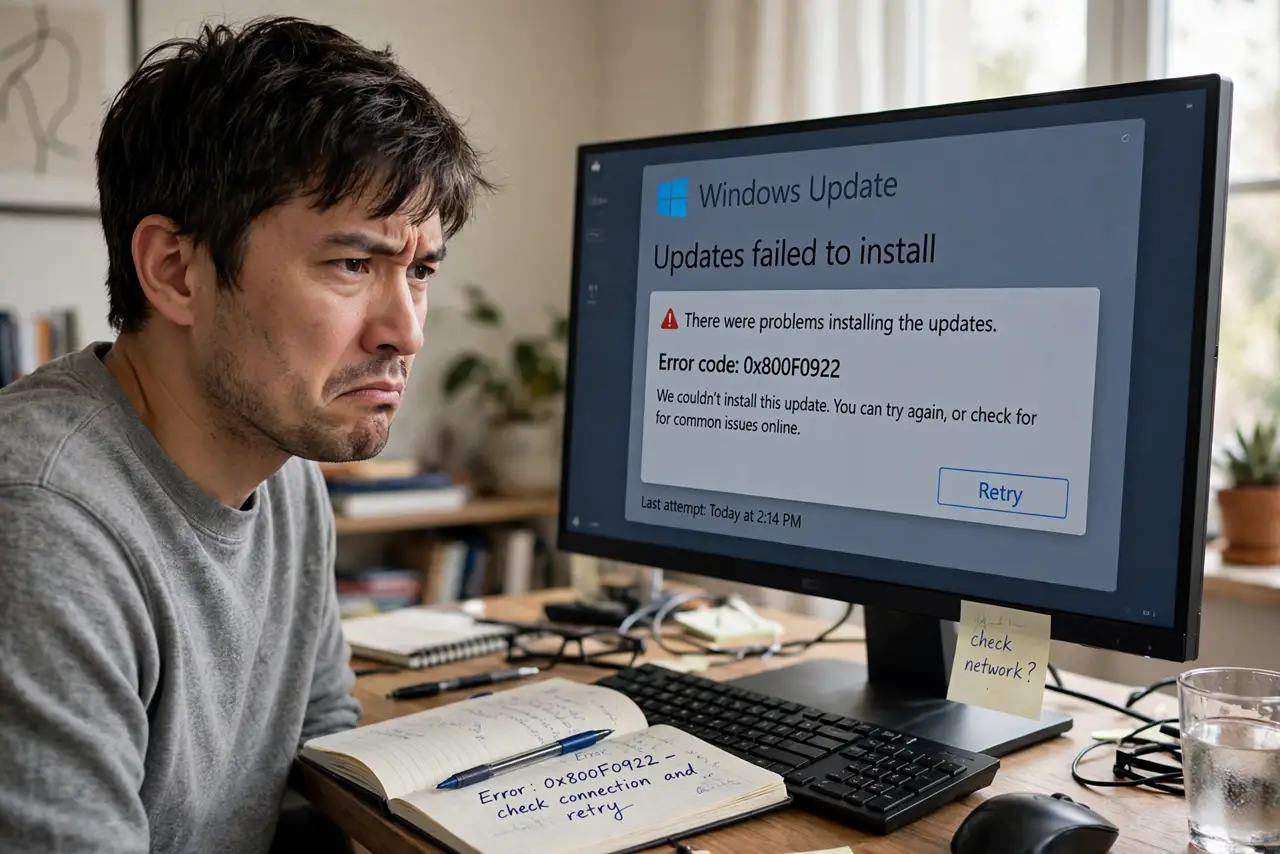
Quick fix: note the error code, then run the built-in Windows Update troubleshooter from Settings — it resolves the most common causes by itself. Check that the drive has free space and the clock is set automatically. If it still fails, restart and retry before anything drastic.
Follow these steps
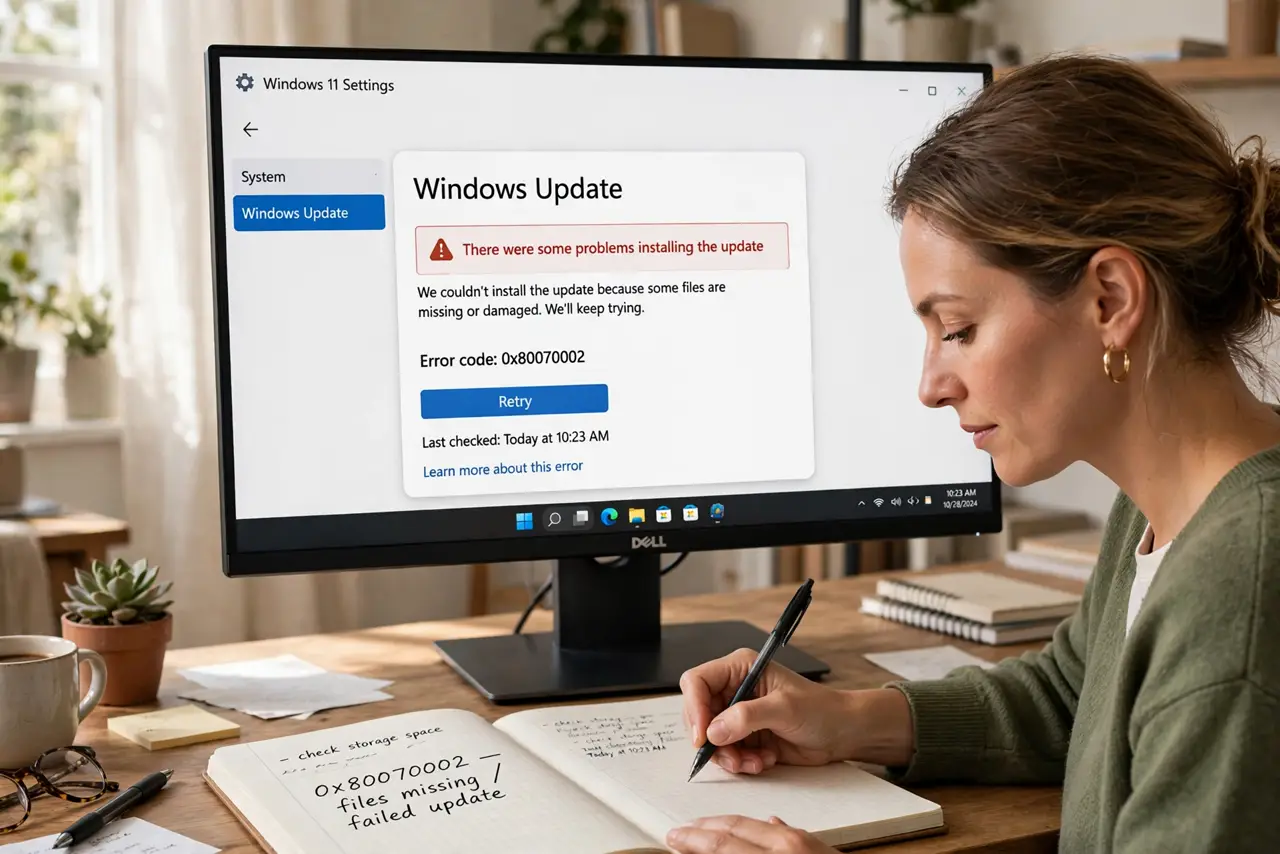
- Write down the exact error code. Codes like 0x80070002 look meaningless but identify the failure precisely. You will need it if the easy fixes fail and for any help search.
- Run the Windows Update troubleshooter. Go to Settings > System > Troubleshoot > Other troubleshooters and run Windows Update. It resets stuck components automatically — this alone fixes a large share of failures.
- Check free disk space. Updates need several gigabytes of breathing room. If the drive is nearly full, find what is eating the space and clear some before retrying.
- Check the clock. Open date and time settings and turn on Set time automatically. A wrong clock breaks the secure connections updates depend on.
- Restart, then retry once. A surprising number of update failures are transient. Restart the PC fully — not sleep, a real restart — and run Check for updates again.
- Pause and resume the update cycle. Pause updates for a week, restart, then resume. This clears stuck download states more gently than deleting system folders.
What NOT to do
- Do not delete system folders like SoftwareDistribution on a hunch. It is a last resort with its own procedure, not step one.
- Do not run random 'Windows fixer' tools from the web. Many bundle junkware, and the built-in troubleshooter does the same job safely.
- Do not disable your antivirus permanently to force an update. If security software blocks it, pause protection briefly — then turn it back on.
- Do not ignore a failing update for months. Small failures compound; a stuck update today becomes a broken update system later.
Frequently asked questions
What do the error codes actually mean?
They point at categories: download problems, disk space, corrupted components, or service conflicts. The troubleshooter reads the code and targets its fix accordingly.
The troubleshooter did not fix it — now what?
Work the ladder above completely, then look up your exact code on Microsoft's official support pages. Persistent failures sometimes need the update components reset through official steps.
Can I just skip a failing update?
Optional and driver updates, yes — leave them unchecked. Security and quality updates should not be skipped long-term.