Fix a Failing Windows Update
Windows Update has failed for the third time — same error, same rollback, same wasted hour. Before you start typing commands you found on a forum, run the built-in troubleshooter: it is designed exactly for this, it is safe, and it fixes the most common causes — stuck services, corrupted caches — automatically. Most update failures never need anything more.

TL;DR / Quick Fix
Quick fix: open Settings, go to System, then Troubleshoot, then Other troubleshooters, and run Windows Update. Restart afterward and try the update again. If it still fails, note the exact error code — that code is the key to the real fix.
Follow these steps
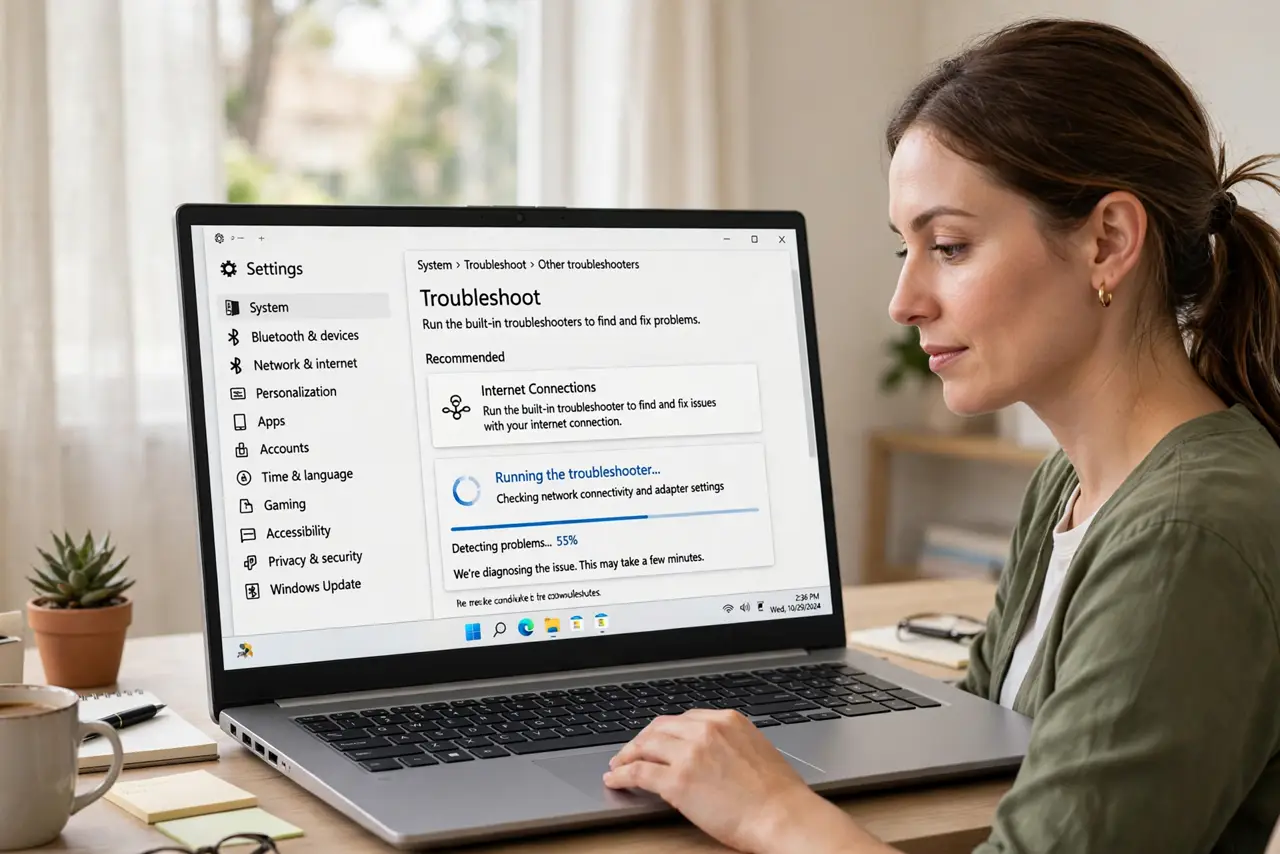
- Run the built-in troubleshooter. Settings, System, Troubleshoot, Other troubleshooters, Windows Update, Run. It checks the update services and cache, fixes what it can, and reports what it could not.
- Restart and retry the update. After the troubleshooter finishes, restart the PC and run Windows Update again. A surprising number of failures clear at this step — the troubleshooter resets the stuck machinery.
- Note the exact error code. If it fails again, write down the full error code (like 0x80070002). The code identifies the cause — common error checks start from exactly this.
- Free up disk space. Updates need breathing room — many failures are simply a full drive. Clear temporary files and ensure plenty of free space on the system drive before retrying.
- Pause, then unpause updates. Go to Windows Update and pause updates for a week, then resume. This resets the update state machine and often unsticks a stuck update without deeper surgery.
- Try the update assistant as a last resort. If Settings-based updates keep failing, Microsoft's Update Assistant performs the upgrade differently and often succeeds where the normal path stalls.
What NOT to do
- Do not run random fix scripts from forums. Registry hacks and mystery batch files cause more update damage than they fix.
- Do not delete the SoftwareDistribution folder blindly. The troubleshooter handles the cache safely — manual deletion is a last resort with steps, not a first try.
- Do not disable updates to dodge the error. An unpatched PC is worse than a failed update — fix the failure, do not flee it.
- Do not reinstall Windows at the first failure. Reinstallation is the final option, not the second — most failures yield to the steps above.
Frequently asked questions
How long should I wait on a stuck update?
Give an active-looking update at least an hour before intervening — some phases look frozen while working. Truly stuck means no disk activity and no progress for hours.
Will the troubleshooter delete my files?
No — it touches update services and caches only. Your files and apps are not part of what it resets.
The same update fails every month — why?
Usually a persistent system issue: corrupted components, a driver conflict, or insufficient space. The error code from each attempt points at which.