Tether With Your Phone's USB
The Wi-Fi is down, there's no hotspot option, but your phone has mobile data and a USB cable is right there. USB tethering shares the phone's connection with the PC over the cable — faster and more stable than a Wi-Fi hotspot, and it charges the phone at the same time.
TL;DR / Quick Fix
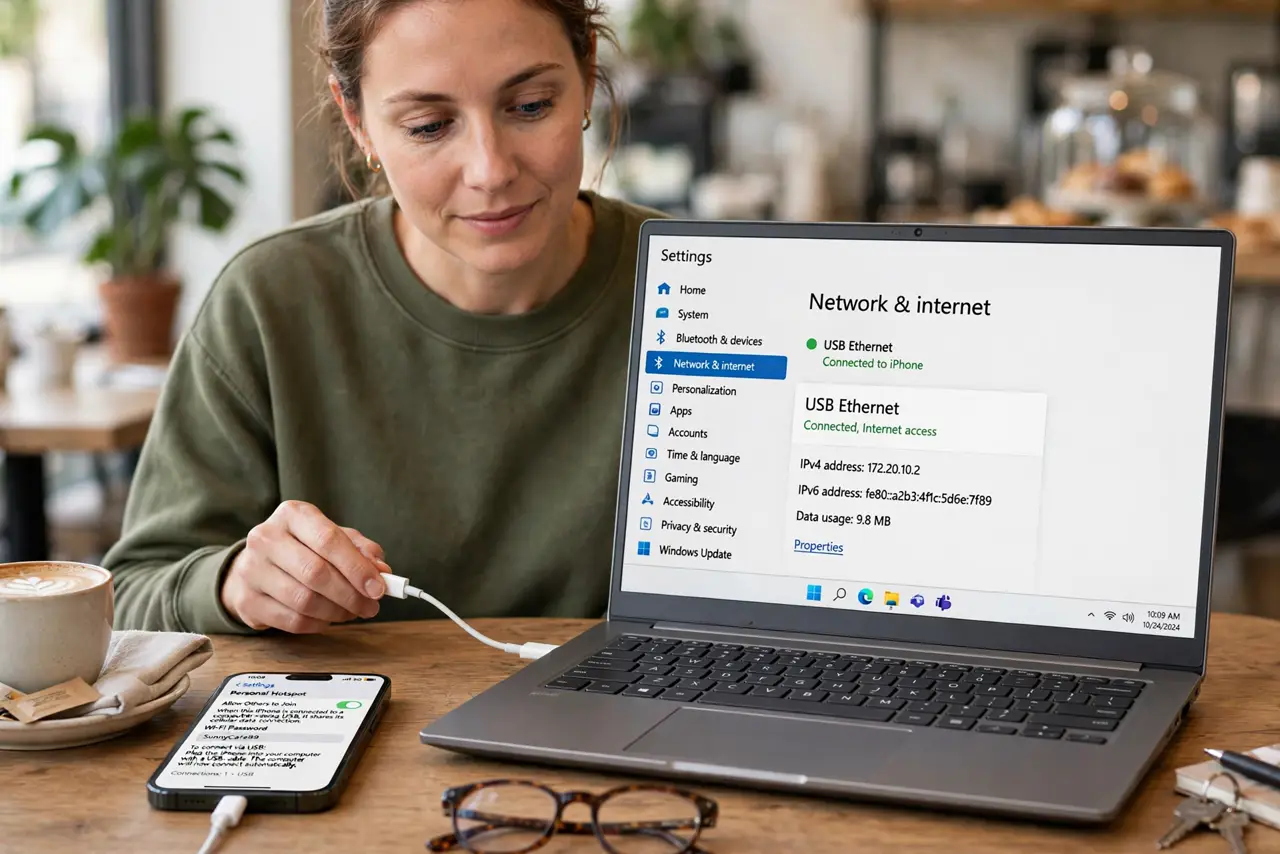
Quick fix: connect the phone to the PC with a USB cable, then enable USB tethering in the phone's hotspot settings. Windows picks it up as a wired connection within seconds. Watch your mobile data usage, since the PC can burn through a data plan fast.
Follow these steps
- Connect the phone with a USB cable. Use a data-capable cable, not a charge-only one. Plug the phone into the PC and unlock the phone.
- Enable USB tethering on the phone. On iPhone: Settings > Personal Hotspot > turn on 'Allow Others to Join,' then choose the USB option when prompted. On Android: Settings > Network > Hotspot & tethering > USB tethering on.
- Wait for Windows to recognize it. Windows installs the phone as a network adapter automatically and shows a new wired connection. Give it up to a minute the first time.
- Confirm you are actually online. Open a page and check it loads. If Windows shows the connection but nothing loads, toggle tethering off and on once.
- Set the connection as metered. Windows Update can devour mobile data. Mark the tethered connection as metered so Windows holds back big downloads.
- Know when a hotspot fits better. USB tethering serves one PC over a cable. To share with several devices wirelessly, set up a Wi-Fi hotspot from the PC instead.
What NOT to do
- Do not tether on a tiny data plan without checking usage. A PC idles heavier than a phone — background updates and cloud syncs add up fast.
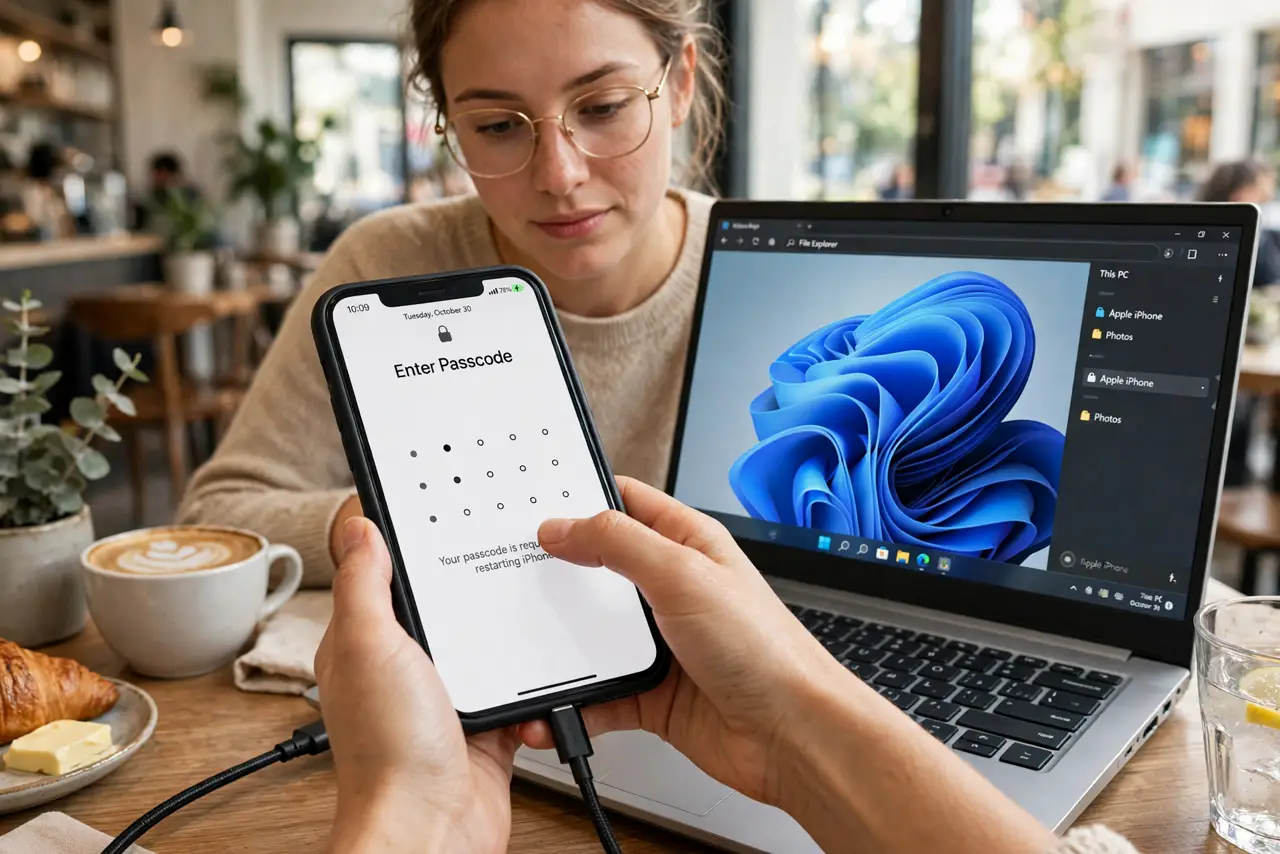
- Do not use a charge-only cable and wonder why nothing happens. If the PC doesn't offer the phone as a network device, swap the cable.
- Do not leave tethering on after you're done. It keeps the phone's radio working and drains both battery and data.
- Do not assume tethering is free. Some carriers charge extra or throttle tethered data — check your plan before leaning on it daily.
Frequently asked questions
Is USB tethering faster than a Wi-Fi hotspot?
Usually yes — the cable avoids wireless interference and the connection is more stable. Latency is lower too, which gamers and video callers notice.
Why doesn't my PC see the phone as a network?
Almost always the cable (charge-only), a locked phone, or tethering not yet enabled. Unlock the phone, enable tethering, then plug in — order matters on some phones.
Can I tether and charge at the same time?
Yes — that is one of its perks. The same cable carries data and power, so the phone charges while it shares.
What to read next
- Share Wi-Fi as a Hotspot
- Set Wi-Fi as Metered