Enable Variable Refresh Rate
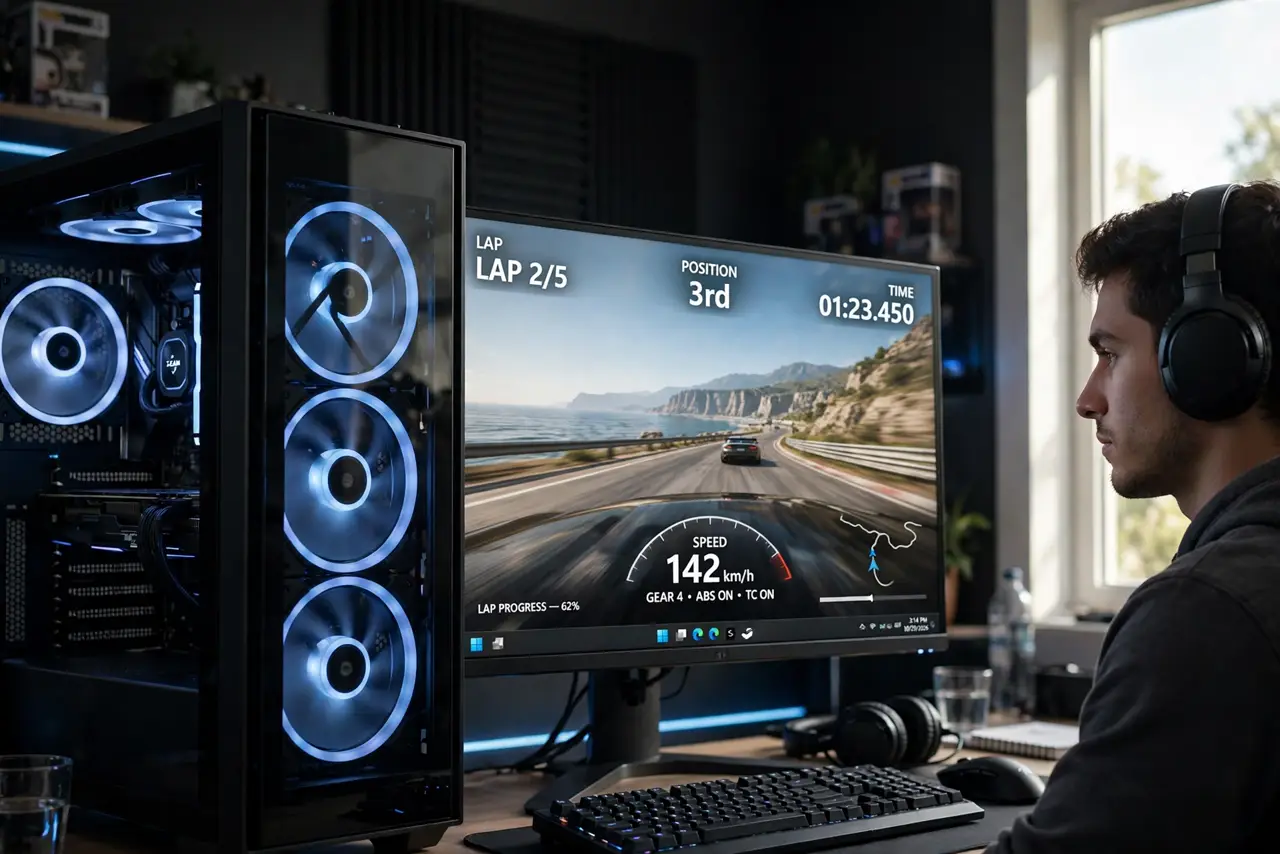
Your game tears — horizontal splits across the screen during fast motion — but your monitor has no G-Sync or FreeSync badge. Windows has a software-level answer: variable refresh rate support that smooths tearing on many displays without dedicated hardware. Here is how to enable it and what to expect.
TL;DR / Quick Fix
Quick fix: Windows can apply variable refresh rate to games even without a G-Sync or FreeSync monitor. Go to Settings, System, Display, Graphics, change default graphics settings, and turn on Variable refresh rate. Restart, then test in a game — tearing should visibly reduce, though results vary by display.
Follow these steps
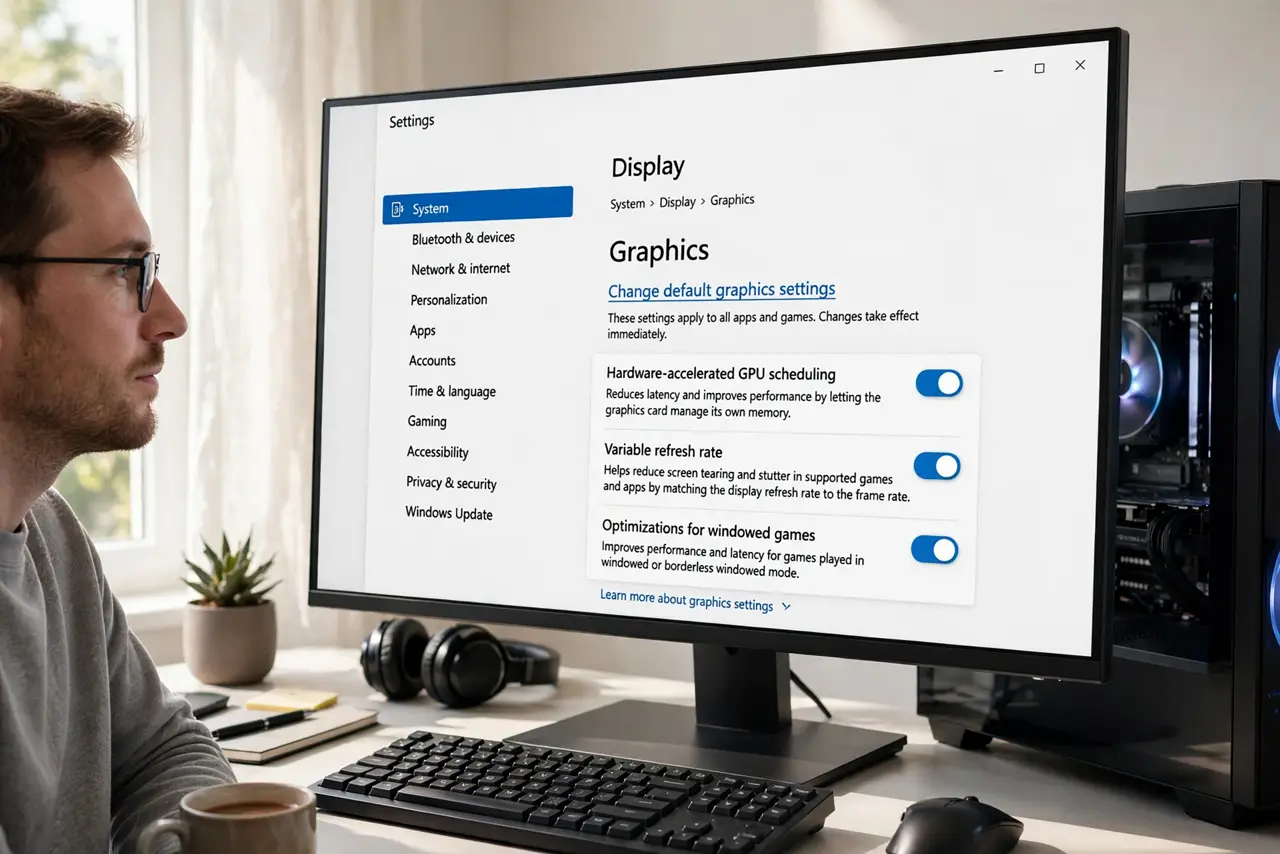
- Open the default graphics settings. Go to Settings, System, Display, Graphics, then 'Change default graphics settings'. The variable refresh rate toggle lives alongside the GPU scheduling option.
- Turn on Variable refresh rate. Flip the toggle. Windows then allows games to use VRR on displays that support it at the software level, even without dedicated sync hardware.
- Restart your PC. Like its neighboring toggles, this one needs a reboot to take effect. Test only after restarting — before that, nothing has changed.
- Check your display's refresh rate setting. In Display settings, Advanced display, confirm the refresh rate is set to the monitor's maximum — VRR works within that range, and a 60Hz cap limits what it can do. See the refresh rate guide.
- Test with a fast-moving game. Load a game where tearing was obvious — racing or fast shooters show it best. Compare before and after; the improvement is usually visible immediately if your display cooperates.
- Know the hardware limits. Software VRR cannot match a true G-Sync/FreeSync display — some monitors flicker or show artifacts. If yours misbehaves, the toggle turns off cleanly with no harm done.
What to avoid
- Do not expect G-Sync quality. Software-level VRR reduces tearing but is not the same as a dedicated adaptive-sync display — calibrate expectations.
- Do not leave it on if the screen flickers. Some panels react badly; flickering means your display dislikes it — turn it off.
- Do not forget the game must run fullscreen or proper borderless. VRR hooks into the presentation path — odd window modes can bypass it.
- Do not confuse this with the monitor's own overdrive. Response-time overdrive and refresh-rate sync are separate settings solving separate problems.
Frequently asked questions
Will this work on any monitor?
On many — Windows applies it at the software level. But panels vary: some smooth out beautifully, others flicker. Your display decides.
Does it cost performance?
Negligibly. VRR adjusts timing, not rendering workload — frame rates stay essentially the same, just better presented.
Should I still buy a G-Sync monitor?
For serious gaming, yes — hardware adaptive sync remains smoother and more reliable than the software fallback. This toggle is the free consolation prize.