Set Your Monitor's Refresh Rate
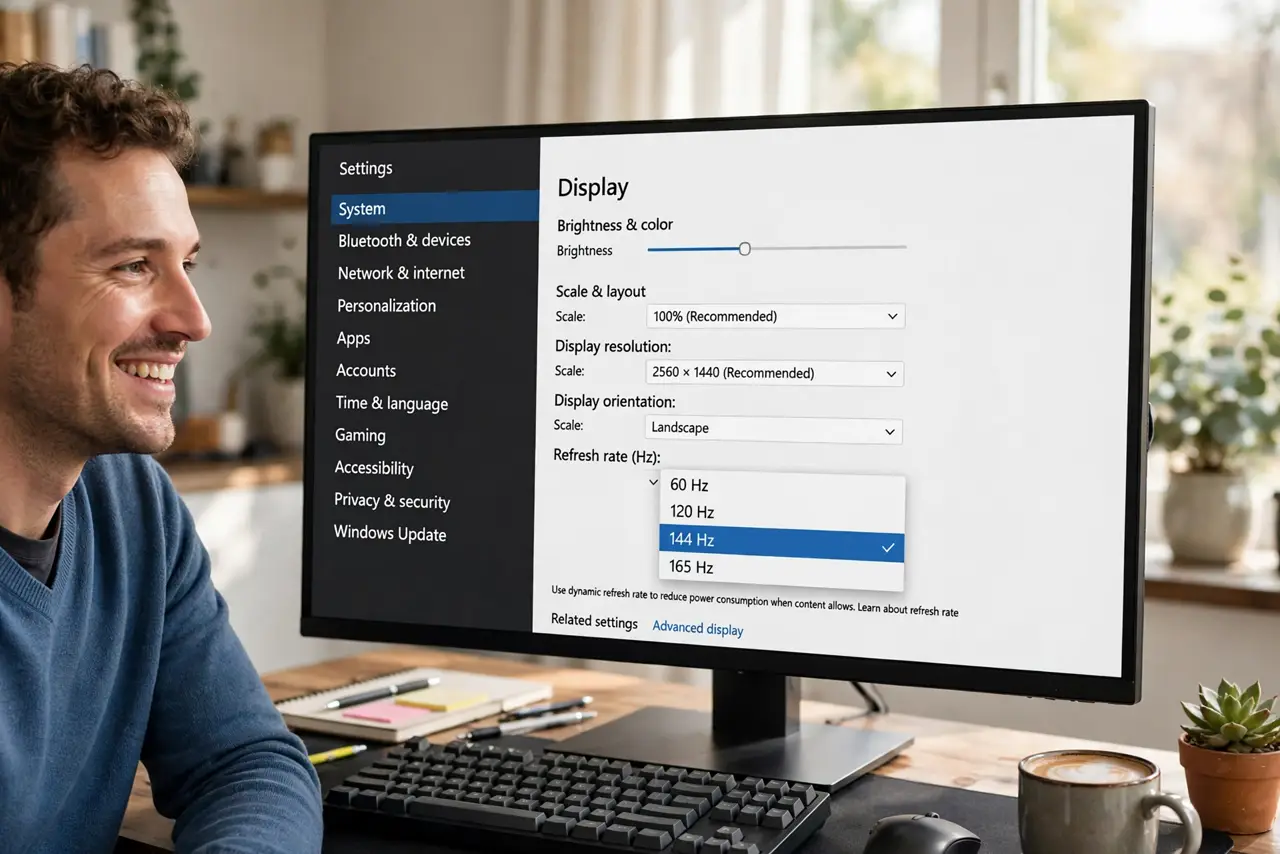
You bought a 144 Hz monitor but everything still feels like 60 Hz — because it is. Monitors almost always default to 60 Hz, and the higher rate hides a few menus deep in display settings. Enabling it takes thirty seconds and the smoothness difference is instant.
TL;DR / Quick Fix
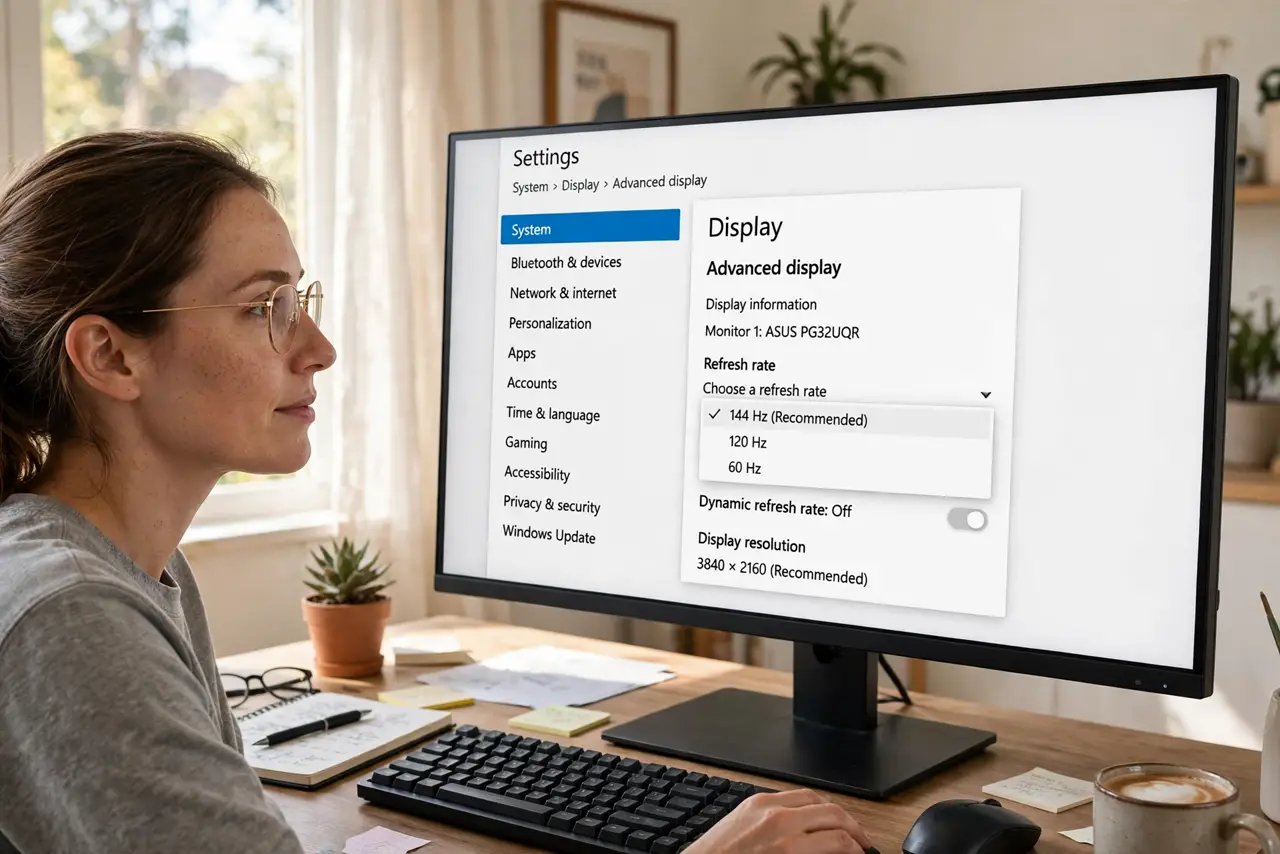
Quick fix: on Windows open Settings > System > Display > Advanced display and pick the refresh rate from the dropdown. On Mac check System Settings > Displays. Use a cable that supports the rate — old HDMI cables cap it. If the high option is missing, suspect the cable.
Follow these steps
- Open the advanced display settings. Windows: Settings > System > Display > Advanced display. The refresh rate dropdown lives here, not in the main display page.
- Pick the highest rate offered. Select 120, 144, or whatever your panel's top rate is. The change applies instantly — move the mouse and feel it.
- Check the cable if the rate is missing. Old HDMI cables top out at 60 Hz at high resolutions. A proper high-speed cable — or DisplayPort — unlocks the rest. See the HDMI cable check.
- Set it per monitor on multi-display setups. Each monitor has its own dropdown. Your new 144 Hz panel can run full speed while the old side monitor stays at 60.
- Confirm in the monitor's own menu. The monitor's on-screen display usually shows the current rate. If the OS says 144 and the monitor says 60, something in the chain is capping it.
- Test with motion, not still images. Drag a window fast or scroll a page. The smoothness jump from 60 to 120+ is obvious in motion and invisible in screenshots.
What NOT to do
- Do not assume the monitor runs at its advertised rate out of the box. It almost never does — 60 Hz is the universal default.
- Do not buy a 240 Hz monitor for office work expecting revelation. The jump from 60 to 120 is big; beyond that is diminishing returns for non-gamers.
- Do not use a random old cable with a new high-refresh monitor. The cable is the most common rate cap.
- Do not enable overclocked refresh rates from forums. Pushing past the rated spec can cause the flicker-at-one-rate problem.
Frequently asked questions
Why is my 144Hz monitor stuck at 60Hz?
Almost always the cable or the port — see the stuck at 60Hz guide. The setting itself is a thirty-second change once the chain supports it.
Does higher refresh rate help outside gaming?
Yes — scrolling, window dragging, and cursor movement all feel smoother. It is subtle but real for daily use.
Can the wrong rate damage the monitor?
No. The monitor simply runs at whatever valid rate it receives. Invalid rates show 'out of range' instead of damage.