Set Volume Per App
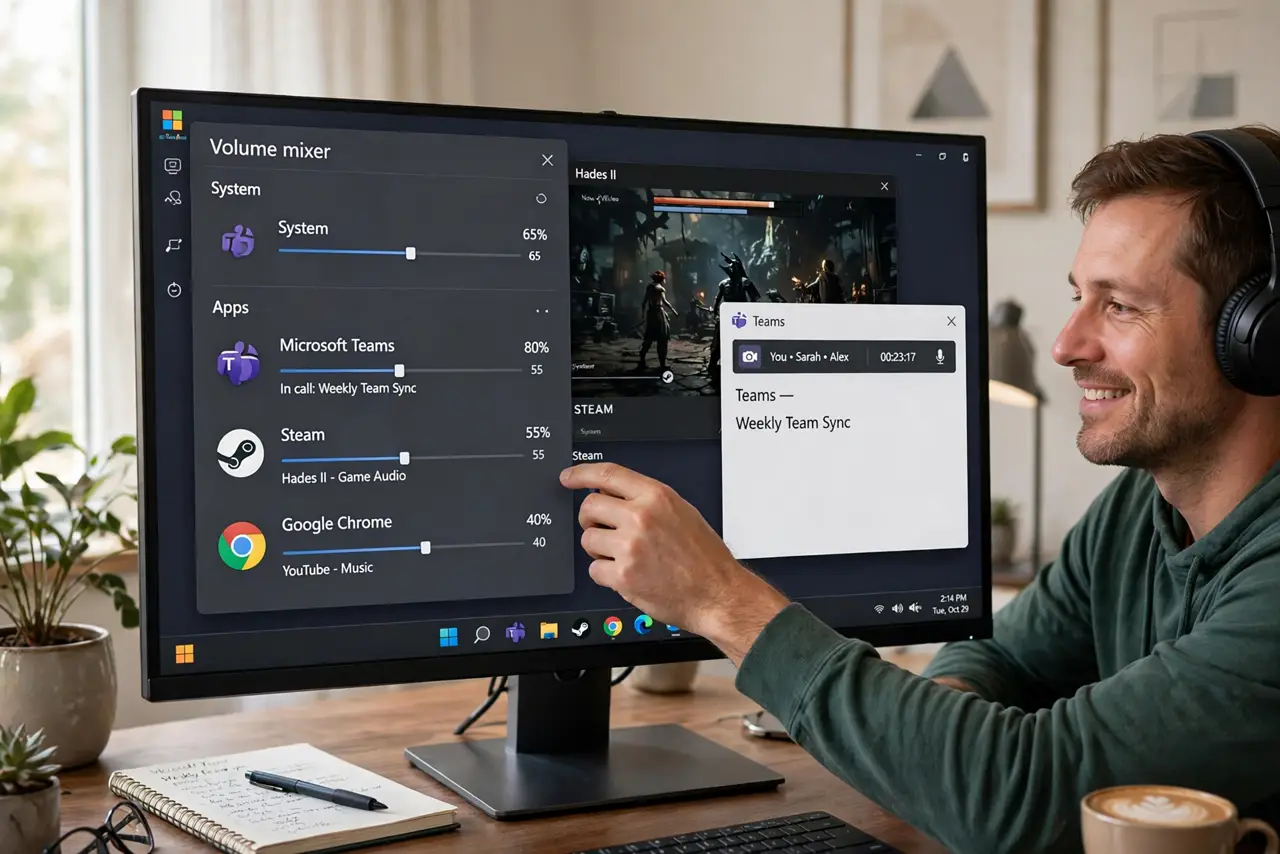
The game is deafening, the call is a whisper, and the master volume slider moves both together. Windows lets you set volume per app — and even route different apps to different outputs. The volume mixer is the mission control most people never open, and it solves every 'one app too loud' complaint in seconds.
TL;DR / Quick Fix
Quick fix: right-click the speaker icon and open the Volume mixer — every app making sound gets its own slider. Drag the loud one down and the quiet one up. You can also route apps to different outputs, like game audio to speakers while the call stays on your headset.
Follow these steps
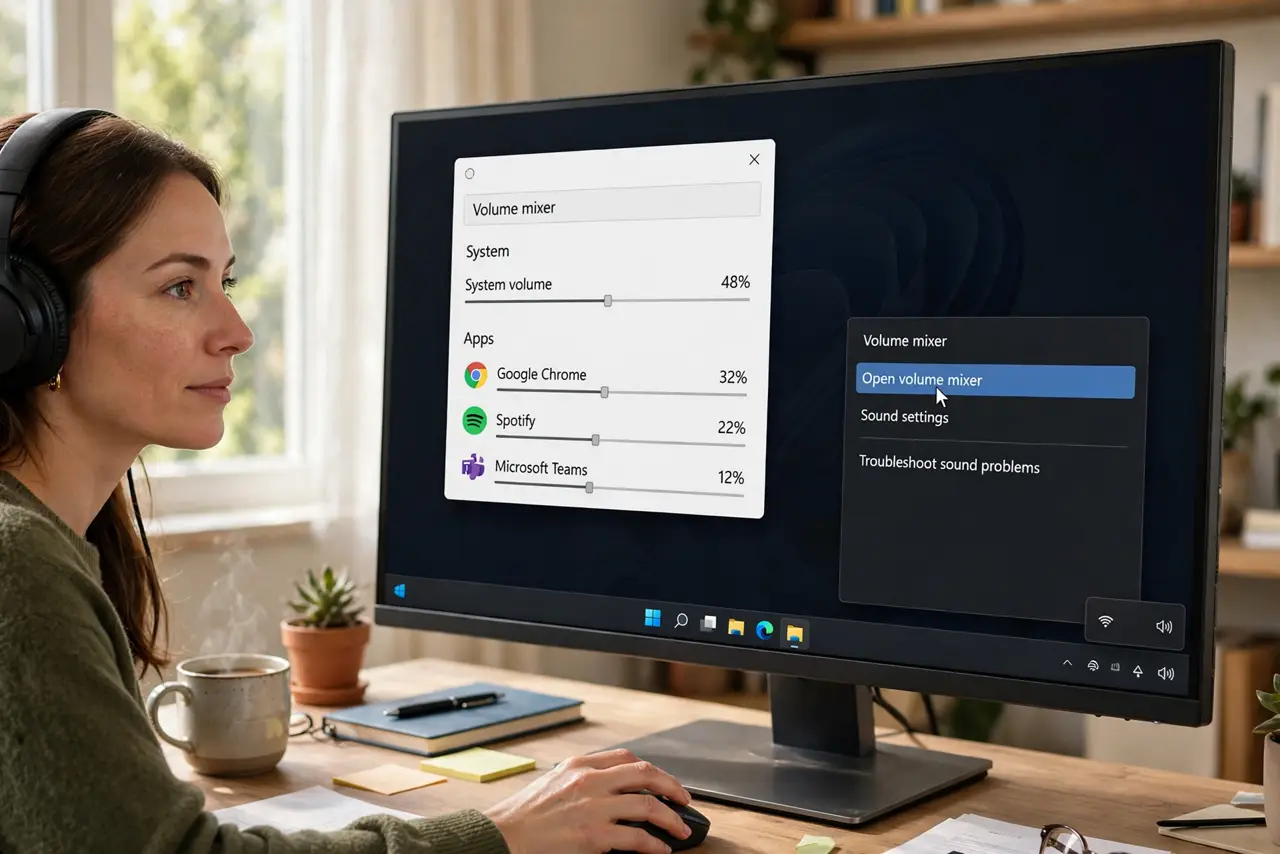
- Open the Volume mixer. Right-click the speaker icon in the taskbar and choose Open volume mixer. Every app currently producing sound appears with its own slider.
- Balance the sliders. Drag the loud app down and the quiet app up. Changes apply instantly — no save button, no restart needed.
- Mute the offenders. The speaker icon under each app mutes just that app. Browser autoplay ads die here without touching your music.
- Route apps to different outputs. The mixer lets each app use its own output device. Send the game to speakers and keep the call on the headset — true multitasking audio.
- Set input per app too. Some versions let you pick each app's microphone as well. Useful when the game should hear one mic and the call another.
- Know it resets on reinstall. Fresh installs and major updates can reset per-app levels. If the balance feels off after an update, revisit the mixer.
What NOT to do
- Do not crank the master to fix one quiet app. You will deafen yourself when the loud app makes noise — balance per app instead.
- Do not forget muted apps. A 'broken' app is often just muted in the mixer from last week's ad-killing spree.
- Do not expect closed apps to appear. Only apps currently running — or recently sounding — show sliders. Launch the app first.
- Do not route everything everywhere. Per-app routing is powerful; routing randomly creates the confusion it was meant to solve.
Frequently asked questions
Why is one app silent while others play?
It is muted or zeroed in the volume mixer, or routed to the wrong output. Open the mixer and check that app's row first.
Do these settings survive restarts?
Per-app volumes persist across restarts for the same apps. Major Windows updates sometimes reset them.
Can I control this with keyboard shortcuts?
Not built in per app — the master volume keys control the master. Third-party tools add per-app hotkeys if you need them.