'Camera Used by Another App' on Windows
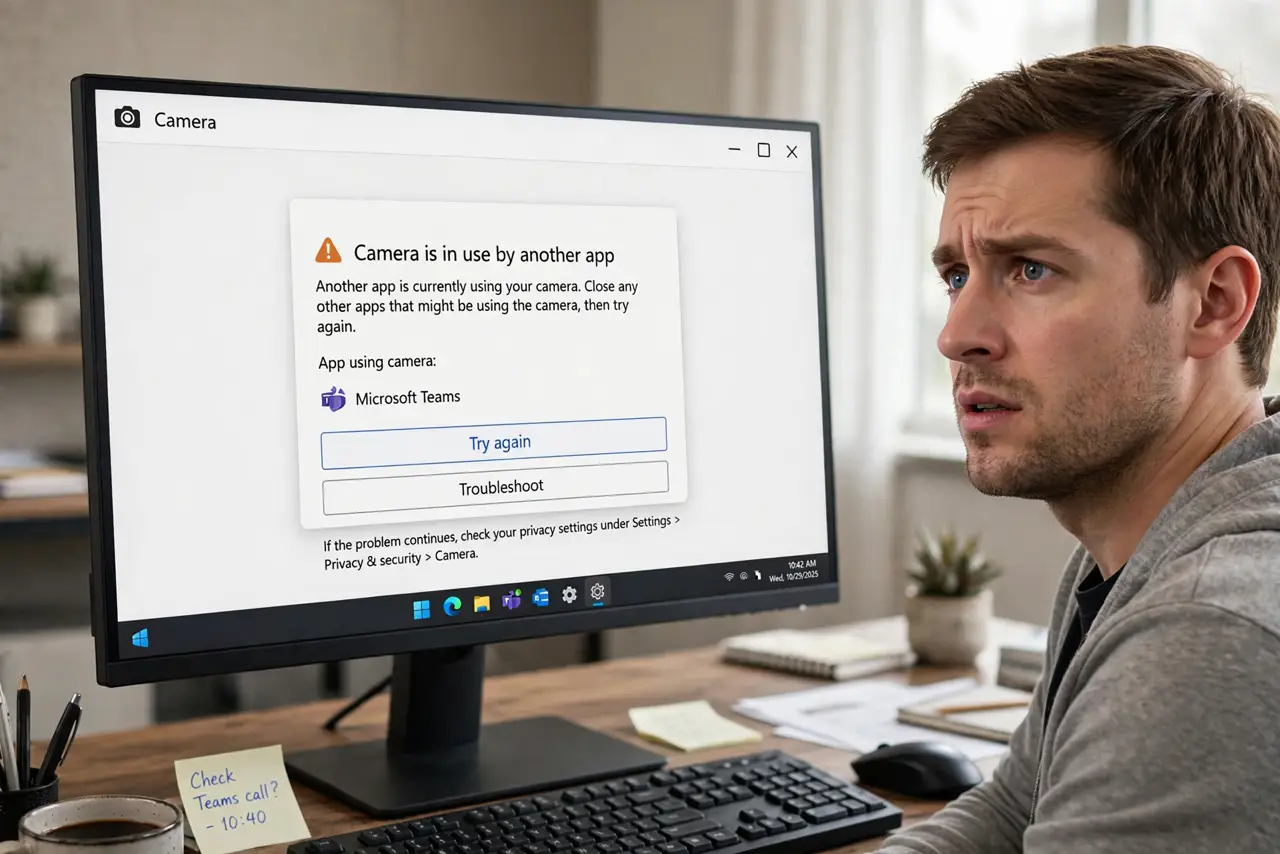
You open the camera and Windows says it is used by another app — but you cannot see which one. Background apps, browser tabs, and stuck processes can all hold the camera hostage invisibly. The fix is finding the holder and closing it, a darker twin of the flipped webcam image problem.
TL;DR / Quick Fix
Quick fix: close every app that might use the camera — call apps, browsers with video tabs, and the Camera app itself — then try again. If the error persists, open Task Manager and end leftover camera-using processes. A reboot clears any truly stuck holder, and the camera works afterward.
Follow these steps
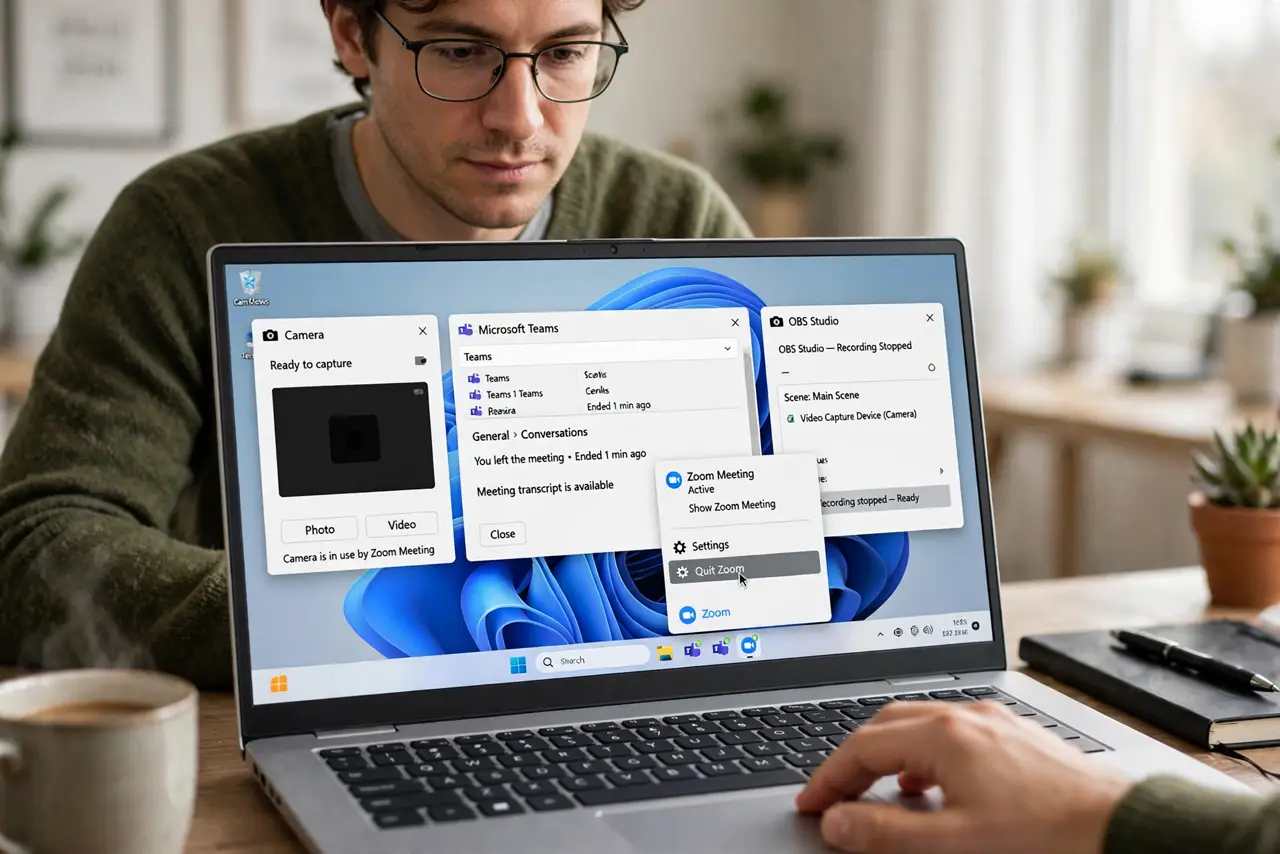
- Close the obvious camera apps. Quit every video call app, the Camera app, and any recording software. The holder is often an app you forgot was still running.
- Close browser tabs using the camera. Shut browser tabs from video calls or camera test sites. A background tab can hold the camera long after the call ended.
- Check Task Manager for leftovers. Look for call-app or camera processes still running after you closed their windows. End them, since a process without a window still holds the camera.
- Check the camera privacy settings. Open the camera privacy page and see which apps recently accessed the camera. The recent-activity list often names the culprit directly.
- Reboot to clear a stuck holder. If no visible process explains it, restart the computer. A reboot releases every camera handle, including ones from crashed processes.
- Test the camera right after reboot. Open the Camera app first thing after the restart. A working camera here proves the holder was software, not hardware.
What NOT to do
- Do not disable the camera in Device Manager as a fix. That hides the device instead of freeing it, and you still need to find the holder.
- Do not assume malware immediately. A stuck legitimate app is far more common than a malicious one, so check the obvious holders first.
- Do not reinstall the camera driver yet. A driver reinstall cannot release a camera held by a running process.
- Do not ignore the privacy indicator light. If the light is on, something is genuinely using the camera — believe the light and keep hunting.
Frequently asked questions
Which app is using my camera?
Check the camera privacy settings' recent activity list, or look in Task Manager for call and recording apps still running.
Why does the error persist after closing everything?
Because a crashed process can keep its camera handle. Task Manager or a reboot clears these ghost holders.
Can two apps share the camera?
Generally no. Windows grants the camera to one app at a time, which is why the second app gets this error.