Stop Widgets Showing News You Never Asked For
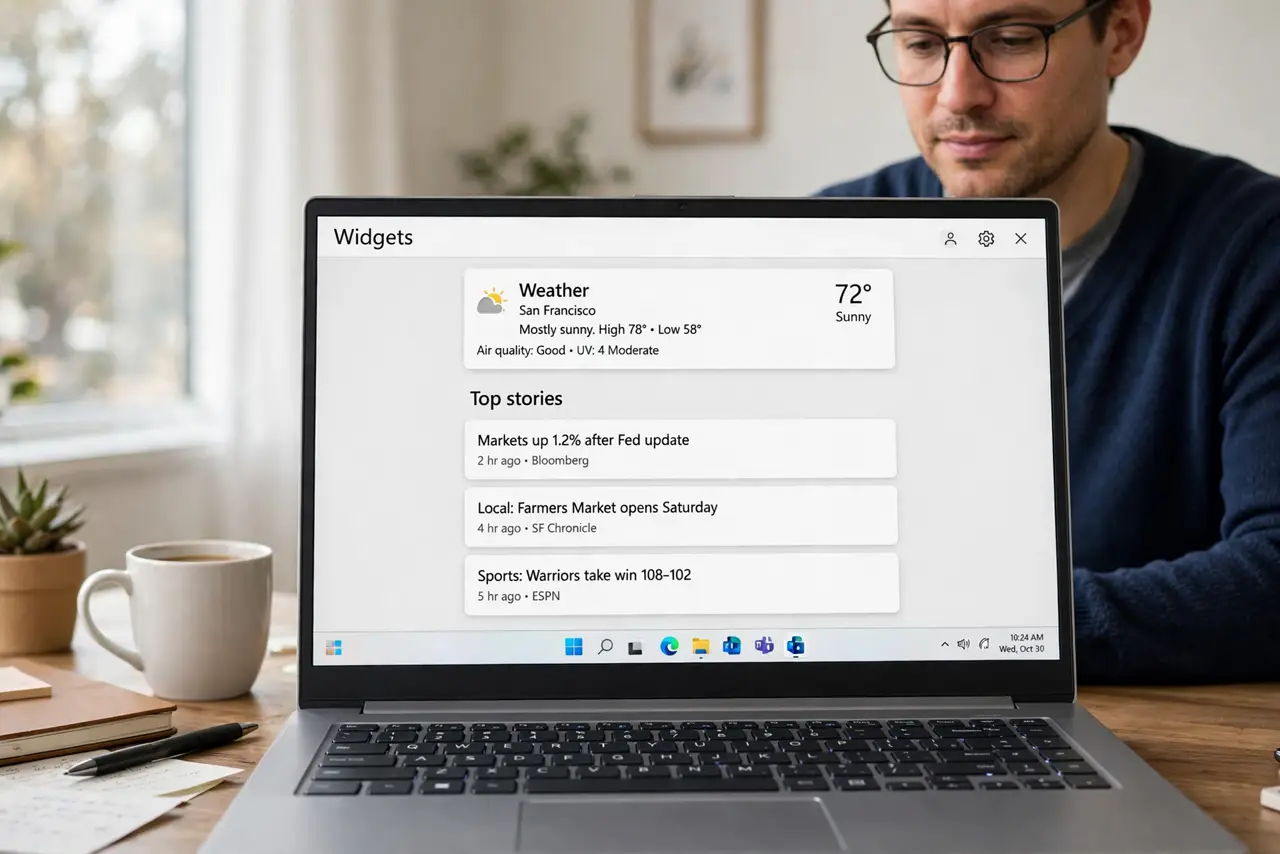
The Widgets board mixes useful cards, such as weather and calendar, with a news feed that can feel random or unwanted. You do not have to live with it or turn Widgets off entirely: you can hide publishers, unfollow topics, and shrink the feed. If the board itself will not load at all, start with the guide on Widgets board opening blank.
TL;DR / Quick Fix
Quick fix: Hide a publisher you do not want. Unfollow topics that do not interest you. Then work through the remaining steps in order, checking one change at a time, and stop for a technician if you see damage, swelling, or a burning smell.
Follow these steps
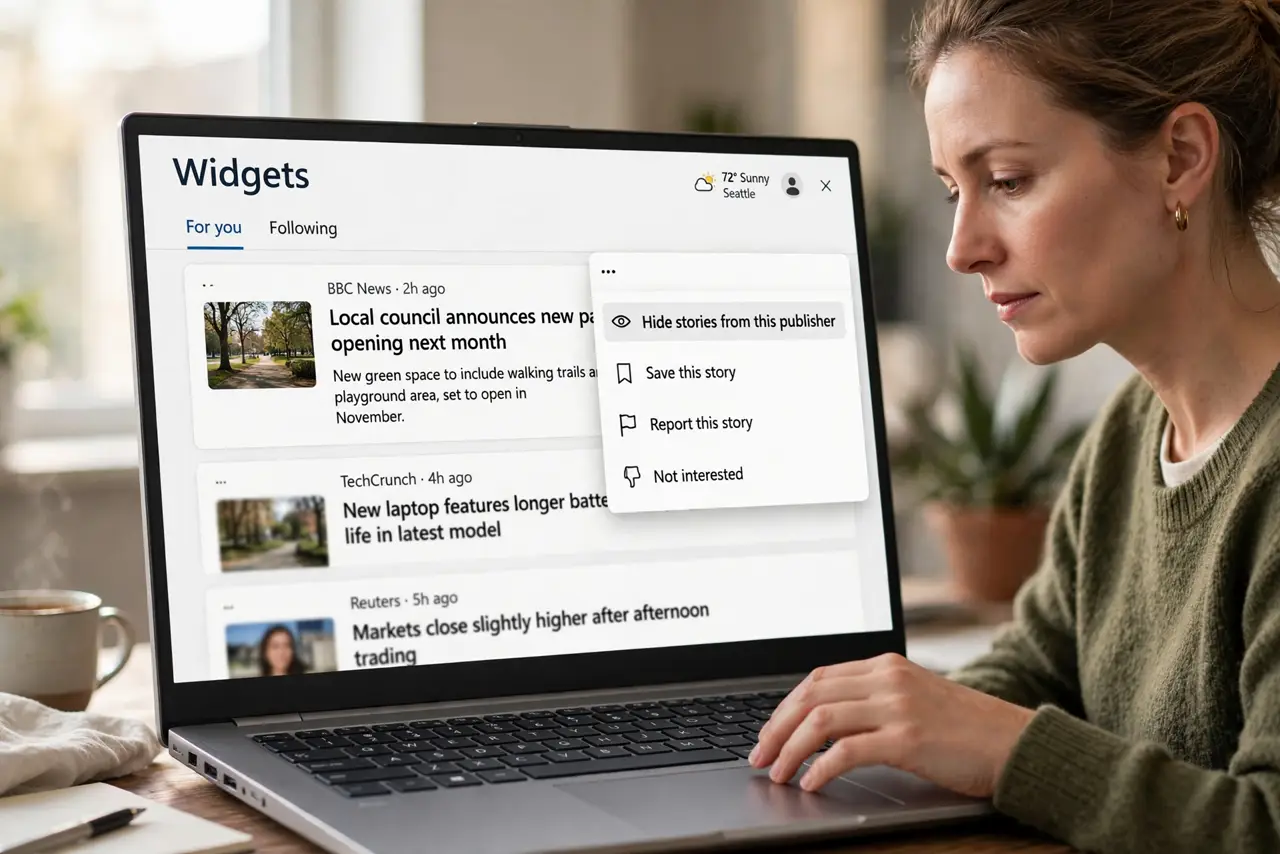
- Hide a publisher you do not want. In the Widgets news feed, open the menu on a story from an unwanted publisher and choose Hide stories from this publisher. That publisher stops appearing, while the rest of the feed stays.
- Unfollow topics that do not interest you. Open the Widgets settings or feed personalization and unfollow topics that keep surfacing. Unfollowing a topic removes its stories without removing the publishers you do like.
- Turn off the news feed if you prefer cards only. In Widgets settings, look for the feed option and turn off the news feed or show only your followed content, depending on the version you see. Weather, calendar, and other cards remain.
- Check the feed after a sign-in change. If unwanted news returns after signing in with a different account, your feed follows that account. Hide publishers again under the account you actually use day to day.
- Use Manage interests for a clean sweep. Open Manage interests from the feed menu and review the full list of followed topics and publishers in one place. Clearing several at once is faster than hiding stories one by one.
- Hide the Widgets icon if you want a break. If you would rather not see the board at all for now, right-click the taskbar, open Taskbar settings, and turn off Widgets. You can turn it back on the same way, with your feed choices kept.
What NOT to do
- Do not block news sites in your browser to fix Widgets. The Widgets feed is separate from the browser, so browser blocks change nothing there.
- Do not sign out of Widgets to escape news. Signing out also removes the useful cards, while hiding publishers keeps them.
- Do not install a feed cleaner for Widgets. Third-party cleaners cannot edit the Microsoft feed safely and may break the board.
- Do not report every unwanted story as harmful. Hiding the publisher is the right tool for stories you simply do not want to see.
Frequently asked questions
Will hiding a publisher remove stories I like from it?
Yes, hiding removes all stories from that publisher, so hide only publishers you never want to see.
Does turning off the feed remove weather and calendar?
No. Cards such as weather and calendar are separate from the news feed, so they stay when the feed goes.
Why does unwanted news come back after an update?
Feed personalization can reset with a major update or account change. Repeating the hide steps under your usual account restores it.