Widgets Show Weather for the Wrong Place
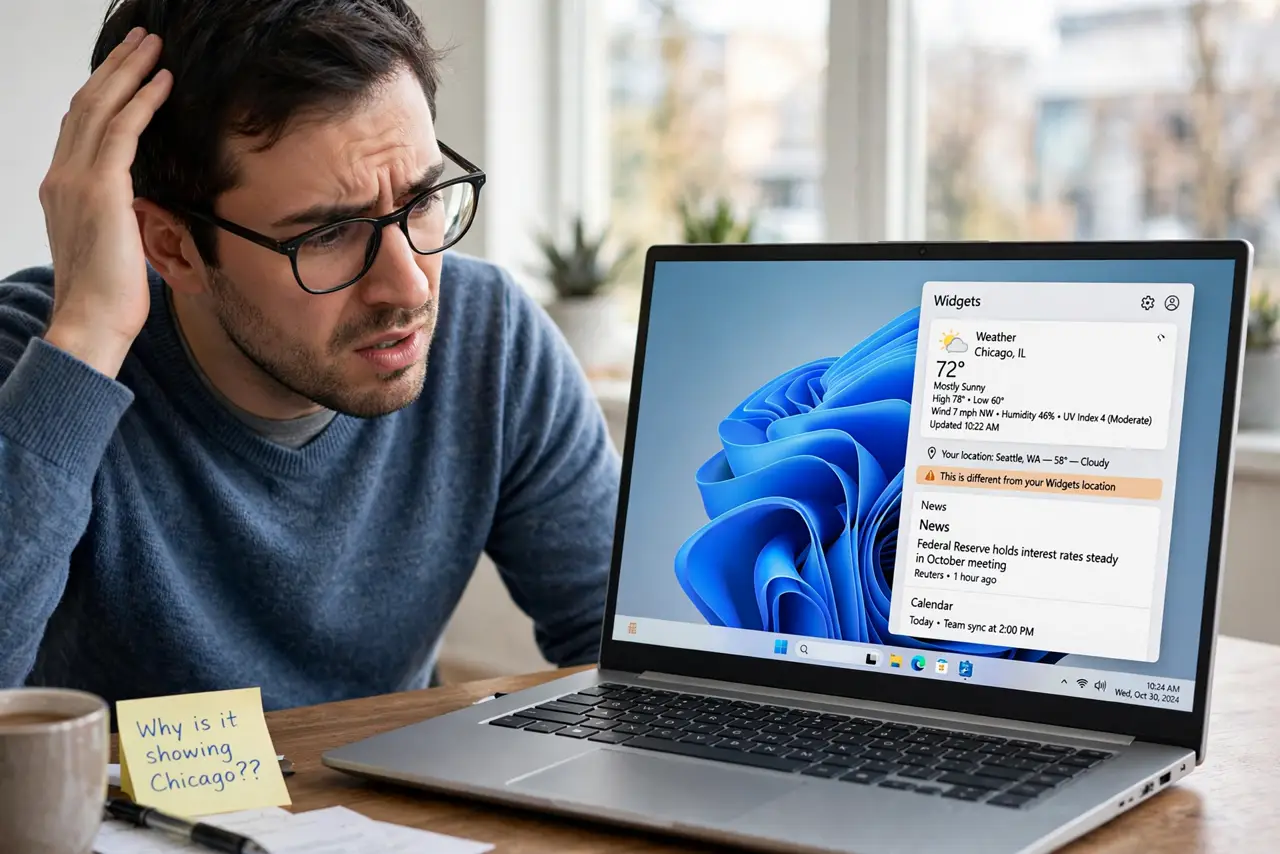
The widgets board insists you are in another city — wrong weather, wrong location, and no obvious way to correct it. The board guesses your location from a stale setting, a VPN, or a disabled location service. This guide shows how to tell it where you actually are.
TL;DR / Quick Fix
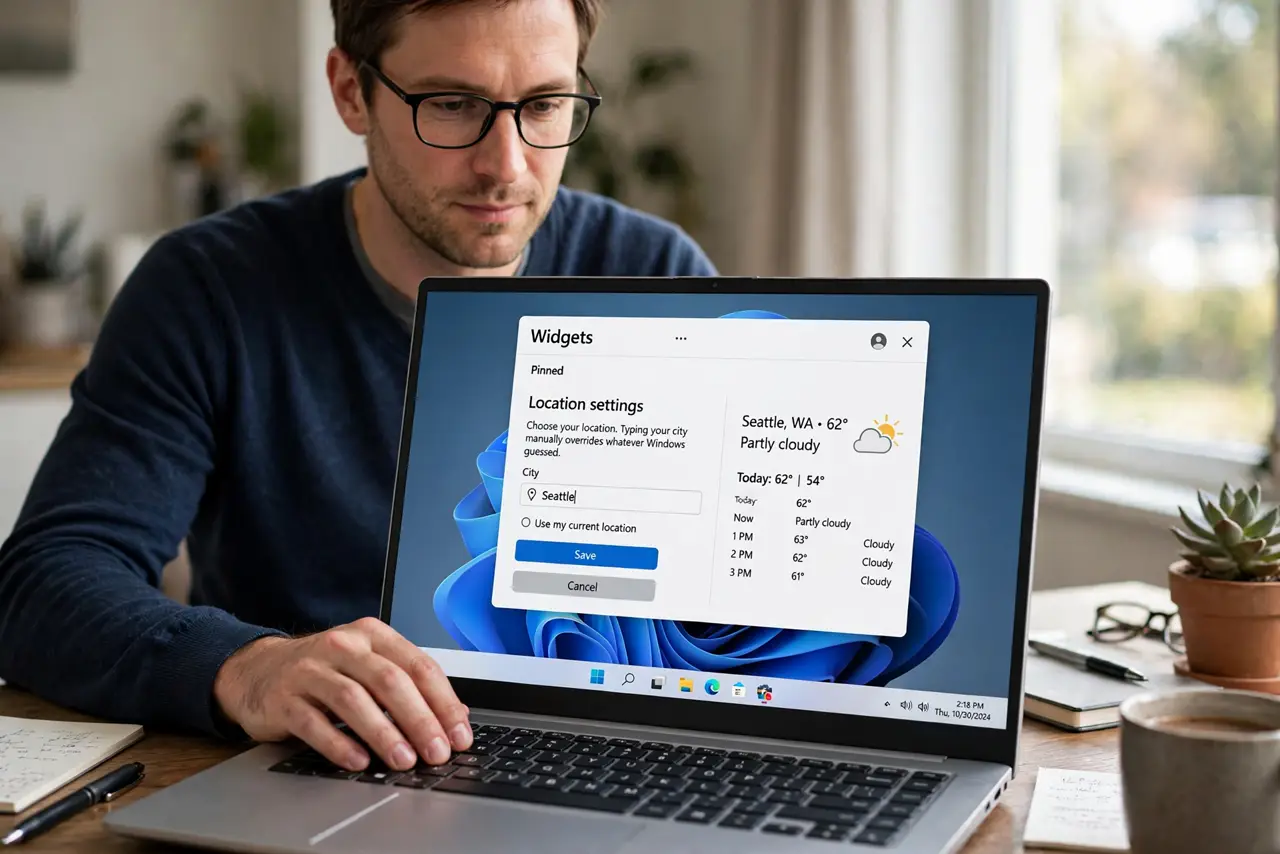
Quick fix: open the widgets board, open the weather widget's settings, and type your city manually to override the guess. If it keeps reverting, check Windows location services and disconnect any VPN masking your real city, then refresh the board.
Follow these steps
- Set the location in the widget. Open the widgets board, click the weather widget's menu, and look for location settings. Typing your city manually overrides whatever Windows guessed.
- Check Windows location services. Go to Settings > Privacy & security > Location and make sure location services are on. With location off, the widget falls back to a stale or guessed city.
- Disconnect the VPN temporarily. A VPN makes you appear in another city, and the widget believes it. Disconnect the VPN, refresh the widget, and see whether the correct city appears.
- Verify the Windows region setting. Go to Settings > Time & language > Language & region. A wrong region can feed the wrong default city to location-aware widgets.
- Refresh the widgets board. Close and reopen the board, or restart Windows Explorer from Task Manager. Widgets cache location data, and a refresh forces a new lookup.
- Compare with the taskbar weather. The taskbar weather and the widgets board can disagree — the taskbar widget has its own location logic worth checking separately.
What NOT to do
- Do not turn on precise location for the whole system just for weather. A manually typed city gives correct weather without location tracking.
- Do not reinstall anything over wrong weather. This is a location data issue, not a broken app.
- Do not trust the widget for travel weather. Always verify with a real forecast before packing — widgets simplify and lag.
- Do not ignore a VPN you forgot was on. An always-on VPN explains most 'wrong city' mysteries in one step.
Frequently asked questions
Why does the widget show a different city than I am in?
Stale location data, a VPN masking your city, or disabled location services forcing a guess.
Can I set the weather location manually?
Yes. The weather widget's own settings let you type a city, which overrides automatic detection.
Why do taskbar and widgets show different cities?
They use separate location logic. Fix each one in its own settings.