Wi-Fi Adapter Disabled? Fix It
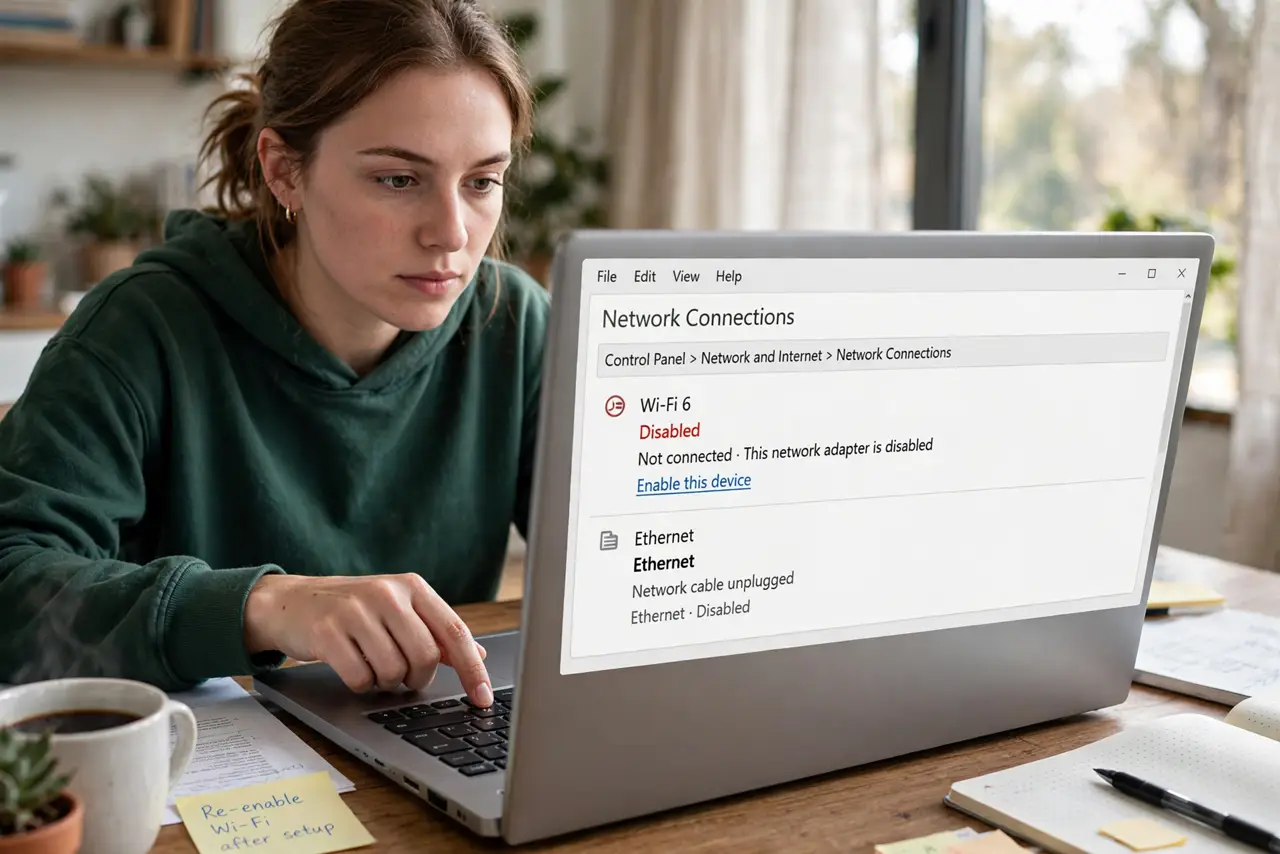
The Wi-Fi icon is gone, the network list is empty, and Settings says the adapter is disabled. Sometimes a stray keypress on the laptop's function row did it; sometimes Windows disabled it after a crash. Re-enabling takes seconds once you know where the switch lives.
TL;DR / Quick Fix
Quick fix: open Settings, go to Network & internet, then Advanced network settings, and enable the Wi-Fi adapter. Also check the laptop's physical Wi-Fi switch or function key. If it disables itself again, update the driver or check for a stuck airplane mode.
Follow these steps
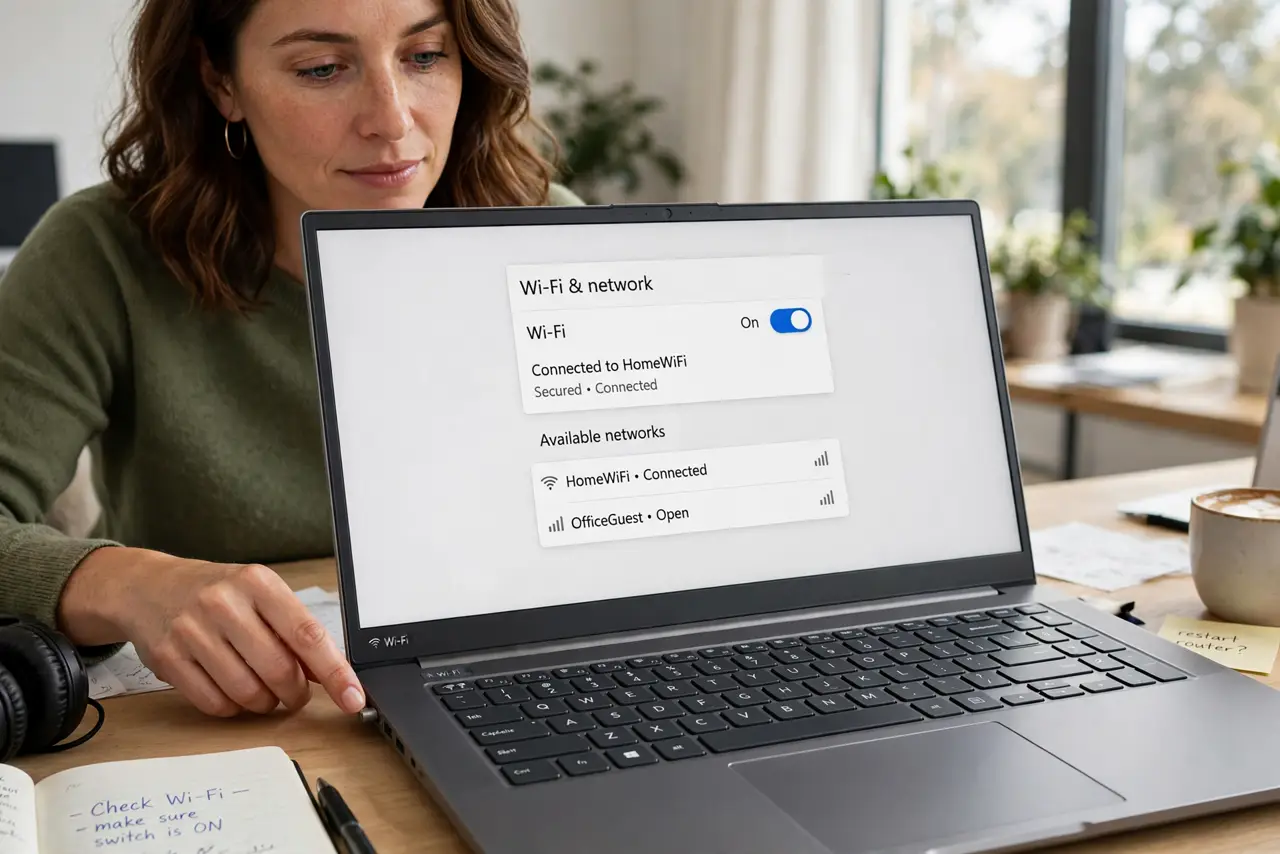
- Check the physical switch and function key. Many laptops have a Wi-Fi toggle on the function row (often with an antenna icon) or a slider on the side. Flip it once — this is the most common cause.
- Look for airplane mode. Check the Quick Settings panel (Win+A). If airplane mode is on, Wi-Fi is off by design — turn airplane mode off.
- Re-enable the adapter in Settings. Settings > Network & internet > Advanced network settings. If the Wi-Fi adapter shows Disabled, click it and choose Enable.
- Re-enable it in Device Manager too. Device Manager > Network adapters > right-click the Wi-Fi adapter > Enable device. This catches cases where Settings alone does not stick.
- Check for a driver problem. If the adapter shows a warning icon in Device Manager, update or reinstall the driver — a crashed driver is the usual reason Windows disables the adapter itself. See the unknown device checks if the adapter looks wrong.
- Test whether it stays enabled. Restart the PC and confirm Wi-Fi is still on. If it disables itself every boot, a third-party 'optimizer' or a failing card is likely — uninstall the optimizer first.
What NOT to do
- Do not uninstall the adapter hoping Windows fixes it. Disabling and re-enabling is the safe toggle; uninstalling can leave you with no driver at all.
- Do not assume the adapter is broken. A physical switch or airplane mode explains the vast majority of these cases.
- Do not install 'driver booster' tools for this. Get the driver from the laptop maker's site — the random tools cause more than they fix.
- Do not ignore a pattern. One accidental disable is nothing; an adapter that disables itself weekly deserves a driver update or a hardware check.
Frequently asked questions
Where is the Wi-Fi switch on my laptop?
Usually a function key (F2–F12) with a wireless icon, sometimes combined with Fn, or a small slider on the laptop's edge. The manual for your exact model names it in seconds.
Why did Windows disable my adapter by itself?
Usually after a driver crash or a failed resume from sleep. Windows disables misbehaving hardware to protect the system — updating the driver normally ends the cycle.
The adapter is enabled but there's still no Wi-Fi list — now what?
Then the problem moved up a layer: check whether the 5 GHz network is missing, or run through the no-internet checks.