Run Linux GUI Apps on Windows?
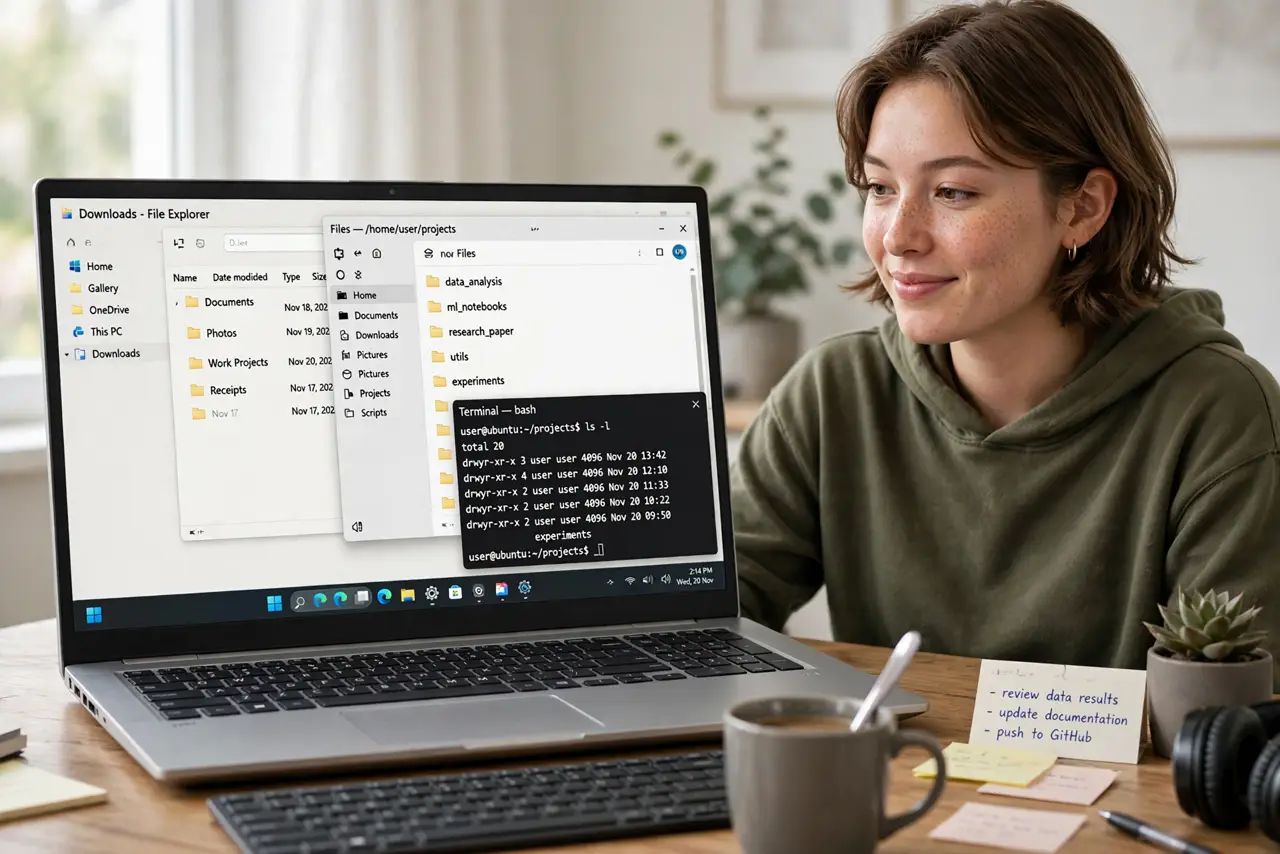
On Windows 11, you can run Linux graphical apps right alongside your Windows programs — no dual boot, no separate virtual machine window. The feature is called WSLg, and it makes Linux apps appear as normal Windows windows. This guide covers the WSL install prerequisites and the few commands that launch your first graphical Linux app.
TL;DR / Quick Fix
On Windows 11, Linux GUI apps run through WSLg with no separate X server needed. Install your distro from the Microsoft Store, update WSL, then launch apps from the terminal; they appear like native Windows windows. On Windows 10, upgrade WSL to the Store version first for the same experience.
Follow these steps
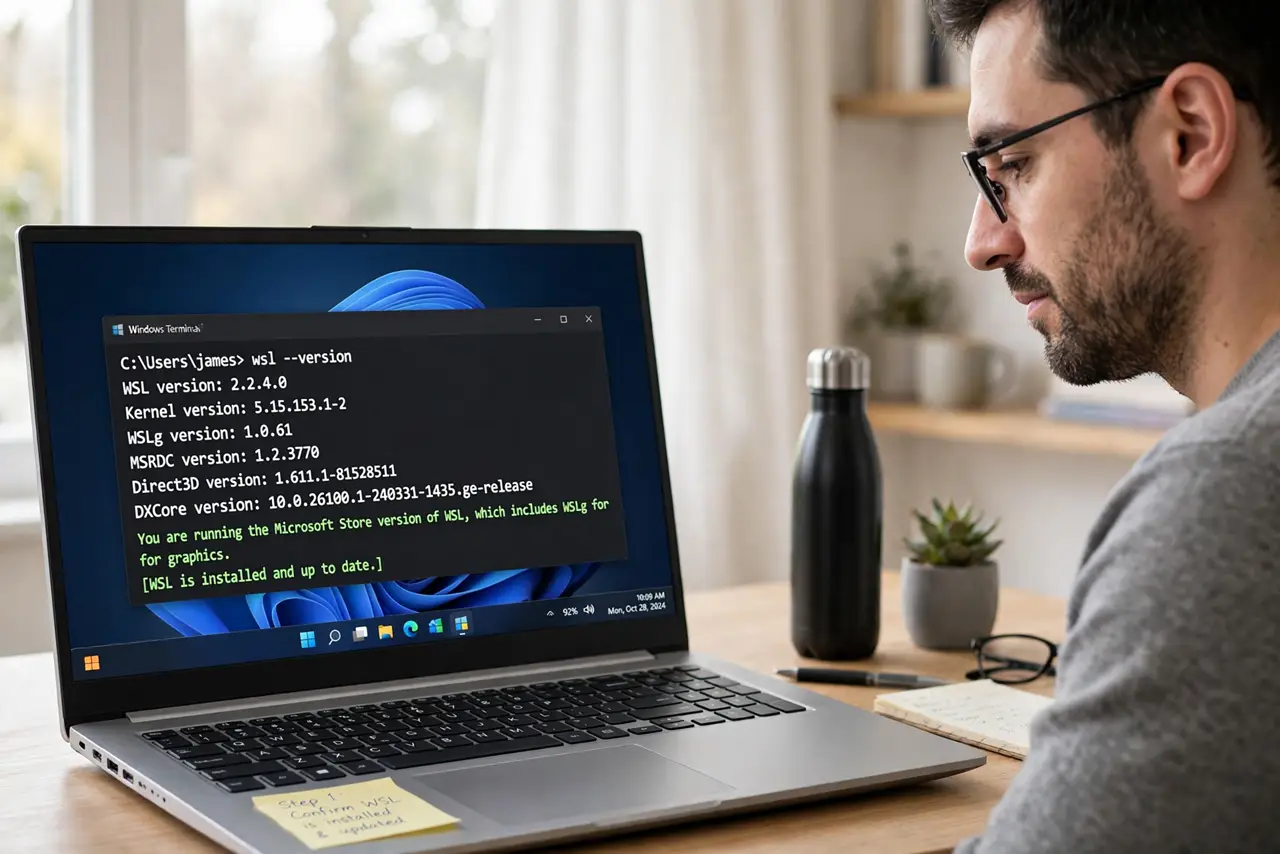
- Confirm you have WSL installed and updated. Open a terminal and run wsl --version. You want the Microsoft Store version of WSL, which includes WSLg for graphics. The WSL install guide walks through it if you have not set WSL up yet.
- Update WSL to get WSLg support. Run wsl --update in an elevated terminal, then wsl --shutdown and reopen. WSLg (graphics plus audio) ships with the Store version — on the old inbox version of Windows 10, GUI apps will not launch.
- Install a Linux distro from the Microsoft Store. Ubuntu is the safe default. Install it from the Store, launch it once, and create your username and password. Your GUI apps will install inside this distro.
- Install a graphical app with the package manager. In the distro terminal, run sudo apt update followed by sudo apt install gedit (or gimp, firefox, or another app). Wait for the install to finish — downloads can take several minutes.
- Launch it from the terminal. Type the app name (for example gedit) and press Enter. The app opens in its own window with Windows-style title bar and taskbar icon, copy-paste working between Linux and Windows.
- Pin it for everyday use. Right-click the app's taskbar icon and choose Pin to taskbar. From now on you can launch Linux GUI apps without opening the terminal at all.
What NOT to do
- Do not install a third-party X server on Windows 11. WSLg already handles graphics — an old X server guide will only add conflicts.
- Do not run GUI apps as root with sudo. Launch them as your normal user; running graphical apps as root breaks permissions and theming.
- Do not expect GPU-heavy 3D apps to fly. WSLg handles everyday apps well, but games and GPU compute need extra setup and tempered expectations.
- Do not skip wsl --update. Most 'GUI app will not start' reports trace back to the old inbox WSL without WSLg support.
Frequently asked questions
Do Linux GUI apps work on Windows 10?
Yes, if you install the Microsoft Store version of WSL on a supported Windows 10 build and run wsl --update. The inbox version that shipped with early Windows 10 lacks WSLg.
Can I run Linux apps with sound?
Yes — WSLg includes audio support, so apps like media players produce sound through your normal Windows audio devices without extra configuration.
Where do Linux app files live?
Inside the distro's filesystem, reachable from Windows at a \\wsl$ path. Keep project files there for speed; Windows drives are mounted but slower.