Check Doc Accessibility
Your document looks fine to you, but a screen reader user hears gibberish — untagged headings, images with no descriptions, tables read cell by cell in chaos. Word's Accessibility Checker finds these barriers automatically and tells you how to fix each one. An accessible document is simply a better document for everyone.
TL;DR / Quick Fix
Quick fix: in Word, go to Review, Check Accessibility, and work through every flagged issue. Add alt text to images, use real heading styles instead of big bold text, and give tables header rows. Re-run the checker until it reports no issues. Accessible documents also export to cleaner PDFs.
Follow these steps
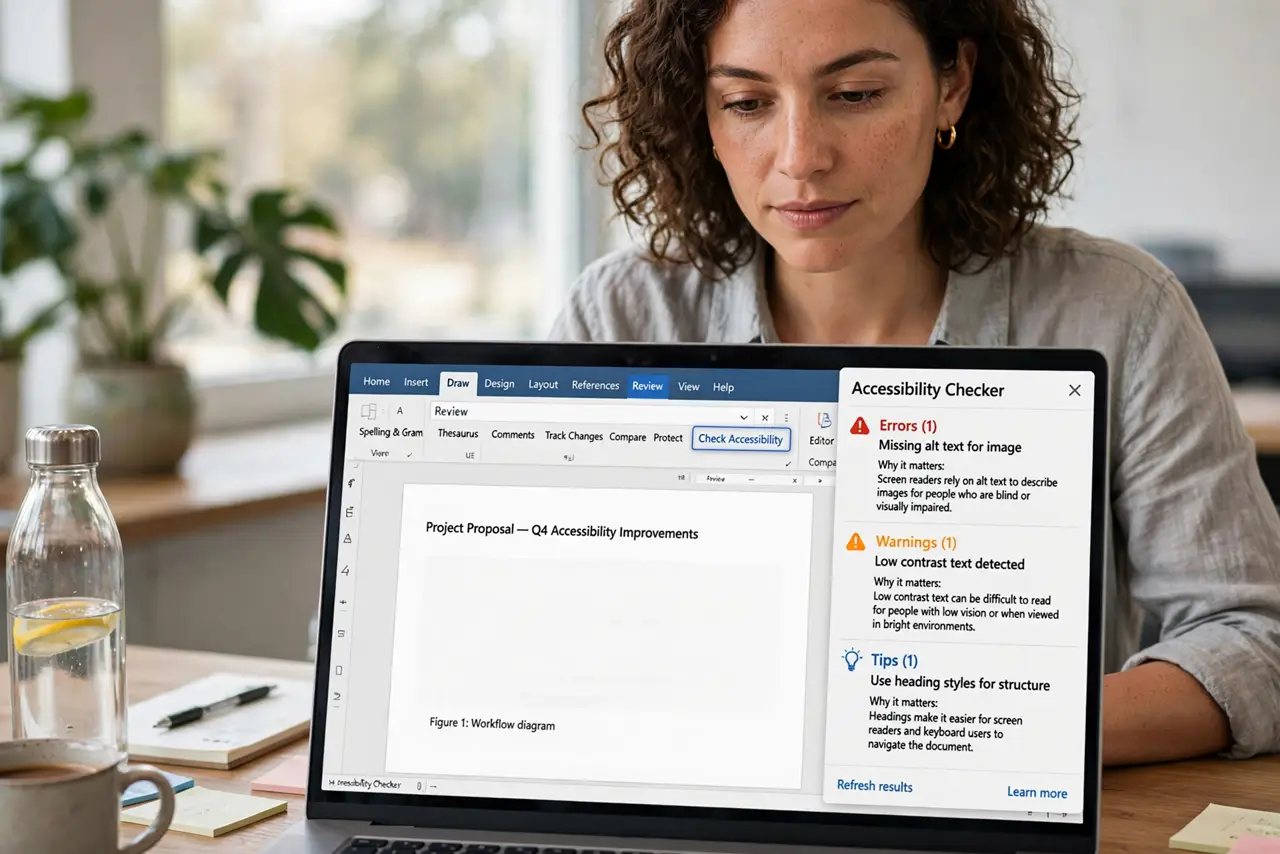
- Run the Accessibility Checker. On the Review tab, click Check Accessibility. The pane lists errors, warnings, and tips — each with a why-it-matters explanation.
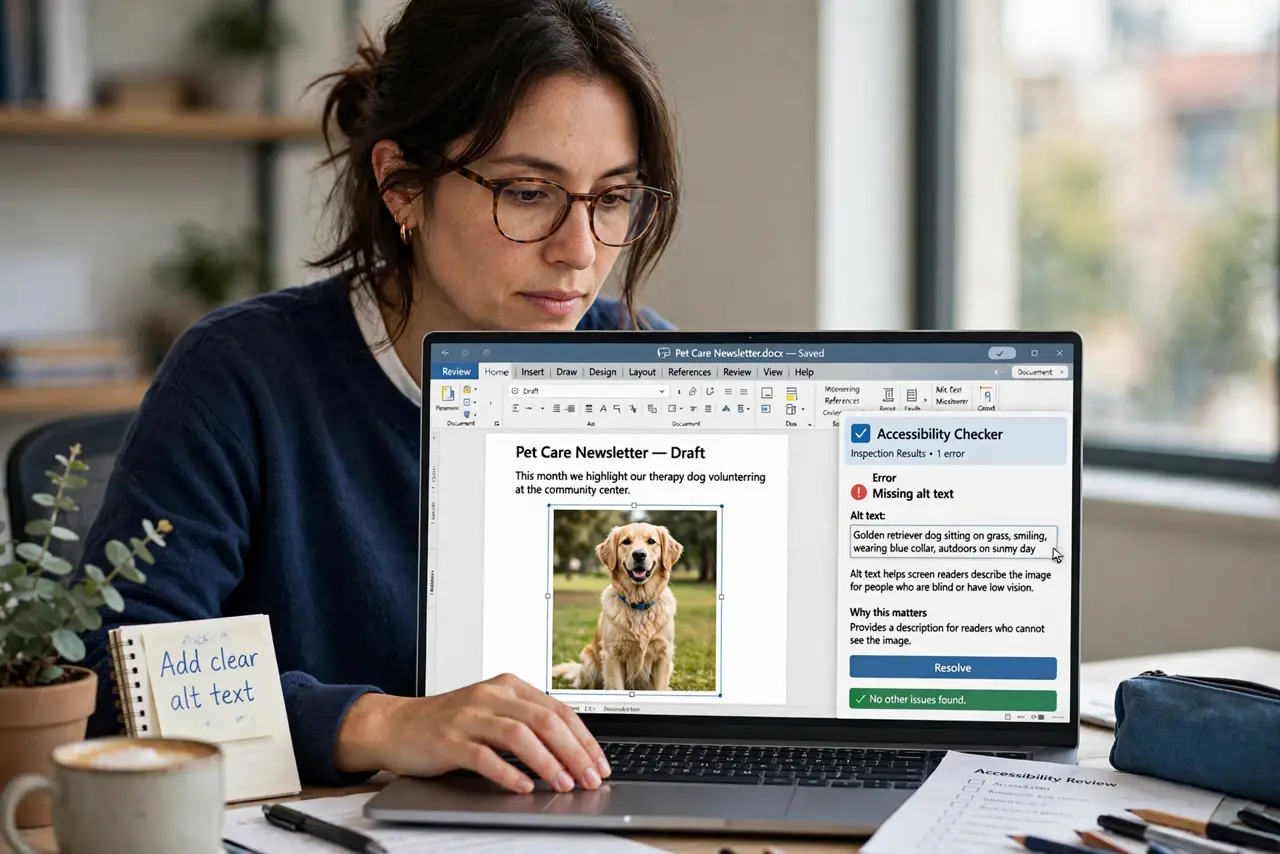
- Add alt text to every image. Right-click each image, choose View Alt Text, and describe what the image shows. A screen reader speaks this text; without it, the image is silence.
- Use real heading styles. Apply Heading 1, Heading 2 from the Styles gallery instead of manually enlarging text. Headings build the document's navigation map for assistive tech.
- Give tables header rows. In Table Design, check Header Row. Screen readers then announce column context for every cell instead of reading numbers blindly.
- Check reading order. Complex layouts can scramble the order a screen reader follows. Simplify floating objects and verify the order in the checker.
- Re-run until clean. Fix, re-run, repeat. When the checker reports no issues, export the PDF with accessibility tags so the fixes survive export.
What NOT to do
- Do not use color alone to convey meaning. Red text means nothing to someone who cannot see red — add labels or symbols too.
- Do not leave alt text blank on meaningful images. Decorative images can be marked decorative; charts and photos need descriptions.
- Do not fake headings with bold large text. It looks right and navigates wrong — real styles cost nothing.
- Do not treat the checker as optional for public documents. Schools, governments, and employers increasingly require accessible files.
Frequently asked questions
What is alt text, exactly?
A short text description of an image that screen readers speak aloud. One or two sentences capturing the image's meaning is perfect.
Does accessibility change how my document looks?
No — heading styles, alt text, and table headers are invisible structure. The visual design stays exactly the same.
Do I need this for internal documents?
Someone on your team may use a screen reader today or tomorrow. Accessible habits cost minutes and include everyone.