Citations in Word? Basics
Writing a paper and dreading the bibliography? Word has a built-in citation manager — insert sources as you write, and it builds the reference list for you in APA, MLA, Chicago, or a dozen other styles. It is not as powerful as dedicated tools, but for student papers it removes the worst of the formatting pain.
TL;DR / Quick Fix
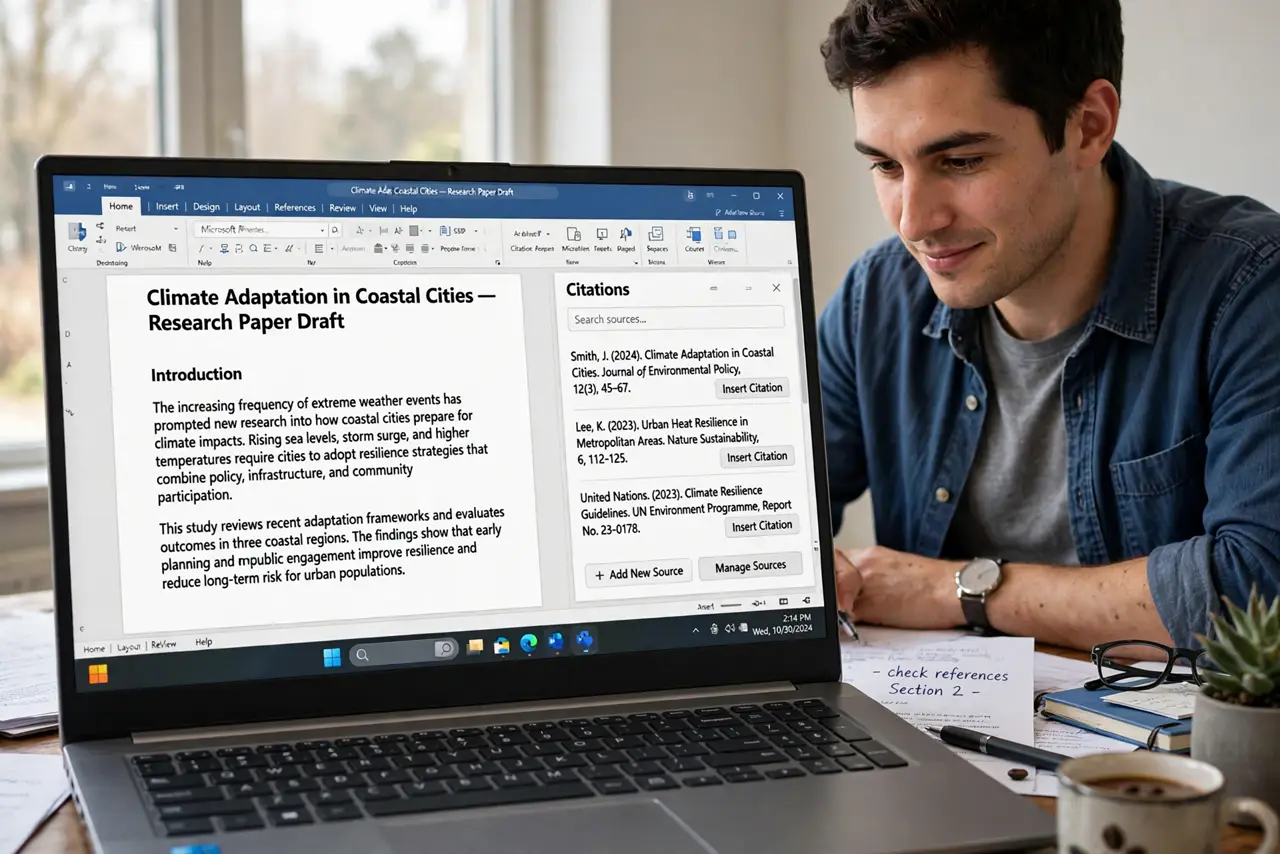
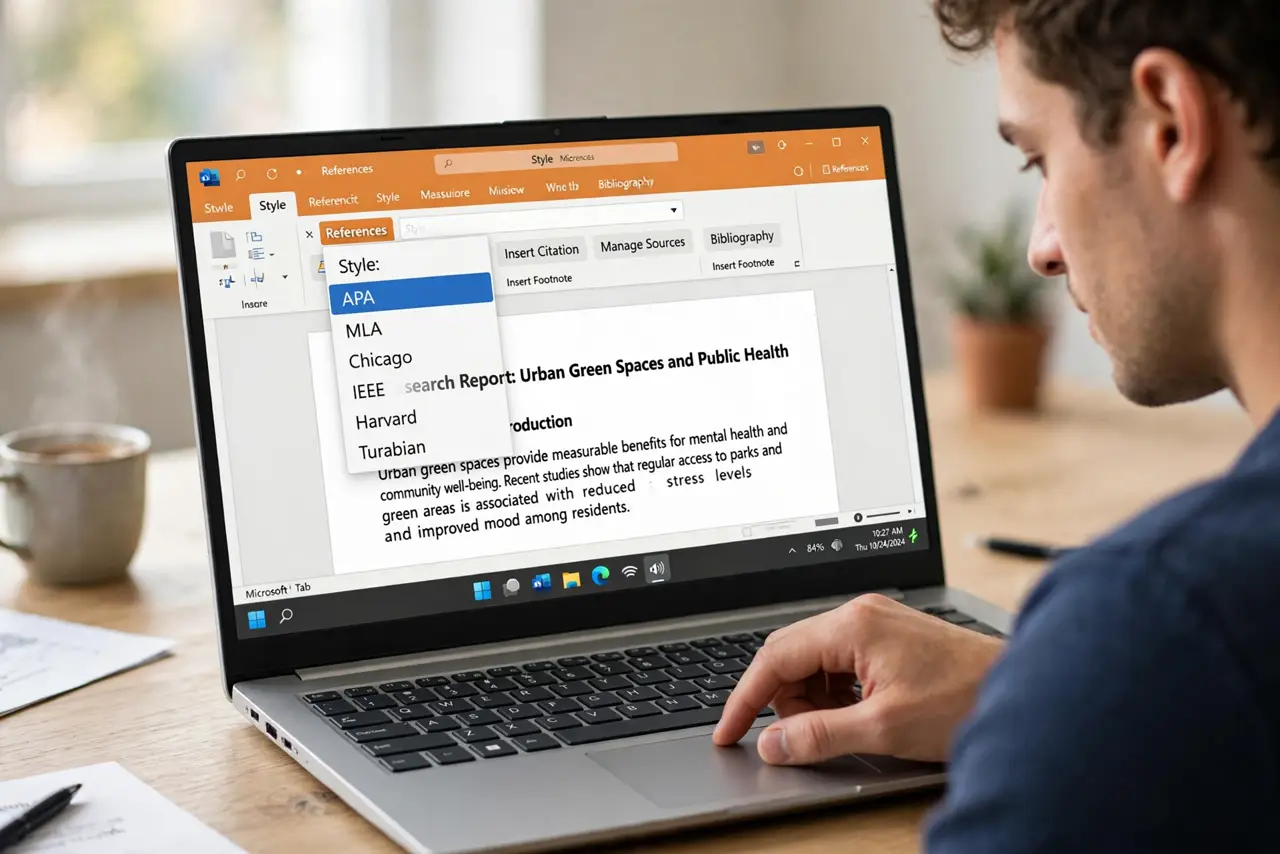
Quick fix: Word's References tab manages citations — add each source once via Manage Sources, insert in-text citations as you write, then generate the bibliography automatically. Pick your style (APA, MLA, Chicago) first, since switching later reformats everything. Always double-check the final output against the official style guide.
Follow these steps
- Pick your citation style first. On the References tab, choose APA, MLA, Chicago, or your required style from the Style dropdown. Set it before inserting anything — switching mid-document reformats every citation.
- Add sources to the master list. Click Manage Sources > New and fill in the author, title, year, and publisher for each source. Do this once per source; Word reuses the entry everywhere.
- Insert citations as you write. Place the cursor where the citation goes, click Insert Citation, and pick the source. Word drops in the in-text citation and tracks it for the bibliography.
- Generate the bibliography. At the end, click Bibliography and choose a format — Word builds the reference list from every citation you inserted. New citations added later update it automatically.
- Fix the common formatting quirks. Check italics on book titles and hanging indents — Word gets these right most of the time, but strict professors notice the misses. Compare against the header and page-number rules too.
- Reuse sources across documents. The master source list persists across documents, so next semester's paper starts with your library already built. Export it via Manage Sources as a backup.
What NOT to do
- Do not hand-type the bibliography. Manual lists drift out of sync with in-text citations — let Word generate it.
- Do not switch styles at the last minute without reviewing. APA and MLA differ in punctuation and order; a blind switch introduces errors.
- Do not trust it blindly for strict submissions. Verify italics, capitalization, and DOI formatting against the official guide.
- Do not forget to fill in all source fields. Half-empty sources produce half-baked citations — complete entries at creation time.
Frequently asked questions
Which citation style should I choose?
Whichever your instructor or publisher requires — there is no universally 'best' one. When in doubt, ask; reformatting later is possible but tedious.
Can Word handle footnotes too?
Yes — the References tab also inserts footnotes and endnotes, which Chicago style often requires alongside the bibliography.
Is Word's citation tool enough for a thesis?
For short papers, yes. For theses with dozens of sources, a dedicated manager like Zotero handles edge cases Word fumbles.