Different Header on the First Page? How To
Title pages should not carry the same header as the rest of the document, but Word applies one header everywhere by default. The fix is a single checkbox that Word buries in the header options. This guide shows how to give the first page its own header — or none at all.
TL;DR / Quick Fix
Double-click the header, check Different First Page in the header options, then edit the first-page header separately or leave it empty. Confirm the remaining pages still show the normal header. Use this for title pages, cover sheets, and formal reports.
Follow these steps
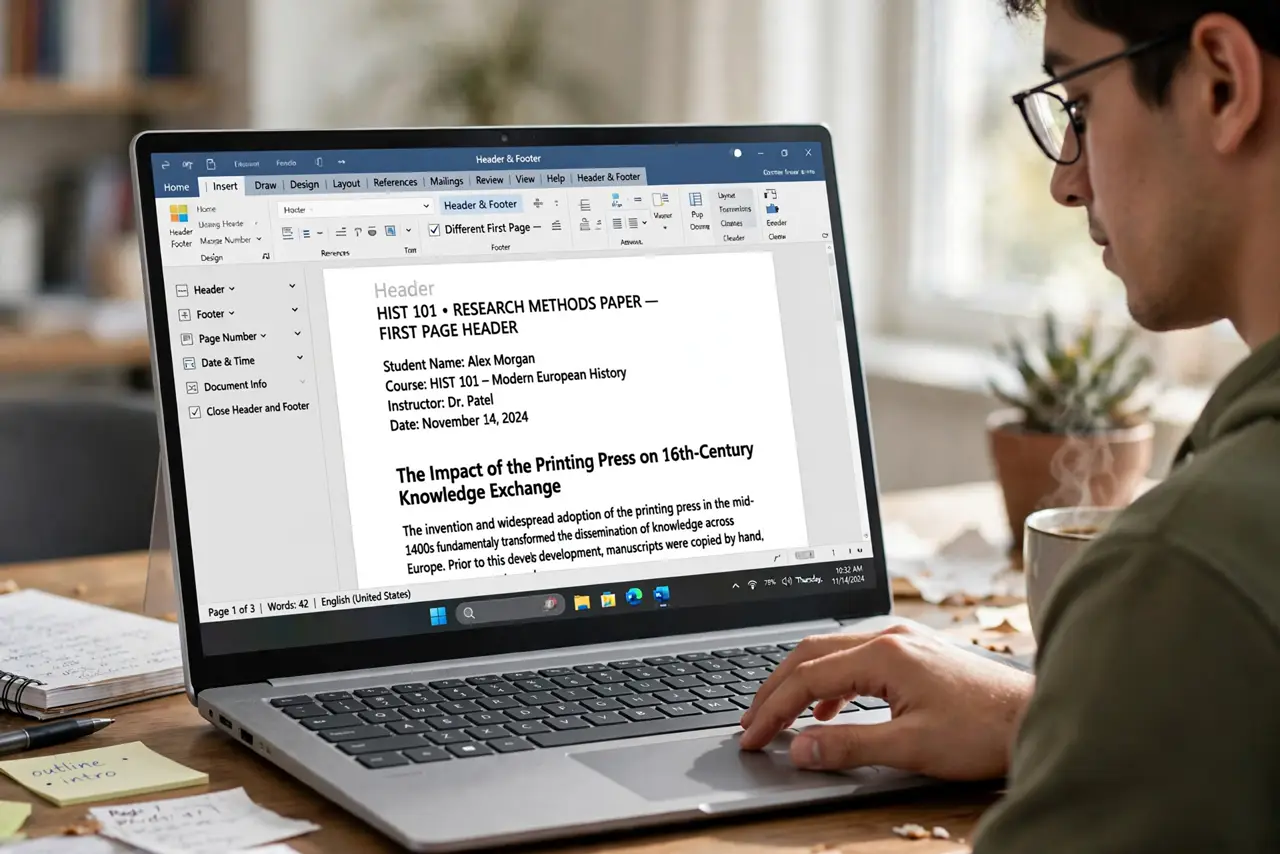
- Open the header. Double-click the top margin of any page to open the header area. The Header & Footer tab appears on the ribbon.
- Check Different First Page. In the Options group of that tab, check Different First Page. Word immediately splits the first page's header from the rest — the same section logic used when page numbers start later.
- Edit the first-page header. Type the first page's header, or leave it blank for no header on the title page. This header now belongs only to page one.
- Check the other pages' header. Scroll to page two and confirm the normal header is still there. The checkbox only detaches page one; it never deletes the main header.
- Repeat for the footer if needed. The checkbox covers headers and footers together, so set the first-page footer the same way if page numbers or footnotes differ there.
- Verify in Print Preview. Open Print Preview and check the first page and a later page. Headers must differ exactly as planned before you print or send the file.
What NOT to do
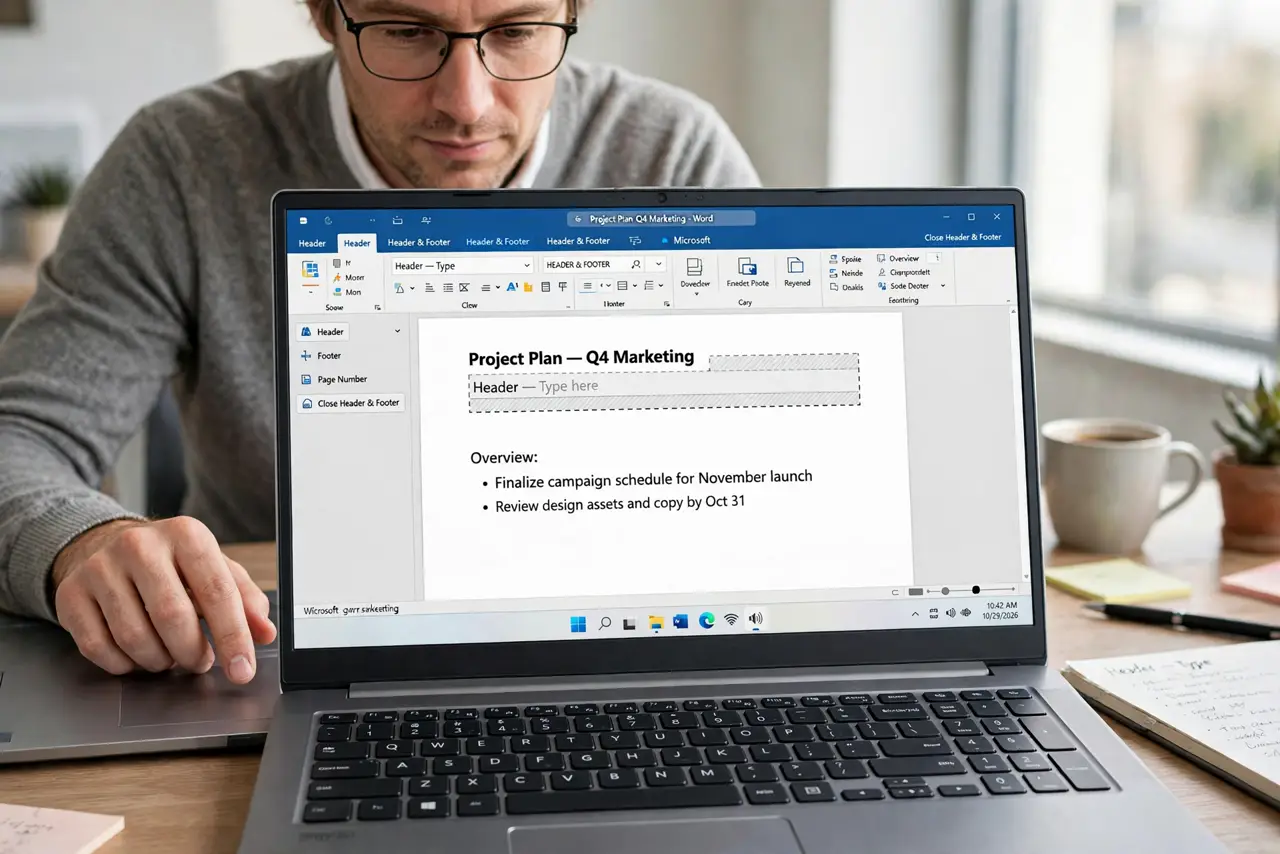
- Do not type the title-page header into the main header. It will repeat on every page until you use the checkbox.
- Do not delete the main header to fix the first page. That removes it everywhere, which is the opposite of what you want.
- Do not forget the footer. Different First Page affects footers too, so check page numbers on page one.
- Do not add a section break just for this. The checkbox handles a different first page without splitting the document.
Frequently asked questions
How do I remove the header from only the first page?
Double-click the header, check Different First Page, and leave the first-page header empty.
Can the first page have a different header instead of none?
Yes. With Different First Page checked, type whatever the first page needs — it stays on page one only.
Does this work for footers too?
Yes. The setting applies to the header and footer of the first page together.