Dictate in Word? How To
Typing is slow when the words are already in your head — Word's Dictate turns speech into text right at the cursor. It is built into Microsoft 365, handles punctuation commands like 'period' and 'new paragraph', and works in over a dozen languages. A quiet room and a decent microphone are all the setup it needs.
TL;DR / Quick Fix
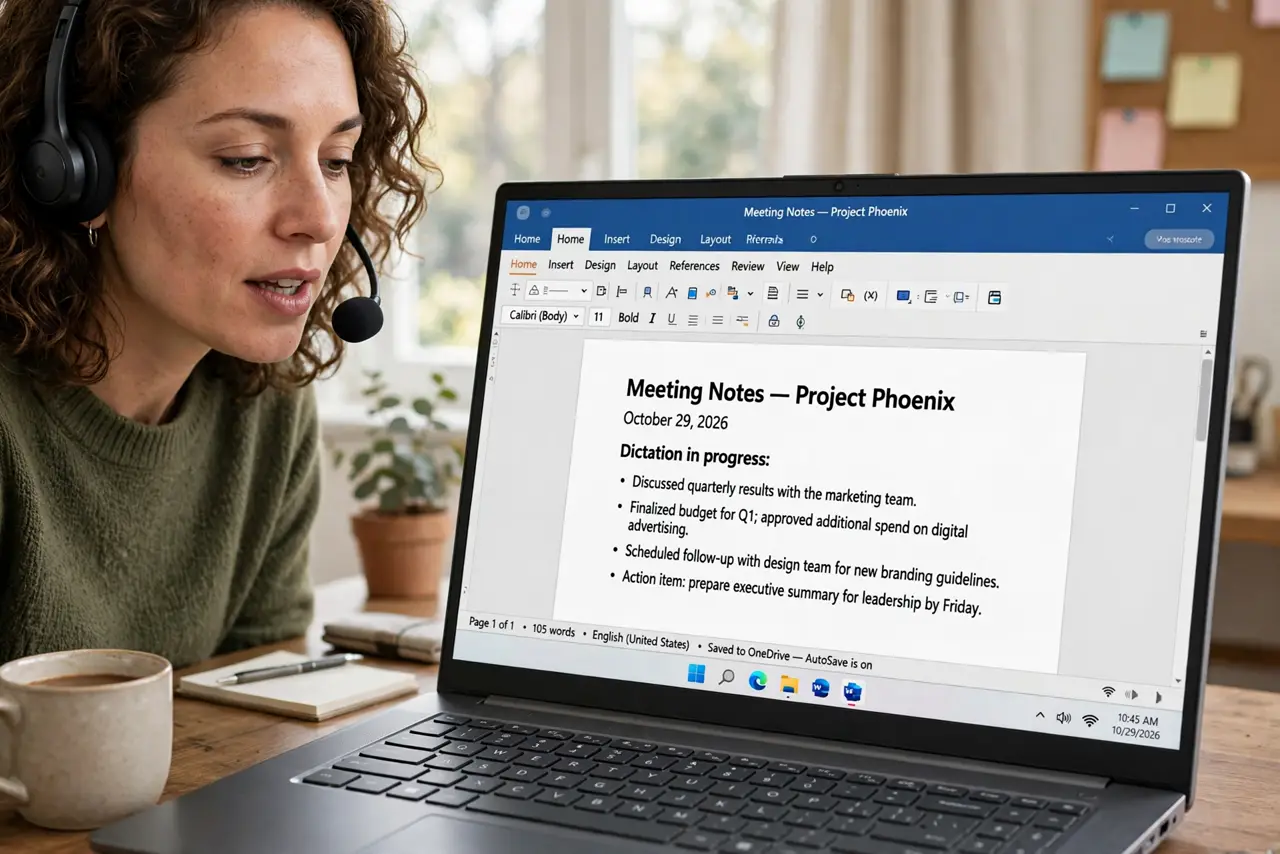
Open Word for Microsoft 365, place your cursor where the text should go, and click Dictate on the Home tab — grant the microphone permission once. Speak naturally and say punctuation like 'period' or 'comma' aloud. Click Dictate again to stop; the text lands exactly where your cursor was.
Follow these steps
- Open Word and place your cursor. Dictate types wherever the cursor sits. Click into the paragraph or the blank spot where the dictated text belongs.
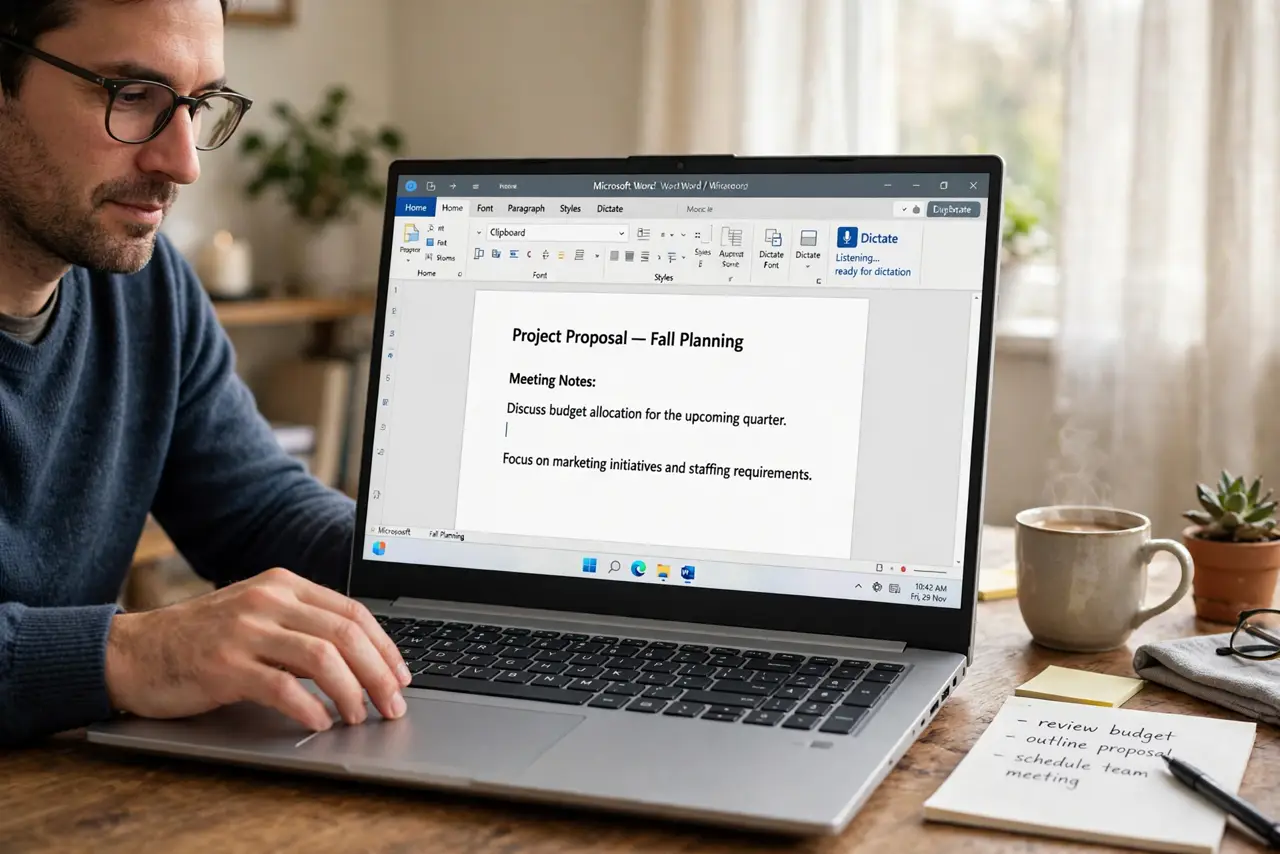
- Click Dictate on the Home tab. The microphone button sits on the Home ribbon. Click it once — Word asks for microphone permission the first time.
- Allow the microphone. Grant permission in the browser or system prompt. Without it, Dictate listens to nothing — this is the most common setup snag.
- Speak naturally, with punctuation aloud. Say 'period', 'comma', 'question mark', and 'new paragraph' as you go. Dictate inserts them as punctuation, not words.
- Watch the text appear and correct as needed. Dictation is good, not perfect — homophones slip through. Read back the paragraph and fix the handful of errors.
- Click Dictate again to stop. The microphone turns off. Your dictated text is ordinary editable text from here on.
What NOT to do
- Do not dictate sensitive content on a shared machine. Your words pass through Microsoft's speech service — fine at home, think twice on a public PC.
- Do not mumble and expect miracles. Clear speech at a normal pace beats fast mumbling; the microphone cannot fix what it cannot hear.
- Do not forget to say punctuation. Unpunctuated dictation produces a wall of text that takes longer to fix than typing would have.
- Do not leave the mic on. Background conversation becomes document text — toggle Dictate off the moment you pause to think.
Frequently asked questions
Which languages does Dictate support?
A wide set — English variants, Spanish, French, German, and many more. Pick yours from the Dictate dropdown before starting.
Why is the Dictate button grayed out?
Usually a missing microphone permission or an older Word build. Check system mic permissions and update Microsoft 365.
Is my dictated speech stored anywhere?
Microsoft processes speech to transcribe it; enterprise admins can adjust related privacy settings. Avoid dictating passwords or confidential data.