Master Headers and Footers
Page numbers that restart randomly, a header that vanishes in chapter two, a footer stuck saying 'Draft' on the final version — headers and footers misbehave when sections and links are misunderstood. This guide masters the two concepts that control everything: section breaks and Link to Previous, plus page numbering done right.
TL;DR / Quick Fix
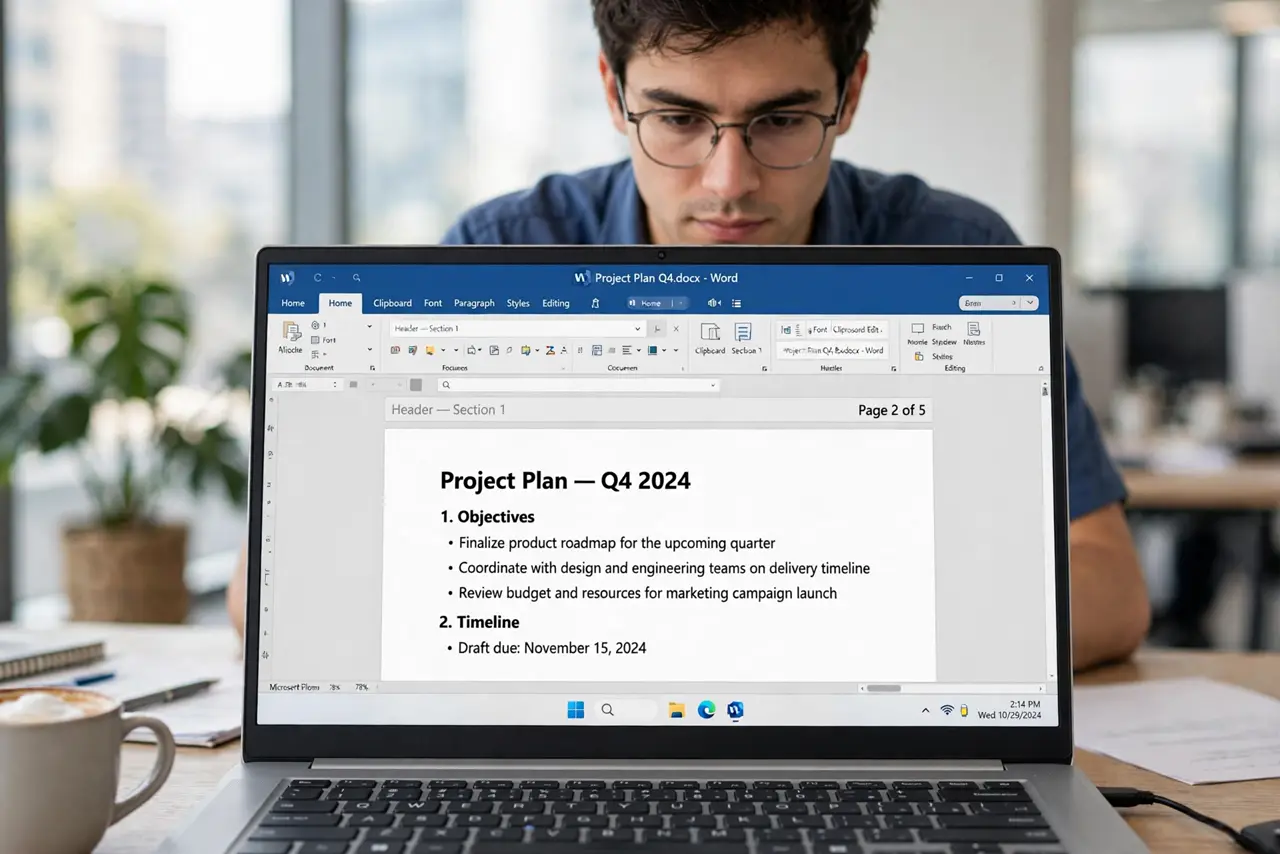
Quick fix: double-click the top or bottom margin to edit headers and footers — insert page numbers, document titles, or dates once and they repeat on every page. Use section breaks for different first pages or chapters. Link to Previous controls whether a section inherits or restarts its header.
Follow these steps
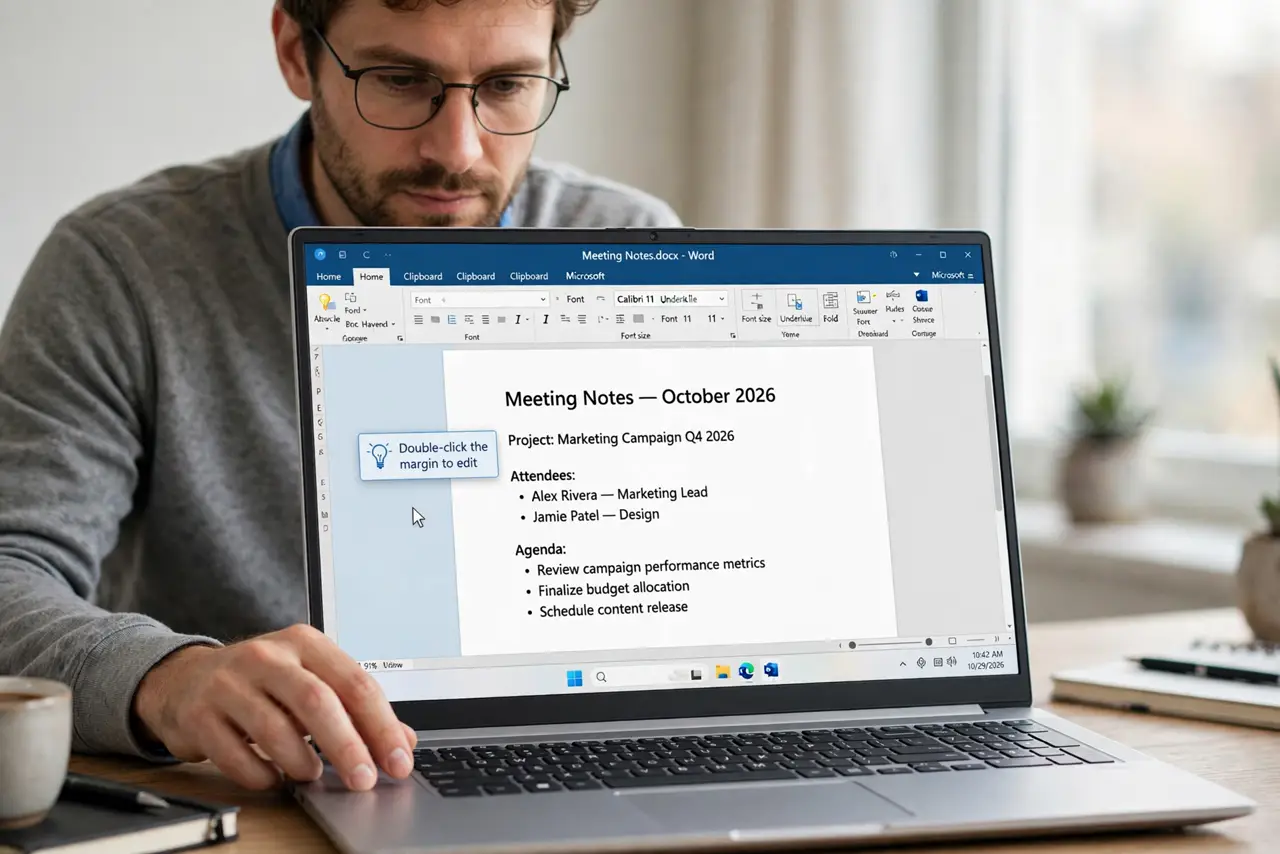
- Double-click the margin to edit. Double-click the top or bottom margin to open the header/footer editing view. Everything you type here repeats on every page of the section.
- Insert page numbers from the menu. Use Insert, Page Number — not typed numbers. Real page-number fields update themselves; typed numbers lie after the first edit.
- Understand sections. A section break lets part of the document behave differently — new numbering, new headers. Most header chaos comes from missing or extra section breaks.
- Master Link to Previous. Each section's header can inherit the previous section's (linked) or stand alone (unlinked). Unlink when a chapter needs its own header; keep linked for continuity.
- Use Different First Page where needed. Title pages usually need no header. Enable Different First Page in the section's options instead of deleting the header everywhere.
- Add dates and titles as fields. Insert document title or date as fields, not typed text. Fields update automatically — see page numbering basics for the numbering side of the same system.
What NOT to do
- Do not type page numbers manually. Fields update; typed numbers become wrong on the first edit.
- Do not fight headers without checking sections. Ninety percent of header mysteries are a section break you forgot.
- Do not leave Link to Previous on by accident. An unwanted link copies headers where they do not belong.
- Do not put critical info only in the header. Headers can be stripped by conversions — keep essentials in the body too.
Frequently asked questions
Why does my header disappear on page 2?
Different First Page is on, or a section break unlinked the header. Check both in the header options.
Can headers differ between odd and even pages?
Yes — enable Different Odd and Even Pages for book-style layouts with mirrored headers.
How do I remove a header from one section?
Unlink it from the previous section first, then delete its contents. Deleting while linked wipes all linked sections.