Print Mailing Labels
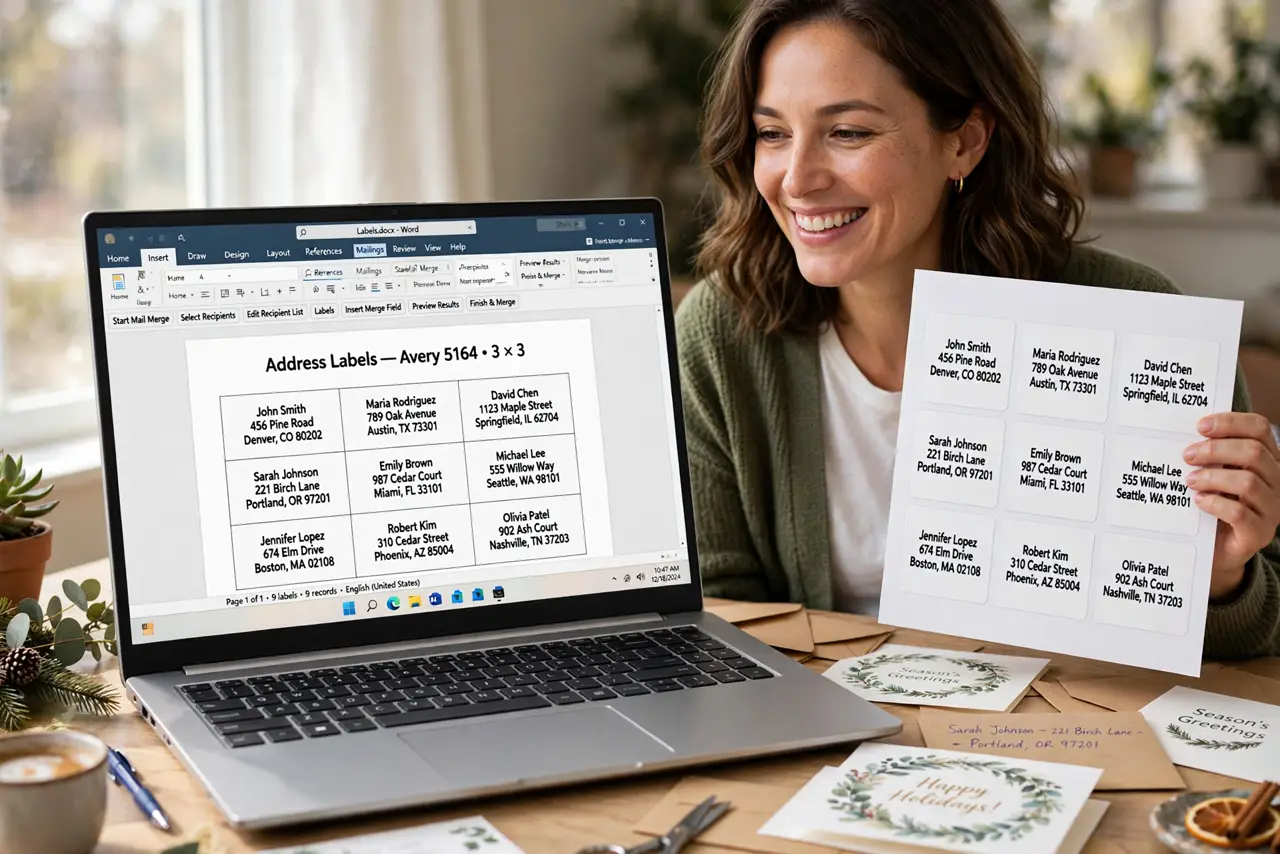
Holiday cards are looming, you have a spreadsheet of addresses, and hand-writing fifty envelopes sounds miserable. Word's mail merge turns that list into printed labels in minutes — the right label size, every address in place. The trick is matching your label brand's product number and testing on plain paper first. If you have never merged before, start with the mail merge basics.
TL;DR / Quick Fix
Quick fix: print mailing labels straight from your contact list with Mailings, Labels, and your label brand's product number, then merge the addresses and preview before printing. Always run one test sheet on plain paper first. A test page costs almost nothing and saves a whole pack of labels.
Follow these steps
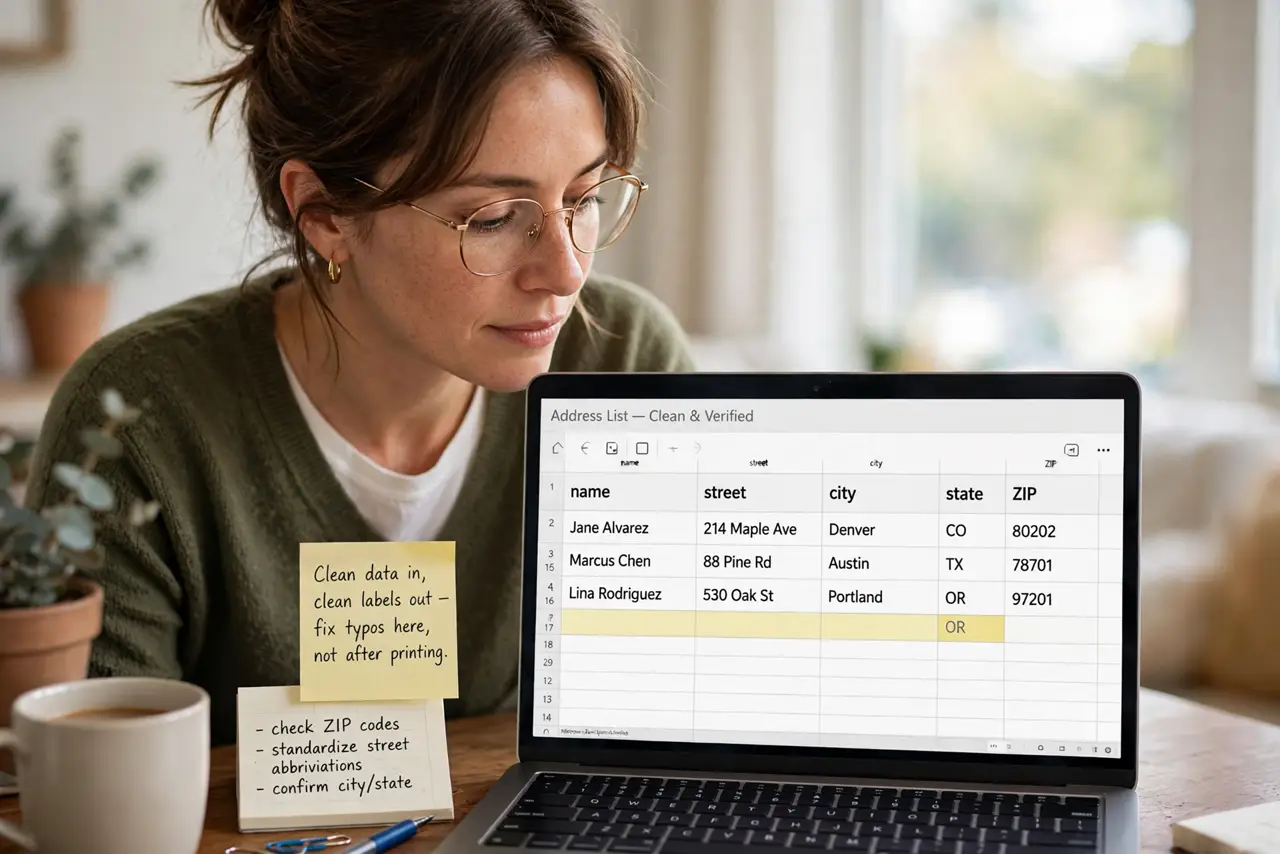
- Prepare your address list. Put names and addresses in a spreadsheet with one column per part: name, street, city, state, ZIP. Clean data in, clean labels out — fix typos here, not after printing.
- Start the labels document. In Word go to Mailings, then Labels, and pick your label vendor and product number from the list — it is printed on the label package. This sets the exact size and spacing.
- Connect your address list. Choose Select Recipients and point Word at your spreadsheet. Match each column to the right field so the street does not land where the city should be.
- Design one label. Lay out a single label with the address block and any return address. Get this one perfect — Word copies it to every label on the sheet.
- Update and preview all labels. Use Update Labels to fill the whole sheet, then preview. Scroll through and check for missing ZIP codes or wrapped lines before printing anything.
- Test on plain paper first. Print one sheet on regular paper and hold it against a label sheet up to the light. If everything lines up, print the real batch.
What NOT to do
- Do not print the full batch without a test sheet. One alignment mistake wastes a whole pack of labels.
- Do not guess the product number. The wrong size setting shifts every label — read it off the package.
- Do not merge from a messy list. Duplicates and blank rows become wasted labels; clean the spreadsheet first.
- Do not forget the printer feed direction. Labels must go in the right tray, face up or down per your printer — check the manual.
Frequently asked questions
Can I use labels from any brand?
Yes, as long as you select the matching product number in Word. Off-brand labels that copy a standard size work if you pick that size.
Why are my addresses printing off-center?
Almost always the wrong product number or the printer scaling the page. Set printing to 100 percent, not fit to page.
Can I save the label setup for next year?
Yes — save the merged document and the label settings. Next holiday season you only update the address list.