Mail Merge? Plain Basics
You need to send 200 personalized letters — same text, different names and addresses. Doing it by hand is a weekend killer. Mail merge in Word pulls names from a list (Excel or Outlook contacts) and generates every letter automatically. It looks intimidating, but it's really just three steps.
TL;DR / Quick Fix
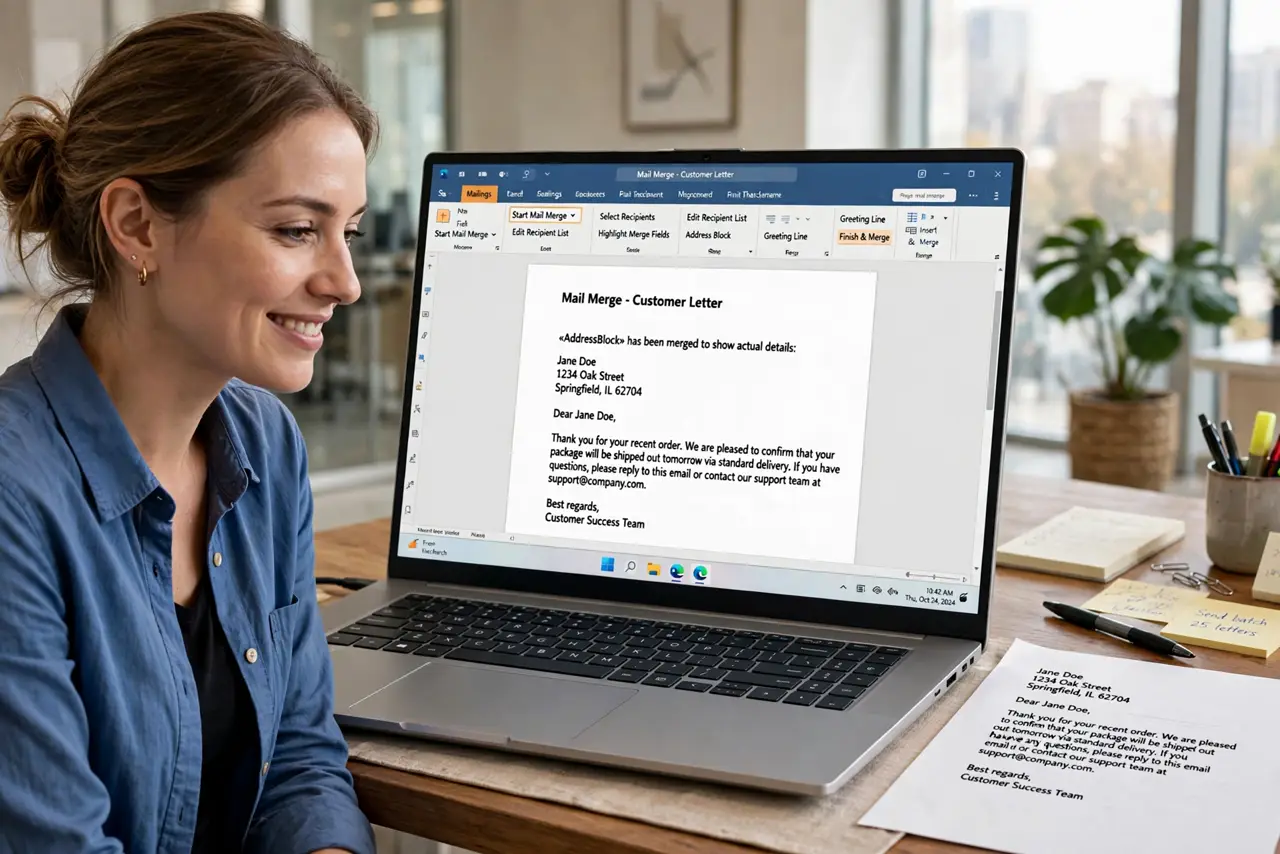
Quick fix: in Word, go to Mailings, Start Mail Merge, pick Letters, then Select Recipients from your Excel list. Insert merge fields where names go, Preview Results to check, then Finish & Merge to print or email. One setup generates all 200 letters.
Follow these steps
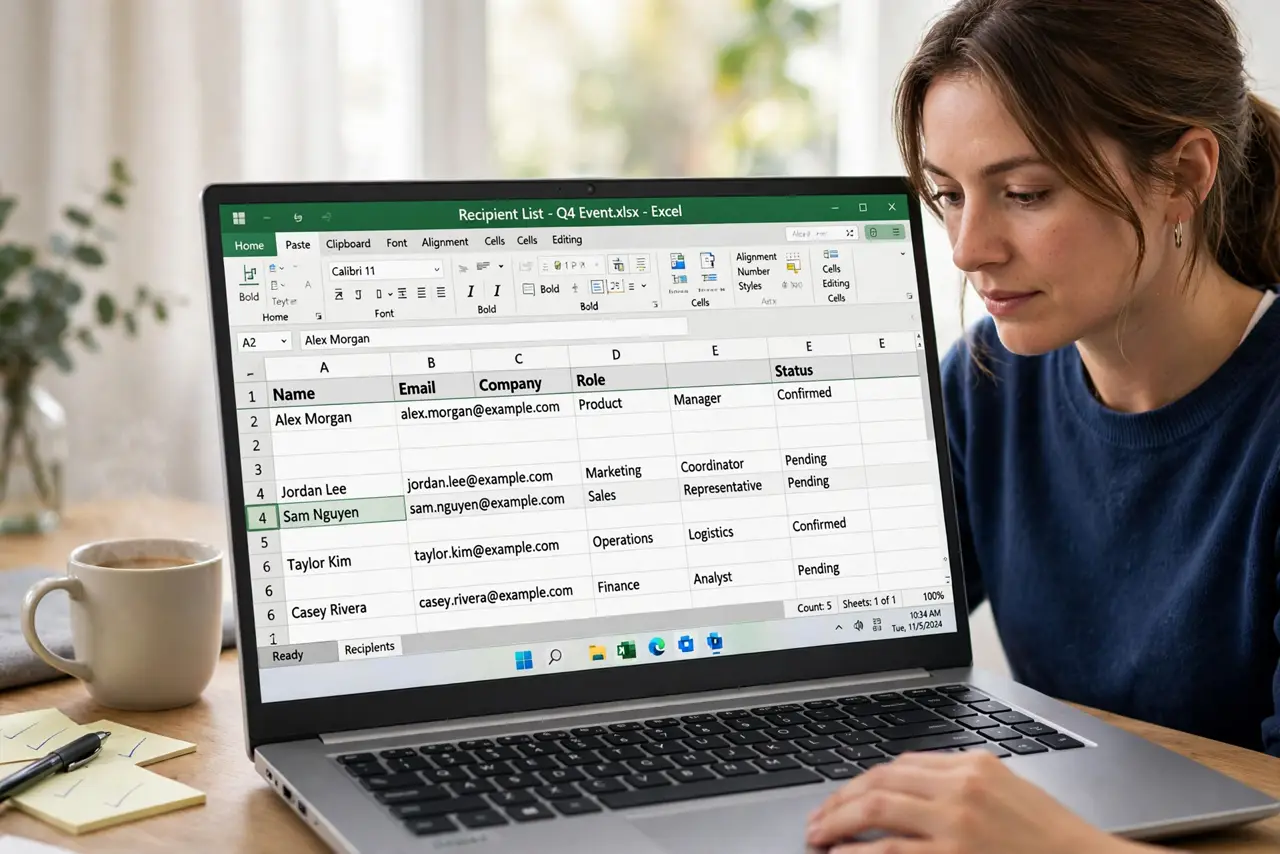
- Prepare your recipient list. Your Excel sheet needs clean column headers — FirstName, LastName, Address — with one row per person. Tidy data here prevents garbage letters later; no merged cells, no blank header rows.
- Start the merge in Word. Go to the Mailings tab, click Start Mail Merge, and choose your document type: Letters, Envelopes, Labels, or E-mail Messages. Write your letter text normally first.
- Connect the recipient list. Click Select Recipients, then Use an Existing List, and pick your Excel file. Word shows the addresses — uncheck anyone to skip, and sort or filter right there.
- Insert merge fields. Click where the name goes, then Insert Merge Field and pick FirstName. Add fields for address, city, and anything personal — the bracketed placeholders show where data will land.
- Preview before you commit. Click Preview Results and flip through several records with the arrow buttons. Check the longest names and weirdest addresses — that's where formatting breaks.
- Finish and merge. Click Finish & Merge: print the documents, or send as email if you picked E-mail Messages. For email merges, send a test to yourself first before the full batch goes out.
What NOT to do
- Do not merge without previewing. One bad field mapping turns 200 letters into 200 embarrassments — the preview step is not optional.
- Do not use a messy spreadsheet. Blank rows, merged cells, and inconsistent headers produce blank letters and wrong addresses — clean the list first.
- Do not email-merge to hundreds without testing first. A sudden blast from your address can trigger spam flags — start with small batches and check how they land.
- Do not forget the greeting line logic. A greeting using FirstName breaks on blank first names — use the Greeting Line feature with a fallback like Dear Friend.
Frequently asked questions
Can I use Outlook contacts instead of Excel?
Yes — Select Recipients offers Choose from Outlook Contacts. It's convenient, but Excel gives you more control over sorting, filtering, and cleaning the data.
Why are some fields blank in the preview?
Usually a header mismatch — the field name in Word doesn't exactly match the column header in Excel. Check spelling and spaces; even one extra space breaks the link.
Can I merge to PDF instead of printing?
Merge to a new document first, then save that as PDF — or print via the print dialog's PDF option. Both routes work fine.