Pasted Text Wrecks Word Formatting? Fix It
You paste a paragraph from the web and your document explodes with new fonts, colors, and spacing. The mess comes from pasting with the source formatting attached. This guide shows how to paste cleanly every time and fix documents that are already messy.
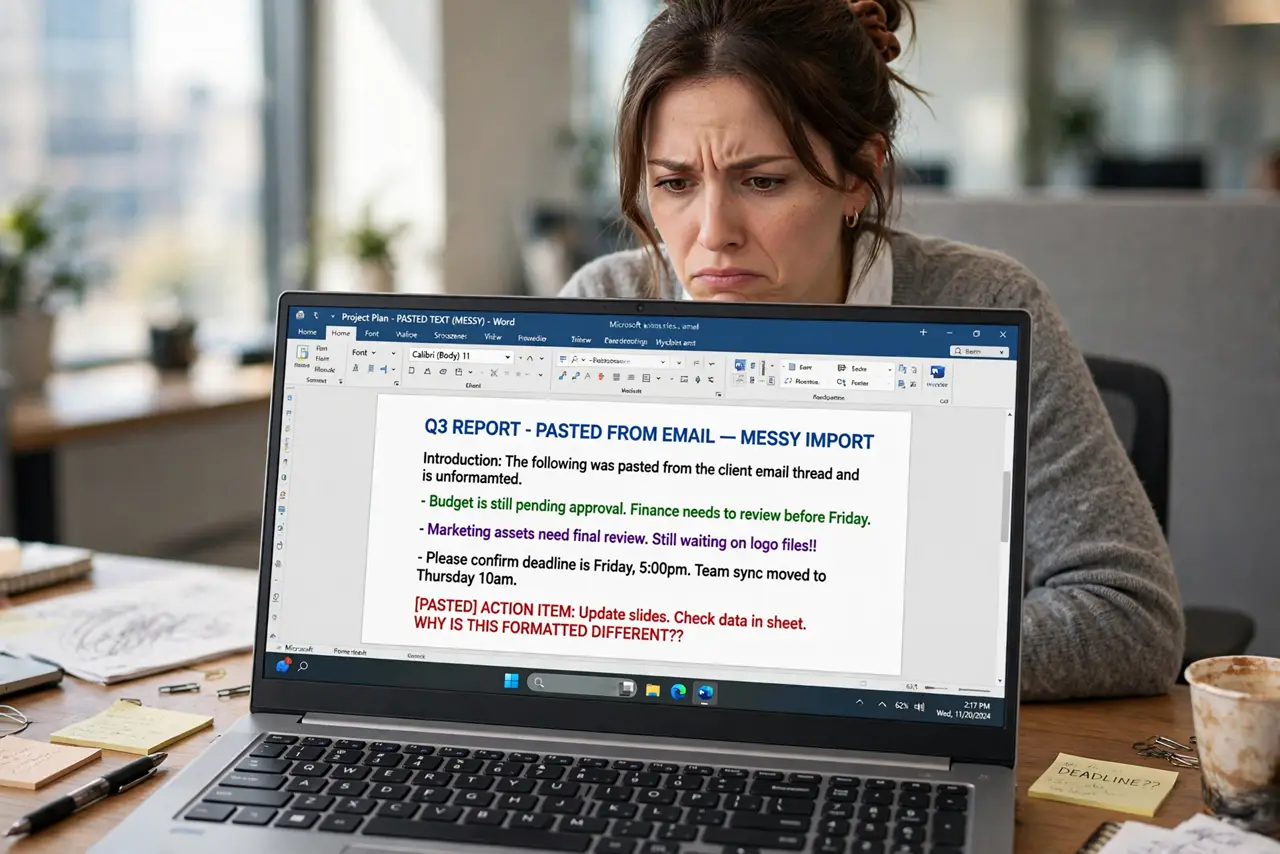
TL;DR / Quick Fix
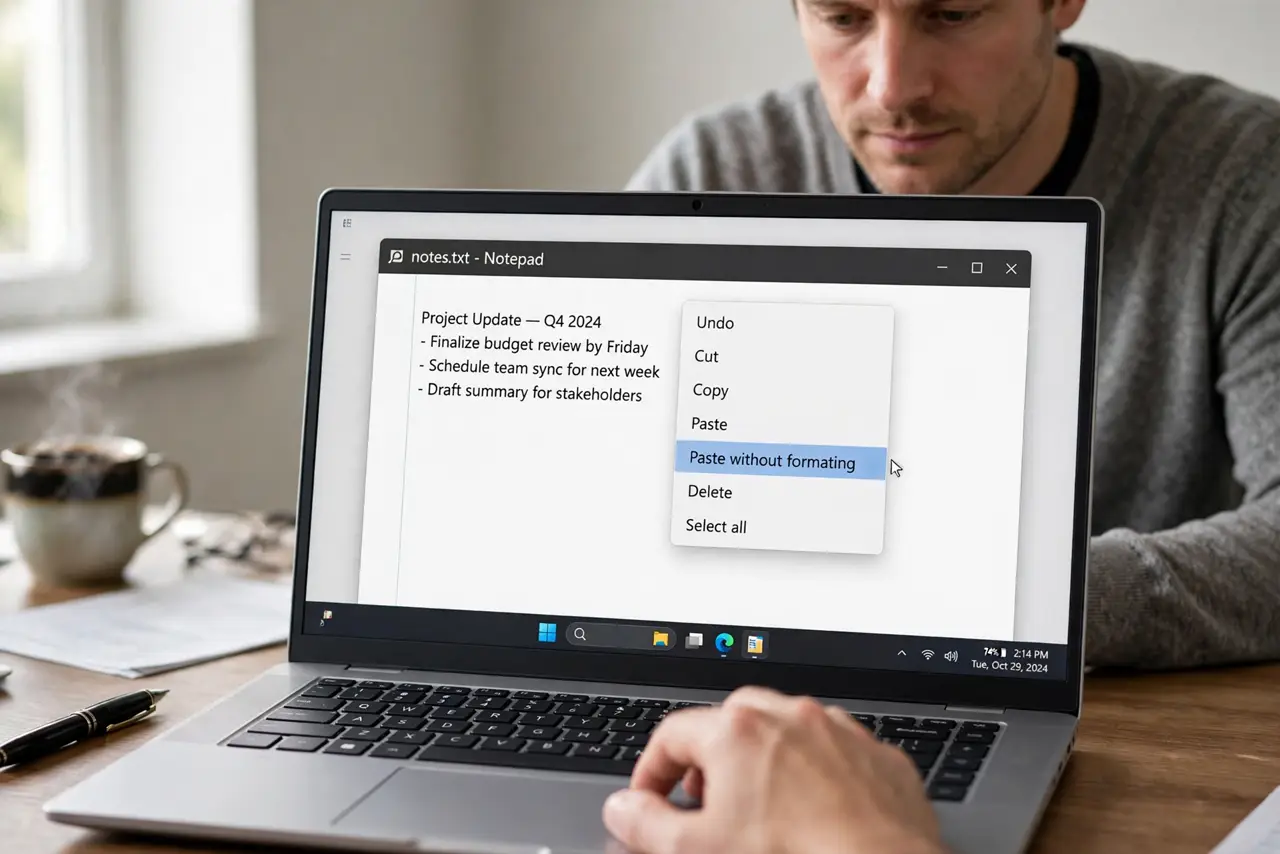
Paste with Ctrl+Shift+V to strip formatting and match your document's style. Set Word's default paste option to keep text only for web content. For an already messy document, select all, clear formatting, then reapply your styles one section at a time.
Follow these steps
- Paste without formatting. Use Ctrl+Shift+V instead of Ctrl+V when pasting from the web. The text arrives in your document's own font and size, with no alien colors.
- Use the paste options button. After a normal paste, click the small clipboard icon that appears and choose Keep Text Only. This rescues a paste you already made — and if the wrong text landed entirely, check your clipboard history before repasting.
- Change the default paste setting. Open Word options, go to Advanced, and set pasting from other programs to Keep Text Only. One setting fixes every future paste from the browser.
- Clear formatting on messy text. Select the messy paragraph and use Clear All Formatting. The text snaps back to the underlying style, ready for a clean reformat.
- Reapply styles, not manual formatting. Format with Heading and Normal styles instead of manual bold and font sizes. Styled text survives future pastes; manual formatting does not.
- Check for hidden junk characters. Turn on Show/Hide formatting marks and look for stray line breaks and spaces the paste smuggled in. Delete them so spacing behaves.
What NOT to do
- Do not paste web content with Ctrl+V and hope. Source formatting always comes along, and hope is not a formatting strategy.
- Do not fix messy text by manually recoloring each line. Clear the formatting once and reapply styles.
- Do not copy from a web page's reader view and expect clean text. Reader views still carry hidden formatting.
- Do not ignore the paste options button. It appears for a few seconds after every paste and fixes most messes instantly.
Frequently asked questions
How do I paste without formatting in Word?
Press Ctrl+Shift+V, or paste normally and choose Keep Text Only from the paste options button.
Why does pasted text change my whole document's font?
Because it arrived with its own style definitions. Clear All Formatting on the pasted text to return it to your styles.
Can I make Keep Text Only the default?
Yes. In Word options under Advanced, set the default paste behavior for content from other programs to Keep Text Only.