Export Perfect PDFs
Your Word document looks perfect — until you export it and the fonts shift, the images move, and page three becomes page four. PDF export preserves your layout exactly, but only with the right settings: embedded fonts, print-quality images, and the correct page size. Get it right once and every export matches.
TL;DR / Quick Fix
Quick fix: in Word, use File, Export, Create PDF, choosing Standard quality for print or Minimum Size for email. Embed fonts so the PDF looks right everywhere. Set page size before exporting. Open the PDF and skim it before sending — export surprises hide on page three.
Follow these steps
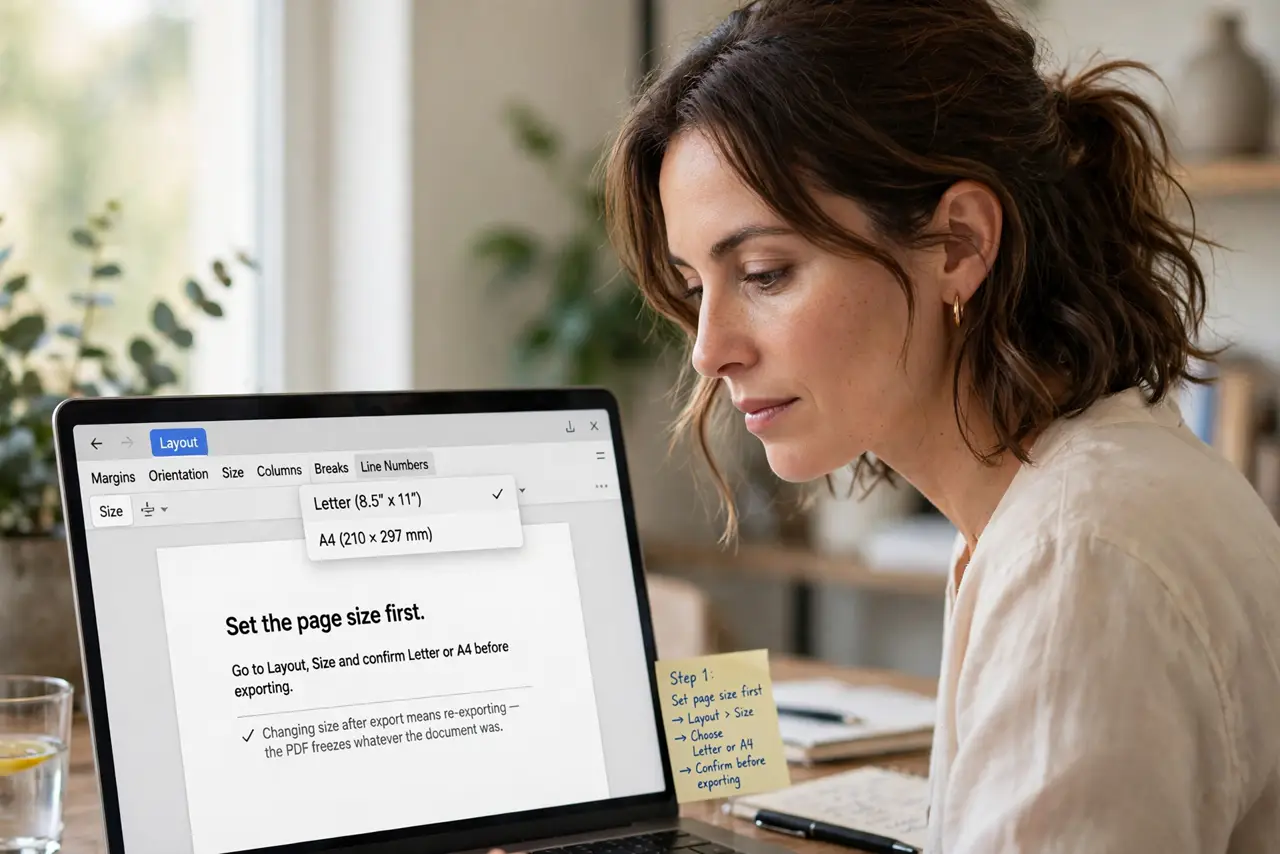
- Set the page size first. Go to Layout, Size and confirm Letter or A4 before exporting. Changing size after export means re-exporting — the PDF freezes whatever the document was.
- Use File, Export, Create PDF. This path gives full quality options. Print to PDF is a shortcut, but Export exposes the settings that prevent surprises.
- Pick the right quality. Standard (publishing online and printing) for final versions; Minimum Size for email drafts. Minimum Size compresses images — never use it for print.
- Embed the fonts. In the export options, ensure fonts embed. Without embedding, a recipient missing your font sees substitutions — the classic layout shift. This matters most for shared documents going to clients.
- Check images and links. Skim the PDF for moved images and dead hyperlinks. Export reflows nothing, but it exposes problems the Word view hid.
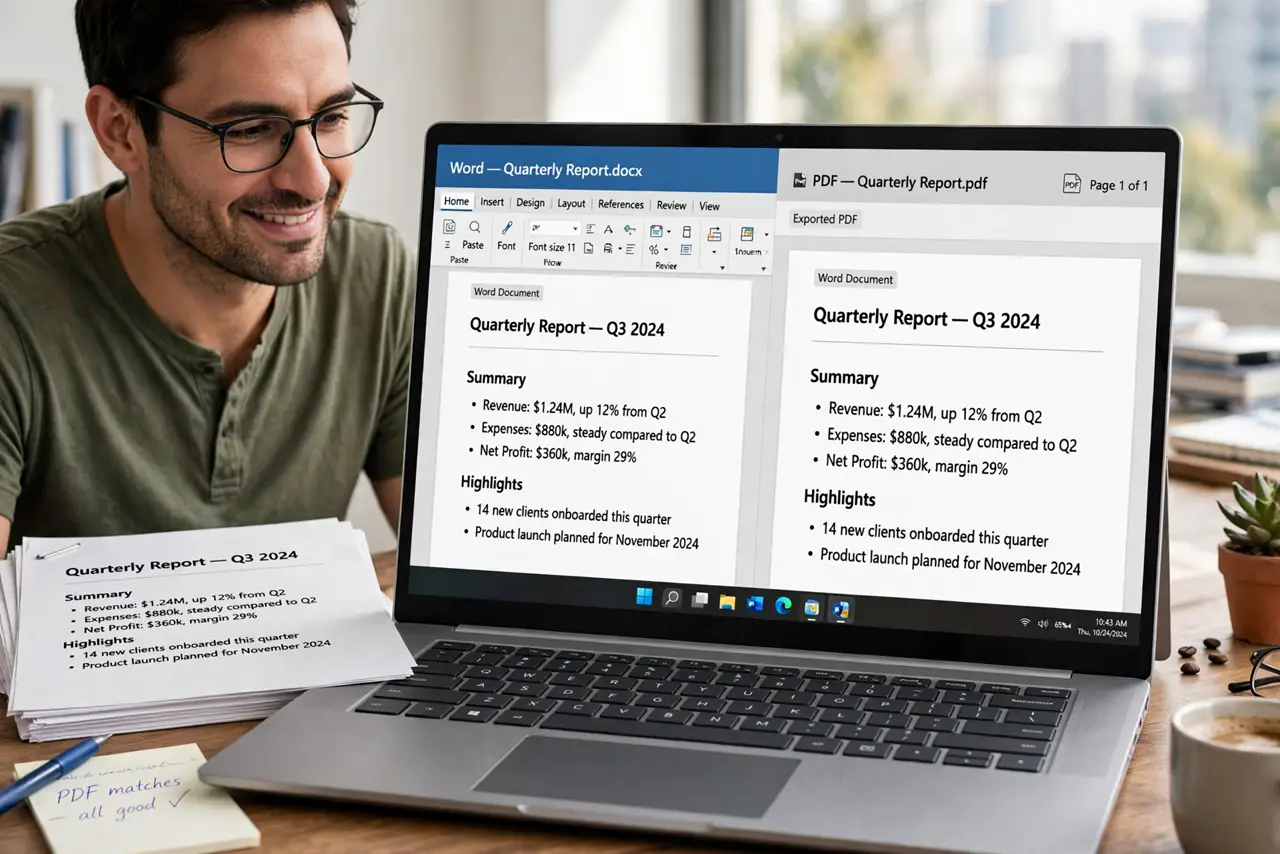
- Compare before sending. Open the PDF next to the Word file and flip through. Catching a shifted table now beats an apology email later.
What NOT to do
- Do not export with Minimum Size for printing. The compressed images look fine on screen and terrible on paper.
- Do not assume the PDF matches without checking. Fonts, fields, and tracked markup all surprise first-time exporters.
- Do not send the Word file when a PDF will do. PDFs preserve layout everywhere; Word files reflow on every machine.
- Do not forget accessibility for public PDFs. Tagged structure helps screen readers — export with document structure tags on.
Frequently asked questions
Why do fonts change in my PDF?
They were not embedded. Re-export with font embedding on, or switch to a common font.
PDF or Word for a resume?
PDF, always. It looks identical on every device; a Word resume reflows on the recruiter's machine.
How do I make the PDF smaller?
Re-export at Minimum Size, or compress images in Word first. For huge files, the large attachment guide has sending options.