Print Double-Sided? Basics
Printing on both sides of the paper halves your paper use and looks professional — but the setting hides in the print dialog, and printers handle it two different ways. Here is how to print double-sided from Word, what to do when the option is missing, and how to fix upside-down backs.
TL;DR / Quick Fix
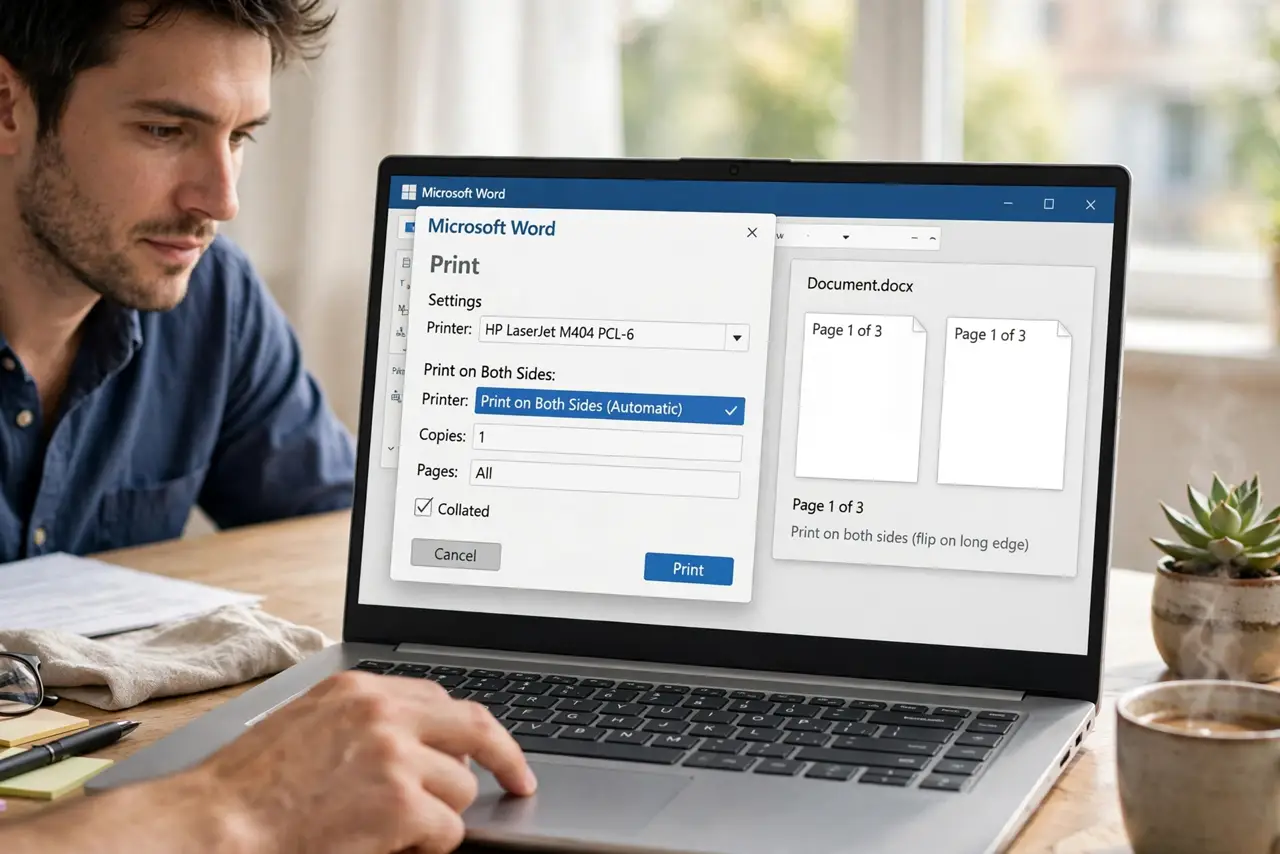
Quick fix: in Word go to File > Print and choose 'Print on Both Sides' under Settings — pick 'Flip on long edge' for normal documents. If the option is missing, your printer may lack duplex hardware; print odd pages, flip the stack, then print even pages manually.
Follow these steps
- Use the automatic setting. File > Print > under Settings, change 'Print One Sided' to 'Print on Both Sides'. Choose 'Flip pages on long edge' for portrait documents — the standard choice.
- Pick the right flip direction. Long-edge flip suits portrait pages bound on the side; short-edge flip suits landscape or top-bound documents. Wrong choice means upside-down backs — reprint one test page first.
- Set it as the default. In Windows Settings > Printers, open Printing Preferences and set duplex as default — or on Mac, set it in the print dialog's Layout. See the Mac default guide for macOS specifics.
- Do it manually without duplex hardware. No automatic duplexer? Print odd pages only, flip the stack per the printer's diagram, then print even pages. Tedious but effective for occasional jobs.
- Fix the upside-down back. Backs printing upside-down means the wrong flip edge — switch long/short edge and reprint. One test page saves a whole misprinted report.
- Check the printer actually supports it. The Word option only appears if the driver reports duplex capability. If missing, verify in the printer's specs — some printers need a duplex accessory installed.
What NOT to do
- Do not assume every printer duplexes. The Word setting needs duplex hardware — check the printer's specs first.
- Do not print the full run before testing. One test page reveals flip-direction mistakes before they cost fifty pages.
- Do not use thin paper for duplexing. Lightweight paper shows through — 24lb paper duplexes far more cleanly.
- Do not forget ink drying time on manual duplex. Fresh ink smears when you flip too fast — let pages rest a minute.
Frequently asked questions
Why is 'print on both sides' missing?
Your printer likely lacks duplex hardware or the driver does not report it. Check specs, update the driver, or use the manual odd/even method.
Long edge vs short edge — which do I want?
Long edge for normal portrait documents (like a book); short edge for landscape or top-bound items (like a notepad).
Can I default to double-sided always?
Yes — set duplex in the printer's Printing Preferences at the OS level, and every app inherits it.