Lock Parts of a Document
You share a contract template and someone edits the legal boilerplate. Restrict Editing lets you lock parts of a Word document while leaving the fill-in fields open — readers complete their sections without touching yours. It is the polite way to share a document that must stay intact.
TL;DR / Quick Fix
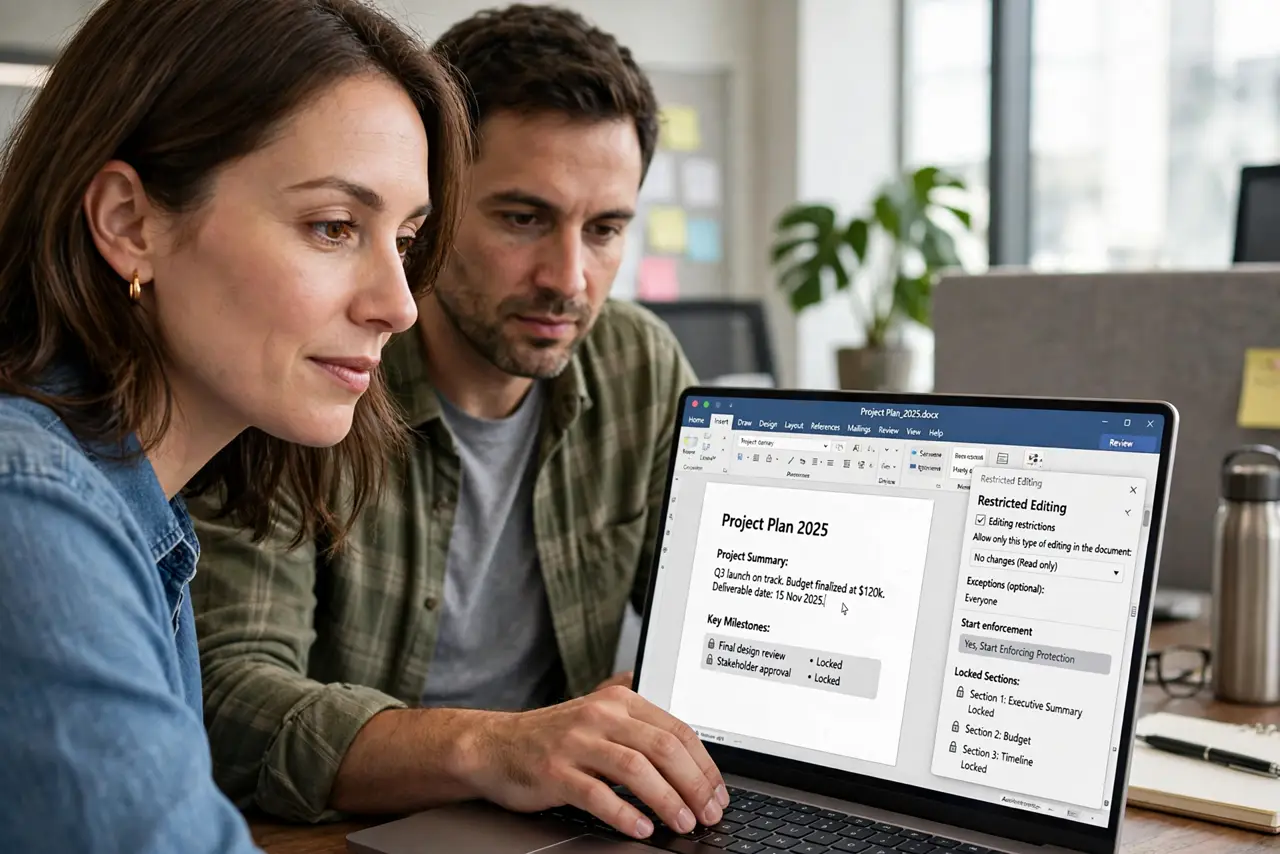
Quick fix: in Word, go to Review, Restrict Editing, and choose Allow only this type of editing, then Filling in forms. Mark the sections everyone may edit as exceptions. Click Yes, Start Enforcing Protection and set a password. Test the locks on a copy before sending the real file.
Follow these steps
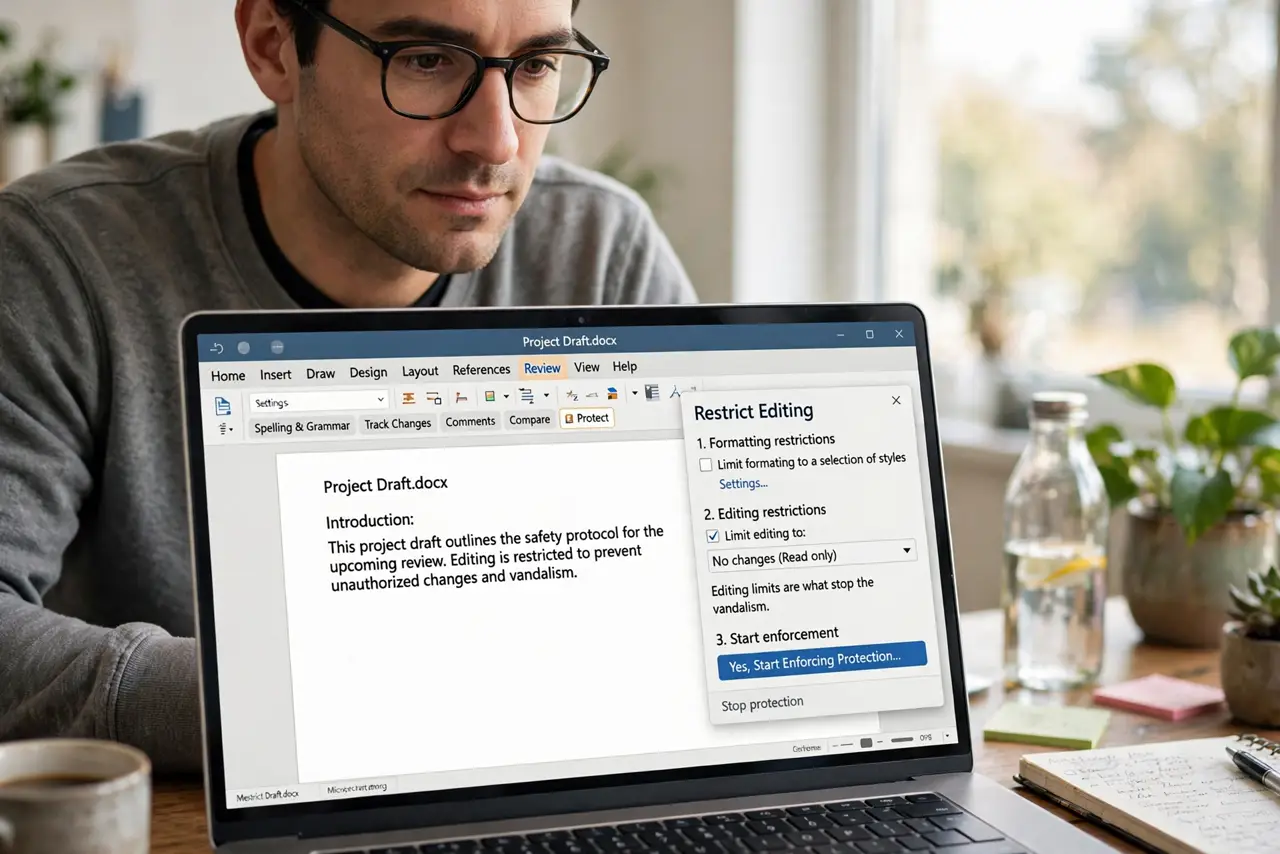
- Open Restrict Editing. On the Review tab, click Restrict Editing. The pane offers formatting limits, editing limits, or both — editing limits are what stop the vandalism.
- Choose the editing mode. Select Allow only this type of editing in the document, then pick Filling in forms for templates or No changes for read-only sections.
- Mark editable exceptions. Select the paragraphs or fields people may change, then check Everyone under Exceptions. Everything unmarked stays locked.
- Enforce with a password. Click Yes, Start Enforcing Protection and set a password. Without a password, anyone can click Stop Protection and undo your work.
- Test before sending. Open a copy and try to edit the locked parts. If you can break it in ten seconds, so can your readers — tighten the exceptions.
- Pair with a password for sensitive files. For truly sensitive documents, also add file-level password protection so the file cannot even be opened without permission.
What NOT to do
- Do not rely on restrictions for real security. Determined users can bypass them — this stops accidents, not attackers.
- Do not forget the enforcement password. Lose it and even you cannot edit the locked document again.
- Do not lock the parts people must fill. A template nobody can complete generates support emails, not signed forms.
- Do not skip the test copy. Restrictions behave differently across Word versions — verify on the recipient's likely version.
Frequently asked questions
Can people still copy text from a restricted document?
Yes, usually — restrictions limit editing, not reading or copying. For read protection, use file encryption instead.
What is the difference between this and Track Changes locks?
Track Changes locks force markup on edits; Restrict Editing blocks edits entirely in locked zones. Different tools for different trust levels.
I lost the restriction password — now what?
There is no official recovery. You will need the password or a clean earlier copy — another reason to keep backups.