Save as PDF? Basics
You finished a document and need to send it as a PDF — for a job application, a contract, or a form — but the formatting looks wrong or the option is hard to find. Every modern Word app can export to PDF without extra software, and the trick is choosing the right settings before you export. This guide covers the clean way on desktop and phone.
TL;DR / Quick Fix
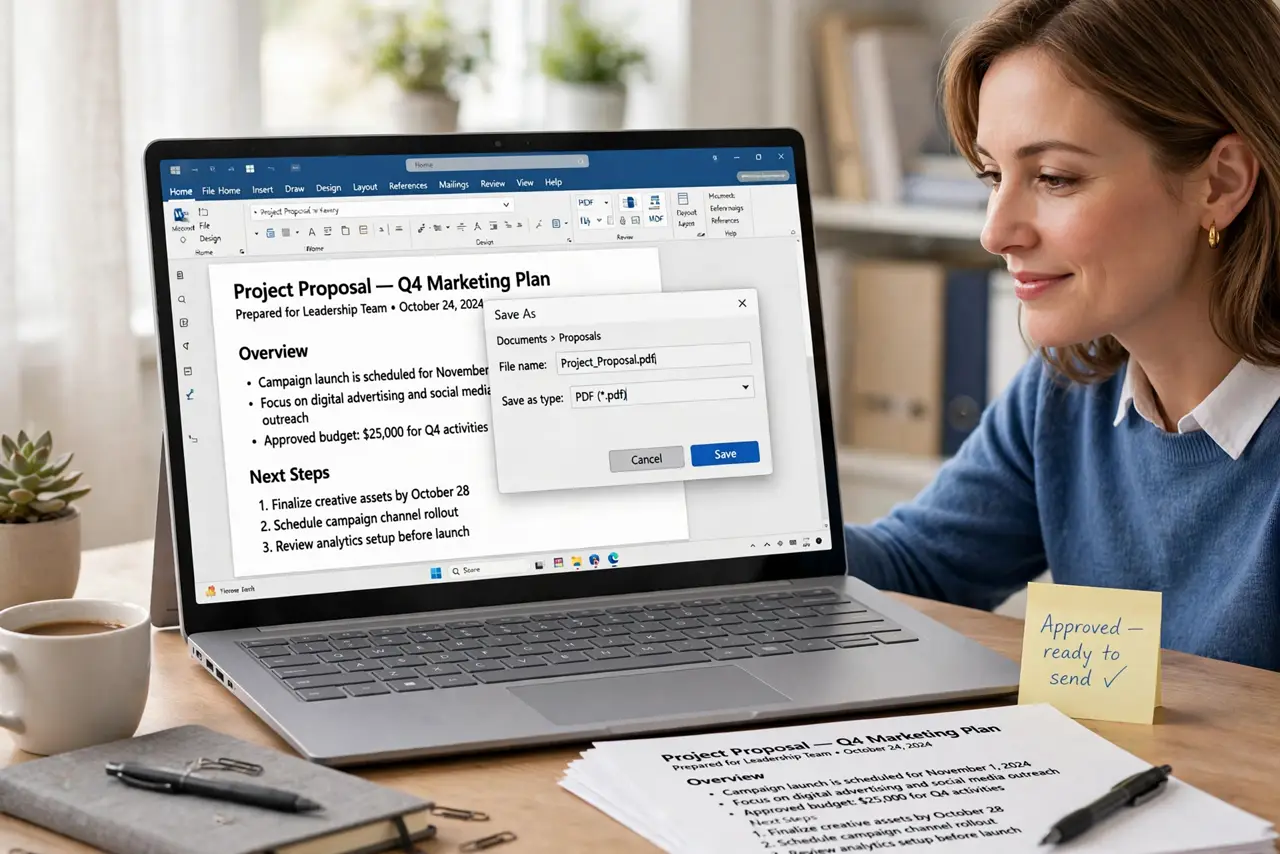
Quick fix: in Word choose File, then Save As or Export, and pick PDF. Use Export rather than printing to PDF for the best quality and clickable links. On phones, the Share or Print menu offers Save as PDF. Always open the exported file once to check it.
Follow these steps
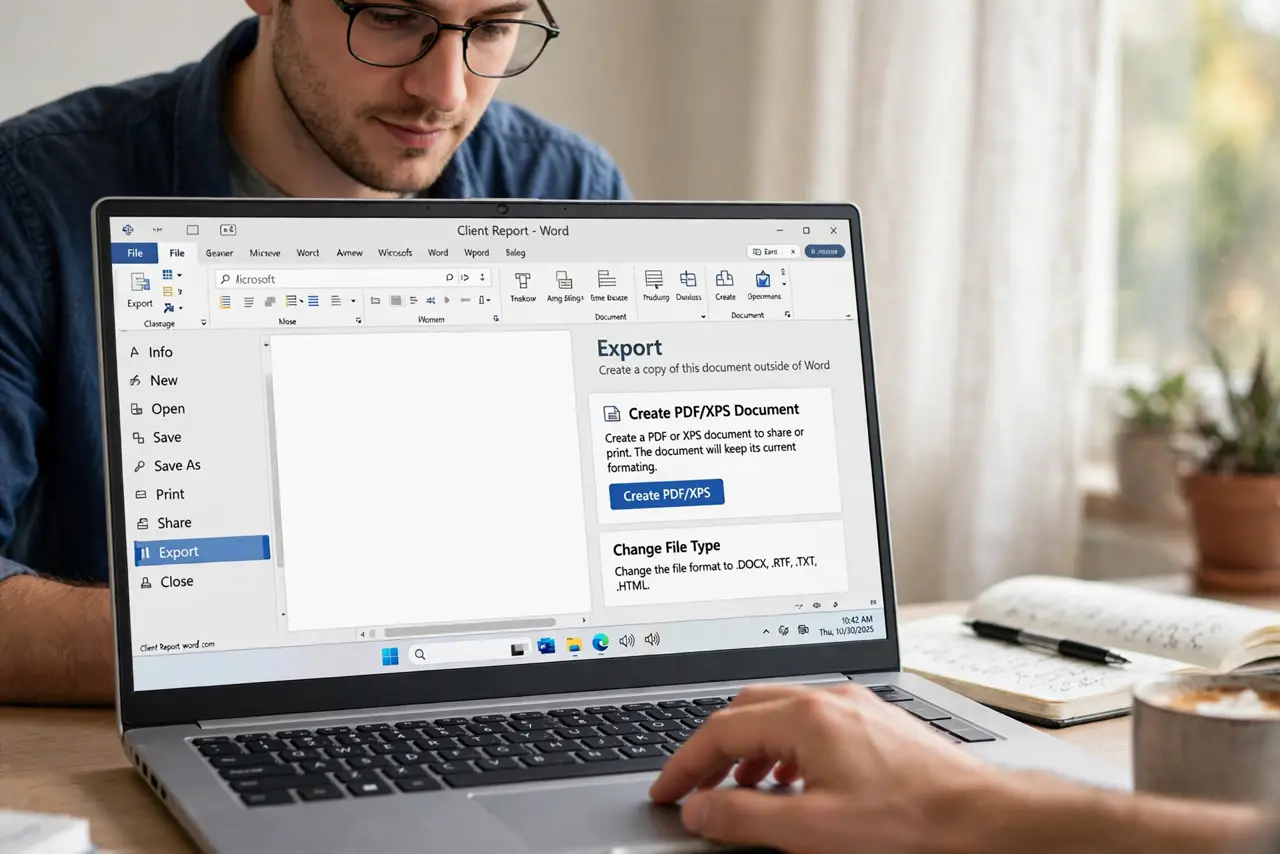
- Use Export on desktop Word. Go to File, then Export, then Create PDF. This is the proper path — it keeps fonts, links, and headings intact, unlike some print-to-PDF routes that flatten everything.
- Pick the right optimization. Choose Standard for printing or Minimum Size for emailing. Standard keeps images crisp; Minimum Size shrinks the file but can blur photos — pick based on where the PDF is going.
- Check page breaks before exporting. What you see is what the PDF gets. Scroll through the document and fix widowed headings or columns cut off-style layout issues first — the export will not fix them.
- Save from the phone app too. In Word for iPhone or Android, tap the three dots or Share, then Print, and choose Save as PDF. The layout follows your document settings, so check it on a bigger screen after.
- Open the PDF after exporting. Always open the exported file once. Check the first and last pages, any tables, and page numbers — catching a broken export now beats resending later.
- Name the file properly. Give it a clear name like Smith-Resume-2026.pdf, not Document1.pdf. Recipients judge professionalism by the filename as much as the content.
What NOT to do
- Do not print to PDF from a browser preview. Opening a Word file in a browser and printing loses formatting the desktop app preserves.
- Do not send a PDF you never opened. Broken tables, missing pages, and shifted images hide until you look.
- Do not choose Minimum Size for a printed document. The compression that helps email ruins print quality.
- Do not password-protect casually. A forgotten PDF password locks you out too — only protect documents that truly need it.
Frequently asked questions
Why does my PDF look different from the Word file?
Usually missing fonts or a different page size. Embed fonts in the export options and confirm the paper size matches before exporting.
Can I edit a PDF back into Word?
Yes — Word can open PDFs and convert them, but complex layouts come back messy. Keep the original Word file as the master copy.
How do I make the PDF smaller for email?
Export with the Minimum Size option, or compress images in Word first. If it is still too big, a free online compressor handles it.