Research Without Leaving Word
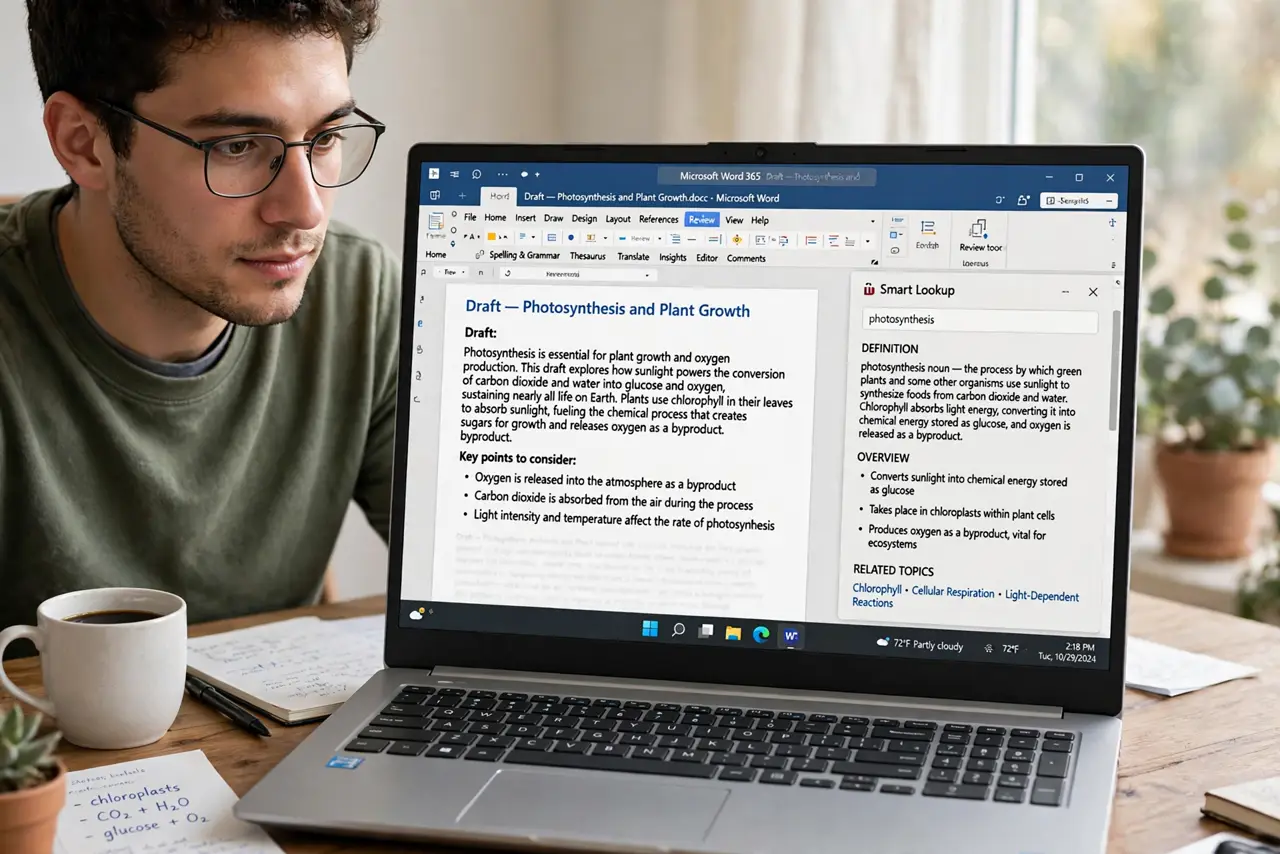
You are writing and need a definition, a synonym, or a quick fact — so you open a browser, fall into three tabs, and forget the sentence. Smart Lookup brings definitions, web results, and images into a Word side pane. Research without the tab-switching black hole.
TL;DR / Quick Fix
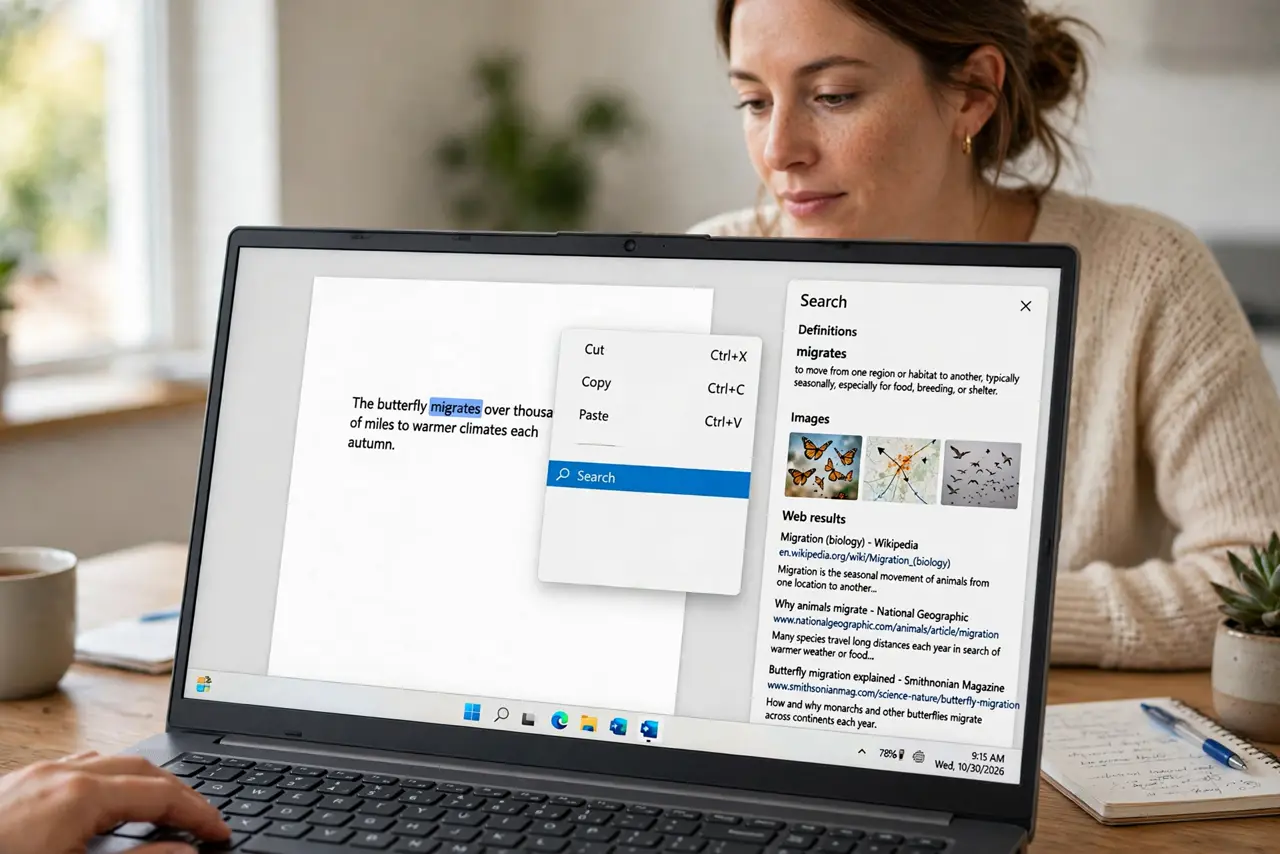
Quick fix: in Word, right-click any word and choose Search to open a research pane with definitions and web results. Use it for quick definitions and fact checks without opening a browser. For deeper research, open the full results in your browser. Close the pane when done to reclaim space.
Follow these steps
- Right-click and search. Select a word, right-click, and choose Search. The pane opens with definitions, images, and web results — no browser needed.
- Define without leaving. The top of the pane gives dictionary definitions instantly. Faster than a new tab for is this the right word moments.
- Fact-check quickly. Skim the web results in the pane for dates, names, and figures. Quick verification beats confident errors.
- Insert with care. Copy facts, not prose. Pasting web text into your document is plagiarism — rewrite in your own words.
- Open full results when needed. For real research, click through to the browser. Smart Lookup is a scout, not the expedition.
- Pair with Dictate for flow. Look up the word, then dictate the sentence. Voice plus instant reference keeps drafting momentum.
What NOT to do
- Do not paste lookup results into your document. Definitions and snippets are for reference — copying them is plagiarism.
- Do not trust the first result blindly. Quick facts deserve a second source before they enter your document.
- Do not research in the pane for an hour. If you need depth, open the browser properly — the pane is for quick hits.
- Do not forget it needs internet. Offline, Smart Lookup shows nothing — download references before flights.
Frequently asked questions
Is Smart Lookup the same as a web search?
Similar results, smaller window. It is a search scoped to your selected word, designed for quick reference mid-writing.
Can I turn it off?
It only appears when you invoke it — there is nothing to disable. Ignore it and it stays out of the way.
Does it work in other Office apps?
Yes — the same lookup appears in Excel, PowerPoint, and Outlook with right-click Search.