Translate in Word
A client sends a contract in Spanish and you read English. Word translates whole documents in place — no copy-paste into a website, no mangled formatting. Machine translation is not perfect, but for understanding it is instant and free. Here is how to use it well.
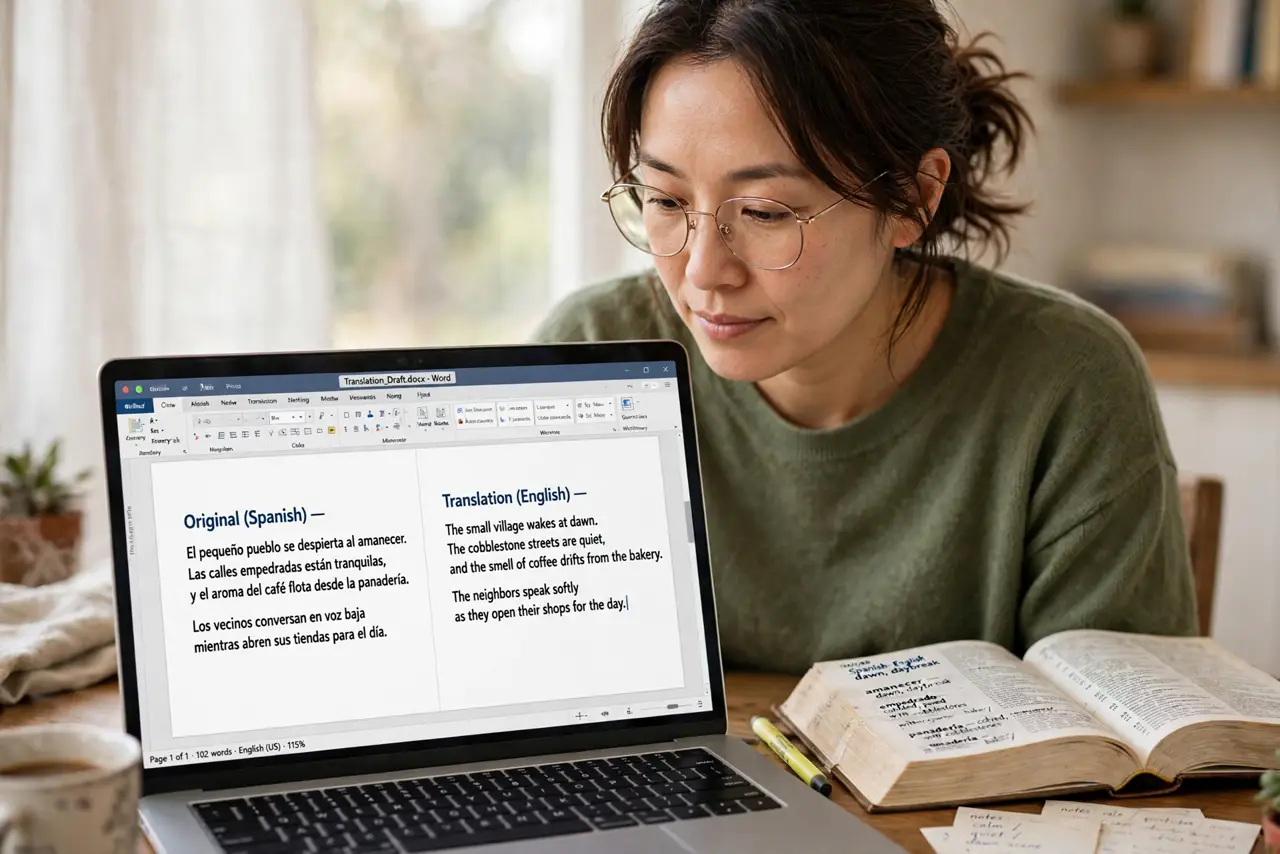
TL;DR / Quick Fix
Quick fix: in Word, go to Review, Translate, Translate Document, pick the languages, and Word creates a translated copy. Review key passages yourself — machine translation misses nuance. For a single paragraph, use Translate Selection instead. Never trust machine translation for legal or medical wording without a human check.
Follow these steps
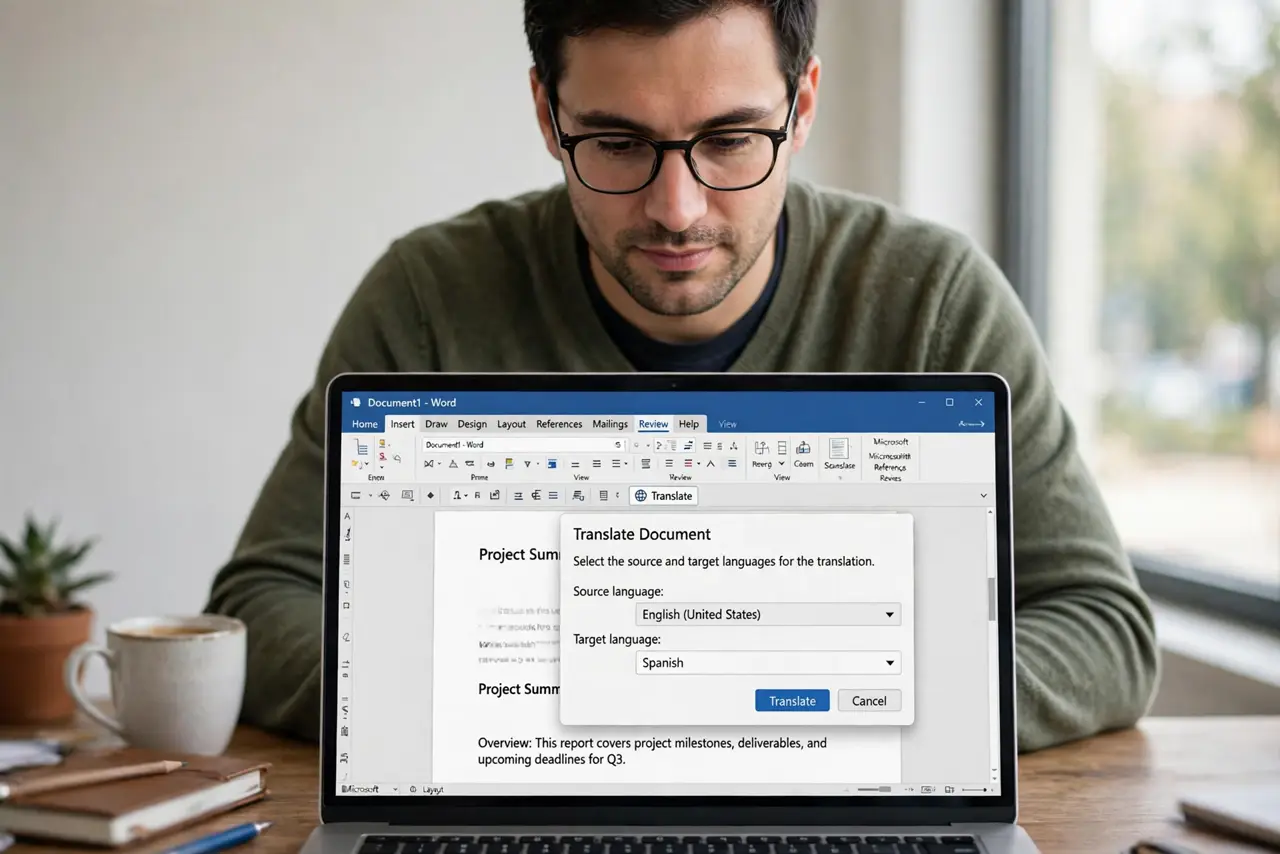
- Open Translate Document. On the Review tab, click Translate, then Translate Document. Word asks for source and target languages.
- Pick your languages carefully. Verify the source language auto-detect got it right. Translating from the wrong source language produces confident nonsense.
- Get a translated copy. Word creates a new translated document, leaving your original untouched. Work from the copy; keep the original for reference.
- Translate selections for spot checks. For one paragraph, use Translate Selection instead. Faster than full-document translation for quick questions.
- Review critically. Machine translation fumbles idioms, negatives, and formal tone. Read the result skeptically — if it matters, a human translator is still the standard.
- Compare with other tools. For tricky passages, cross-check with a second translator. The Docs translation guide covers the Google Docs equivalent.
What NOT to do
- Do not trust it for contracts or medical text. A flipped negative can reverse meaning — human review is mandatory for high stakes.
- Do not translate sensitive documents on cloud services blindly. Your text may be processed on remote servers — check the privacy terms.
- Do not assume formatting survives perfectly. Complex layouts can shift in the translated copy — compare side by side.
- Do not translate and delete the original. Keep both; the original is the authority if the translation is ever questioned.
Frequently asked questions
How accurate is Word's translation?
Good for gist, unreliable for nuance. Fine for understanding an email; not fine for signing a contract.
Can it translate scanned PDFs?
Not directly — scanned pages are images. OCR the scan first, then translate the resulting text.
Does it work offline?
Document translation generally needs the cloud. Offline language packs cover only basic scenarios.