Tables in Word? Basics
Word tables look simple until they misbehave — text jumps, rows split across pages, columns refuse to resize. A few fundamentals make them predictable: how to insert, size, and format them, and which settings cause the classic headaches. This is the beginner's guide that prevents the usual table rage.

TL;DR / Quick Fix
Quick fix: insert Word tables from the Insert tab, drag column borders to resize, and use Table Properties for precise control. Keep tables simple — merged cells and nested tables cause most formatting pain. Right-click gives quick access to insert rows, delete columns, and alignment.
Follow these steps
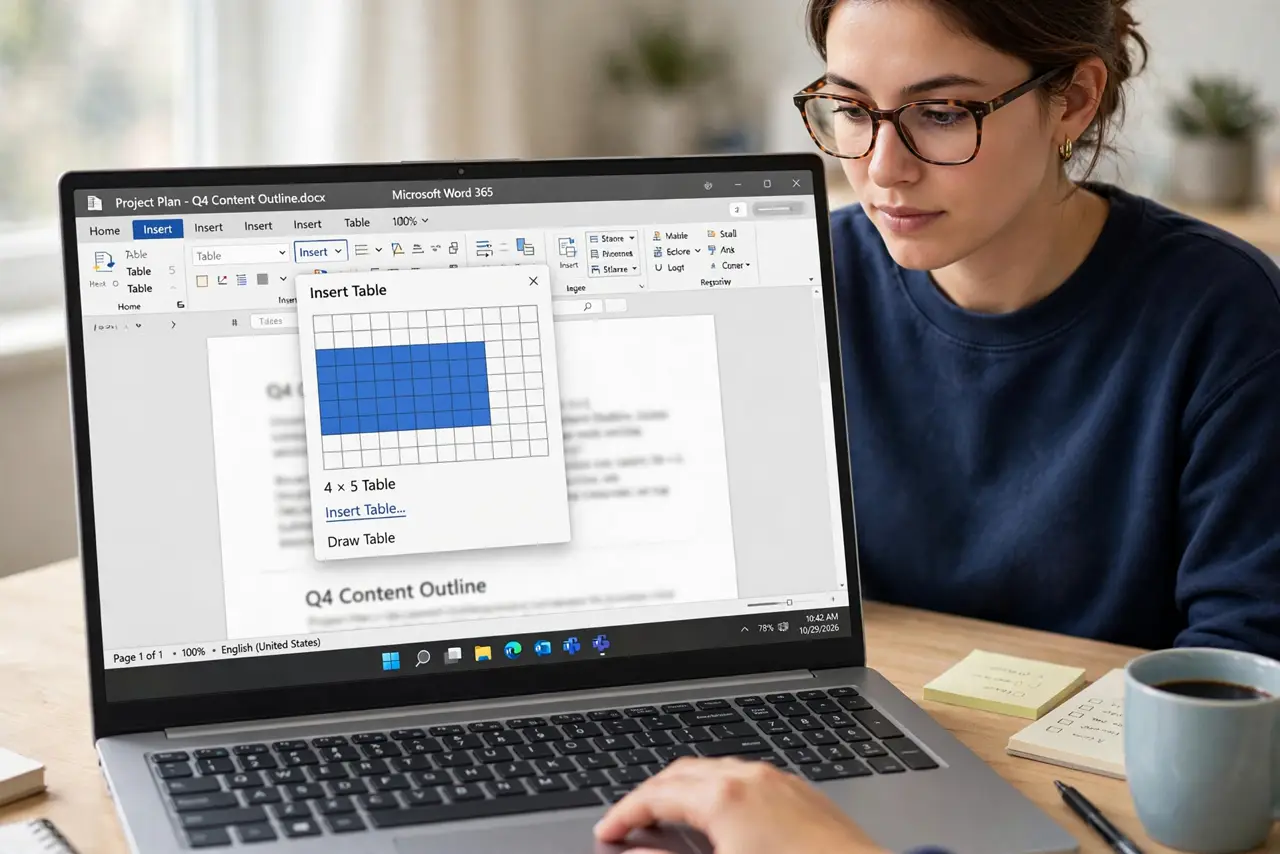
- Insert the right size upfront. Insert > Table > drag the grid to your rows and columns. Guessing close beats inserting a 2x2 and building outward — adding is easy, but starting right saves restructuring.
- Resize with the borders. Hover over a column border until the resize cursor appears, then drag. For precision, use Layout > Cell Size with exact widths — eyeballing fails on formal documents.
- Use Table Properties for control. Right-click > Table Properties is mission control: alignment, text wrapping, and row behavior. The 'Allow row to break across pages' toggle fixes the classic split-table problem.
- Format with Table Styles. The Design tab offers one-click professional styling — header shading, banded rows, borders. Faster and cleaner than hand-formatting every cell.
- Keep it simple. Merged cells, nested tables, and text wrapping around tables cause most Word table misery. If a table fights you, simplify the structure before fighting the settings.
- Paste data cleanly. Pasting from Excel or the web brings hidden formatting — use Paste Special as unformatted text, then style the table yourself.
What NOT to do
- Do not merge cells casually. Merged cells break sorting, formulas, and future edits — use them sparingly.
- Do not let rows split across pages by default. Turn off row-breaking for tables that must stay together.
- Do not resize by dragging blindly on important documents. Use exact measurements in Table Properties for consistency.
- Do not nest tables inside tables. It looks clever and edits terribly — restructure instead.
Frequently asked questions
Why does my table jump to the next page?
Usually a row set to break-or-not-break oddly, or text wrapping set to Around. Check Table Properties > Row and set wrapping to None.
How do I make all columns the same width?
Select the table, go to Layout > Distribute Columns. One click, perfectly even — no dragging.
Can Word tables do math?
Yes — Layout > Formula does simple sums and averages on numeric columns. For real spreadsheets, use Excel.