Accept All Track Changes in Word at Once
A document returns from review with two hundred tracked changes and clicking Accept one by one would take all afternoon. Word has a bulk accept, but it is easy to fire it before you have actually reviewed anything. This guide shows how to accept all safely — and when not to.
TL;DR / Quick Fix
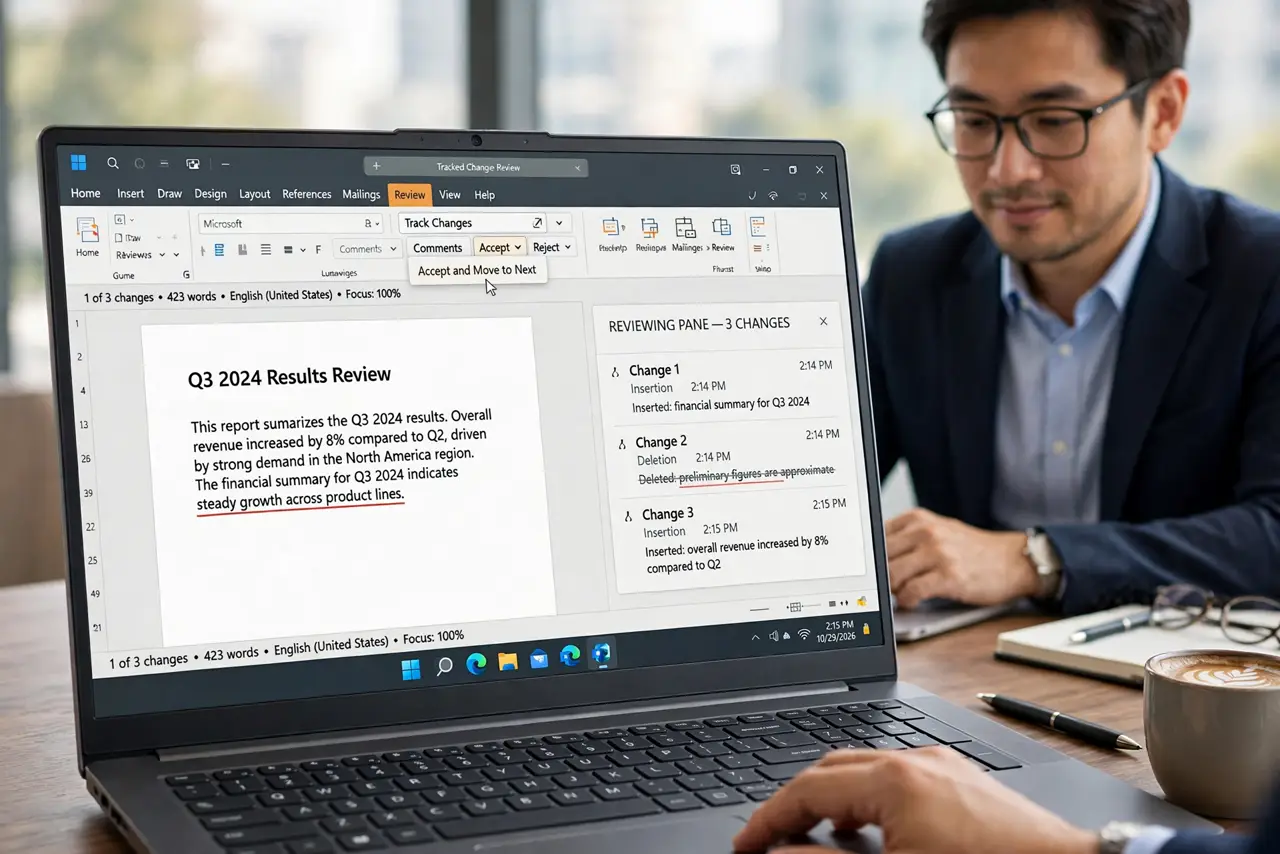
Review the changes first, then use Review, Accept, Accept All Changes to apply them at once. Save a copy before bulk-accepting so you can undo the whole batch. Never accept all in a document you have not at least skimmed, since bulk accept cannot be partially undone.
Follow these steps
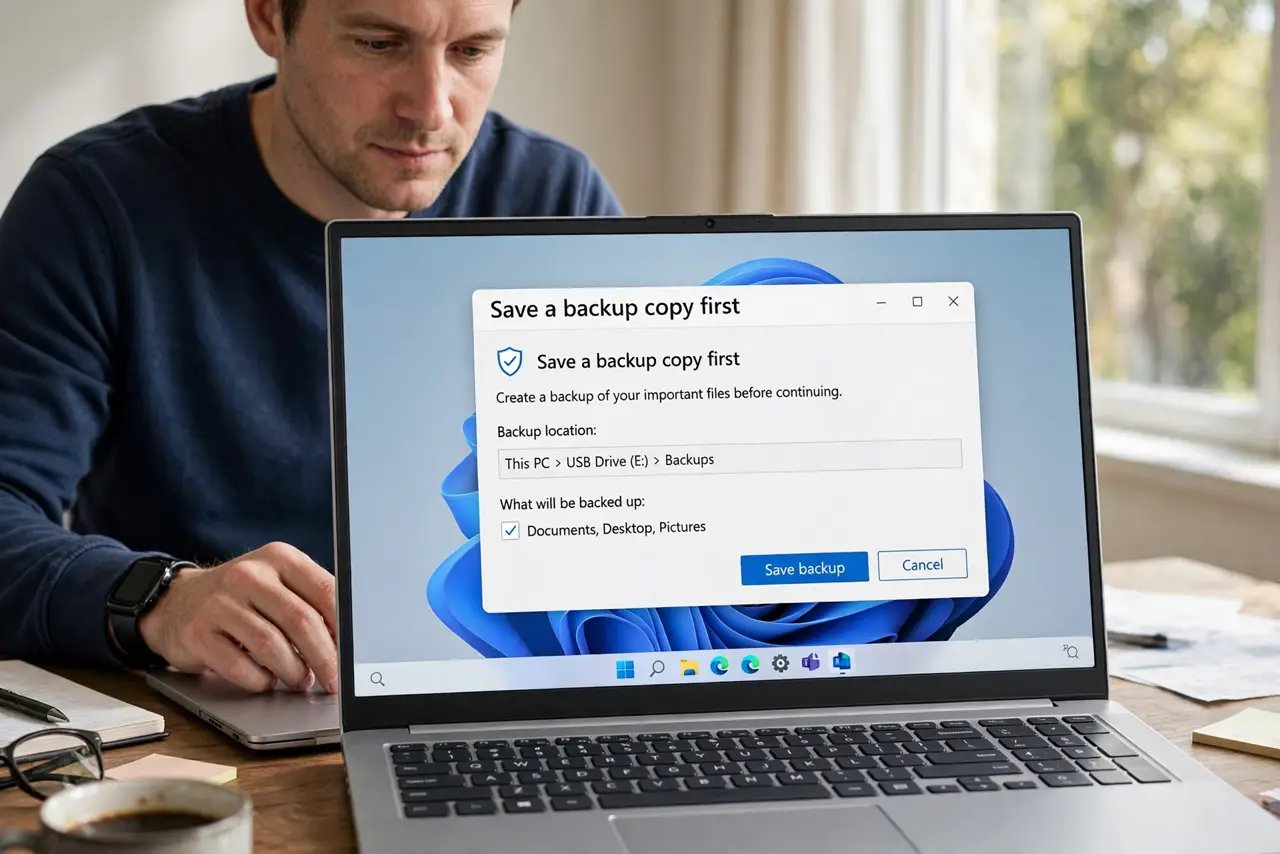
- Save a backup copy first. Save the document under a new name like Draft-reviewed-backup before touching anything. Bulk accept is fast, and a backup is your only true undo.
- Skim the tracked changes. Scroll through with the markup visible and look at what reviewers actually changed. Bulk accept is for changes you agree with, not a substitute for reading.
- Reject the bad ones individually first. Click through and reject any change you disagree with before the bulk step. Once you accept all, the rejected ones would have been accepted too.
- Use Accept All Changes. Open the Review tab, click the arrow under Accept, and choose Accept All Changes. Every remaining tracked change applies at once — the same batch idea as comparing versions before a merge.
- Turn off Track Changes. Click Track Changes to switch it off, so your own cleanup edits do not add a fresh layer of markup.
- Proofread the final text once. Read the document start to finish. Bulk accept can join sentences awkwardly or leave double spaces, and only a read-through catches them.
What NOT to do
- Do not accept all changes in a document you have not reviewed. Bulk accept applies everything, including mistakes.
- Do not skip the backup copy. There is no partial undo for a bulk accept you regret.
- Do not accept all while Track Changes is still on. Your cleanup edits will pile new markup onto the clean document.
- Do not accept all just to hide the markup. If the changes are wrong, rejecting is the honest fix.
Frequently asked questions
How do I accept all tracked changes in Word at once?
On the Review tab, click the small arrow under Accept and choose Accept All Changes. Save a backup copy first.
Can I undo Accept All Changes?
Only with Ctrl+Z immediately, or by reopening your backup copy. There is no selective undo for a bulk accept.
Should I accept all before or after proofreading?
After a skim at minimum. Accept all, then proofread the clean text once more before sending it on.