Track Changes Right
Edit wars in shared documents — mystery deletions, conflicting rewrites, no record of who changed what — are how collaborations go wrong. Track Changes turns every edit into a visible, attributable proposal you can accept or reject. This guide makes it the default habit for any document more than one person touches.
TL;DR / Quick Fix
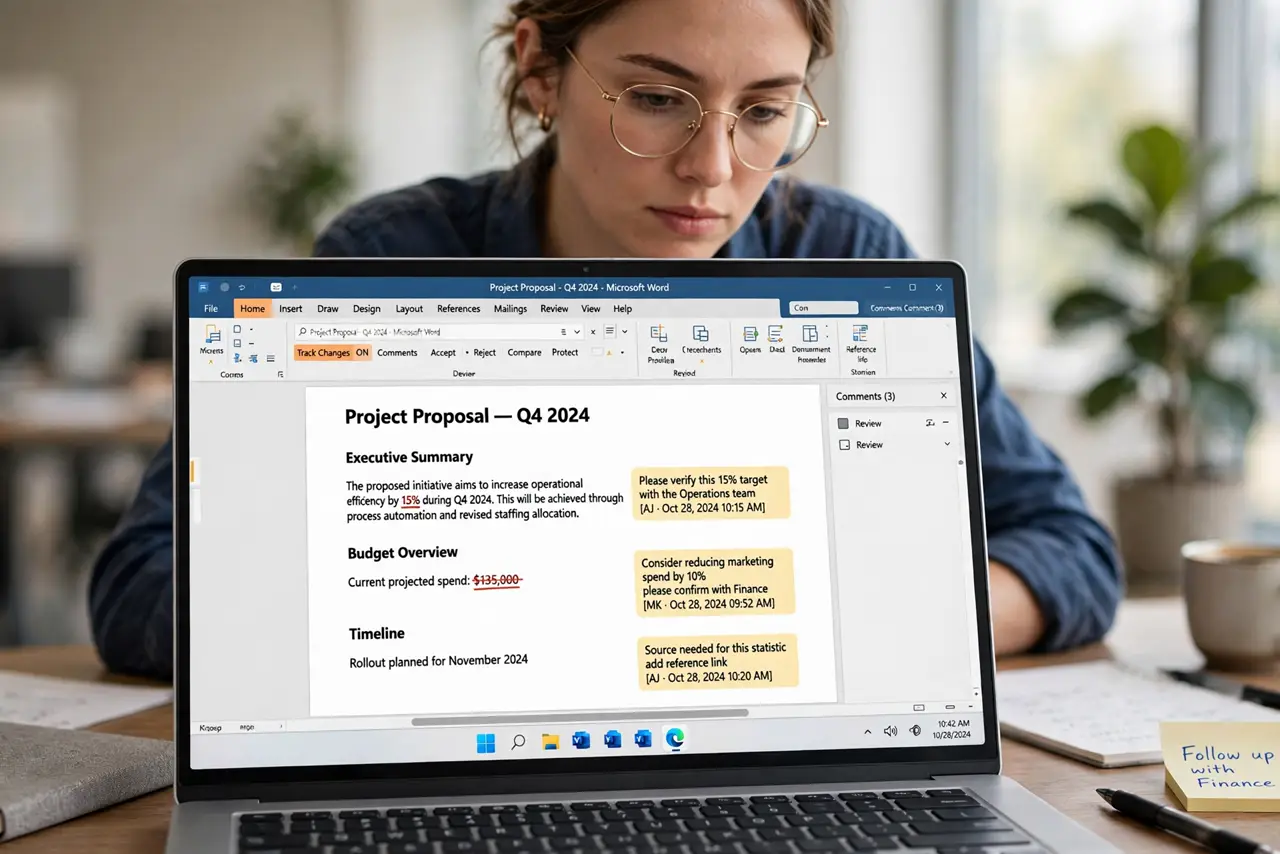
Quick fix: turn on Track Changes under the Review tab before editing — every insertion, deletion, and format change gets marked. Accept or reject each change from the same tab. Switch the view to Simple Markup to read cleanly, and use All Markup when you need to see every edit.
Follow these steps
- Turn on Track Changes before you edit. On the Review tab, click Track Changes so it highlights. Every keystroke from now on is recorded as a proposal, not a silent rewrite.
- Choose your markup view. Simple Markup shows a clean page with margin bars; All Markup shows every insertion and deletion inline. Read in Simple, review in All.
- Accept or reject change by change. Click a change and use Accept or Reject on the Review tab — or right-click it. Work through the document once, deliberately.
- Use comments for discussion. When a change needs explaining, add a comment instead of just editing. Comments keep the why attached to the what.
- Lock tracking for shared files. In the Track Changes options, set a password to lock it on. Without the lock, a collaborator can silently turn tracking off.
- Compare when tracking was forgotten. If someone edited with tracking off, use Compare documents to reconstruct the differences instead of guessing.

What NOT to do
- Do not turn Track Changes on halfway and assume the earlier edits are recorded. Only edits made while it is on are tracked.
- Do not accept all changes blindly. 'Accept All' is for documents you fully trust — review first on anything important.
- Do not send a document with unresolved markup to a client. Finalize: accept or reject everything, then turn tracking off.
- Do not use Track Changes as version control. For major drafts, save versioned copies too — markup is for review, not archiving.
Frequently asked questions
Why do my changes not show as tracked?
Tracking is off, or the document has tracking locked by someone else. Check the Review tab status first.
Can I see who made each change?
Yes — hover over a change to see the author and timestamp, assuming the document kept author info.
How do I remove all markup at once?
Accept or reject all changes, delete comments, then turn Track Changes off. The document is clean only when all three are done.