Compare Two Documents
Someone edited the contract with Track Changes off, and now you have 'final_v2' and 'final_v3' with no idea what changed. Word's Compare feature rebuilds the difference as tracked markup in a fresh document. This guide recovers the truth from version chaos.
TL;DR / Quick Fix
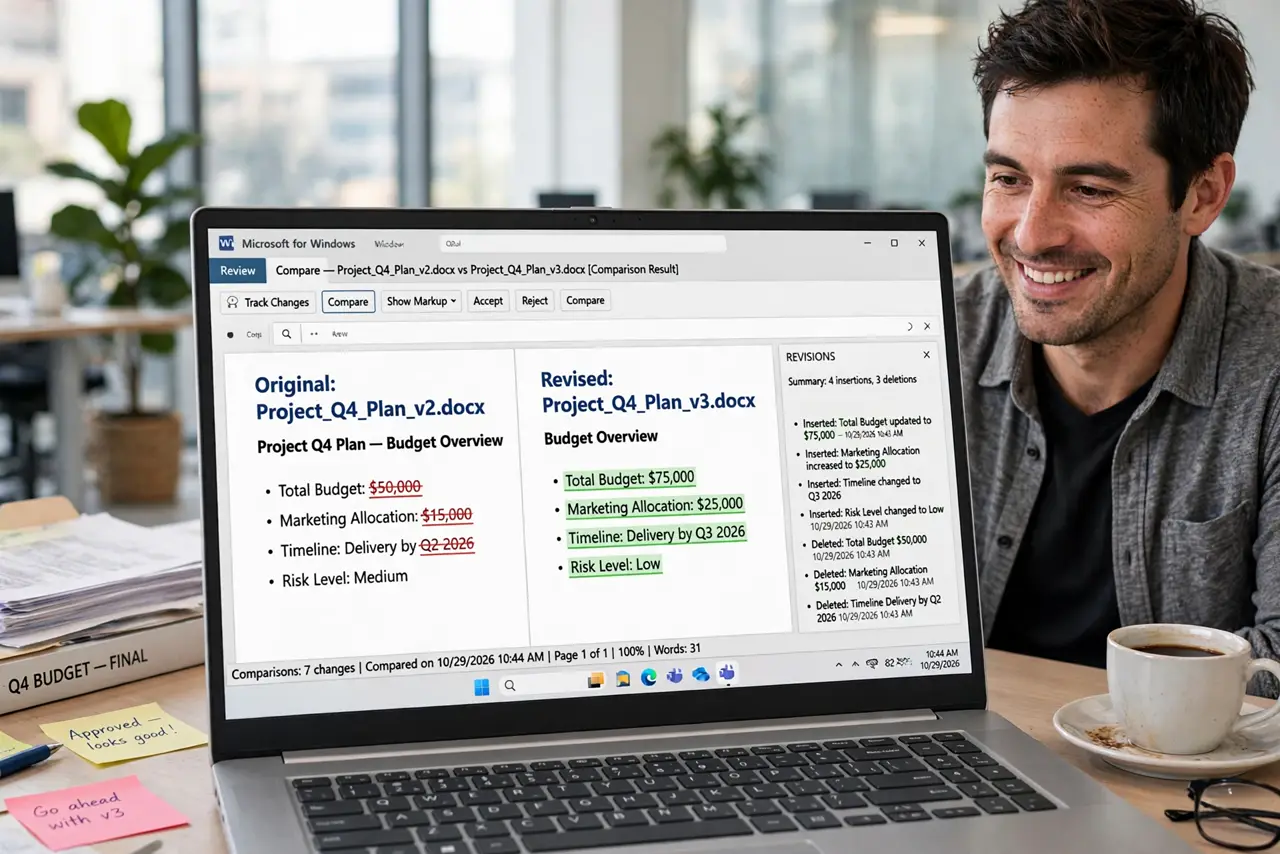
Quick fix: open the Review tab, click Compare, and pick the original and revised documents — Word builds a third document showing every difference as tracked changes. Save the comparison as a new file so neither original is touched. Use it when someone edited without Track Changes on.
Follow these steps
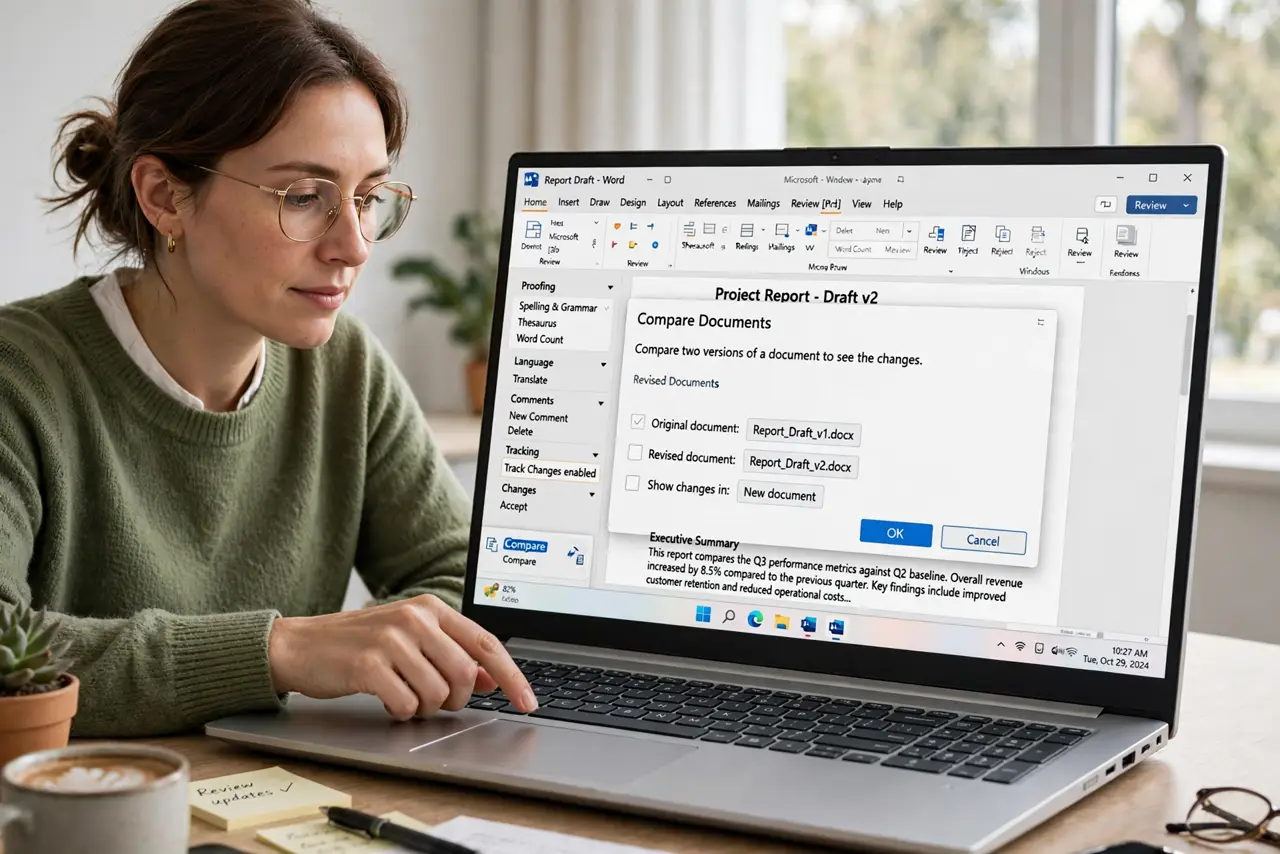
- Open the Review tab and click Compare. Choose Compare, then Compare two versions of a document. You will pick an original and a revised file.
- Select the original and revised documents. Label them correctly — original first, revised second. Swapped order inverts every insertion and deletion.
- Review the comparison document. Word generates a third document showing all differences as tracked changes. Neither source file is modified — the comparison is disposable.
- Accept the real changes into a clean copy. Work through the markup, accepting what is correct. Save the result as the new master version with a clear name.
- Name versions so this stays rare. Adopt a naming scheme with dates: Contract_2026-10-29. Compare is the rescue tool; naming discipline is the prevention.
- Turn on Track Changes going forward. The permanent fix is tracking changes from the start — Compare is for archaeology, not workflow.
What NOT to do
- Do not compare the wrong pair. Comparing v1 to v3 when v2 exists buries the intermediate changes.
- Do not edit the comparison document as if it were the file. Merge accepted changes back into a properly named master.
- Do not trust Compare on heavily reformatted docs. Massive style changes create noisy markup — compare content versions, not redesigns.
- Do not skip labeling original vs revised. The direction matters; reversed, every change reads backwards.
Frequently asked questions
Does Compare change my original files?
No — it creates a new third document. Your originals stay exactly as they were.
Can I compare more than two documents?
Pairwise only. Compare v1-v2, then the result to v3, chaining forward.
Why is the comparison full of formatting noise?
One version was reformatted. In the Compare settings, uncheck formatting to focus on content changes.