Turn On Restricted Mode
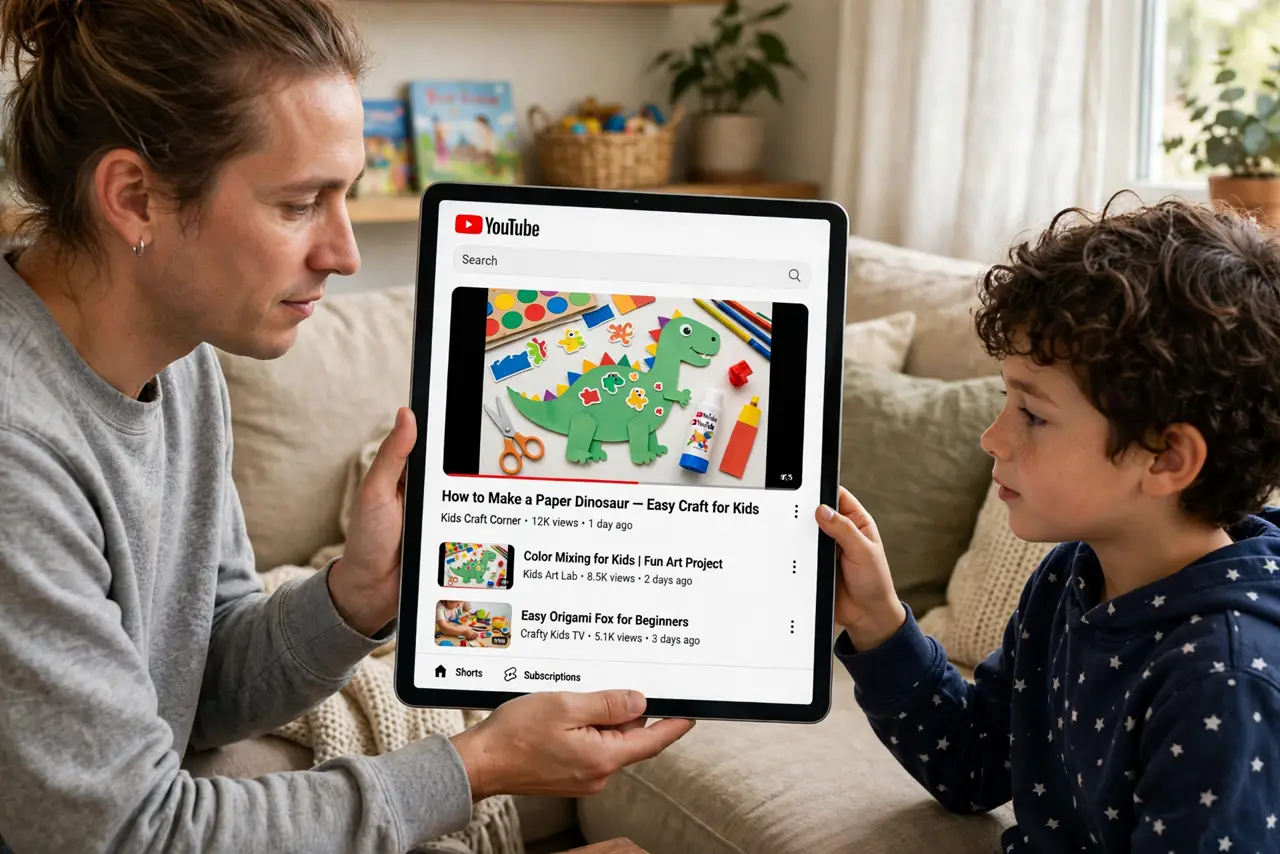
Restricted Mode is YouTube’s built-in filter for mature content — it hides videos flagged by the community and automated systems. It is not perfect, but it is free, instant, and the right first step before handing a device to a child. Here is how to turn it on everywhere it matters.
TL;DR / Quick Fix
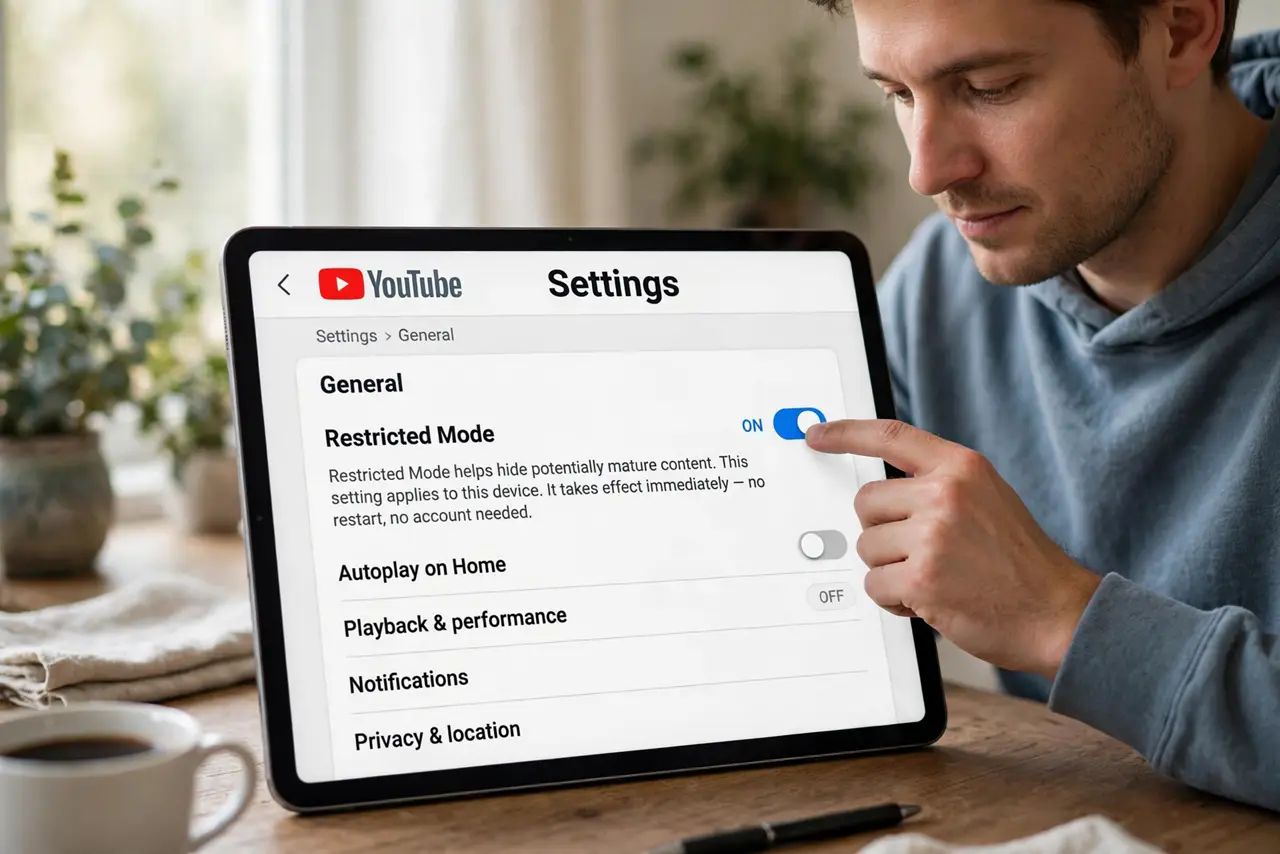
Quick fix: open the YouTube app, tap your profile, go to Settings > General, and turn on Restricted Mode — it filters mature content on that device. Repeat it on every device your child uses, because the setting is per-device. For stronger protection, use a supervised child account alongside it.
Follow these steps
- Turn it on in the app. Open YouTube, tap your profile picture, go to Settings > General, and toggle Restricted Mode on. It takes effect immediately — no restart, no account needed.
- Repeat on every device. Restricted Mode is per-device and per-browser, not per-account. The tablet, the phone, the smart TV, the web browser — each needs its own toggle, or the filter has a hole.
- Lock it with a supervised account. On a child’s supervised Google account, Restricted Mode can be locked so it cannot be turned off. That is the difference between a suggestion and a rule — see YouTube’s kid limits.
- Check the TV app too. Smart TV YouTube apps bury the setting in their own menus. Kids watch a lot on the big screen — do not leave the largest screen in the house unfiltered.
- Pair it with broader controls. Restricted Mode filters YouTube only. Combine it with TikTok family tools and Instagram teen protections for the apps, and device-level parental controls for everything else.
- Review what slips through. No filter is perfect — watch together occasionally and check history. What gets through tells you whether the current setup is enough or needs tightening.
What NOT to do
- Do not assume one toggle covers all devices. Per-device means per-device — the most common failure is the forgotten tablet.
- Do not treat Restricted Mode as a babysitter. It filters a lot and misses plenty; it buys you margin, not peace of mind.
- Do not forget signed-out browsing. On a shared device, Restricted Mode set while signed in may not apply to signed-out sessions — use the supervised account.
- Do not skip the conversation. Filters work best alongside an actual talk about what to do when something weird appears on screen — close it and tell a grown-up.
Frequently asked questions
Does Restricted Mode block comments?
It hides potentially mature videos; comment filtering is separate. On supervised accounts you can restrict comments further in the account settings.
Can my child turn it off?
On their own device, yes — unless it is locked through a supervised Google account. That lock is the whole point of using supervision.
Is there a kids-only YouTube?
Yes — the YouTube Kids app is a separate, more strictly curated experience for younger children. Restricted Mode is the lighter option for older kids.