Blur Your Background
The meeting starts in two minutes and your room looks like a laundry exploded. Zoom's background blur fixes this in seconds — no tidying, no virtual beach required. It softens everything behind you into an unrecognizable smear while keeping you sharp, which works for messy rooms, shared spaces, and open offices alike. This guide turns it on before and during calls, tunes the strength, and covers what to do when your laptop struggles with it. For barking dogs and leaf blowers, pair this with cutting background noise.
TL;DR / Quick Fix
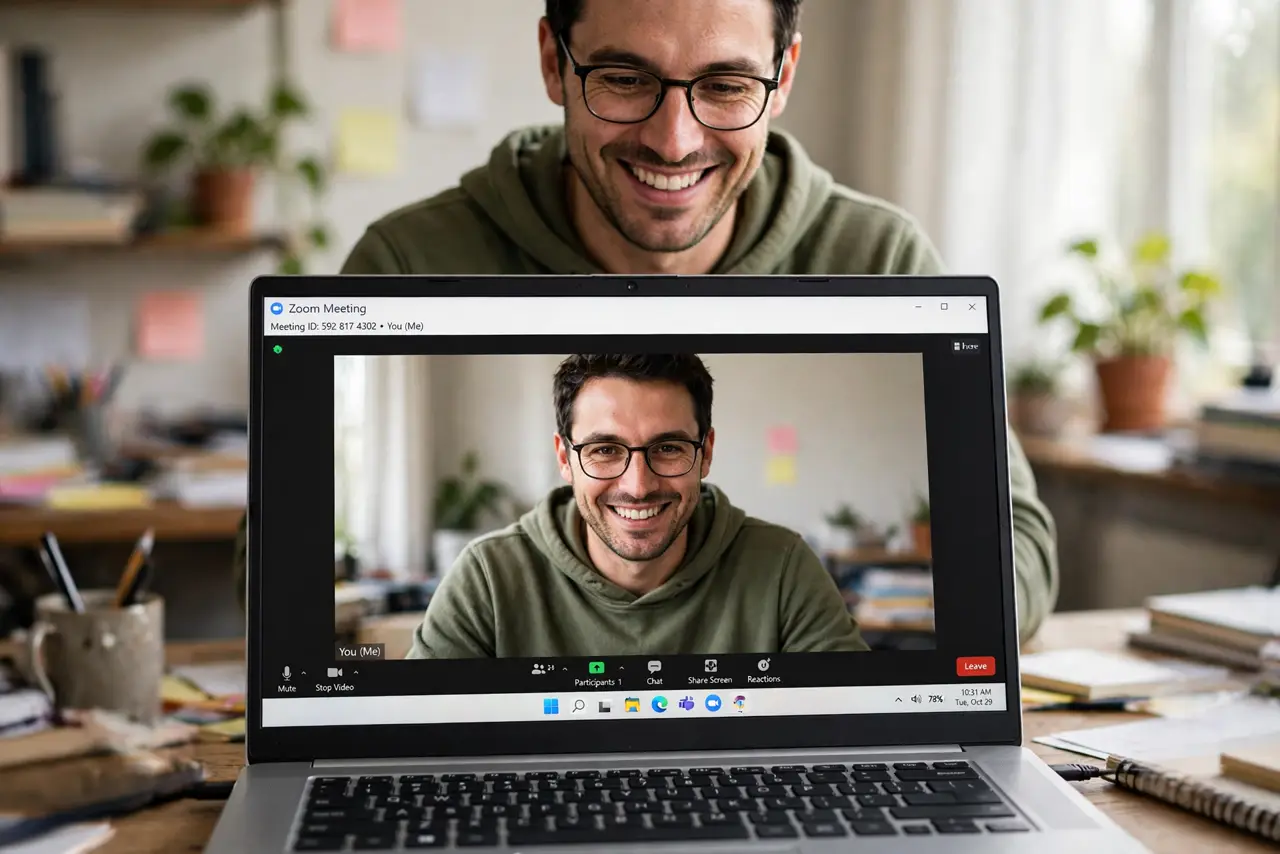
Quick fix: in Zoom settings under Backgrounds and Effects, choose Blur before your call — or tap the video menu during a call to enable it. It hides messy rooms without a fake backdrop. If your laptop stutters, close other apps to free up the processor.
Follow these steps
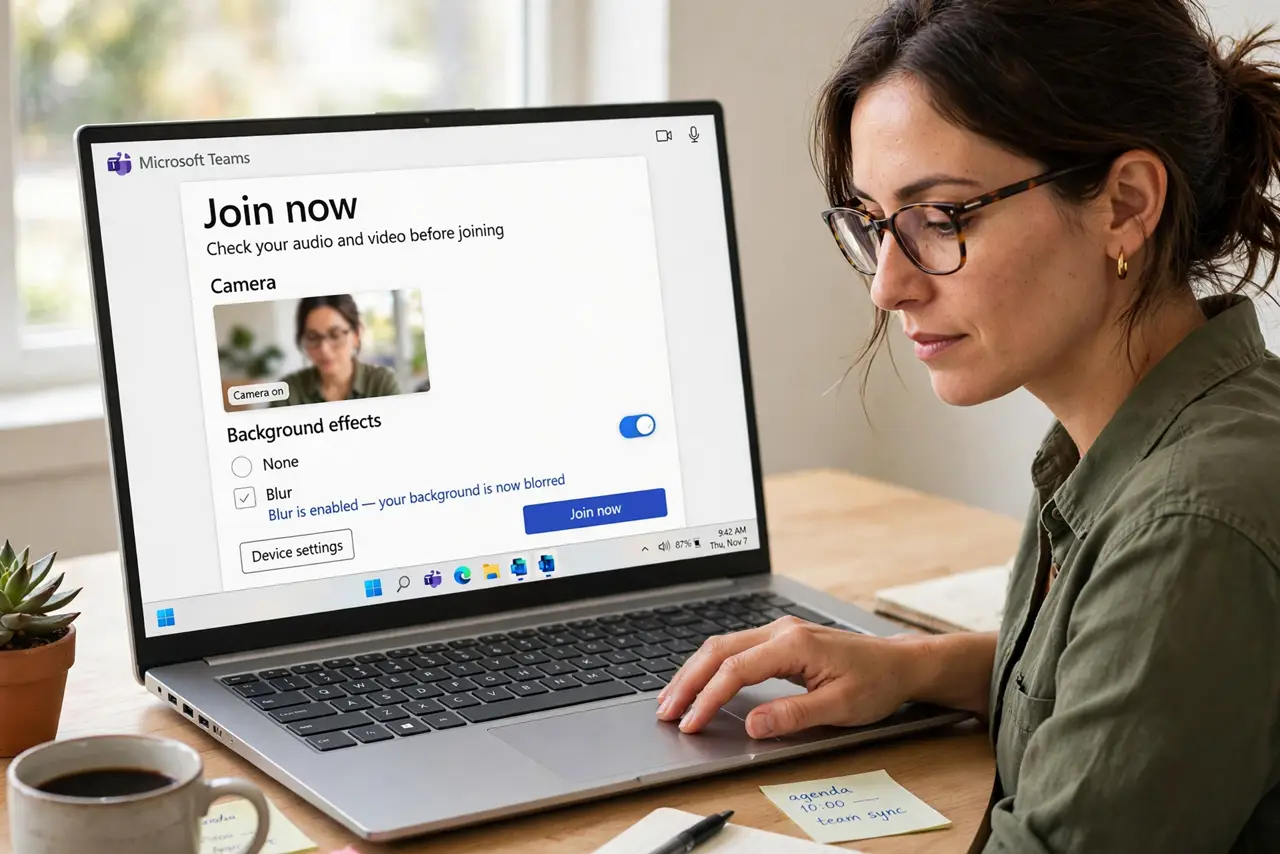
- Enable blur before the meeting. Open Zoom settings, go to Backgrounds and Effects, and select Blur. The preview shows the effect immediately — set it once and it stays on for future calls.
- Turn it on mid-call if you forgot. Click the caret next to Stop Video during a call, choose Choose Virtual Background, and pick Blur. Nobody sees the messy room in the second it takes.
- Adjust to your lighting. Blur works best in decent light. If your outline flickers, face a window or turn on a lamp — the effect needs to see you clearly to separate you from the background.
- Lower the load on weak laptops. Background blur uses your processor. If video stutters, close heavy apps, or switch to a static virtual background, which is cheaper to render than live blur.
- Check what the blur hides — and does not. Blur smears shapes but movement still shows through, and text on a whiteboard behind you may stay readable. Move truly sensitive items out of frame.
- Test with a friend first. Start a solo meeting or call a friend to check the preview. What looks fine in the tiny self-view can look odd full-screen to everyone else.
What NOT to do
- Do not rely on blur to hide confidential documents. Movement and bright text can peek through — remove sensitive items from the frame instead.
- Do not use blur as an excuse for a dark room. Poor lighting breaks the edge detection and makes you flicker in and out.
- Do not forget blur is per-device. Enabling it on your laptop does not enable it on your phone — set it on each device you use.
- Do not leave a virtual background on for every call. For team standups, plain blur looks more professional than a fake office.
Frequently asked questions
Does background blur work on all computers?
Most modern ones, yes. Very old machines may lack the processing power — Zoom will warn you or the option will be missing.
Can people still see movement behind me?
Blurred shapes and motion can show through. It hides detail, not activity — keep that in mind with roommates walking by.
Is blur better than a virtual background?
For hiding mess, yes — it looks natural and uses less processing than rendering a fake scene. Virtual backgrounds suit branding or fun calls.