Use Virtual Backgrounds
Blur hides the mess, but sometimes you want the opposite: a clean branded backdrop, a bookshelf that is not yours, or just something fun for the team social. Zoom's virtual backgrounds replace your surroundings entirely with an image or video. They look great when set up right and glitchy when not. This guide picks good backgrounds, lights the scene, and avoids the floating-head effect. For the simpler option, start with blurred backgrounds.
TL;DR / Quick Fix
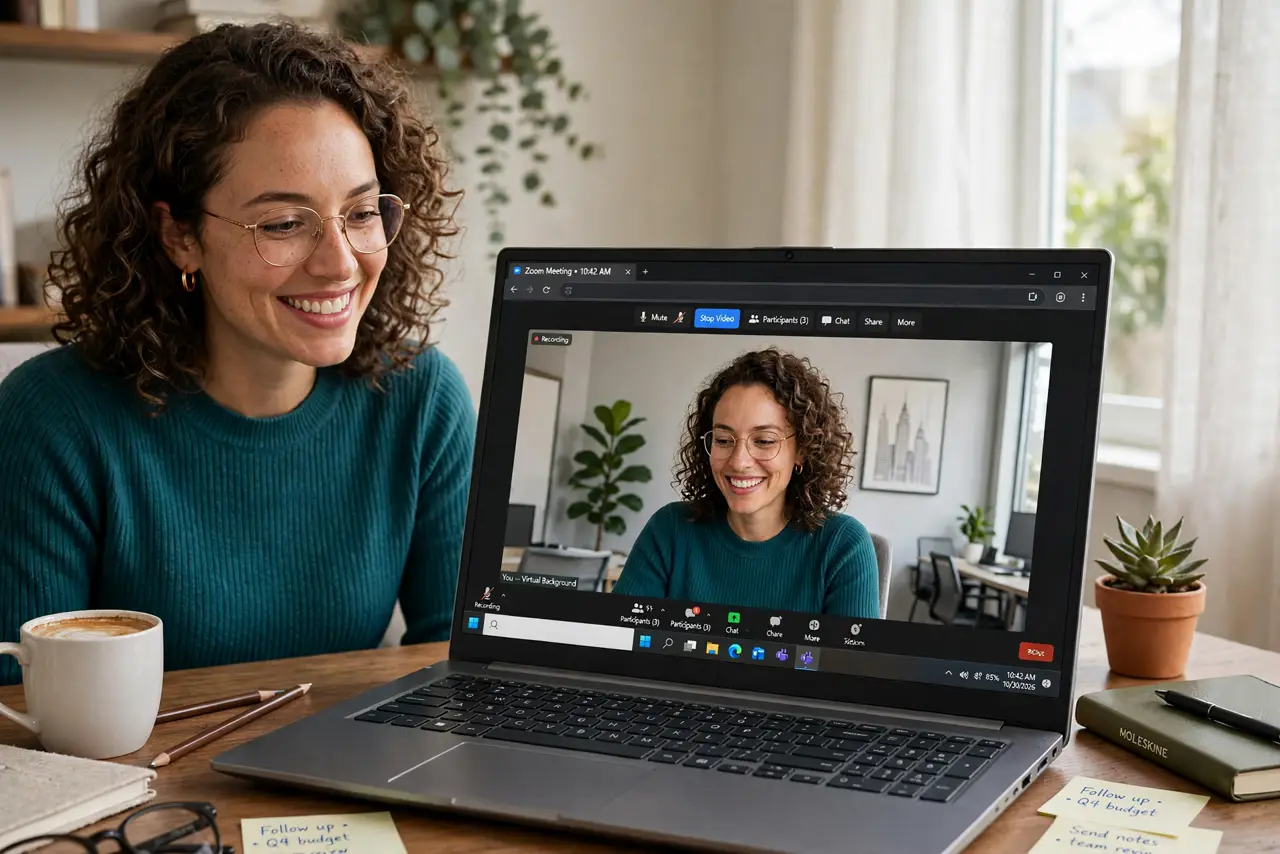
Quick fix: in Zoom settings under Backgrounds and Effects, pick a virtual background or upload your own image — simple, high-contrast scenes work best. Sit in good light facing the camera to avoid edge glitches. Test in a solo meeting before using it with clients.
Follow these steps
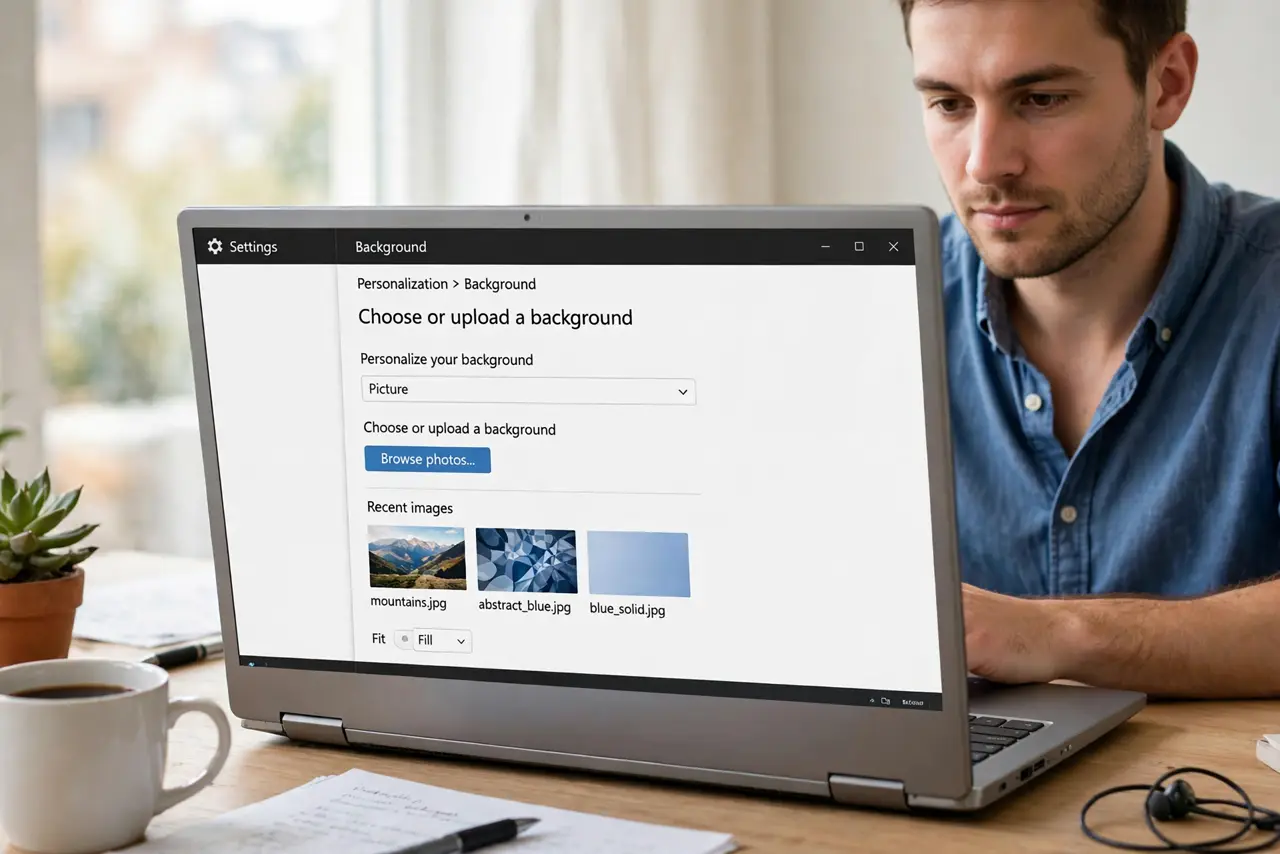
- Choose or upload a background. In Zoom settings, open Backgrounds and Effects and pick one, or click the plus to upload your own image. Professional calls want calm and simple; team socials can be fun.
- Pick images that behave. Simple, slightly dark, high-contrast images work best. Busy detailed photos confuse the edge detection and make you shimmer — test, do not assume.
- Light yourself well. Face a window or lamp so your outline is clear. Backlighting — bright window behind you — is the number one cause of the glitchy floating-head look.
- Mind the green screen option. A physical green screen gives dramatically cleaner edges. Without one, Zoom does a good software job — but keep the background simple to help it.
- Check what is visible. Your background replaces the room, but screen shares and reactions still show. And remember: virtual backgrounds do not hide you reaching for things off-camera.
- Have blur as the fallback. Keep Blur as your quick alternative for calls where a fake backdrop feels wrong. One click switches between them mid-call.
What NOT to do
- Do not use a distracting background for serious calls. The beach scene undermines the quarterly review — save fun for fun calls.
- Do not sit backlit and blame the software. A bright window behind you breaks edge detection on every platform, not just Zoom.
- Do not upload copyrighted or brand images casually. That 'cool office' photo belongs to someone — use licensed or personal images.
- Do not forget virtual backgrounds are per-device. Set them on the laptop and the phone separately.
Frequently asked questions
Why do my edges look glitchy?
Usually lighting — face the light. Busy backgrounds and patterned clothing also confuse the detection.
Can I use a video background?
Yes, Zoom supports video backgrounds, but they use more processing power and can distract. Still images are the professional choice.
Do virtual backgrounds work on phones?
Yes, in the mobile app under Backgrounds. Phones handle simple backgrounds fine; complex ones may stutter.