Run Breakout Rooms
You run a workshop on Zoom and need small groups to actually talk — not thirty silent faces in one big room. Breakout rooms split the meeting into smaller groups that can discuss, then return to share. Hosts who have never run them fumble the controls live, which kills the energy. This guide sets rooms up in advance, manages them mid-session, and brings everyone back smoothly. For keeping big sessions orderly, use Raise Hand alongside.
TL;DR / Quick Fix
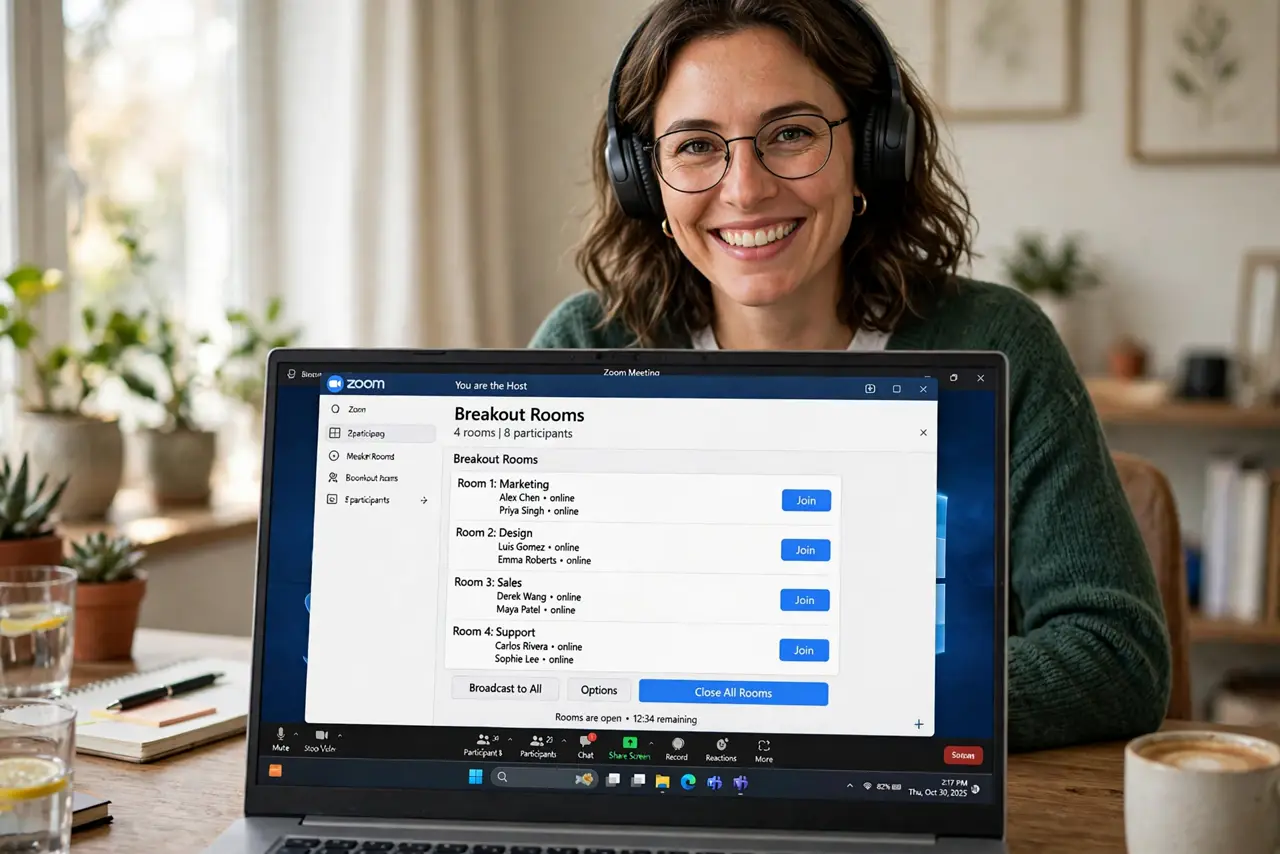
Quick fix: as host, enable breakout rooms in the Zoom web settings first — the button will not appear otherwise. During the meeting, click Breakout Rooms, choose automatic or manual assignment, set a timer, and open the rooms. Broadcast messages to steer groups, then close rooms to recall everyone.
Follow these steps
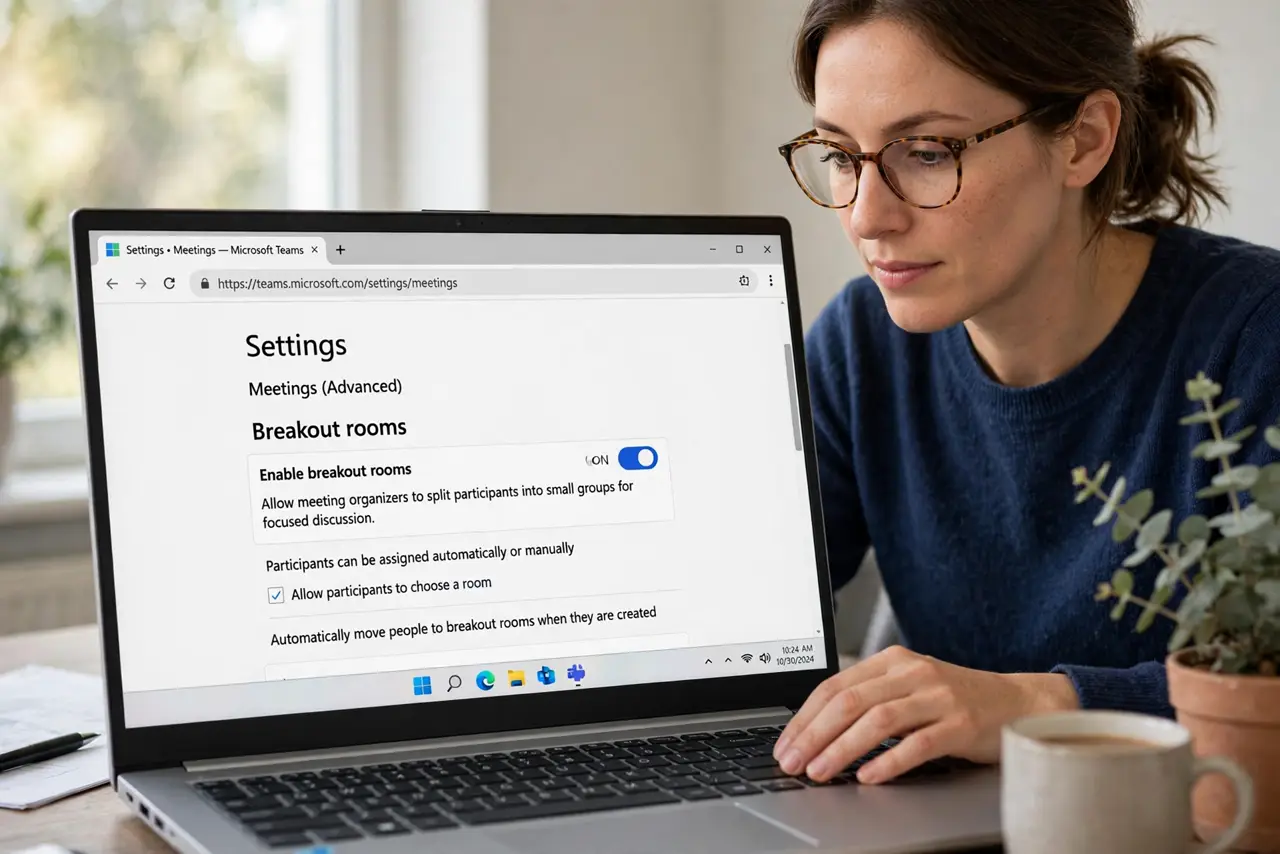
- Enable breakout rooms in web settings. Sign in to the Zoom web portal, go to Settings, then Meetings, and enable Breakout Rooms. Without this, the in-meeting button never appears — the number one gotcha.
- Create rooms before or during the call. Click Breakout Rooms in the meeting toolbar. Choose how many rooms and whether to assign automatically, manually, or let participants choose their own.
- Set a countdown timer. Give groups a time limit with the options menu — visible countdowns focus discussion. Set it before opening rooms, not after people are already inside.
- Broadcast guidance mid-session. Use Broadcast Message to All to nudge every room at once: 'two minutes left' or 'pick someone to report back.' It reaches rooms without you visiting each one.
- Visit rooms to unstick them. Join a room briefly if it goes quiet. A thirty-second visit with a prompting question restarts discussion better than any broadcast.
- Close rooms to recall everyone. Click Close All Rooms with a 60-second warning. Stragglers get auto-returned when the timer ends — then invite each group to share one takeaway.
What NOT to do
- Do not open breakout rooms without enabling them in web settings first. Fumbling for the missing button live wastes everyone's time.
- Do not skip the timer. Open-ended breakouts drift; a visible countdown keeps groups on task.
- Do not assign thirty people manually under pressure. Automatic assignment is fast and fair — reserve manual for when groups truly matter.
- Do not forget co-hosts cannot create rooms unless assigned. Make your helpers co-hosts before the session, not during the chaos.
Frequently asked questions
Can participants choose their own room?
Yes — enable 'let participants choose room' when creating them. Great for topic-based discussions, chaotic for assigned teamwork.
Do breakout rooms get recorded?
Only if someone records inside the room. The main room recording pauses for participants who leave — plan accordingly.
What is the room limit?
Zoom allows up to 100 breakout rooms depending on your plan — far more than most sessions ever need.