Cut Background Noise
The dog barks, the leaf blower starts, and suddenly you are the loudest person in the meeting for all the wrong reasons. Zoom's noise suppression filters background sound before it ever reaches the call — dogs, keyboards, traffic, and hum — and most people never turn it past the default. This guide sets the right level for your environment, tests it before it matters, and covers the cases where suppression works against you, like music. Combine it with blurred backgrounds and your home office looks and sounds professional.
TL;DR / Quick Fix
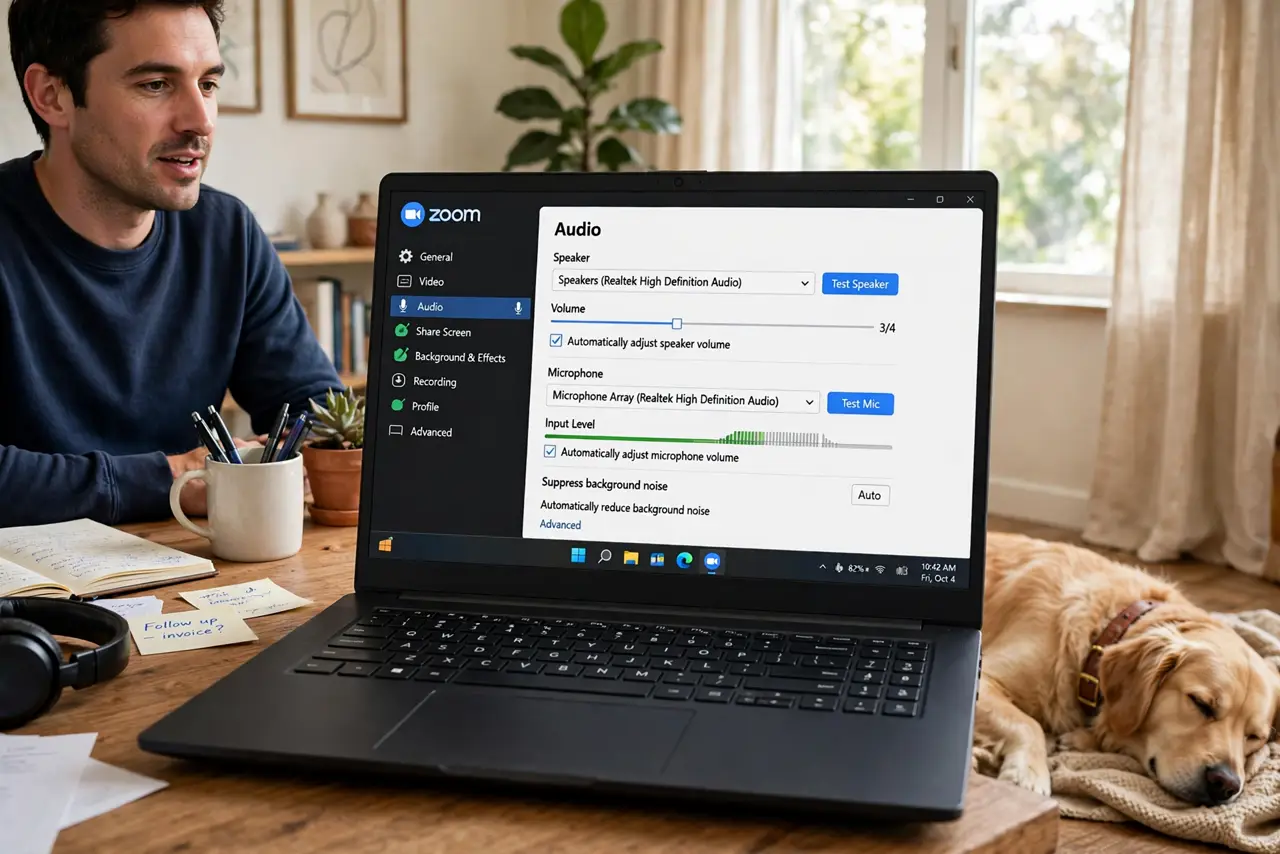
Quick fix: in Zoom settings under Audio, set Suppress background noise to High if your home is noisy — dogs, street, appliances. Test it in a solo meeting before an important call. Switch back to Low or Auto when playing music, since aggressive suppression eats musical detail.
Follow these steps
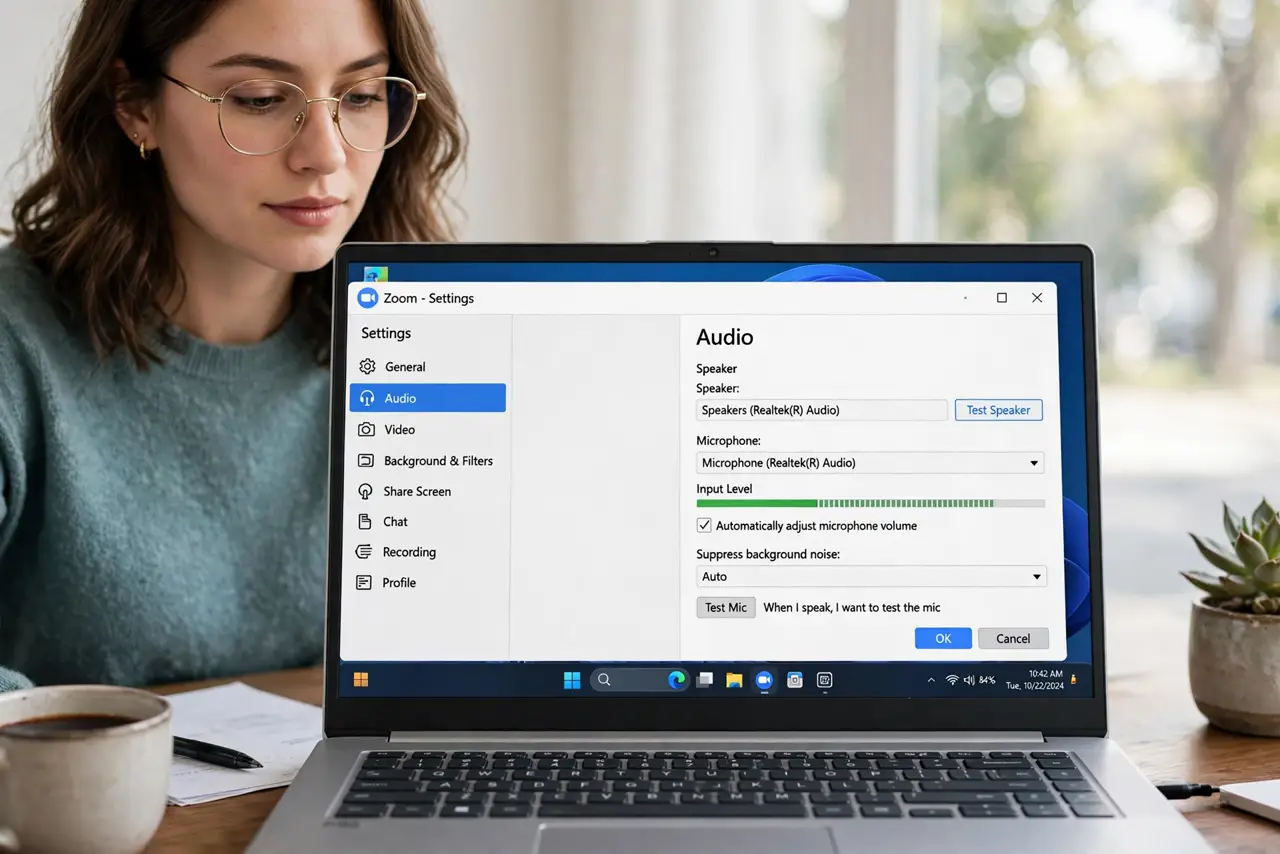
- Open Zoom audio settings. In the Zoom app, open Settings and go to Audio. The Suppress background noise dropdown is the control that matters — the default Auto is conservative.
- Match the level to your noise. Quiet room: Low is fine and keeps your voice natural. Dogs, kids, street noise: High. Auto adapts but reacts slowly — set it manually for a known noisy home.
- Test before the important call. Start a solo Zoom meeting and make noise — clap, run water, have someone talk nearby. Listen to the recording or ask a friend how it sounds at each level.
- Position the microphone well. Suppression works best with a decent signal. Get the mic close to your mouth — laptop mic at arm's length plus suppression beats a distant mic every time.
- Know when to turn it down. Playing guitar, sharing music, or demoing audio? Set suppression to Low. High suppression hears sustained notes as noise and garbles them — switch it back after.
- Use push-to-talk in chaos. For truly wild environments, hold Space to talk and release to mute. Suppression plus push-to-talk makes even a construction-adjacent home office survivable.
What NOT to do
- Do not leave suppression on High for music sharing. It will chew up instruments and singing — drop to Low for any musical content.
- Do not assume suppression replaces muting. When you are not speaking, mute. Suppression reduces noise; muting eliminates it.
- Do not test it for the first time in the big meeting. A two-minute solo test prevents the 'can you hear that drilling' moment.
- Do not sit across the room from the mic and expect miracles. Suppression cleans a good signal; it cannot rescue a whisper from across the room.
Frequently asked questions
Does noise suppression make my voice sound robotic?
On High it can slightly thin the voice. If callers comment, drop to Medium — the tradeoff between cleanliness and naturalness is personal.
Why can I still hear my own keyboard?
Keyboards are intermittent sharp sounds, the hardest to filter. A quieter keyboard or push-to-talk helps more than stronger suppression.
Does it work on phone calls too?
The Zoom mobile app has the same setting under its audio options. Phone mics pick up more room noise, so it matters even more there.