Record Meetings
Someone says the key decision in the meeting, nobody writes it down, and by Friday nobody remembers what was agreed. Recording the Zoom call solves this — but hosts fumble the record button, save to the wrong place, or forget to tell participants, which creates legal and trust problems. This guide records properly: permissions, local vs cloud, and sharing the result. For sharing sound along with video, learn to share screen with audio.
TL;DR / Quick Fix
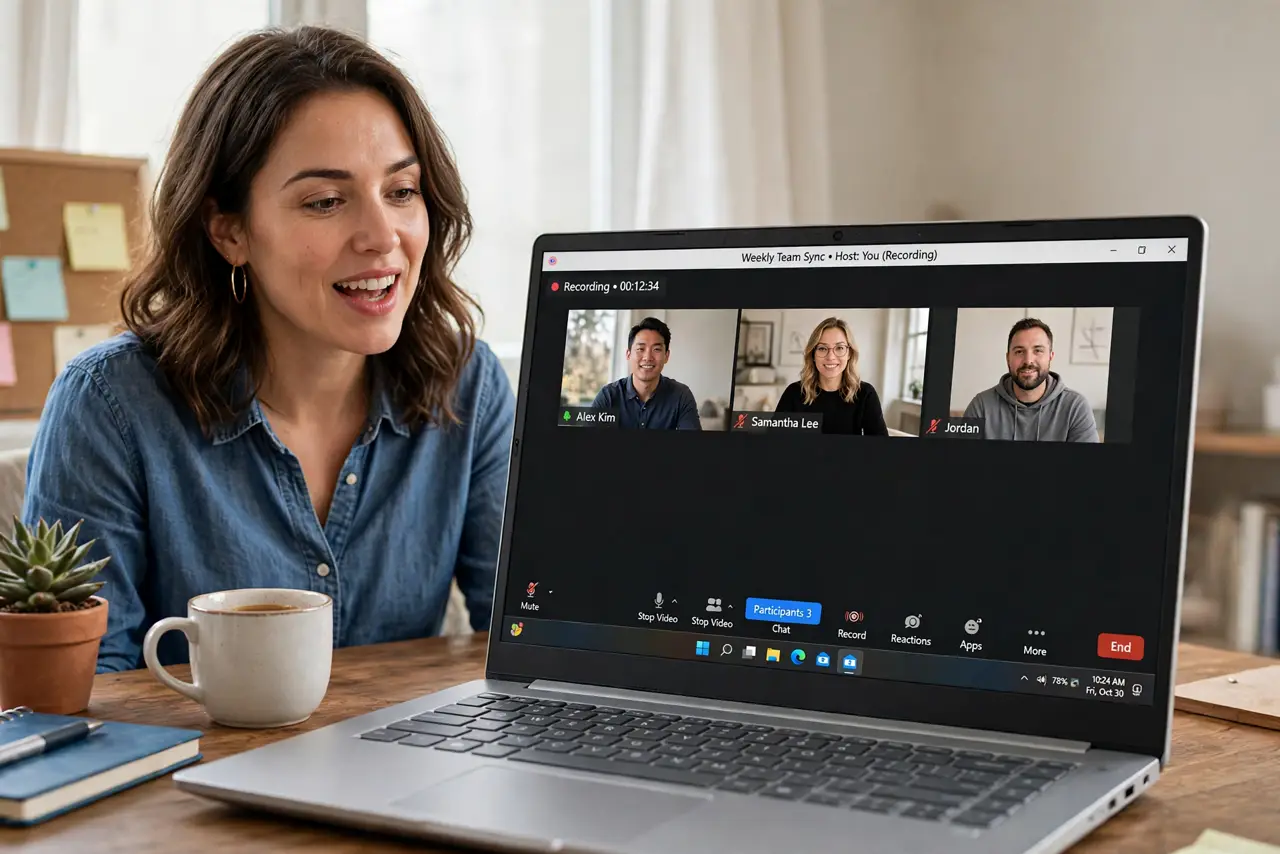
Quick fix: as host, click Record in the Zoom toolbar and choose cloud or local recording — cloud is easiest for sharing. Tell participants you are recording before you start; it is required in many places. Find finished recordings in the Zoom web portal or the local documents folder.
Follow these steps
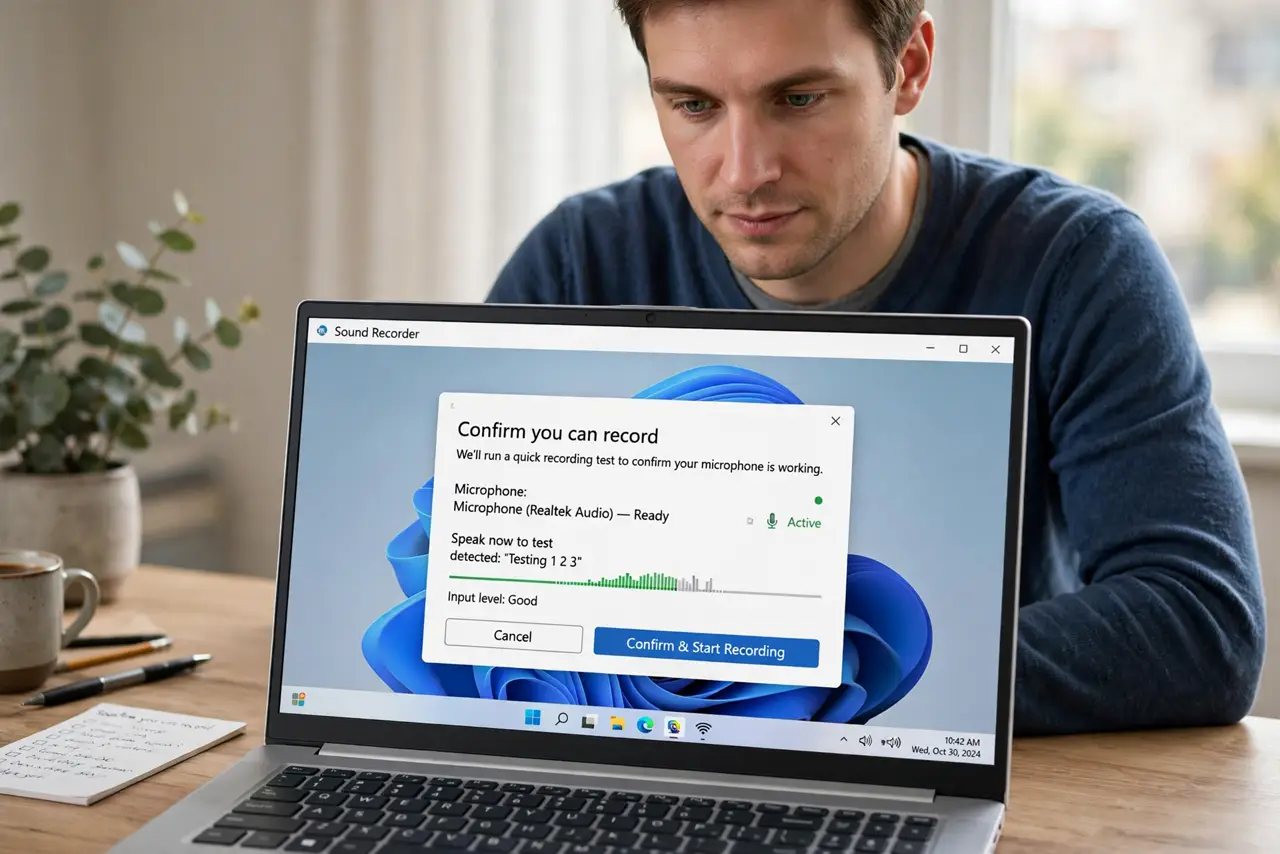
- Confirm you can record. Only hosts and co-hosts can record by default; participants need permission granted mid-call. If the Record button is missing, you are not the host — ask for the role.
- Choose cloud or local. Cloud recording saves to Zoom's servers with automatic transcription on paid plans — easiest to share. Local recording saves an MP4 to your computer — better for privacy and editing.
- Announce the recording. Tell everyone before you hit Record, and note Zoom plays an announcement automatically. Recording consent laws vary by state and country — the announcement covers you in most places.
- Click Record at the right moment. Hit Record when the substantive discussion starts, not during ten minutes of small talk. Less dead air means a recording people will actually watch.
- Pause instead of stopping. Use Pause for side discussions you do not want on record, then Resume. Stopping creates a second file; pausing keeps one clean timeline.
- Share the recording properly. Cloud recordings give a shareable link from the web portal; local ones need uploading. Trim the dead air first if your plan includes the editor — nobody replays the waiting room.
What NOT to do
- Do not record without telling participants. Beyond legality, secret recordings destroy trust when discovered — and they are always discovered.
- Do not record to cloud on a free plan expecting transcription. Auto-transcripts need a paid plan; plan the note-taking accordingly.
- Do not let local recordings pile up unshared. A recording nobody can find helps nobody — share the link the same day.
- Do not forget storage limits. Cloud recording quotas fill fast with long meetings; download and archive the keepers.
Frequently asked questions
Can participants record without permission?
No — the host must allow it. Participants asking mid-call get a prompt the host approves or denies.
Where do local recordings save?
To the Recorded folder inside your Documents, as MP4 plus a separate audio file. Change the location in Zoom settings under Recording.
How long are cloud recordings kept?
It depends on the plan — some auto-delete after months. Download anything worth keeping rather than trusting retention.